forked from Github/frigate
Compare commits
18 Commits
| Author | SHA1 | Date | |
|---|---|---|---|

|
64b63142b1 | ||
|
|
cee1ab000b | ||
|
|
3ff98770c1 | ||
|
|
244203463d | ||
|
|
b6f7940b10 | ||
|
|
75312602aa | ||
|
|
75977128f0 | ||
|
|
eafde6c677 | ||
|
|
da0598baef | ||
|
|
35ba5e2f7c | ||
|
|
49258d6dbe | ||
|
|
5a081e4f00 | ||
|
|
4feae472e9 | ||
|
|
4e83239258 | ||
|
|
c4cccf44a5 | ||
|
|
64e7cbcc62 | ||
|
|
dd86e4f317 | ||
|
|
4db285a875 |
@@ -1,5 +1,5 @@
|
||||
README.md
|
||||
diagram.png
|
||||
docs/
|
||||
.gitignore
|
||||
debug
|
||||
config/
|
||||
|
||||
743
README.md
743
README.md
@@ -1,52 +1,80 @@
|
||||
<p align="center">
|
||||
<img width="40%" align="center" alt="logo" src="docs/frigate.png">
|
||||
</p>
|
||||
|
||||
# Frigate - NVR With Realtime Object Detection for IP Cameras
|
||||
Uses OpenCV and Tensorflow to perform realtime object detection locally for IP cameras. Designed for integration with HomeAssistant or others via MQTT.
|
||||
|
||||
Use of a [Google Coral Accelerator](https://coral.ai/products/) is optional, but highly recommended. On my Intel i7 processor, I can process 2-3 FPS with the CPU. The Coral can process 100+ FPS with very low CPU load.
|
||||
Use of a [Google Coral Accelerator](https://coral.ai/products/) is optional, but highly recommended. The Coral will outperform even the best CPUs and can process 100+ FPS with very little overhead.
|
||||
|
||||
- Designed to minimize resource use and maximize performance by only looking for objects when and where it is necessary
|
||||
- Leverages multiprocessing heavily with an emphasis on realtime over processing every frame
|
||||
- Uses a very low overhead motion detection to determine where to run object detection
|
||||
- Object detection with Tensorflow runs in a separate process
|
||||
- Object info is published over MQTT for integration into HomeAssistant as a binary sensor
|
||||
- An endpoint is available to view an MJPEG stream for debugging, but should not be used continuously
|
||||
|
||||

|
||||
|
||||
## Example video (from older version)
|
||||
You see multiple bounding boxes because it draws bounding boxes from all frames in the past 1 second where a person was detected. Not all of the bounding boxes were from the current frame.
|
||||
[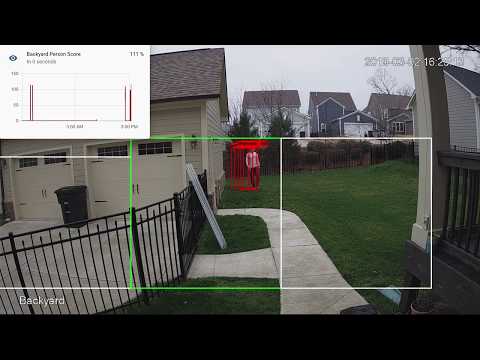](http://www.youtube.com/watch?v=nqHbCtyo4dY "Frigate")
|
||||
- Object detection with TensorFlow runs in separate processes for maximum FPS
|
||||
- Communicates over MQTT for easy integration into other systems
|
||||
|
||||
## Documentation
|
||||
- [Camera Specific Docs](docs/CAMERAS.md)
|
||||
- [Hardware Acceleration](docs/HWACCEL.md)
|
||||
- [How Frigate Works](docs/how-frigate-works.md)
|
||||
- [Recommended Hardware](#recommended-hardware)
|
||||
- [Installing](#installing)
|
||||
- [Configuration File](#configuration)
|
||||
- [Optimizing Performance](#optimizing-performance)
|
||||
- [Detectors](#detectors)
|
||||
- [Object Filters](#object-filters)
|
||||
- [Masks](#masks)
|
||||
- [Zones](#zones)
|
||||
- [Integration with HomeAssistant](#integration-with-homeassistant)
|
||||
- [MQTT Topics](#mqtt-topics)
|
||||
- [HTTP Endpoints](#http-endpoints)
|
||||
- [Custom Models](#custom-models)
|
||||
- [Troubleshooting](#troubleshooting)
|
||||
|
||||
## Getting Started
|
||||
Run the container with
|
||||
```bash
|
||||
docker run --rm \
|
||||
--name frigate \
|
||||
--privileged \
|
||||
--shm-size=100m \ # only needed with large numbers of high res cameras
|
||||
-v /dev/bus/usb:/dev/bus/usb \
|
||||
-v <path_to_config_dir>:/config:ro \
|
||||
-v /etc/localtime:/etc/localtime:ro \
|
||||
-p 5000:5000 \
|
||||
-e FRIGATE_RTSP_PASSWORD='password' \
|
||||
blakeblackshear/frigate:stable
|
||||
```
|
||||
## Recommended Hardware
|
||||
|Name|Inference Speed|Notes|
|
||||
|----|---------------|-----|
|
||||
|Atomic Pi|16ms|Good option for a dedicated low power board with a small number of cameras. Can leverage Intel QuickSync for stream decoding.|
|
||||
|Intel NUC NUC7i3BNK|8-10ms|Great performance. Can handle many cameras at 5fps depending on typical amounts of motion.|
|
||||
|BMAX B2 Plus|10-12ms|Good balance of performance and cost. Also capable of running many other services at the same time as frigate.|
|
||||
|Minisforum GK41|9-10ms|Great alternative to a NUC with dual Gigabit NICs. Easily handles several 1080p cameras.|
|
||||
|Raspberry Pi 3B (32bit)|60ms|Can handle a small number of cameras, but the detection speeds are slow due to USB 2.0.|
|
||||
|Raspberry Pi 4 (32bit)|15-20ms|Can handle a small number of cameras. The 2GB version runs fine.|
|
||||
|Raspberry Pi 4 (64bit)|10-15ms|Can handle a small number of cameras. The 2GB version runs fine.|
|
||||
|
||||
Example docker-compose:
|
||||
[Back to top](#documentation)
|
||||
|
||||
## Installing
|
||||
|
||||
### HassOS Addon
|
||||
HassOS users can install via the addon repository. Frigate requires that an MQTT server be running.
|
||||
1. Navigate to Supervisor > Add-on Store > Repositories
|
||||
1. Add https://github.com/blakeblackshear/frigate-hass-addons
|
||||
1. Setup your configuration in the `Configuration` tab
|
||||
1. Start the addon container
|
||||
|
||||
### Docker
|
||||
Make sure you choose the right image for your architecture:
|
||||
|Arch|Image Name|
|
||||
|-|-|
|
||||
|amd64|blakeblackshear/frigate:stable-amd64|
|
||||
|armv7|blakeblackshear/frigate:stable-armv7|
|
||||
|aarch64|blakeblackshear/frigate:stable-aarch64|
|
||||
|
||||
It is recommended to run with docker-compose:
|
||||
```yaml
|
||||
frigate:
|
||||
container_name: frigate
|
||||
restart: unless-stopped
|
||||
privileged: true
|
||||
shm_size: '100m' # only needed with large numbers of high res cameras
|
||||
image: blakeblackshear/frigate:stable
|
||||
image: blakeblackshear/frigate:stable-amd64
|
||||
volumes:
|
||||
- /dev/bus/usb:/dev/bus/usb
|
||||
- /etc/localtime:/etc/localtime:ro
|
||||
- <path_to_config>:/config
|
||||
- <path_to_directory_for_clips>:/clips
|
||||
- <path_to_directory_for_clips>:/clips
|
||||
- type: tmpfs # 1GB of memory, reduces SSD/SD Card wear
|
||||
target: /cache
|
||||
tmpfs:
|
||||
size: 100000000
|
||||
ports:
|
||||
- "5000:5000"
|
||||
environment:
|
||||
@@ -59,34 +87,427 @@ Example docker-compose:
|
||||
start_period: 3m
|
||||
```
|
||||
|
||||
A `config.yml` file must exist in the `config` directory. See example [here](config/config.example.yml) and camera specific info can be found [here](docs/CAMERAS.md).
|
||||
If you can't use docker compose, you can run the container with:
|
||||
```bash
|
||||
docker run --rm \
|
||||
--name frigate \
|
||||
--privileged \
|
||||
-v /dev/bus/usb:/dev/bus/usb \
|
||||
-v <path_to_config_dir>:/config:ro \
|
||||
-v /etc/localtime:/etc/localtime:ro \
|
||||
-p 5000:5000 \
|
||||
-e FRIGATE_RTSP_PASSWORD='password' \
|
||||
blakeblackshear/frigate:stable-amd64
|
||||
```
|
||||
|
||||
### Kubernetes
|
||||
Use the [helm chart](https://github.com/k8s-at-home/charts/tree/master/charts/frigate).
|
||||
|
||||
### Virtualization
|
||||
For ideal performance, Frigate needs access to underlying hardware for the Coral and GPU devices for ffmpeg decoding. Running Frigate in a VM on top of Proxmox, ESXi, Virtualbox, etc. is not recommended. The virtualization layer typically introduces a sizable amount of overhead for communication with Coral devices.
|
||||
|
||||
#### Proxmox
|
||||
Some people have had success running Frigate in LXC directly with the following config:
|
||||
```
|
||||
arch: amd64
|
||||
cores: 2
|
||||
features: nesting=1
|
||||
hostname: FrigateLXC
|
||||
memory: 4096
|
||||
net0: name=eth0,bridge=vmbr0,firewall=1,hwaddr=2E:76:AE:5A:58:48,ip=dhcp,ip6=auto,type=veth
|
||||
ostype: debian
|
||||
rootfs: local-lvm:vm-115-disk-0,size=12G
|
||||
swap: 512
|
||||
lxc.cgroup.devices.allow: c 189:385 rwm
|
||||
lxc.mount.entry: /dev/dri/renderD128 dev/dri/renderD128 none bind,optional,create=file
|
||||
lxc.mount.entry: /dev/bus/usb/004/002 dev/bus/usb/004/002 none bind,optional,create=file
|
||||
lxc.apparmor.profile: unconfined
|
||||
lxc.cgroup.devices.allow: a
|
||||
lxc.cap.drop:
|
||||
```
|
||||
|
||||
### Calculating shm-size
|
||||
The default shm-size of 64m should be fine for most setups. If you start seeing segfault errors, it could be because you have too many high resolution cameras and you need to specify a higher shm size.
|
||||
The default shm-size of 64m is fine for setups with 3 or less 1080p cameras. If frigate is exiting with "Bus error" messages, it could be because you have too many high resolution cameras and you need to specify a higher shm size.
|
||||
|
||||
You can calculate the necessary shm-size for each camera with the following formula:
|
||||
```
|
||||
(width * height * 3 + 270480)/1048576 = <shm size in mb>
|
||||
(width * height * 1.5 * 7 + 270480)/1048576 = <shm size in mb>
|
||||
```
|
||||
[Back to top](#documentation)
|
||||
|
||||
## Configuration
|
||||
HassOS users can manage their configuration directly in the addon Configuration tab. For other installations, the default location for the config file is `/config/config.yml`. This can be overridden with the `CONFIG_FILE` environment variable. Camera specific ffmpeg parameters are documented [here](docs/cameras.md).
|
||||
|
||||
```yaml
|
||||
# Optional: port for http server (default: shown below)
|
||||
web_port: 5000
|
||||
|
||||
# Optional: detectors configuration
|
||||
# USB Coral devices will be auto detected with CPU fallback
|
||||
detectors:
|
||||
# Required: name of the detector
|
||||
coral:
|
||||
# Required: type of the detector
|
||||
# Valid values are 'edgetpu' (requires device property below) and 'cpu'.
|
||||
type: edgetpu
|
||||
# Optional: device name as defined here: https://coral.ai/docs/edgetpu/multiple-edgetpu/#using-the-tensorflow-lite-python-api
|
||||
device: usb
|
||||
|
||||
# Required: mqtt configuration
|
||||
mqtt:
|
||||
# Required: host name
|
||||
host: mqtt.server.com
|
||||
# Optional: port (default: shown below)
|
||||
port: 1883
|
||||
# Optional: topic prefix (default: shown below)
|
||||
# WARNING: must be unique if you are running multiple instances
|
||||
topic_prefix: frigate
|
||||
# Optional: client id (default: shown below)
|
||||
# WARNING: must be unique if you are running multiple instances
|
||||
client_id: frigate
|
||||
# Optional: user
|
||||
user: mqtt_user
|
||||
# Optional: password
|
||||
# NOTE: Environment variables that begin with 'FRIGATE_' may be referenced in {}.
|
||||
# eg. password: '{FRIGATE_MQTT_PASSWORD}'
|
||||
password: password
|
||||
|
||||
# Optional: Global configuration for saving clips
|
||||
save_clips:
|
||||
# Optional: Maximum length of time to retain video during long events. (default: shown below)
|
||||
# NOTE: If an object is being tracked for longer than this amount of time, the cache
|
||||
# will begin to expire and the resulting clip will be the last x seconds of the event.
|
||||
max_seconds: 300
|
||||
# Optional: Location to save event clips. (default: shown below)
|
||||
clips_dir: /clips
|
||||
# Optional: Location to save cache files for creating clips. (default: shown below)
|
||||
# NOTE: To reduce wear on SSDs and SD cards, use a tmpfs volume.
|
||||
cache_dir: /cache
|
||||
|
||||
# Optional: Global ffmpeg args
|
||||
# "ffmpeg" + global_args + input_args + "-i" + input + output_args
|
||||
ffmpeg:
|
||||
# Optional: global ffmpeg args (default: shown below)
|
||||
global_args:
|
||||
- -hide_banner
|
||||
- -loglevel
|
||||
- panic
|
||||
# Optional: global hwaccel args (default: shown below)
|
||||
# NOTE: See hardware acceleration docs for your specific device
|
||||
hwaccel_args: []
|
||||
# Optional: global input args (default: shown below)
|
||||
input_args:
|
||||
- -avoid_negative_ts
|
||||
- make_zero
|
||||
- -fflags
|
||||
- nobuffer
|
||||
- -flags
|
||||
- low_delay
|
||||
- -strict
|
||||
- experimental
|
||||
- -fflags
|
||||
- +genpts+discardcorrupt
|
||||
- -rtsp_transport
|
||||
- tcp
|
||||
- -stimeout
|
||||
- '5000000'
|
||||
- -use_wallclock_as_timestamps
|
||||
- '1'
|
||||
# Optional: global output args (default: shown below)
|
||||
output_args:
|
||||
- -f
|
||||
- rawvideo
|
||||
- -pix_fmt
|
||||
- yuv420p
|
||||
|
||||
# Optional: Global object filters for all cameras.
|
||||
# NOTE: can be overridden at the camera level
|
||||
objects:
|
||||
# Optional: list of objects to track from labelmap.txt (default: shown below)
|
||||
track:
|
||||
- person
|
||||
# Optional: filters to reduce false positives for specific object types
|
||||
filters:
|
||||
person:
|
||||
# Optional: minimum width*height of the bounding box for the detected object (default: 0)
|
||||
min_area: 5000
|
||||
# Optional: maximum width*height of the bounding box for the detected object (default: max_int)
|
||||
max_area: 100000
|
||||
# Optional: minimum score for the object to initiate tracking (default: shown below)
|
||||
min_score: 0.5
|
||||
# Optional: minimum decimal percentage for tracked object's computed score to be considered a true positive (default: shown below)
|
||||
threshold: 0.85
|
||||
|
||||
# Required: configuration section for cameras
|
||||
cameras:
|
||||
# Required: name of the camera
|
||||
back:
|
||||
# Required: ffmpeg settings for the camera
|
||||
ffmpeg:
|
||||
# Required: Source passed to ffmpeg after the -i parameter.
|
||||
# NOTE: Environment variables that begin with 'FRIGATE_' may be referenced in {}
|
||||
input: rtsp://viewer:{FRIGATE_RTSP_PASSWORD}@10.0.10.10:554/cam/realmonitor?channel=1&subtype=2
|
||||
# Optional: camera specific global args (default: inherit)
|
||||
global_args:
|
||||
# Optional: camera specific hwaccel args (default: inherit)
|
||||
hwaccel_args:
|
||||
# Optional: camera specific input args (default: inherit)
|
||||
input_args:
|
||||
# Optional: camera specific output args (default: inherit)
|
||||
output_args:
|
||||
|
||||
# Optional: height of the frame
|
||||
# NOTE: Recommended to set this value, but frigate will attempt to autodetect.
|
||||
height: 720
|
||||
# Optional: width of the frame
|
||||
# NOTE: Recommended to set this value, but frigate will attempt to autodetect.
|
||||
width: 1280
|
||||
# Optional: desired fps for your camera
|
||||
# NOTE: Recommended value of 5. Ideally, try and reduce your FPS on the camera.
|
||||
# Frigate will attempt to autodetect if not specified.
|
||||
fps: 5
|
||||
|
||||
# Optional: motion mask
|
||||
# NOTE: see docs for more detailed info on creating masks
|
||||
mask: poly,0,900,1080,900,1080,1920,0,1920
|
||||
|
||||
# Optional: timeout for highest scoring image before allowing it
|
||||
# to be replaced by a newer image. (default: shown below)
|
||||
best_image_timeout: 60
|
||||
|
||||
# Optional: camera specific mqtt settings
|
||||
mqtt:
|
||||
# Optional: crop the camera frame to the detection region of the object (default: False)
|
||||
crop_to_region: True
|
||||
# Optional: resize the image before publishing over mqtt
|
||||
snapshot_height: 300
|
||||
|
||||
# Optional: zones for this camera
|
||||
zones:
|
||||
# Required: name of the zone
|
||||
# NOTE: This must be different than any camera names, but can match with another zone on another
|
||||
# camera.
|
||||
front_steps:
|
||||
# Required: List of x,y coordinates to define the polygon of the zone.
|
||||
# NOTE: Coordinates can be generated at https://www.image-map.net/
|
||||
coordinates: 545,1077,747,939,788,805
|
||||
# Optional: Zone level object filters.
|
||||
# NOTE: The global and camera filters are applied upstream.
|
||||
filters:
|
||||
person:
|
||||
min_area: 5000
|
||||
max_area: 100000
|
||||
threshold: 0.8
|
||||
|
||||
# Optional: save clips configuration
|
||||
# NOTE: This feature does not work if you have added "-vsync drop" in your input params.
|
||||
# This will only work for camera feeds that can be copied into the mp4 container format without
|
||||
# encoding such as h264. It may not work for some types of streams.
|
||||
save_clips:
|
||||
# Required: enables clips for the camera (default: shown below)
|
||||
enabled: False
|
||||
# Optional: Number of seconds before the event to include in the clips (default: shown below)
|
||||
pre_capture: 30
|
||||
# Optional: Objects to save clips for. (default: all tracked objects)
|
||||
objects:
|
||||
- person
|
||||
|
||||
# Optional: Configuration for the snapshots in the debug view and mqtt
|
||||
snapshots:
|
||||
# Optional: print a timestamp on the snapshots (default: shown below)
|
||||
show_timestamp: True
|
||||
# Optional: draw zones on the debug mjpeg feed (default: shown below)
|
||||
draw_zones: False
|
||||
# Optional: draw bounding boxes on the mqtt snapshots (default: shown below)
|
||||
draw_bounding_boxes: True
|
||||
|
||||
# Optional: Camera level object filters config. If defined, this is used instead of the global config.
|
||||
objects:
|
||||
track:
|
||||
- person
|
||||
- car
|
||||
filters:
|
||||
person:
|
||||
min_area: 5000
|
||||
max_area: 100000
|
||||
min_score: 0.5
|
||||
threshold: 0.85
|
||||
```
|
||||
[Back to top](#documentation)
|
||||
|
||||
## Optimizing Performance
|
||||
- **Google Coral**: It is strongly recommended to use a Google Coral, but Frigate will fall back to CPU in the event one is not found. Offloading TensorFlow to the Google Coral is an order of magnitude faster and will reduce your CPU load dramatically. A $60 device will outperform $2000 CPU.
|
||||
- **Resolution**: Choose a camera resolution where the smallest object you want to detect barely fits inside a 300x300px square. The model used by Frigate is trained on 300x300px images, so you will get worse performance and no improvement in accuracy by using a larger resolution since Frigate resizes the area where it is looking for objects to 300x300 anyway.
|
||||
- **FPS**: 5 frames per second should be adequate. Higher frame rates will require more CPU usage without improving detections or accuracy. Reducing the frame rate on your camera will have the greatest improvement on system resources.
|
||||
- **Hardware Acceleration**: Make sure you configure the `hwaccel_args` for your hardware. They provide a significant reduction in CPU usage if they are available.
|
||||
- **Masks**: Masks can be used to ignore motion and reduce your idle CPU load. If you have areas with regular motion such as timestamps or trees blowing in the wind, frigate will constantly try to determine if that motion is from a person or other object you are tracking. Those detections not only increase your average CPU usage, but also clog the pipeline for detecting objects elsewhere. If you are experiencing high values for `detection_fps` when no objects of interest are in the cameras, you should use masks to tell frigate to ignore movement from trees, bushes, timestamps, or any part of the image where detections should not be wasted looking for objects.
|
||||
|
||||
### FFmpeg Hardware Acceleration
|
||||
Frigate works on Raspberry Pi 3b/4 and x86 machines. It is recommended to update your configuration to enable hardware accelerated decoding in ffmpeg. Depending on your system, these parameters may not be compatible.
|
||||
|
||||
Raspberry Pi 3/4 (32-bit OS):
|
||||
```yaml
|
||||
ffmpeg:
|
||||
hwaccel_args:
|
||||
- -c:v
|
||||
- h264_mmal
|
||||
```
|
||||
|
||||
## Recommended Hardware
|
||||
|Name|Inference Speed|Notes|
|
||||
|----|---------------|-----|
|
||||
|Atomic Pi|16ms|Best option for a dedicated low power board with a small number of cameras.|
|
||||
|Intel NUC NUC7i3BNK|8-10ms|Best possible performance. Can handle 7+ cameras at 5fps depending on typical amounts of motion.|
|
||||
|BMAX B2 Plus|10-12ms|Good balance of performance and cost. Also capable of running many other services at the same time as frigate.|
|
||||
|Minisforum GK41|9-10ms|Great alternative to a NUC. Easily handiles 4 1080p cameras.|
|
||||
|Raspberry Pi 3B (32bit)|60ms|Can handle a small number of cameras, but the detection speeds are slow|
|
||||
|Raspberry Pi 4 (32bit)|15-20ms|Can handle a small number of cameras. The 2GB version runs fine.|
|
||||
|Raspberry Pi 4 (64bit)|10-15ms|Can handle a small number of cameras. The 2GB version runs fine.|
|
||||
Raspberry Pi 3/4 (64-bit OS)
|
||||
```yaml
|
||||
ffmpeg:
|
||||
hwaccel_args:
|
||||
- -c:v
|
||||
- h264_v4l2m2m
|
||||
```
|
||||
|
||||
Users have reported varying success in getting frigate to run in a VM. In some cases, the virtualization layer introduces a significant delay in communication with the Coral. If running virtualized in Proxmox, pass the USB card/interface to the virtual machine not the USB ID for faster inference speed.
|
||||
Intel-based CPUs (<10th Generation) via Quicksync (https://trac.ffmpeg.org/wiki/Hardware/QuickSync)
|
||||
```yaml
|
||||
ffmpeg:
|
||||
hwaccel_args:
|
||||
- -hwaccel
|
||||
- vaapi
|
||||
- -hwaccel_device
|
||||
- /dev/dri/renderD128
|
||||
- -hwaccel_output_format
|
||||
- yuv420p
|
||||
```
|
||||
|
||||
Intel-based CPUs (>=10th Generation) via Quicksync (https://trac.ffmpeg.org/wiki/Hardware/QuickSync)
|
||||
**Note:** You also need to set `LIBVA_DRIVER_NAME=iHD` as an environment variable on the container.
|
||||
```yaml
|
||||
ffmpeg:
|
||||
hwaccel_args:
|
||||
- -hwaccel
|
||||
- vaapi
|
||||
- -hwaccel_device
|
||||
- /dev/dri/renderD128
|
||||
```
|
||||
|
||||
[Back to top](#documentation)
|
||||
|
||||
## Detectors
|
||||
By default Frigate will look for a USB Coral device and fall back to the CPU if it cannot be found. If you have PCI or multiple Coral devices, you need to configure your detector devices in the config file. When using multiple detectors, they run in dedicated processes, but pull from a common queue of requested detections across all cameras.
|
||||
|
||||
Frigate supports `edgetpu` and `cpu` as detector types. The device value should be specified according to the [Documentation for the TensorFlow Lite Python API](https://coral.ai/docs/edgetpu/multiple-edgetpu/#using-the-tensorflow-lite-python-api).
|
||||
|
||||
Single USB Coral:
|
||||
```yaml
|
||||
detectors:
|
||||
coral:
|
||||
type: edgetpu
|
||||
device: usb
|
||||
```
|
||||
|
||||
Multiple USB Corals:
|
||||
```yaml
|
||||
detectors:
|
||||
coral1:
|
||||
type: edgetpu
|
||||
device: usb:0
|
||||
coral2:
|
||||
type: edgetpu
|
||||
device: usb:1
|
||||
```
|
||||
|
||||
Mixing Corals:
|
||||
```yaml
|
||||
detectors:
|
||||
coral_usb:
|
||||
type: edgetpu
|
||||
device: usb
|
||||
coral_pci:
|
||||
type: edgetpu
|
||||
device: pci
|
||||
```
|
||||
|
||||
CPU Detectors (not recommended):
|
||||
```yaml
|
||||
detectors:
|
||||
cpu1:
|
||||
type: cpu
|
||||
cpu2:
|
||||
type: cpu
|
||||
```
|
||||
[Back to top](#documentation)
|
||||
|
||||
## Reducing False Positives
|
||||
Tune your object filters to adjust false positives: `min_area`, `max_area`, `min_score`, `threshold`.
|
||||
|
||||
For object filters in your configuration, any single detection below `min_score` will be ignored as a false positive. `threshold` is based on the median of the history of scores (padded to 3 values) for a tracked object. Consider the following frames when `min_score` is set to 0.6 and threshold is set to 0.85:
|
||||
|
||||
| Frame | Current Score | Score History | Computed Score | Detected Object |
|
||||
| --- | --- | --- | --- | --- |
|
||||
| 1 | 0.7 | 0.0, 0, 0.7 | 0.0 | No
|
||||
| 2 | 0.55 | 0.0, 0.7, 0.0 | 0.0 | No
|
||||
| 3 | 0.85 | 0.7, 0.0, 0.85 | 0.7 | No
|
||||
| 4 | 0.90 | 0.7, 0.85, 0.95, 0.90 | 0.875 | Yes
|
||||
| 5 | 0.88 | 0.7, 0.85, 0.95, 0.90, 0.88 | 0.88 | Yes
|
||||
| 6 | 0.95 | 0.7, 0.85, 0.95, 0.90, 0.88, 0.95 | 0.89 | Yes
|
||||
|
||||
In frame 2, the score is below the `min_score` value, so frigate ignores it and it becomes a 0.0. The computed score is the median of the score history (padding to at least 3 values), and only when that computed score crosses the `threshold` is the object marked as a true positive. That happens in frame 4 in the example.
|
||||
|
||||
[Back to top](#documentation)
|
||||
|
||||
## Masks
|
||||
The following types of masks are supported:
|
||||
- `poly`: (Recommended) List of x,y points like zone configuration
|
||||
- `base64`: Base64 encoded image file
|
||||
- `image`: Image file in the `/config` directory
|
||||
|
||||
`base64` and `image` masks must be the same aspect ratio and resolution as your camera.
|
||||
|
||||
The mask in the second image would limit motion detection on this camera to only the front yard and not the street.
|
||||
|
||||
<a href="docs/example-mask-check-point.png"><img src="docs/example-mask-check-point.png" height="300"></a>
|
||||
<a href="docs/example-mask.bmp"><img src="docs/example-mask.bmp" height="300"></a>
|
||||
<a href="docs/example-mask-overlay.png"><img src="docs/example-mask-overlay.png" height="300"></a>
|
||||
|
||||
To create a poly mask:
|
||||
1. Download a camera snapshot image with the same resolution as the camera feed (`/<camera_name>/latest.jpg`).
|
||||
1. Upload the image to https://www.image-map.net/
|
||||
1. Select "shape" poly - start in the lowest left corner and place the first marker (point) and continue upwards and then to the right until the polygon shape covers the area that you want to mask out (ignore).
|
||||
1. When you are finished with the polygon click "Show me the code!" and copy all coordinates (point), ie. `"0,461,3,0,1919,0,1919,843,1699,492,1344,458,1346,336,973,317,869,375,866,432"`
|
||||
1. Adjust any -1 values to 0 and then add it all to the configuration (see the example configuration for correct indentation and placement)
|
||||
|
||||
Example of a finished row corresponding to the below example image:
|
||||
```yaml
|
||||
mask: 'poly,0,461,3,0,1919,0,1919,843,1699,492,1344,458,1346,336,973,317,869,375,866,432'
|
||||
```
|
||||
|
||||
<a href="docs/example-mask-poly.png"><img src="docs/example-mask-poly.png" height="300"></a>
|
||||
|
||||
You can test your mask by temporarily configuring it as a [zone](#zones) and enabling `draw_zones` in your config. Zones are visible on the [MJPEG feed](#camera_name).
|
||||
|
||||
[Back to top](#documentation)
|
||||
|
||||
## Zones
|
||||
Zones allow you to define a specific area of the frame and apply additional filters for object types so you can determine whether or not an object is within a particular area. Zones cannot have the same name as a camera. If desired, a single zone can include multiple cameras if you have multiple cameras covering the same area by configuring zones with the same name for each camera.
|
||||
|
||||
During testing, `draw_zones` should be set in the config to draw the zone on the frames so you can adjust as needed. The zone line will increase in thickness when any object enters the zone. Zones are visible on the [MJPEG feed](#camera_name).
|
||||
|
||||

|
||||
|
||||
[Back to top](#documentation)
|
||||
|
||||
## Recording Clips
|
||||
**Note**: Previous versions of frigate included `-vsync drop` in input parameters. This is not compatible with FFmpeg's segment feature and must be removed from your input parameters if you have overrides set.
|
||||
|
||||
Frigate can save video clips without any CPU overhead for encoding by simply copying the stream directly with FFmpeg. It leverages FFmpeg's segment functionality to maintain a cache of video for each camera. The cache files are written to disk at `cache_dir` and do not introduce memory overhead. When an object is being tracked, it will extend the cache to ensure it can assemble a clip when the event ends. Once the event ends, it again uses FFmpeg to assemble a clip by combining the video clips without any encoding by the CPU. Assembled clips are are saved to the `clips_dir` directory along with a json file containing the current information about the tracked object.
|
||||
|
||||
### Global Configuration Options
|
||||
- `max_seconds`: This limits the size of the cache when an object is being tracked. If an object is stationary and being tracked for a long time, the cache files will expire and this value will be the maximum clip length for the *end* of the event. For example, if this is set to 300 seconds and an object is being tracked for 600 seconds, the clip will end up being the last 300 seconds. Defaults to 300 seconds.
|
||||
|
||||
### Per-camera Configuration Options
|
||||
- `pre_capture`: Defines how much time should be included in the clip prior to the beginning of the event. Defaults to 30 seconds.
|
||||
- `objects`: List of object types to save clips for. Object types here must be listed for tracking at the camera or global configuration. Defaults to all tracked objects.
|
||||
|
||||
[Back to top](#documentation)
|
||||
|
||||
## Integration with HomeAssistant
|
||||
|
||||
Setup a camera, binary_sensor, sensor and optionally automation as shown for each camera you define in frigate. Replace <camera_name> with the camera name as defined in the frigate `config.yml` (The `frigate_coral_fps` and `frigate_coral_inference` sensors only need to be defined once)
|
||||
|
||||
```
|
||||
```yaml
|
||||
camera:
|
||||
- name: <camera_name> Last Person
|
||||
platform: mqtt
|
||||
@@ -115,7 +536,7 @@ sensor:
|
||||
- platform: template
|
||||
sensors:
|
||||
<camera_name>_fps:
|
||||
value_template: '{{ states.sensor.frigate_debug.attributes["<camera_name>"]["fps"] }}'
|
||||
value_template: '{{ states.sensor.frigate_debug.attributes["<camera_name>"]["camera_fps"] }}'
|
||||
unit_of_measurement: 'FPS'
|
||||
<camera_name>_skipped_fps:
|
||||
value_template: '{{ states.sensor.frigate_debug.attributes["<camera_name>"]["skipped_fps"] }}'
|
||||
@@ -150,6 +571,9 @@ automation:
|
||||
- url: http://<ip>:5000/<camera_name>/person/best.jpg
|
||||
caption: A person was detected.
|
||||
```
|
||||
|
||||
[Back to top](#documentation)
|
||||
|
||||
## HTTP Endpoints
|
||||
A web server is available on port 5000 with the following endpoints.
|
||||
|
||||
@@ -172,134 +596,9 @@ Example parameters:
|
||||
- `h=300`: resizes the image to 300 pixes tall
|
||||
|
||||
### `/debug/stats`
|
||||
Contains some granular debug info that can be used for sensors in HomeAssistant. See details below.
|
||||
Contains some granular debug info that can be used for sensors in HomeAssistant.
|
||||
|
||||
## MQTT Messages
|
||||
These are the MQTT messages generated by Frigate. The default topic_prefix is `frigate`, but can be changed in the config file.
|
||||
|
||||
### frigate/available
|
||||
Designed to be used as an availability topic with HomeAssistant. Possible message are:
|
||||
"online": published when frigate is running (on startup)
|
||||
"offline": published right before frigate stops
|
||||
|
||||
### frigate/<camera_name>/<object_name>
|
||||
Publishes `ON` or `OFF` and is designed to be used a as a binary sensor in HomeAssistant for whether or not that object type is detected.
|
||||
|
||||
### frigate/<camera_name>/<object_name>/snapshot
|
||||
Publishes a jpeg encoded frame of the detected object type. When the object is no longer detected, the highest confidence image is published or the original image
|
||||
is published again.
|
||||
|
||||
The height and crop of snapshots can be configured as shown in the example config.
|
||||
|
||||
### frigate/<camera_name>/events/start
|
||||
Message published at the start of any tracked object. JSON looks as follows:
|
||||
```json
|
||||
{
|
||||
"label": "person",
|
||||
"score": 0.87890625,
|
||||
"box": [
|
||||
95,
|
||||
155,
|
||||
581,
|
||||
1182
|
||||
],
|
||||
"area": 499122,
|
||||
"region": [
|
||||
0,
|
||||
132,
|
||||
1080,
|
||||
1212
|
||||
],
|
||||
"frame_time": 1600208805.60284,
|
||||
"centroid": [
|
||||
338,
|
||||
668
|
||||
],
|
||||
"id": "1600208805.60284-k1l43p",
|
||||
"start_time": 1600208805.60284,
|
||||
"top_score": 0.87890625,
|
||||
"zones": [],
|
||||
"score_history": [
|
||||
0.87890625
|
||||
],
|
||||
"computed_score": 0.0,
|
||||
"false_positive": true
|
||||
}
|
||||
```
|
||||
|
||||
### frigate/<camera_name>/events/end
|
||||
Same as `frigate/<camera_name>/events/start`, but with an `end_time` property as well.
|
||||
|
||||
### frigate/<zone_name>/<object_name>
|
||||
Publishes `ON` or `OFF` and is designed to be used a as a binary sensor in HomeAssistant for whether or not that object type is detected in the zone.
|
||||
|
||||
## Understanding min_score and threshold filters
|
||||
`min_score` defines the minimum score for Frigate to begin tracking a detected object. Any single detection below `min_score` will be ignored as a false positive. `threshold` is based on the median of the history of scores for a tracked object. Consider the following frames when `min_score` is set to 0.6 and threshold is set to 0.85:
|
||||
|
||||
| Frame | Current Score | Score History | Computed Score | Detected Object |
|
||||
| --- | --- | --- | --- | --- |
|
||||
| 1 | 0.7 | 0.0, 0, 0.7 | 0.0 | No
|
||||
| 2 | 0.55 | 0.0, 0.7, 0.0 | 0.0 | No
|
||||
| 3 | 0.85 | 0.7, 0.0, 0.85 | 0.7 | No
|
||||
| 4 | 0.90 | 0.7, 0.85, 0.95, 0.90 | 0.875 | Yes
|
||||
| 5 | 0.88 | 0.7, 0.85, 0.95, 0.90, 0.88 | 0.88 | Yes
|
||||
| 6 | 0.95 | 0.7, 0.85, 0.95, 0.90, 0.88, 0.95 | 0.89 | Yes
|
||||
|
||||
In frame 2, the score is below the `min_score` value, so frigate ignores it and it becomes a 0.0. The computed score is the median of the score history (padding to at least 3 values), and only when that computed score crosses the `threshold` is the object marked as a true positive. That happens in frame 4 in the example.
|
||||
|
||||
## Using a custom model or labels
|
||||
Models for both CPU and EdgeTPU (Coral) are bundled in the image. You can use your own models with volume mounts:
|
||||
- CPU Model: `/cpu_model.tflite`
|
||||
- EdgeTPU Model: `/edgetpu_model.tflite`
|
||||
- Labels: `/labelmap.txt`
|
||||
|
||||
### Customizing the Labelmap
|
||||
The labelmap can be customized to your needs. A common reason to do this is to combine multiple object types that are easily confused when you don't need to be as granular such as car/truck. You must retain the same number of labels, but you can change the names. To change:
|
||||
|
||||
- Download the [COCO labelmap](https://dl.google.com/coral/canned_models/coco_labels.txt)
|
||||
- Modify the label names as desired. For example, change `7 truck` to `7 car`
|
||||
- Mount the new file at `/labelmap.txt` in the container with an additional volume
|
||||
```
|
||||
-v ./config/labelmap.txt:/labelmap.txt
|
||||
```
|
||||
|
||||
## Recording Clips
|
||||
**Note**: Previous versions of frigate included `-vsync drop` in input parameters. This is not compatible with FFmpeg's segment feature and must be removed from your input parameters if you have overrides set.
|
||||
|
||||
Frigate can save video clips without any CPU overhead for encoding by simply copying the stream directly with FFmpeg. It leverages FFmpeg's segment functionality to maintain a cache of 90 seconds of video for each camera. The cache files are written to disk at /cache and do not introduce memory overhead. When an object is being tracked, it will extend the cache to ensure it can assemble a clip when the event ends. Once the event ends, it again uses FFmpeg to assemble a clip by combining the video clips without any encoding by the CPU. Assembled clips are are saved to the /clips directory along with a json file containing the current information about the tracked object.
|
||||
|
||||
### Global Configuration Options
|
||||
- `max_seconds`: This limits the size of the cache when an object is being tracked. If an object is stationary and being tracked for a long time, the cache files will expire and this value will be the maximum clip length for the *end* of the event. For example, if this is set to 300 seconds and an object is being tracked for 600 seconds, the clip will end up being the last 300 seconds. Defaults to 300 seconds.
|
||||
|
||||
### Per-camera Configuration Options
|
||||
- `pre_capture`: Defines how much time should be included in the clip prior to the beginning of the event. Defaults to 30 seconds.
|
||||
- `objects`: List of object types to save clips for. Object types here must be listed for tracking at the camera or global configuration. Defaults to all tracked objects.
|
||||
|
||||
## Detectors Configuration
|
||||
Frigate attempts to detect your Coral device automatically. If you have multiple Coral devices or a version that is not detected automatically, you can specify using the `detectors` config option as shown in the example config.
|
||||
|
||||
## Masks and limiting detection to a certain area
|
||||
The mask works by looking at the bottom center of any bounding box (first image, red dot below) and comparing that to your mask. If that red dot falls on an area of your mask that is black, the detection (and motion) will be ignored. The mask in the second image would limit detection on this camera to only objects that are in the front yard and not the street.
|
||||
|
||||
<a href="docs/example-mask-check-point.png"><img src="docs/example-mask-check-point.png" height="300"></a>
|
||||
<a href="docs/example-mask.bmp"><img src="docs/example-mask.bmp" height="300"></a>
|
||||
<a href="docs/example-mask-overlay.png"><img src="docs/example-mask-overlay.png" height="300"></a>
|
||||
|
||||
The following types of masks are supported:
|
||||
- `base64`: Base64 encoded image file
|
||||
- `poly`: List of x,y points like zone configuration
|
||||
- `image`: Path to an image file in the config directory
|
||||
|
||||
`base64` and `image` masks must be the same aspect ratio as your camera.
|
||||
|
||||
## Zones
|
||||
Zones allow you to define a specific area of the frame and apply additional filters for object types so you can determine whether or not an object is within a particular area. Zones cannot have the same name as a camera. If desired, a single zone can include multiple cameras if you have multiple cameras covering the same area. See the sample config for details on how to configure.
|
||||
|
||||
During testing, `draw_zones` can be set in the config to tell frigate to draw the zone on the frames so you can adjust as needed. The zone line will increase in thickness when any object enters the zone.
|
||||
|
||||

|
||||
|
||||
## Debug Info
|
||||
Sample response:
|
||||
```jsonc
|
||||
{
|
||||
/* Per Camera Stats */
|
||||
@@ -382,19 +681,86 @@ During testing, `draw_zones` can be set in the config to tell frigate to draw th
|
||||
}
|
||||
```
|
||||
|
||||
## Tips
|
||||
- Lower the framerate of the video feed on the camera to reduce the CPU usage for capturing the feed. Not as effective, but you can also modify the `take_frame` [configuration](config/config.example.yml) for each camera to only analyze every other frame, or every third frame, etc.
|
||||
- Hard code the resolution of each camera in your config if you are having difficulty starting frigate or if the initial ffprobe for camerea resolution fails or returns incorrect info. Example:
|
||||
[Back to top](#documentation)
|
||||
|
||||
## MQTT Topics
|
||||
These are the MQTT messages generated by Frigate. The default topic_prefix is `frigate`, but can be changed in the config file.
|
||||
|
||||
### `frigate/available`
|
||||
Designed to be used as an availability topic with HomeAssistant. Possible message are:
|
||||
"online": published when frigate is running (on startup)
|
||||
"offline": published right before frigate stops
|
||||
|
||||
### `frigate/<camera_name>/<object_name>`
|
||||
Publishes `ON` or `OFF` and is designed to be used a as a binary sensor in HomeAssistant for whether or not that object type is detected.
|
||||
|
||||
### `frigate/<camera_name>/<object_name>/snapshot`
|
||||
Publishes a jpeg encoded frame of the detected object type. When the object is no longer detected, the highest confidence image is published or the original image
|
||||
is published again.
|
||||
|
||||
The height and crop of snapshots can be configured in the config.
|
||||
|
||||
### `frigate/<camera_name>/events/start`
|
||||
Message published at the start of any tracked object. JSON looks as follows:
|
||||
```json
|
||||
{
|
||||
"label": "person",
|
||||
"score": 0.87890625,
|
||||
"box": [
|
||||
95,
|
||||
155,
|
||||
581,
|
||||
1182
|
||||
],
|
||||
"area": 499122,
|
||||
"region": [
|
||||
0,
|
||||
132,
|
||||
1080,
|
||||
1212
|
||||
],
|
||||
"frame_time": 1600208805.60284,
|
||||
"centroid": [
|
||||
338,
|
||||
668
|
||||
],
|
||||
"id": "1600208805.60284-k1l43p",
|
||||
"start_time": 1600208805.60284,
|
||||
"top_score": 0.87890625,
|
||||
"zones": [],
|
||||
"score_history": [
|
||||
0.87890625
|
||||
],
|
||||
"computed_score": 0.0,
|
||||
"false_positive": true
|
||||
}
|
||||
```
|
||||
cameras:
|
||||
back:
|
||||
ffmpeg:
|
||||
input: rtsp://<camera>
|
||||
height: 1080
|
||||
width: 1920
|
||||
```
|
||||
- Additional logging is available in the docker container - You can view the logs by running `docker logs -t frigate`
|
||||
- Object configuration - Tracked objects types, sizes and thresholds can be defined globally and/or on a per camera basis. The global and camera object configuration is *merged*. For example, if you defined tracking person, car, and truck globally but modified your backyard camera to only track person, the global config would merge making the effective list for the backyard camera still contain person, car and truck. If you want precise object tracking per camera, best practice to put a minimal list of objects at the global level and expand objects on a per camera basis. Object threshold and area configuration will be used first from the camera object config (if defined) and then from the global config. See the [example config](config/config.example.yml) for more information.
|
||||
|
||||
### `frigate/<camera_name>/events/end`
|
||||
Same as `frigate/<camera_name>/events/start`, but with an `end_time` property as well.
|
||||
|
||||
### `frigate/<zone_name>/<object_name>`
|
||||
Publishes `ON` when the object enters the zone and `OFF` when the object disappears or exits the zone. Designed to be used a as a binary sensor in HomeAssistant for whether or not that object type is detected in the zone.
|
||||
|
||||
[Back to top](#documentation)
|
||||
|
||||
## Custom Models
|
||||
Models for both CPU and EdgeTPU (Coral) are bundled in the image. You can use your own models with volume mounts:
|
||||
- CPU Model: `/cpu_model.tflite`
|
||||
- EdgeTPU Model: `/edgetpu_model.tflite`
|
||||
- Labels: `/labelmap.txt`
|
||||
|
||||
### Customizing the Labelmap
|
||||
The labelmap can be customized to your needs. A common reason to do this is to combine multiple object types that are easily confused when you don't need to be as granular such as car/truck. You must retain the same number of labels, but you can change the names. To change:
|
||||
|
||||
- Download the [COCO labelmap](https://dl.google.com/coral/canned_models/coco_labels.txt)
|
||||
- Modify the label names as desired. For example, change `7 truck` to `7 car`
|
||||
- Mount the new file at `/labelmap.txt` in the container with an additional volume
|
||||
```
|
||||
-v ./config/labelmap.txt:/labelmap.txt
|
||||
```
|
||||
|
||||
[Back to top](#documentation)
|
||||
|
||||
## Troubleshooting
|
||||
|
||||
@@ -408,3 +774,8 @@ ffmpeg:
|
||||
- info
|
||||
```
|
||||
|
||||
### "On connect called"
|
||||
If you see repeated "On connect called" messages in your config, check for another instance of frigate. This happens when multiple frigate containers are trying to connect to mqtt with the same client_id.
|
||||
|
||||
[Back to top](#documentation)
|
||||
|
||||
|
||||

Binary file not shown.
|
Before Width: | Height: | Size: 1.8 MiB |
@@ -1,234 +0,0 @@
|
||||
web_port: 5000
|
||||
|
||||
################
|
||||
## List of detectors.
|
||||
## Currently supported types: cpu, edgetpu
|
||||
## EdgeTPU requires device as defined here: https://coral.ai/docs/edgetpu/multiple-edgetpu/#using-the-tensorflow-lite-python-api
|
||||
################
|
||||
detectors:
|
||||
coral:
|
||||
type: edgetpu
|
||||
device: usb
|
||||
|
||||
mqtt:
|
||||
host: mqtt.server.com
|
||||
topic_prefix: frigate
|
||||
# client_id: frigate # Optional -- set to override default client id of 'frigate' if running multiple instances
|
||||
# user: username # Optional
|
||||
#################
|
||||
## Environment variables that begin with 'FRIGATE_' may be referenced in {}.
|
||||
## password: '{FRIGATE_MQTT_PASSWORD}'
|
||||
#################
|
||||
# password: password # Optional
|
||||
|
||||
################
|
||||
# Global configuration for saving clips
|
||||
################
|
||||
save_clips:
|
||||
###########
|
||||
# Maximum length of time to retain video during long events.
|
||||
# If an object is being tracked for longer than this amount of time, the cache
|
||||
# will begin to expire and the resulting clip will be the last x seconds of the event.
|
||||
###########
|
||||
max_seconds: 300
|
||||
clips_dir: /clips
|
||||
cache_dir: /cache
|
||||
|
||||
#################
|
||||
# Default ffmpeg args. Optional and can be overwritten per camera.
|
||||
# Should work with most RTSP cameras that send h264 video
|
||||
# Built from the properties below with:
|
||||
# "ffmpeg" + global_args + input_args + "-i" + input + output_args
|
||||
#################
|
||||
# ffmpeg:
|
||||
# global_args:
|
||||
# - -hide_banner
|
||||
# - -loglevel
|
||||
# - panic
|
||||
# hwaccel_args: []
|
||||
# input_args:
|
||||
# - -avoid_negative_ts
|
||||
# - make_zero
|
||||
# - -fflags
|
||||
# - nobuffer
|
||||
# - -flags
|
||||
# - low_delay
|
||||
# - -strict
|
||||
# - experimental
|
||||
# - -fflags
|
||||
# - +genpts+discardcorrupt
|
||||
# - -vsync
|
||||
# - drop
|
||||
# - -rtsp_transport
|
||||
# - tcp
|
||||
# - -stimeout
|
||||
# - '5000000'
|
||||
# - -use_wallclock_as_timestamps
|
||||
# - '1'
|
||||
# output_args:
|
||||
# - -f
|
||||
# - rawvideo
|
||||
# - -pix_fmt
|
||||
# - yuv420p
|
||||
|
||||
####################
|
||||
# Global object configuration. Applies to all cameras
|
||||
# unless overridden at the camera levels.
|
||||
# Keys must be valid labels. By default, the model uses coco (https://dl.google.com/coral/canned_models/coco_labels.txt).
|
||||
# All labels from the model are reported over MQTT. These values are used to filter out false positives.
|
||||
# min_area (optional): minimum width*height of the bounding box for the detected object
|
||||
# max_area (optional): maximum width*height of the bounding box for the detected object
|
||||
# min_score (optional): minimum score for the object to initiate tracking
|
||||
# threshold (optional): The minimum decimal percentage for tracked object's computed score to considered a true positive
|
||||
####################
|
||||
objects:
|
||||
track:
|
||||
- person
|
||||
filters:
|
||||
person:
|
||||
min_area: 5000
|
||||
max_area: 100000
|
||||
min_score: 0.5
|
||||
threshold: 0.85
|
||||
|
||||
cameras:
|
||||
back:
|
||||
ffmpeg:
|
||||
################
|
||||
# Source passed to ffmpeg after the -i parameter. Supports anything compatible with OpenCV and FFmpeg.
|
||||
# Environment variables that begin with 'FRIGATE_' may be referenced in {}
|
||||
################
|
||||
input: rtsp://viewer:{FRIGATE_RTSP_PASSWORD}@10.0.10.10:554/cam/realmonitor?channel=1&subtype=2
|
||||
#################
|
||||
# These values will override default values for just this camera
|
||||
#################
|
||||
# global_args: []
|
||||
# hwaccel_args: []
|
||||
# input_args: []
|
||||
# output_args: []
|
||||
|
||||
################
|
||||
## Optionally specify the resolution of the video feed. Frigate will try to auto detect if not specified
|
||||
################
|
||||
# height: 1280
|
||||
# width: 720
|
||||
|
||||
################
|
||||
## Specify the framerate of your camera
|
||||
##
|
||||
## NOTE: This should only be set in the event ffmpeg is unable to determine your camera's framerate
|
||||
## on its own and the reported framerate for your camera in frigate is well over what is expected.
|
||||
################
|
||||
# fps: 5
|
||||
|
||||
################
|
||||
## Optional mask. Must be the same aspect ratio as your video feed. Value is any of the following:
|
||||
## - name of a file in the config directory
|
||||
## - base64 encoded image prefixed with 'base64,' eg. 'base64,asfasdfasdf....'
|
||||
## - polygon of x,y coordinates prefixed with 'poly,' eg. 'poly,0,900,1080,900,1080,1920,0,1920'
|
||||
##
|
||||
## The mask works by looking at the bottom center of the bounding box for the detected
|
||||
## person in the image. If that pixel in the mask is a black pixel, it ignores it as a
|
||||
## false positive. In my mask, the grass and driveway visible from my backdoor camera
|
||||
## are white. The garage doors, sky, and trees (anywhere it would be impossible for a
|
||||
## person to stand) are black.
|
||||
##
|
||||
## Masked areas are also ignored for motion detection.
|
||||
################
|
||||
# mask: back-mask.bmp
|
||||
|
||||
################
|
||||
# Allows you to limit the framerate within frigate for cameras that do not support
|
||||
# custom framerates. A value of 1 tells frigate to look at every frame, 2 every 2nd frame,
|
||||
# 3 every 3rd frame, etc.
|
||||
################
|
||||
take_frame: 1
|
||||
|
||||
################
|
||||
# The number of seconds to retain the highest scoring image for the best.jpg endpoint before allowing it
|
||||
# to be replaced by a newer image. Defaults to 60 seconds.
|
||||
################
|
||||
best_image_timeout: 60
|
||||
|
||||
################
|
||||
# MQTT settings
|
||||
################
|
||||
# mqtt:
|
||||
# crop_to_region: True
|
||||
# snapshot_height: 300
|
||||
|
||||
################
|
||||
# Zones
|
||||
################
|
||||
zones:
|
||||
#################
|
||||
# Name of the zone
|
||||
################
|
||||
front_steps:
|
||||
####################
|
||||
# A list of x,y coordinates to define the polygon of the zone. The top
|
||||
# left corner is 0,0. Can also be a comma separated string of all x,y coordinates combined.
|
||||
# The same zone name can exist across multiple cameras if they have overlapping FOVs.
|
||||
# An object is determined to be in the zone based on whether or not the bottom center
|
||||
# of it's bounding box is within the polygon. The polygon must have at least 3 points.
|
||||
# Coordinates can be generated at https://www.image-map.net/
|
||||
####################
|
||||
coordinates:
|
||||
- 545,1077
|
||||
- 747,939
|
||||
- 788,805
|
||||
################
|
||||
# Zone level object filters. These are applied in addition to the global and camera filters
|
||||
# and should be more restrictive than the global and camera filters. The global and camera
|
||||
# filters are applied upstream.
|
||||
################
|
||||
filters:
|
||||
person:
|
||||
min_area: 5000
|
||||
max_area: 100000
|
||||
threshold: 0.8
|
||||
|
||||
################
|
||||
# This will save a clip for each tracked object by frigate along with a json file that contains
|
||||
# data related to the tracked object. This works by telling ffmpeg to write video segments to /cache
|
||||
# from the video stream without re-encoding. Clips are then created by using ffmpeg to merge segments
|
||||
# without re-encoding. The segments saved are unaltered from what frigate receives to avoid re-encoding.
|
||||
# They do not contain bounding boxes. These are optimized to capture "false_positive" examples for improving frigate.
|
||||
#
|
||||
# NOTE: This feature does not work if you have "-vsync drop" configured in your input params.
|
||||
# This will only work for camera feeds that can be copied into the mp4 container format without
|
||||
# encoding such as h264. It may not work for some types of streams.
|
||||
################
|
||||
save_clips:
|
||||
enabled: False
|
||||
#########
|
||||
# Number of seconds before the event to include in the clips
|
||||
#########
|
||||
pre_capture: 30
|
||||
#########
|
||||
# Objects to save clips for. Defaults to all tracked object types.
|
||||
#########
|
||||
# objects:
|
||||
# - person
|
||||
|
||||
################
|
||||
# Configuration for the snapshots in the debug view and mqtt
|
||||
################
|
||||
snapshots:
|
||||
show_timestamp: True
|
||||
draw_zones: False
|
||||
draw_bounding_boxes: True
|
||||
|
||||
################
|
||||
# Camera level object config. If defined, this is used instead of the global config.
|
||||
################
|
||||
objects:
|
||||
track:
|
||||
- person
|
||||
- car
|
||||
filters:
|
||||
person:
|
||||
min_area: 5000
|
||||
max_area: 100000
|
||||
min_score: 0.5
|
||||
threshold: 0.85
|
||||
@@ -18,7 +18,7 @@ import logging
|
||||
from flask import Flask, Response, make_response, jsonify, request
|
||||
import paho.mqtt.client as mqtt
|
||||
|
||||
from frigate.video import track_camera, get_ffmpeg_input, get_frame_shape, CameraCapture, start_or_restart_ffmpeg
|
||||
from frigate.video import capture_camera, track_camera, get_ffmpeg_input, get_frame_shape, CameraCapture, start_or_restart_ffmpeg
|
||||
from frigate.object_processing import TrackedObjectProcessor
|
||||
from frigate.events import EventProcessor
|
||||
from frigate.util import EventsPerSecond
|
||||
@@ -36,11 +36,11 @@ elif CONFIG_FILE.endswith(".json"):
|
||||
CONFIG = json.load(f)
|
||||
|
||||
CACHE_DIR = CONFIG.get('save_clips', {}).get('cache_dir', '/cache')
|
||||
CLIPS_DIR = CONFIG.get('save_clips', {}).get('clips_dir', '/cache')
|
||||
CLIPS_DIR = CONFIG.get('save_clips', {}).get('clips_dir', '/clips')
|
||||
|
||||
if not os.path.exists(CACHE_DIR):
|
||||
if not os.path.exists(CACHE_DIR) and not os.path.islink(CACHE_DIR):
|
||||
os.makedirs(CACHE_DIR)
|
||||
if not os.path.exists(CLIPS_DIR):
|
||||
if not os.path.exists(CLIPS_DIR) and not os.path.islink(CLIPS_DIR):
|
||||
os.makedirs(CLIPS_DIR)
|
||||
|
||||
MQTT_HOST = CONFIG['mqtt']['host']
|
||||
@@ -78,13 +78,14 @@ GLOBAL_OBJECT_CONFIG = CONFIG.get('objects', {})
|
||||
WEB_PORT = CONFIG.get('web_port', 5000)
|
||||
DETECTORS = CONFIG.get('detectors', {'coral': {'type': 'edgetpu', 'device': 'usb'}})
|
||||
|
||||
class CameraWatchdog(threading.Thread):
|
||||
def __init__(self, camera_processes, config, detectors, detection_queue, tracked_objects_queue, stop_event):
|
||||
class FrigateWatchdog(threading.Thread):
|
||||
def __init__(self, camera_processes, config, detectors, detection_queue, out_events, tracked_objects_queue, stop_event):
|
||||
threading.Thread.__init__(self)
|
||||
self.camera_processes = camera_processes
|
||||
self.config = config
|
||||
self.detectors = detectors
|
||||
self.detection_queue = detection_queue
|
||||
self.out_events = out_events
|
||||
self.tracked_objects_queue = tracked_objects_queue
|
||||
self.stop_event = stop_event
|
||||
|
||||
@@ -116,38 +117,16 @@ class CameraWatchdog(threading.Thread):
|
||||
process = camera_process['process']
|
||||
if not process.is_alive():
|
||||
print(f"Track process for {name} is not alive. Starting again...")
|
||||
camera_process['camera_fps'].value = 0.0
|
||||
camera_process['process_fps'].value = 0.0
|
||||
camera_process['detection_fps'].value = 0.0
|
||||
camera_process['read_start'].value = 0.0
|
||||
process = mp.Process(target=track_camera, args=(name, self.config[name], camera_process['frame_queue'],
|
||||
camera_process['frame_shape'], self.detection_queue, self.tracked_objects_queue,
|
||||
camera_process['process_fps'], camera_process['detection_fps'],
|
||||
camera_process['read_start'], self.stop_event))
|
||||
process = mp.Process(target=track_camera, args=(name, self.config,
|
||||
self.detection_queue, self.out_events[name], self.tracked_objects_queue, camera_process, self.stop_event))
|
||||
process.daemon = True
|
||||
camera_process['process'] = process
|
||||
process.start()
|
||||
print(f"Track process started for {name}: {process.pid}")
|
||||
|
||||
if not camera_process['capture_thread'].is_alive():
|
||||
frame_shape = camera_process['frame_shape']
|
||||
frame_size = frame_shape[0] * frame_shape[1] * frame_shape[2]
|
||||
ffmpeg_process = start_or_restart_ffmpeg(camera_process['ffmpeg_cmd'], frame_size)
|
||||
camera_capture = CameraCapture(name, ffmpeg_process, frame_shape, camera_process['frame_queue'],
|
||||
camera_process['take_frame'], camera_process['camera_fps'], self.stop_event)
|
||||
camera_capture.start()
|
||||
camera_process['ffmpeg_process'] = ffmpeg_process
|
||||
camera_process['capture_thread'] = camera_capture
|
||||
elif now - camera_process['capture_thread'].current_frame.value > 5:
|
||||
print(f"No frames received from {name} in 5 seconds. Exiting ffmpeg...")
|
||||
ffmpeg_process = camera_process['ffmpeg_process']
|
||||
ffmpeg_process.terminate()
|
||||
try:
|
||||
print("Waiting for ffmpeg to exit gracefully...")
|
||||
ffmpeg_process.communicate(timeout=30)
|
||||
except sp.TimeoutExpired:
|
||||
print("FFmpeg didnt exit. Force killing...")
|
||||
ffmpeg_process.kill()
|
||||
ffmpeg_process.communicate()
|
||||
|
||||
def main():
|
||||
stop_event = threading.Event()
|
||||
@@ -185,7 +164,7 @@ def main():
|
||||
config['zones'] = config.get('zones', {})
|
||||
|
||||
# Queue for cameras to push tracked objects to
|
||||
tracked_objects_queue = mp.Queue()
|
||||
tracked_objects_queue = mp.Queue(maxsize=len(CONFIG['cameras'].keys())*2)
|
||||
|
||||
# Queue for clip processing
|
||||
event_queue = mp.Queue()
|
||||
@@ -210,7 +189,7 @@ def main():
|
||||
detectors[name] = EdgeTPUProcess(detection_queue, out_events=out_events, tf_device=detector['device'])
|
||||
|
||||
# create the camera processes
|
||||
camera_processes = {}
|
||||
camera_process_info = {}
|
||||
for name, config in CONFIG['cameras'].items():
|
||||
# Merge the ffmpeg config with the global config
|
||||
ffmpeg = config.get('ffmpeg', {})
|
||||
@@ -248,37 +227,25 @@ def main():
|
||||
ffmpeg_output_args +
|
||||
['pipe:'])
|
||||
|
||||
config['ffmpeg_cmd'] = ffmpeg_cmd
|
||||
|
||||
if 'width' in config and 'height' in config:
|
||||
frame_shape = (config['height'], config['width'], 3)
|
||||
else:
|
||||
frame_shape = get_frame_shape(ffmpeg_input)
|
||||
|
||||
config['frame_shape'] = frame_shape
|
||||
config['take_frame'] = config.get('take_frame', 1)
|
||||
|
||||
frame_size = frame_shape[0] * frame_shape[1] * frame_shape[2]
|
||||
take_frame = config.get('take_frame', 1)
|
||||
|
||||
detection_frame = mp.Value('d', 0.0)
|
||||
|
||||
ffmpeg_process = start_or_restart_ffmpeg(ffmpeg_cmd, frame_size)
|
||||
frame_queue = mp.Queue(maxsize=2)
|
||||
camera_fps = EventsPerSecond()
|
||||
camera_fps.start()
|
||||
camera_capture = CameraCapture(name, ffmpeg_process, frame_shape, frame_queue, take_frame, camera_fps, stop_event)
|
||||
camera_capture.start()
|
||||
|
||||
camera_processes[name] = {
|
||||
'camera_fps': camera_fps,
|
||||
'take_frame': take_frame,
|
||||
camera_process_info[name] = {
|
||||
'camera_fps': mp.Value('d', 0.0),
|
||||
'skipped_fps': mp.Value('d', 0.0),
|
||||
'process_fps': mp.Value('d', 0.0),
|
||||
'detection_fps': mp.Value('d', 0.0),
|
||||
'detection_frame': detection_frame,
|
||||
'detection_frame': mp.Value('d', 0.0),
|
||||
'read_start': mp.Value('d', 0.0),
|
||||
'ffmpeg_process': ffmpeg_process,
|
||||
'ffmpeg_cmd': ffmpeg_cmd,
|
||||
'frame_queue': frame_queue,
|
||||
'frame_shape': frame_shape,
|
||||
'capture_thread': camera_capture
|
||||
'ffmpeg_pid': mp.Value('i', 0),
|
||||
'frame_queue': mp.Queue(maxsize=2)
|
||||
}
|
||||
|
||||
# merge global object config into camera object config
|
||||
@@ -292,41 +259,38 @@ def main():
|
||||
'filters': object_filters
|
||||
}
|
||||
|
||||
camera_process = mp.Process(target=track_camera, args=(name, config, frame_queue, frame_shape,
|
||||
detection_queue, out_events[name], tracked_objects_queue, camera_processes[name]['process_fps'],
|
||||
camera_processes[name]['detection_fps'],
|
||||
camera_processes[name]['read_start'], camera_processes[name]['detection_frame'], stop_event))
|
||||
capture_process = mp.Process(target=capture_camera, args=(name, config,
|
||||
camera_process_info[name], stop_event))
|
||||
capture_process.daemon = True
|
||||
camera_process_info[name]['capture_process'] = capture_process
|
||||
|
||||
camera_process = mp.Process(target=track_camera, args=(name, config,
|
||||
detection_queue, out_events[name], tracked_objects_queue, camera_process_info[name], stop_event))
|
||||
camera_process.daemon = True
|
||||
camera_processes[name]['process'] = camera_process
|
||||
camera_process_info[name]['process'] = camera_process
|
||||
|
||||
# start the camera_processes
|
||||
for name, camera_process in camera_processes.items():
|
||||
for name, camera_process in camera_process_info.items():
|
||||
camera_process['capture_process'].start()
|
||||
print(f"Camera capture process started for {name}: {camera_process['capture_process'].pid}")
|
||||
camera_process['process'].start()
|
||||
print(f"Camera_process started for {name}: {camera_process['process'].pid}")
|
||||
print(f"Camera process started for {name}: {camera_process['process'].pid}")
|
||||
|
||||
event_processor = EventProcessor(CONFIG, camera_processes, CACHE_DIR, CLIPS_DIR, event_queue, stop_event)
|
||||
event_processor = EventProcessor(CONFIG, camera_process_info, CACHE_DIR, CLIPS_DIR, event_queue, stop_event)
|
||||
event_processor.start()
|
||||
|
||||
object_processor = TrackedObjectProcessor(CONFIG['cameras'], client, MQTT_TOPIC_PREFIX, tracked_objects_queue, event_queue, stop_event)
|
||||
object_processor.start()
|
||||
|
||||
camera_watchdog = CameraWatchdog(camera_processes, CONFIG['cameras'], detectors, detection_queue, tracked_objects_queue, stop_event)
|
||||
camera_watchdog.start()
|
||||
frigate_watchdog = FrigateWatchdog(camera_process_info, CONFIG['cameras'], detectors, detection_queue, out_events, tracked_objects_queue, stop_event)
|
||||
frigate_watchdog.start()
|
||||
|
||||
def receiveSignal(signalNumber, frame):
|
||||
print('Received:', signalNumber)
|
||||
stop_event.set()
|
||||
event_processor.join()
|
||||
object_processor.join()
|
||||
camera_watchdog.join()
|
||||
for camera_name, camera_process in camera_processes.items():
|
||||
camera_process['capture_thread'].join()
|
||||
# cleanup the frame queue
|
||||
while not camera_process['frame_queue'].empty():
|
||||
frame_time = camera_process['frame_queue'].get()
|
||||
shm = mp.shared_memory.SharedMemory(name=f"{camera_name}{frame_time}")
|
||||
shm.close()
|
||||
shm.unlink()
|
||||
frigate_watchdog.join()
|
||||
|
||||
for detector in detectors.values():
|
||||
detector.stop()
|
||||
@@ -371,19 +335,16 @@ def main():
|
||||
|
||||
total_detection_fps = 0
|
||||
|
||||
for name, camera_stats in camera_processes.items():
|
||||
for name, camera_stats in camera_process_info.items():
|
||||
total_detection_fps += camera_stats['detection_fps'].value
|
||||
capture_thread = camera_stats['capture_thread']
|
||||
stats[name] = {
|
||||
'camera_fps': round(capture_thread.fps.eps(), 2),
|
||||
'camera_fps': round(camera_stats['camera_fps'].value, 2),
|
||||
'process_fps': round(camera_stats['process_fps'].value, 2),
|
||||
'skipped_fps': round(capture_thread.skipped_fps.eps(), 2),
|
||||
'skipped_fps': round(camera_stats['skipped_fps'].value, 2),
|
||||
'detection_fps': round(camera_stats['detection_fps'].value, 2),
|
||||
'read_start': camera_stats['read_start'].value,
|
||||
'pid': camera_stats['process'].pid,
|
||||
'ffmpeg_pid': camera_stats['ffmpeg_process'].pid,
|
||||
'capture_pid': camera_stats['capture_process'].pid,
|
||||
'frame_info': {
|
||||
'read': capture_thread.current_frame.value,
|
||||
'detect': camera_stats['detection_frame'].value,
|
||||
'process': object_processor.camera_data[name]['current_frame_time']
|
||||
}
|
||||
|
||||
@@ -1,13 +1,15 @@
|
||||
FROM frigate-base
|
||||
LABEL maintainer "blakeb@blakeshome.com"
|
||||
|
||||
# By default, use the i965 driver
|
||||
ENV LIBVA_DRIVER_NAME=i965
|
||||
# Install packages for apt repo
|
||||
RUN apt-get -qq update \
|
||||
&& apt-get -qq install --no-install-recommends -y \
|
||||
# ffmpeg dependencies
|
||||
libgomp1 \
|
||||
# VAAPI drivers for Intel hardware accel
|
||||
libva-drm2 libva2 i965-va-driver vainfo \
|
||||
libva-drm2 libva2 i965-va-driver vainfo intel-media-va-driver \
|
||||
## Tensorflow lite
|
||||
&& wget -q https://dl.google.com/coral/python/tflite_runtime-2.1.0.post1-cp38-cp38-linux_x86_64.whl \
|
||||
&& python3.8 -m pip install tflite_runtime-2.1.0.post1-cp38-cp38-linux_x86_64.whl \
|
||||
|
||||
@@ -9,9 +9,12 @@ COPY --from=ffmpeg /usr/local /usr/local/
|
||||
|
||||
COPY --from=wheels /wheels/. /wheels/
|
||||
|
||||
ENV FLASK_ENV=development
|
||||
ENV DEBIAN_FRONTEND=noninteractive
|
||||
# Install packages for apt repo
|
||||
RUN apt-get -qq update && apt-get -qq install --no-install-recommends -y \
|
||||
RUN apt-get -qq update \
|
||||
&& apt-get upgrade -y \
|
||||
&& apt-get -qq install --no-install-recommends -y \
|
||||
gnupg wget unzip tzdata \
|
||||
&& apt-get -qq install --no-install-recommends -y \
|
||||
python3-pip \
|
||||
|
||||
@@ -1,32 +0,0 @@
|
||||
# Hardware Acceleration for Decoding Video
|
||||
|
||||
FFmpeg is compiled to support hardware accelerated decoding of video streams.
|
||||
|
||||
## Intel-based CPUs via Quicksync (https://trac.ffmpeg.org/wiki/Hardware/QuickSync)
|
||||
```yaml
|
||||
ffmpeg:
|
||||
hwaccel_args:
|
||||
- -hwaccel
|
||||
- vaapi
|
||||
- -hwaccel_device
|
||||
- /dev/dri/renderD128
|
||||
- -hwaccel_output_format
|
||||
- yuv420p
|
||||
```
|
||||
|
||||
## Raspberry Pi 3b and 4 (32bit OS)
|
||||
Ensure you increase the allocated RAM for your GPU to at least 128 (raspi-config > Advanced Options > Memory Split)
|
||||
```yaml
|
||||
ffmpeg:
|
||||
hwaccel_args:
|
||||
- -c:v
|
||||
- h264_mmal
|
||||
```
|
||||
|
||||
## Raspberry Pi 4 (64bit OS)
|
||||
```yaml
|
||||
ffmpeg:
|
||||
hwaccel_args:
|
||||
- -c:v
|
||||
- h264_v4l2m2m
|
||||
```
|
||||
@@ -16,8 +16,6 @@ input_args:
|
||||
- experimental
|
||||
- -fflags
|
||||
- +genpts+discardcorrupt
|
||||
- -vsync
|
||||
- drop
|
||||
- -use_wallclock_as_timestamps
|
||||
- '1'
|
||||
```
|
||||

|
Before Width: | Height: | Size: 132 KiB After Width: | Height: | Size: 132 KiB |
BIN
docs/example-mask-poly.png
Normal file
BIN
docs/example-mask-poly.png
Normal file

Binary file not shown.
|
After Width: | Height: | Size: 2.1 MiB |
BIN
docs/frigate.png
Normal file
BIN
docs/frigate.png
Normal file

Binary file not shown.
|
After Width: | Height: | Size: 12 KiB |
10
docs/how-frigate-works.md
Normal file
10
docs/how-frigate-works.md
Normal file
@@ -0,0 +1,10 @@
|
||||
# How Frigate Works
|
||||
Frigate is designed to minimize resource and maximize performance by only looking for objects when and where it is necessary
|
||||
|
||||

|
||||
|
||||
## 1. Look for Motion
|
||||
|
||||
## 2. Calculate Detection Regions
|
||||
|
||||
## 3. Run Object Detection
|
||||
@@ -26,7 +26,7 @@ class EventProcessor(threading.Thread):
|
||||
files_in_use = []
|
||||
for process_data in self.camera_processes.values():
|
||||
try:
|
||||
ffmpeg_process = psutil.Process(pid=process_data['ffmpeg_process'].pid)
|
||||
ffmpeg_process = psutil.Process(pid=process_data['ffmpeg_pid'].value)
|
||||
flist = ffmpeg_process.open_files()
|
||||
if flist:
|
||||
for nt in flist:
|
||||
|
||||
@@ -58,7 +58,7 @@ class CameraState():
|
||||
self.object_status = defaultdict(lambda: 'OFF')
|
||||
self.tracked_objects = {}
|
||||
self.zone_objects = defaultdict(lambda: [])
|
||||
self._current_frame = np.zeros(self.config['frame_shape'], np.uint8)
|
||||
self._current_frame = np.zeros((self.config['frame_shape'][0]*3//2, self.config['frame_shape'][1]), np.uint8)
|
||||
self.current_frame_lock = threading.Lock()
|
||||
self.current_frame_time = 0.0
|
||||
self.previous_frame_id = None
|
||||
|
||||
132
frigate/video.py
132
frigate/video.py
@@ -116,49 +116,104 @@ def start_or_restart_ffmpeg(ffmpeg_cmd, frame_size, ffmpeg_process=None):
|
||||
return process
|
||||
|
||||
def capture_frames(ffmpeg_process, camera_name, frame_shape, frame_manager: FrameManager,
|
||||
frame_queue, take_frame: int, fps:EventsPerSecond, skipped_fps: EventsPerSecond,
|
||||
frame_queue, take_frame: int, fps:mp.Value, skipped_fps: mp.Value,
|
||||
stop_event: mp.Event, current_frame: mp.Value):
|
||||
|
||||
frame_num = 0
|
||||
frame_size = frame_shape[0] * frame_shape[1] * 3 // 2
|
||||
skipped_fps.start()
|
||||
frame_rate = EventsPerSecond()
|
||||
frame_rate.start()
|
||||
skipped_eps = EventsPerSecond()
|
||||
skipped_eps.start()
|
||||
while True:
|
||||
fps.value = frame_rate.eps()
|
||||
skipped_fps = skipped_eps.eps()
|
||||
if stop_event.is_set():
|
||||
print(f"{camera_name}: stop event set. exiting capture thread...")
|
||||
break
|
||||
|
||||
frame_bytes = ffmpeg_process.stdout.read(frame_size)
|
||||
current_frame.value = datetime.datetime.now().timestamp()
|
||||
frame_name = f"{camera_name}{current_frame.value}"
|
||||
frame_buffer = frame_manager.create(frame_name, frame_size)
|
||||
try:
|
||||
frame_buffer[:] = ffmpeg_process.stdout.read(frame_size)
|
||||
except:
|
||||
print(f"{camera_name}: ffmpeg sent a broken frame. something is wrong.")
|
||||
|
||||
if len(frame_bytes) < frame_size:
|
||||
print(f"{camera_name}: ffmpeg sent a broken frame. something is wrong.")
|
||||
if ffmpeg_process.poll() != None:
|
||||
print(f"{camera_name}: ffmpeg process is not running. exiting capture thread...")
|
||||
frame_manager.delete(frame_name)
|
||||
break
|
||||
|
||||
continue
|
||||
|
||||
if ffmpeg_process.poll() != None:
|
||||
print(f"{camera_name}: ffmpeg process is not running. exiting capture thread...")
|
||||
break
|
||||
else:
|
||||
continue
|
||||
|
||||
fps.update()
|
||||
frame_rate.update()
|
||||
|
||||
frame_num += 1
|
||||
if (frame_num % take_frame) != 0:
|
||||
skipped_fps.update()
|
||||
skipped_eps.update()
|
||||
frame_manager.delete(frame_name)
|
||||
continue
|
||||
|
||||
# if the queue is full, skip this frame
|
||||
if frame_queue.full():
|
||||
skipped_fps.update()
|
||||
skipped_eps.update()
|
||||
frame_manager.delete(frame_name)
|
||||
continue
|
||||
|
||||
# put the frame in the frame manager
|
||||
frame_buffer = frame_manager.create(f"{camera_name}{current_frame.value}", frame_size)
|
||||
frame_buffer[:] = frame_bytes[:]
|
||||
frame_manager.close(f"{camera_name}{current_frame.value}")
|
||||
# close the frame
|
||||
frame_manager.close(frame_name)
|
||||
|
||||
# add to the queue
|
||||
frame_queue.put(current_frame.value)
|
||||
|
||||
class CameraWatchdog(threading.Thread):
|
||||
def __init__(self, name, config, frame_queue, camera_fps, ffmpeg_pid, stop_event):
|
||||
threading.Thread.__init__(self)
|
||||
self.name = name
|
||||
self.config = config
|
||||
self.capture_thread = None
|
||||
self.ffmpeg_process = None
|
||||
self.stop_event = stop_event
|
||||
self.camera_fps = camera_fps
|
||||
self.ffmpeg_pid = ffmpeg_pid
|
||||
self.frame_queue = frame_queue
|
||||
self.frame_shape = self.config['frame_shape']
|
||||
self.frame_size = self.frame_shape[0] * self.frame_shape[1] * 3 // 2
|
||||
|
||||
def run(self):
|
||||
self.start_ffmpeg()
|
||||
time.sleep(10)
|
||||
while True:
|
||||
if self.stop_event.is_set():
|
||||
print(f"Exiting watchdog...")
|
||||
break
|
||||
|
||||
now = datetime.datetime.now().timestamp()
|
||||
|
||||
if not self.capture_thread.is_alive():
|
||||
self.start_ffmpeg()
|
||||
elif now - self.capture_thread.current_frame.value > 5:
|
||||
print(f"No frames received from {self.name} in 5 seconds. Exiting ffmpeg...")
|
||||
self.ffmpeg_process.terminate()
|
||||
try:
|
||||
print("Waiting for ffmpeg to exit gracefully...")
|
||||
self.ffmpeg_process.communicate(timeout=30)
|
||||
except sp.TimeoutExpired:
|
||||
print("FFmpeg didnt exit. Force killing...")
|
||||
self.ffmpeg_process.kill()
|
||||
self.ffmpeg_process.communicate()
|
||||
|
||||
# wait a bit before checking again
|
||||
time.sleep(10)
|
||||
|
||||
def start_ffmpeg(self):
|
||||
self.ffmpeg_process = start_or_restart_ffmpeg(self.config['ffmpeg_cmd'], self.frame_size)
|
||||
self.ffmpeg_pid.value = self.ffmpeg_process.pid
|
||||
self.capture_thread = CameraCapture(self.name, self.ffmpeg_process, self.frame_shape, self.frame_queue,
|
||||
self.config['take_frame'], self.camera_fps, self.stop_event)
|
||||
self.capture_thread.start()
|
||||
|
||||
class CameraCapture(threading.Thread):
|
||||
def __init__(self, name, ffmpeg_process, frame_shape, frame_queue, take_frame, fps, stop_event):
|
||||
threading.Thread.__init__(self)
|
||||
@@ -180,11 +235,18 @@ class CameraCapture(threading.Thread):
|
||||
capture_frames(self.ffmpeg_process, self.name, self.frame_shape, self.frame_manager, self.frame_queue, self.take_frame,
|
||||
self.fps, self.skipped_fps, self.stop_event, self.current_frame)
|
||||
|
||||
def track_camera(name, config, frame_queue, frame_shape, detection_queue, result_connection, detected_objects_queue, fps, detection_fps, read_start, detection_frame, stop_event):
|
||||
print(f"Starting process for {name}: {os.getpid()}")
|
||||
def capture_camera(name, config, process_info, stop_event):
|
||||
frame_queue = process_info['frame_queue']
|
||||
camera_watchdog = CameraWatchdog(name, config, frame_queue, process_info['camera_fps'], process_info['ffmpeg_pid'], stop_event)
|
||||
camera_watchdog.start()
|
||||
camera_watchdog.join()
|
||||
|
||||
def track_camera(name, config, detection_queue, result_connection, detected_objects_queue, process_info, stop_event):
|
||||
listen()
|
||||
|
||||
detection_frame.value = 0.0
|
||||
frame_queue = process_info['frame_queue']
|
||||
|
||||
frame_shape = config['frame_shape']
|
||||
|
||||
# Merge the tracked object config with the global config
|
||||
camera_objects_config = config.get('objects', {})
|
||||
@@ -220,7 +282,7 @@ def track_camera(name, config, frame_queue, frame_shape, detection_queue, result
|
||||
frame_manager = SharedMemoryFrameManager()
|
||||
|
||||
process_frames(name, frame_queue, frame_shape, frame_manager, motion_detector, object_detector,
|
||||
object_tracker, detected_objects_queue, fps, detection_fps, detection_frame, objects_to_track, object_filters, mask, stop_event)
|
||||
object_tracker, detected_objects_queue, process_info, objects_to_track, object_filters, mask, stop_event)
|
||||
|
||||
print(f"{name}: exiting subprocess")
|
||||
|
||||
@@ -256,10 +318,14 @@ def detect(object_detector, frame, region, objects_to_track, object_filters, mas
|
||||
def process_frames(camera_name: str, frame_queue: mp.Queue, frame_shape,
|
||||
frame_manager: FrameManager, motion_detector: MotionDetector,
|
||||
object_detector: RemoteObjectDetector, object_tracker: ObjectTracker,
|
||||
detected_objects_queue: mp.Queue, fps: mp.Value, detection_fps: mp.Value, current_frame_time: mp.Value,
|
||||
detected_objects_queue: mp.Queue, process_info: Dict,
|
||||
objects_to_track: List[str], object_filters: Dict, mask, stop_event: mp.Event,
|
||||
exit_on_empty: bool = False):
|
||||
|
||||
fps = process_info['process_fps']
|
||||
detection_fps = process_info['detection_fps']
|
||||
current_frame_time = process_info['detection_frame']
|
||||
|
||||
fps_tracker = EventsPerSecond()
|
||||
fps_tracker.start()
|
||||
|
||||
@@ -273,7 +339,6 @@ def process_frames(camera_name: str, frame_queue: mp.Queue, frame_shape,
|
||||
except queue.Empty:
|
||||
continue
|
||||
|
||||
|
||||
current_frame_time.value = frame_time
|
||||
|
||||
frame = frame_manager.get(f"{camera_name}{frame_time}", (frame_shape[0]*3//2, frame_shape[1]))
|
||||
@@ -281,9 +346,6 @@ def process_frames(camera_name: str, frame_queue: mp.Queue, frame_shape,
|
||||
if frame is None:
|
||||
print(f"{camera_name}: frame {frame_time} is not in memory store.")
|
||||
continue
|
||||
|
||||
fps_tracker.update()
|
||||
fps.value = fps_tracker.eps()
|
||||
|
||||
# look for motion
|
||||
motion_boxes = motion_detector.detect(frame)
|
||||
@@ -355,9 +417,13 @@ def process_frames(camera_name: str, frame_queue: mp.Queue, frame_shape,
|
||||
# now that we have refined our detections, we need to track objects
|
||||
object_tracker.match_and_update(frame_time, detections)
|
||||
|
||||
# add to the queue
|
||||
detected_objects_queue.put((camera_name, frame_time, object_tracker.tracked_objects))
|
||||
|
||||
detection_fps.value = object_detector.fps.eps()
|
||||
|
||||
frame_manager.close(f"{camera_name}{frame_time}")
|
||||
# add to the queue if not full
|
||||
if(detected_objects_queue.full()):
|
||||
frame_manager.delete(f"{camera_name}{frame_time}")
|
||||
continue
|
||||
else:
|
||||
fps_tracker.update()
|
||||
fps.value = fps_tracker.eps()
|
||||
detected_objects_queue.put((camera_name, frame_time, object_tracker.tracked_objects))
|
||||
detection_fps.value = object_detector.fps.eps()
|
||||
frame_manager.close(f"{camera_name}{frame_time}")
|
||||
|
||||
Reference in New Issue
Block a user