Compare commits
4 Commits
v0.12.0-be
...
v0.5.1-rc2
| Author | SHA1 | Date | |
|---|---|---|---|

|
2bc57d271c | ||
|
|
8507bbbb31 | ||
|
|
b6fcb88e5c | ||
|
|
d3cd4afa65 |
@@ -1,78 +0,0 @@
|
||||
{
|
||||
"name": "Frigate Devcontainer",
|
||||
"dockerComposeFile": "../docker-compose.yml",
|
||||
"service": "devcontainer",
|
||||
"workspaceFolder": "/workspace/frigate",
|
||||
"initializeCommand": ".devcontainer/initialize.sh",
|
||||
"postCreateCommand": ".devcontainer/post_create.sh",
|
||||
"overrideCommand": false,
|
||||
"remoteUser": "vscode",
|
||||
"features": {
|
||||
"ghcr.io/devcontainers/features/common-utils:1": {}
|
||||
},
|
||||
"forwardPorts": [5000, 5001, 5173, 1935, 8554, 8555],
|
||||
"portsAttributes": {
|
||||
"5000": {
|
||||
"label": "NGINX",
|
||||
"onAutoForward": "silent"
|
||||
},
|
||||
"5001": {
|
||||
"label": "Frigate API",
|
||||
"onAutoForward": "silent"
|
||||
},
|
||||
"5173": {
|
||||
"label": "Vite Server",
|
||||
"onAutoForward": "silent"
|
||||
},
|
||||
"1935": {
|
||||
"label": "RTMP",
|
||||
"onAutoForward": "silent"
|
||||
},
|
||||
"8554": {
|
||||
"label": "gortc RTSP",
|
||||
"onAutoForward": "silent"
|
||||
},
|
||||
"8555": {
|
||||
"label": "go2rtc WebRTC",
|
||||
"onAutoForward": "silent"
|
||||
}
|
||||
},
|
||||
"extensions": [
|
||||
"ms-python.vscode-pylance",
|
||||
"ms-python.python",
|
||||
"visualstudioexptteam.vscodeintellicode",
|
||||
"mhutchie.git-graph",
|
||||
"ms-azuretools.vscode-docker",
|
||||
"streetsidesoftware.code-spell-checker",
|
||||
"esbenp.prettier-vscode",
|
||||
"dbaeumer.vscode-eslint",
|
||||
"mikestead.dotenv",
|
||||
"csstools.postcss",
|
||||
"blanu.vscode-styled-jsx",
|
||||
"bradlc.vscode-tailwindcss"
|
||||
],
|
||||
"settings": {
|
||||
"remote.autoForwardPorts": false,
|
||||
"python.linting.pylintEnabled": true,
|
||||
"python.linting.enabled": true,
|
||||
"python.formatting.provider": "black",
|
||||
"python.languageServer": "Pylance",
|
||||
"editor.formatOnPaste": false,
|
||||
"editor.formatOnSave": true,
|
||||
"editor.formatOnType": true,
|
||||
"python.testing.pytestEnabled": false,
|
||||
"python.testing.unittestEnabled": true,
|
||||
"python.testing.unittestArgs": ["-v", "-s", "./frigate/test"],
|
||||
"files.trimTrailingWhitespace": true,
|
||||
"eslint.workingDirectories": ["./web"],
|
||||
"[json][jsonc]": {
|
||||
"editor.defaultFormatter": "esbenp.prettier-vscode"
|
||||
},
|
||||
"[jsx][js][tsx][ts]": {
|
||||
"editor.codeActionsOnSave": ["source.addMissingImports", "source.fixAll"],
|
||||
"editor.tabSize": 2
|
||||
},
|
||||
"cSpell.ignoreWords": ["rtmp"],
|
||||
"cSpell.words": ["preact"]
|
||||
}
|
||||
}
|
||||
@@ -1,13 +0,0 @@
|
||||
#!/bin/bash
|
||||
|
||||
set -euo pipefail
|
||||
|
||||
# These folders needs to be created and owned by the host user
|
||||
mkdir -p debug web/dist
|
||||
|
||||
if [[ -f "config/config.yml" ]]; then
|
||||
echo "config/config.yml already exists, skipping initialization" >&2
|
||||
else
|
||||
echo "initializing config/config.yml" >&2
|
||||
cp -fv config/config.yml.example config/config.yml
|
||||
fi
|
||||
@@ -1,17 +0,0 @@
|
||||
#!/bin/bash
|
||||
|
||||
set -euxo pipefail
|
||||
|
||||
# Frigate normal container runs as root, so it have permission to create
|
||||
# the folders. But the devcontainer runs as the host user, so we need to
|
||||
# create the folders and give the host user permission to write to them.
|
||||
sudo mkdir -p /media/frigate
|
||||
sudo chown -R "$(id -u):$(id -g)" /media/frigate
|
||||
|
||||
make version
|
||||
|
||||
cd web
|
||||
|
||||
npm install
|
||||
|
||||
npm run build
|
||||
@@ -1,16 +1,6 @@
|
||||
README.md
|
||||
docs/
|
||||
diagram.png
|
||||
.gitignore
|
||||
debug
|
||||
config/
|
||||
*.pyc
|
||||
.git
|
||||
core
|
||||
*.mp4
|
||||
*.jpg
|
||||
*.db
|
||||
*.ts
|
||||
|
||||
web/dist/
|
||||
web/node_modules/
|
||||
web/.npm
|
||||
*.pyc
|
||||
4
.github/FUNDING.yml
vendored
@@ -1,3 +1 @@
|
||||
github:
|
||||
- blakeblackshear
|
||||
- NickM-27
|
||||
github: blakeblackshear
|
||||
|
||||
107
.github/ISSUE_TEMPLATE/camera_support_request.yml
vendored
@@ -1,107 +0,0 @@
|
||||
name: Camera Support Request
|
||||
description: Support for setting up cameras in Frigate
|
||||
title: "[Camera Support]: "
|
||||
labels: ["support", "triage"]
|
||||
assignees: []
|
||||
body:
|
||||
- type: textarea
|
||||
id: description
|
||||
attributes:
|
||||
label: Describe the problem you are having
|
||||
validations:
|
||||
required: true
|
||||
- type: input
|
||||
id: version
|
||||
attributes:
|
||||
label: Version
|
||||
description: Visible on the Debug page in the Web UI
|
||||
validations:
|
||||
required: true
|
||||
- type: textarea
|
||||
id: config
|
||||
attributes:
|
||||
label: Frigate config file
|
||||
description: This will be automatically formatted into code, so no need for backticks.
|
||||
render: yaml
|
||||
validations:
|
||||
required: true
|
||||
- type: textarea
|
||||
id: logs
|
||||
attributes:
|
||||
label: Relevant log output
|
||||
description: Please copy and paste any relevant log output. This will be automatically formatted into code, so no need for backticks.
|
||||
render: shell
|
||||
validations:
|
||||
required: true
|
||||
- type: textarea
|
||||
id: ffprobe
|
||||
attributes:
|
||||
label: FFprobe output from your camera
|
||||
description: Run `ffprobe <camera_url>` and provide output below
|
||||
render: shell
|
||||
validations:
|
||||
required: true
|
||||
- type: textarea
|
||||
id: stats
|
||||
attributes:
|
||||
label: Frigate stats
|
||||
description: Output from frigate's /api/stats endpoint
|
||||
render: json
|
||||
- type: dropdown
|
||||
id: os
|
||||
attributes:
|
||||
label: Operating system
|
||||
options:
|
||||
- HassOS
|
||||
- Debian
|
||||
- Other Linux
|
||||
- Proxmox
|
||||
- UNRAID
|
||||
- Windows
|
||||
- Other
|
||||
validations:
|
||||
required: true
|
||||
- type: dropdown
|
||||
id: install-method
|
||||
attributes:
|
||||
label: Install method
|
||||
options:
|
||||
- HassOS Addon
|
||||
- Docker Compose
|
||||
- Docker CLI
|
||||
validations:
|
||||
required: true
|
||||
- type: dropdown
|
||||
id: coral
|
||||
attributes:
|
||||
label: Coral version
|
||||
options:
|
||||
- USB
|
||||
- PCIe
|
||||
- M.2
|
||||
- Dev Board
|
||||
- Other
|
||||
- CPU (no coral)
|
||||
validations:
|
||||
required: true
|
||||
- type: dropdown
|
||||
id: network
|
||||
attributes:
|
||||
label: Network connection
|
||||
options:
|
||||
- Wired
|
||||
- Wireless
|
||||
- Mixed
|
||||
validations:
|
||||
required: true
|
||||
- type: input
|
||||
id: camera
|
||||
attributes:
|
||||
label: Camera make and model
|
||||
description: Dahua, hikvision, amcrest, reolink, etc and model number
|
||||
validations:
|
||||
required: true
|
||||
- type: textarea
|
||||
id: other
|
||||
attributes:
|
||||
label: Any other information that may be helpful
|
||||
1
.github/ISSUE_TEMPLATE/config.yml
vendored
@@ -1 +0,0 @@
|
||||
blank_issues_enabled: false
|
||||
@@ -1,82 +0,0 @@
|
||||
name: Config Support Request
|
||||
description: Support for Frigate configuration
|
||||
title: "[Config Support]: "
|
||||
labels: ["support", "triage"]
|
||||
assignees: []
|
||||
body:
|
||||
- type: textarea
|
||||
id: description
|
||||
attributes:
|
||||
label: Describe the problem you are having
|
||||
validations:
|
||||
required: true
|
||||
- type: input
|
||||
id: version
|
||||
attributes:
|
||||
label: Version
|
||||
description: Visible on the Debug page in the Web UI
|
||||
validations:
|
||||
required: true
|
||||
- type: textarea
|
||||
id: config
|
||||
attributes:
|
||||
label: Frigate config file
|
||||
description: This will be automatically formatted into code, so no need for backticks.
|
||||
render: yaml
|
||||
validations:
|
||||
required: true
|
||||
- type: textarea
|
||||
id: logs
|
||||
attributes:
|
||||
label: Relevant log output
|
||||
description: Please copy and paste any relevant log output. This will be automatically formatted into code, so no need for backticks.
|
||||
render: shell
|
||||
validations:
|
||||
required: true
|
||||
- type: textarea
|
||||
id: stats
|
||||
attributes:
|
||||
label: Frigate stats
|
||||
description: Output from frigate's /api/stats endpoint
|
||||
render: json
|
||||
- type: dropdown
|
||||
id: os
|
||||
attributes:
|
||||
label: Operating system
|
||||
options:
|
||||
- HassOS
|
||||
- Debian
|
||||
- Other Linux
|
||||
- Proxmox
|
||||
- UNRAID
|
||||
- Windows
|
||||
- Other
|
||||
validations:
|
||||
required: true
|
||||
- type: dropdown
|
||||
id: install-method
|
||||
attributes:
|
||||
label: Install method
|
||||
options:
|
||||
- HassOS Addon
|
||||
- Docker Compose
|
||||
- Docker CLI
|
||||
validations:
|
||||
required: true
|
||||
- type: dropdown
|
||||
id: coral
|
||||
attributes:
|
||||
label: Coral version
|
||||
options:
|
||||
- USB
|
||||
- PCIe
|
||||
- M.2
|
||||
- Dev Board
|
||||
- Other
|
||||
- CPU (no coral)
|
||||
validations:
|
||||
required: true
|
||||
- type: textarea
|
||||
id: other
|
||||
attributes:
|
||||
label: Any other information that may be helpful
|
||||
@@ -1,84 +0,0 @@
|
||||
name: EdgeTpu Support Request
|
||||
description: Support for setting up EdgeTPU in Frigate
|
||||
title: "[EdgeTPU Support]: "
|
||||
labels: ["support", "triage"]
|
||||
assignees: []
|
||||
body:
|
||||
- type: textarea
|
||||
id: description
|
||||
attributes:
|
||||
label: Describe the problem you are having
|
||||
validations:
|
||||
required: true
|
||||
- type: input
|
||||
id: version
|
||||
attributes:
|
||||
label: Version
|
||||
description: Visible on the Debug page in the Web UI
|
||||
validations:
|
||||
required: true
|
||||
- type: textarea
|
||||
id: config
|
||||
attributes:
|
||||
label: Frigate config file
|
||||
description: This will be automatically formatted into code, so no need for backticks.
|
||||
render: yaml
|
||||
validations:
|
||||
required: true
|
||||
- type: textarea
|
||||
id: docker
|
||||
attributes:
|
||||
label: docker-compose file or Docker CLI command
|
||||
description: This will be automatically formatted into code, so no need for backticks.
|
||||
render: yaml
|
||||
validations:
|
||||
required: true
|
||||
- type: textarea
|
||||
id: logs
|
||||
attributes:
|
||||
label: Relevant log output
|
||||
description: Please copy and paste any relevant log output. This will be automatically formatted into code, so no need for backticks.
|
||||
render: shell
|
||||
validations:
|
||||
required: true
|
||||
- type: dropdown
|
||||
id: os
|
||||
attributes:
|
||||
label: Operating system
|
||||
options:
|
||||
- HassOS
|
||||
- Debian
|
||||
- Other Linux
|
||||
- Proxmox
|
||||
- UNRAID
|
||||
- Windows
|
||||
- Other
|
||||
validations:
|
||||
required: true
|
||||
- type: dropdown
|
||||
id: install-method
|
||||
attributes:
|
||||
label: Install method
|
||||
options:
|
||||
- HassOS Addon
|
||||
- Docker Compose
|
||||
- Docker CLI
|
||||
validations:
|
||||
required: true
|
||||
- type: dropdown
|
||||
id: coral
|
||||
attributes:
|
||||
label: Coral version
|
||||
options:
|
||||
- USB
|
||||
- PCIe
|
||||
- M.2
|
||||
- Dev Board
|
||||
- Other
|
||||
- CPU (no coral)
|
||||
validations:
|
||||
required: true
|
||||
- type: textarea
|
||||
id: other
|
||||
attributes:
|
||||
label: Any other information that may be helpful
|
||||
20
.github/ISSUE_TEMPLATE/feature_request.md
vendored
@@ -1,20 +0,0 @@
|
||||
---
|
||||
name: Feature request
|
||||
about: Suggest an idea for this project
|
||||
title: ''
|
||||
labels: enhancement
|
||||
assignees: ''
|
||||
|
||||
---
|
||||
|
||||
**Describe what you are trying to accomplish and why in non technical terms**
|
||||
I want to be able to ... so that I can ...
|
||||
|
||||
**Describe the solution you'd like**
|
||||
A clear and concise description of what you want to happen.
|
||||
|
||||
**Describe alternatives you've considered**
|
||||
A clear and concise description of any alternative solutions or features you've considered.
|
||||
|
||||
**Additional context**
|
||||
Add any other context or screenshots about the feature request here.
|
||||
107
.github/ISSUE_TEMPLATE/general_support_request.yml
vendored
@@ -1,107 +0,0 @@
|
||||
name: General Support Request
|
||||
description: General support request for Frigate
|
||||
title: "[Support]: "
|
||||
labels: ["support", "triage"]
|
||||
assignees: []
|
||||
body:
|
||||
- type: textarea
|
||||
id: description
|
||||
attributes:
|
||||
label: Describe the problem you are having
|
||||
validations:
|
||||
required: true
|
||||
- type: input
|
||||
id: version
|
||||
attributes:
|
||||
label: Version
|
||||
description: Visible on the Debug page in the Web UI
|
||||
validations:
|
||||
required: true
|
||||
- type: textarea
|
||||
id: config
|
||||
attributes:
|
||||
label: Frigate config file
|
||||
description: This will be automatically formatted into code, so no need for backticks.
|
||||
render: yaml
|
||||
validations:
|
||||
required: true
|
||||
- type: textarea
|
||||
id: logs
|
||||
attributes:
|
||||
label: Relevant log output
|
||||
description: Please copy and paste any relevant log output. This will be automatically formatted into code, so no need for backticks.
|
||||
render: shell
|
||||
validations:
|
||||
required: true
|
||||
- type: textarea
|
||||
id: ffprobe
|
||||
attributes:
|
||||
label: FFprobe output from your camera
|
||||
description: Run `ffprobe <camera_url>` and provide output below
|
||||
render: shell
|
||||
validations:
|
||||
required: true
|
||||
- type: textarea
|
||||
id: stats
|
||||
attributes:
|
||||
label: Frigate stats
|
||||
description: Output from frigate's /api/stats endpoint
|
||||
render: json
|
||||
- type: dropdown
|
||||
id: os
|
||||
attributes:
|
||||
label: Operating system
|
||||
options:
|
||||
- HassOS
|
||||
- Debian
|
||||
- Other Linux
|
||||
- Proxmox
|
||||
- UNRAID
|
||||
- Windows
|
||||
- Other
|
||||
validations:
|
||||
required: true
|
||||
- type: dropdown
|
||||
id: install-method
|
||||
attributes:
|
||||
label: Install method
|
||||
options:
|
||||
- HassOS Addon
|
||||
- Docker Compose
|
||||
- Docker CLI
|
||||
validations:
|
||||
required: true
|
||||
- type: dropdown
|
||||
id: coral
|
||||
attributes:
|
||||
label: Coral version
|
||||
options:
|
||||
- USB
|
||||
- PCIe
|
||||
- M.2
|
||||
- Dev Board
|
||||
- Other
|
||||
- CPU (no coral)
|
||||
validations:
|
||||
required: true
|
||||
- type: dropdown
|
||||
id: network
|
||||
attributes:
|
||||
label: Network connection
|
||||
options:
|
||||
- Wired
|
||||
- Wireless
|
||||
- Mixed
|
||||
validations:
|
||||
required: true
|
||||
- type: input
|
||||
id: camera
|
||||
attributes:
|
||||
label: Camera make and model
|
||||
description: Dahua, hikvision, amcrest, reolink, etc and model number
|
||||
validations:
|
||||
required: true
|
||||
- type: textarea
|
||||
id: other
|
||||
attributes:
|
||||
label: Any other information that may be helpful
|
||||
@@ -1,96 +0,0 @@
|
||||
name: Hardware Acceleration Support Request
|
||||
description: Support for setting up GPU hardware acceleration in Frigate
|
||||
title: "[HW Accel Support]: "
|
||||
labels: ["support", "triage"]
|
||||
assignees: []
|
||||
body:
|
||||
- type: textarea
|
||||
id: description
|
||||
attributes:
|
||||
label: Describe the problem you are having
|
||||
validations:
|
||||
required: true
|
||||
- type: input
|
||||
id: version
|
||||
attributes:
|
||||
label: Version
|
||||
description: Visible on the Debug page in the Web UI
|
||||
validations:
|
||||
required: true
|
||||
- type: textarea
|
||||
id: config
|
||||
attributes:
|
||||
label: Frigate config file
|
||||
description: This will be automatically formatted into code, so no need for backticks.
|
||||
render: yaml
|
||||
validations:
|
||||
required: true
|
||||
- type: textarea
|
||||
id: docker
|
||||
attributes:
|
||||
label: docker-compose file or Docker CLI command
|
||||
description: This will be automatically formatted into code, so no need for backticks.
|
||||
render: yaml
|
||||
validations:
|
||||
required: true
|
||||
- type: textarea
|
||||
id: logs
|
||||
attributes:
|
||||
label: Relevant log output
|
||||
description: Please copy and paste any relevant log output. This will be automatically formatted into code, so no need for backticks.
|
||||
render: shell
|
||||
validations:
|
||||
required: true
|
||||
- type: textarea
|
||||
id: ffprobe
|
||||
attributes:
|
||||
label: FFprobe output from your camera
|
||||
description: Run `ffprobe <camera_url>` and provide output below
|
||||
render: shell
|
||||
validations:
|
||||
required: true
|
||||
- type: dropdown
|
||||
id: os
|
||||
attributes:
|
||||
label: Operating system
|
||||
options:
|
||||
- HassOS
|
||||
- Debian
|
||||
- Other Linux
|
||||
- Proxmox
|
||||
- UNRAID
|
||||
- Windows
|
||||
- Other
|
||||
validations:
|
||||
required: true
|
||||
- type: dropdown
|
||||
id: install-method
|
||||
attributes:
|
||||
label: Install method
|
||||
options:
|
||||
- HassOS Addon
|
||||
- Docker Compose
|
||||
- Docker CLI
|
||||
validations:
|
||||
required: true
|
||||
- type: dropdown
|
||||
id: network
|
||||
attributes:
|
||||
label: Network connection
|
||||
options:
|
||||
- Wired
|
||||
- Wireless
|
||||
- Mixed
|
||||
validations:
|
||||
required: true
|
||||
- type: input
|
||||
id: camera
|
||||
attributes:
|
||||
label: Camera make and model
|
||||
description: Dahua, hikvision, amcrest, reolink, etc and model number
|
||||
validations:
|
||||
required: true
|
||||
- type: textarea
|
||||
id: other
|
||||
attributes:
|
||||
label: Any other information that may be helpful
|
||||
32
.github/dependabot.yml
vendored
@@ -1,32 +0,0 @@
|
||||
version: 2
|
||||
updates:
|
||||
- package-ecosystem: "github-actions"
|
||||
directory: "/"
|
||||
schedule:
|
||||
interval: daily
|
||||
open-pull-requests-limit: 10
|
||||
target-branch: dev
|
||||
- package-ecosystem: "docker"
|
||||
directory: "/docker"
|
||||
schedule:
|
||||
interval: daily
|
||||
open-pull-requests-limit: 10
|
||||
target-branch: dev
|
||||
- package-ecosystem: "pip"
|
||||
directory: "/"
|
||||
schedule:
|
||||
interval: daily
|
||||
open-pull-requests-limit: 10
|
||||
target-branch: dev
|
||||
- package-ecosystem: "npm"
|
||||
directory: "/web"
|
||||
schedule:
|
||||
interval: daily
|
||||
open-pull-requests-limit: 10
|
||||
target-branch: dev
|
||||
- package-ecosystem: "npm"
|
||||
directory: "/docs"
|
||||
schedule:
|
||||
interval: daily
|
||||
open-pull-requests-limit: 10
|
||||
target-branch: dev
|
||||
53
.github/workflows/ci.yml
vendored
@@ -1,53 +0,0 @@
|
||||
name: CI
|
||||
|
||||
on:
|
||||
push:
|
||||
branches:
|
||||
- dev
|
||||
- master
|
||||
|
||||
env:
|
||||
PYTHON_VERSION: 3.9
|
||||
|
||||
jobs:
|
||||
multi_arch_build:
|
||||
runs-on: ubuntu-latest
|
||||
name: Image Build
|
||||
steps:
|
||||
- name: Check out code
|
||||
uses: actions/checkout@v3
|
||||
- name: Set up QEMU
|
||||
uses: docker/setup-qemu-action@v2
|
||||
- name: Set up Docker Buildx
|
||||
uses: docker/setup-buildx-action@v2
|
||||
- name: Log in to the Container registry
|
||||
uses: docker/login-action@f4ef78c080cd8ba55a85445d5b36e214a81df20a
|
||||
with:
|
||||
registry: ghcr.io
|
||||
username: ${{ github.actor }}
|
||||
password: ${{ secrets.GITHUB_TOKEN }}
|
||||
- name: Create version file
|
||||
run: make version
|
||||
- name: Create short sha
|
||||
run: echo "SHORT_SHA=${GITHUB_SHA::7}" >> $GITHUB_ENV
|
||||
- name: Build and push
|
||||
uses: docker/build-push-action@v3
|
||||
with:
|
||||
context: .
|
||||
push: true
|
||||
platforms: linux/amd64,linux/arm64,linux/arm/v7
|
||||
target: frigate
|
||||
tags: |
|
||||
ghcr.io/blakeblackshear/frigate:${{ github.ref_name }}-${{ env.SHORT_SHA }}
|
||||
cache-from: type=gha
|
||||
cache-to: type=gha,mode=max
|
||||
- name: Build and push TensorRT
|
||||
uses: docker/build-push-action@v3
|
||||
with:
|
||||
context: .
|
||||
push: true
|
||||
platforms: linux/amd64
|
||||
target: frigate-tensorrt
|
||||
tags: |
|
||||
ghcr.io/blakeblackshear/frigate:${{ github.ref_name }}-${{ env.SHORT_SHA }}-tensorrt
|
||||
cache-from: type=gha
|
||||
22
.github/workflows/dependabot-auto-merge.yaml
vendored
@@ -1,22 +0,0 @@
|
||||
name: dependabot-auto-merge
|
||||
on: pull_request
|
||||
|
||||
permissions:
|
||||
contents: write
|
||||
|
||||
jobs:
|
||||
dependabot-auto-merge:
|
||||
runs-on: ubuntu-latest
|
||||
if: github.actor == 'dependabot[bot]'
|
||||
steps:
|
||||
- name: Get Dependabot metadata
|
||||
id: metadata
|
||||
uses: dependabot/fetch-metadata@v1
|
||||
with:
|
||||
github-token: ${{ secrets.GITHUB_TOKEN }}
|
||||
- name: Enable auto-merge for Dependabot PRs
|
||||
if: steps.metadata.outputs.dependency-type == 'direct:development' && (steps.metadata.outputs.update-type == 'version-update:semver-minor' || steps.metadata.outputs.update-type == 'version-update:semver-patch')
|
||||
run: gh pr merge --auto --squash "$PR_URL"
|
||||
env:
|
||||
PR_URL: ${{ github.event.pull_request.html_url }}
|
||||
GITHUB_TOKEN: ${{ secrets.GITHUB_TOKEN }}
|
||||
102
.github/workflows/pull_request.yml
vendored
@@ -1,102 +0,0 @@
|
||||
name: On pull request
|
||||
|
||||
on: pull_request
|
||||
|
||||
env:
|
||||
DEFAULT_PYTHON: 3.9
|
||||
|
||||
jobs:
|
||||
build_devcontainer:
|
||||
runs-on: ubuntu-latest
|
||||
name: Build Devcontainer
|
||||
# The Dockerfile contains features that requires buildkit, and since the
|
||||
# devcontainer cli uses docker-compose to build the image, the only way to
|
||||
# ensure docker-compose uses buildkit is to explicitly enable it.
|
||||
env:
|
||||
DOCKER_BUILDKIT: "1"
|
||||
steps:
|
||||
- uses: actions/checkout@v3
|
||||
- uses: actions/setup-node@master
|
||||
with:
|
||||
node-version: 16.x
|
||||
- name: Install devcontainer cli
|
||||
run: npm install --global @devcontainers/cli
|
||||
- name: Build devcontainer
|
||||
run: devcontainer build --workspace-folder .
|
||||
# It would be nice to also test the following commands, but for some
|
||||
# reason they don't work even though in VS Code devcontainer works.
|
||||
# - name: Start devcontainer
|
||||
# run: devcontainer up --workspace-folder .
|
||||
# - name: Run devcontainer scripts
|
||||
# run: devcontainer run-user-commands --workspace-folder .
|
||||
|
||||
web_lint:
|
||||
name: Web - Lint
|
||||
runs-on: ubuntu-latest
|
||||
steps:
|
||||
- uses: actions/checkout@v3
|
||||
- uses: actions/setup-node@master
|
||||
with:
|
||||
node-version: 16.x
|
||||
- run: npm install
|
||||
working-directory: ./web
|
||||
- name: Lint
|
||||
run: npm run lint
|
||||
working-directory: ./web
|
||||
|
||||
web_test:
|
||||
name: Web - Test
|
||||
runs-on: ubuntu-latest
|
||||
steps:
|
||||
- uses: actions/checkout@v3
|
||||
- uses: actions/setup-node@master
|
||||
with:
|
||||
node-version: 16.x
|
||||
- run: npm install
|
||||
working-directory: ./web
|
||||
- name: Test
|
||||
run: npm run test
|
||||
working-directory: ./web
|
||||
|
||||
python_checks:
|
||||
runs-on: ubuntu-latest
|
||||
name: Python Checks
|
||||
steps:
|
||||
- name: Check out the repository
|
||||
uses: actions/checkout@v3
|
||||
- name: Set up Python ${{ env.DEFAULT_PYTHON }}
|
||||
uses: actions/setup-python@v4.5.0
|
||||
with:
|
||||
python-version: ${{ env.DEFAULT_PYTHON }}
|
||||
- name: Install requirements
|
||||
run: |
|
||||
pip install pip
|
||||
pip install -r requirements-dev.txt
|
||||
- name: Lint
|
||||
run: |
|
||||
python3 -m black frigate --check
|
||||
|
||||
python_tests:
|
||||
runs-on: ubuntu-latest
|
||||
name: Python Tests
|
||||
steps:
|
||||
- name: Check out code
|
||||
uses: actions/checkout@v3
|
||||
- uses: actions/setup-node@master
|
||||
with:
|
||||
node-version: 16.x
|
||||
- run: npm install
|
||||
working-directory: ./web
|
||||
- name: Build web
|
||||
run: npm run build
|
||||
working-directory: ./web
|
||||
- name: Set up QEMU
|
||||
uses: docker/setup-qemu-action@v2
|
||||
- name: Set up Docker Buildx
|
||||
uses: docker/setup-buildx-action@v2
|
||||
- name: Build
|
||||
run: make
|
||||
- name: Run mypy
|
||||
run: docker run --rm --entrypoint=python3 frigate:latest -u -m mypy --config-file frigate/mypy.ini frigate
|
||||
- name: Run tests
|
||||
run: docker run --rm --entrypoint=python3 frigate:latest -u -m unittest
|
||||
26
.github/workflows/stale.yml
vendored
@@ -1,26 +0,0 @@
|
||||
# Close Stale Issues
|
||||
# Warns and then closes issues and PRs that have had no activity for a specified amount of time.
|
||||
# https://github.com/actions/stale
|
||||
|
||||
name: "Stalebot"
|
||||
on:
|
||||
schedule:
|
||||
- cron: "0 0 * * *" # run stalebot once a day
|
||||
|
||||
jobs:
|
||||
stale:
|
||||
runs-on: ubuntu-latest
|
||||
steps:
|
||||
- uses: actions/stale@main
|
||||
id: stale
|
||||
with:
|
||||
stale-issue-message: "This issue has been automatically marked as stale because it has not had recent activity. It will be closed if no further activity occurs. Thank you for your contributions."
|
||||
close-issue-message: ""
|
||||
days-before-stale: 30
|
||||
days-before-close: 3
|
||||
exempt-draft-pr: true
|
||||
exempt-issue-labels: "pinned,security"
|
||||
exempt-pr-labels: "pinned,security,dependencies"
|
||||
operations-per-run: 120
|
||||
- name: Print outputs
|
||||
run: echo ${{ join(steps.stale.outputs.*, ',') }}
|
||||
21
.gitignore
vendored
@@ -1,19 +1,4 @@
|
||||
.DS_Store
|
||||
*.pyc
|
||||
*.swp
|
||||
*.pyc
|
||||
debug
|
||||
.vscode/*
|
||||
!.vscode/launch.json
|
||||
config/config.yml
|
||||
models
|
||||
*.mp4
|
||||
*.ts
|
||||
*.db
|
||||
*.csv
|
||||
frigate/version.py
|
||||
web/build
|
||||
web/node_modules
|
||||
web/coverage
|
||||
core
|
||||
!/web/**/*.ts
|
||||
.idea/*
|
||||
.vscode
|
||||
config/config.yml
|
||||
588
.pylintrc
@@ -1,588 +0,0 @@
|
||||
[MASTER]
|
||||
|
||||
# A comma-separated list of package or module names from where C extensions may
|
||||
# be loaded. Extensions are loading into the active Python interpreter and may
|
||||
# run arbitrary code.
|
||||
extension-pkg-whitelist=
|
||||
|
||||
# Specify a score threshold to be exceeded before program exits with error.
|
||||
fail-under=10.0
|
||||
|
||||
# Add files or directories to the blacklist. They should be base names, not
|
||||
# paths.
|
||||
ignore=CVS
|
||||
|
||||
# Add files or directories matching the regex patterns to the blacklist. The
|
||||
# regex matches against base names, not paths.
|
||||
ignore-patterns=
|
||||
|
||||
# Python code to execute, usually for sys.path manipulation such as
|
||||
# pygtk.require().
|
||||
#init-hook=
|
||||
|
||||
# Use multiple processes to speed up Pylint. Specifying 0 will auto-detect the
|
||||
# number of processors available to use.
|
||||
jobs=1
|
||||
|
||||
# Control the amount of potential inferred values when inferring a single
|
||||
# object. This can help the performance when dealing with large functions or
|
||||
# complex, nested conditions.
|
||||
limit-inference-results=100
|
||||
|
||||
# List of plugins (as comma separated values of python module names) to load,
|
||||
# usually to register additional checkers.
|
||||
load-plugins=
|
||||
|
||||
# Pickle collected data for later comparisons.
|
||||
persistent=yes
|
||||
|
||||
# When enabled, pylint would attempt to guess common misconfiguration and emit
|
||||
# user-friendly hints instead of false-positive error messages.
|
||||
suggestion-mode=yes
|
||||
|
||||
# Allow loading of arbitrary C extensions. Extensions are imported into the
|
||||
# active Python interpreter and may run arbitrary code.
|
||||
unsafe-load-any-extension=no
|
||||
|
||||
|
||||
[MESSAGES CONTROL]
|
||||
|
||||
# Only show warnings with the listed confidence levels. Leave empty to show
|
||||
# all. Valid levels: HIGH, INFERENCE, INFERENCE_FAILURE, UNDEFINED.
|
||||
confidence=
|
||||
|
||||
# Disable the message, report, category or checker with the given id(s). You
|
||||
# can either give multiple identifiers separated by comma (,) or put this
|
||||
# option multiple times (only on the command line, not in the configuration
|
||||
# file where it should appear only once). You can also use "--disable=all" to
|
||||
# disable everything first and then reenable specific checks. For example, if
|
||||
# you want to run only the similarities checker, you can use "--disable=all
|
||||
# --enable=similarities". If you want to run only the classes checker, but have
|
||||
# no Warning level messages displayed, use "--disable=all --enable=classes
|
||||
# --disable=W".
|
||||
disable=print-statement,
|
||||
parameter-unpacking,
|
||||
unpacking-in-except,
|
||||
old-raise-syntax,
|
||||
backtick,
|
||||
long-suffix,
|
||||
old-ne-operator,
|
||||
old-octal-literal,
|
||||
import-star-module-level,
|
||||
non-ascii-bytes-literal,
|
||||
raw-checker-failed,
|
||||
bad-inline-option,
|
||||
locally-disabled,
|
||||
file-ignored,
|
||||
suppressed-message,
|
||||
useless-suppression,
|
||||
deprecated-pragma,
|
||||
use-symbolic-message-instead,
|
||||
apply-builtin,
|
||||
basestring-builtin,
|
||||
buffer-builtin,
|
||||
cmp-builtin,
|
||||
coerce-builtin,
|
||||
execfile-builtin,
|
||||
file-builtin,
|
||||
long-builtin,
|
||||
raw_input-builtin,
|
||||
reduce-builtin,
|
||||
standarderror-builtin,
|
||||
unicode-builtin,
|
||||
xrange-builtin,
|
||||
coerce-method,
|
||||
delslice-method,
|
||||
getslice-method,
|
||||
setslice-method,
|
||||
no-absolute-import,
|
||||
old-division,
|
||||
dict-iter-method,
|
||||
dict-view-method,
|
||||
next-method-called,
|
||||
metaclass-assignment,
|
||||
indexing-exception,
|
||||
raising-string,
|
||||
reload-builtin,
|
||||
oct-method,
|
||||
hex-method,
|
||||
nonzero-method,
|
||||
cmp-method,
|
||||
input-builtin,
|
||||
round-builtin,
|
||||
intern-builtin,
|
||||
unichr-builtin,
|
||||
map-builtin-not-iterating,
|
||||
zip-builtin-not-iterating,
|
||||
range-builtin-not-iterating,
|
||||
filter-builtin-not-iterating,
|
||||
using-cmp-argument,
|
||||
eq-without-hash,
|
||||
div-method,
|
||||
idiv-method,
|
||||
rdiv-method,
|
||||
exception-message-attribute,
|
||||
invalid-str-codec,
|
||||
sys-max-int,
|
||||
bad-python3-import,
|
||||
deprecated-string-function,
|
||||
deprecated-str-translate-call,
|
||||
deprecated-itertools-function,
|
||||
deprecated-types-field,
|
||||
next-method-defined,
|
||||
dict-items-not-iterating,
|
||||
dict-keys-not-iterating,
|
||||
dict-values-not-iterating,
|
||||
deprecated-operator-function,
|
||||
deprecated-urllib-function,
|
||||
xreadlines-attribute,
|
||||
deprecated-sys-function,
|
||||
exception-escape,
|
||||
comprehension-escape
|
||||
|
||||
# Enable the message, report, category or checker with the given id(s). You can
|
||||
# either give multiple identifier separated by comma (,) or put this option
|
||||
# multiple time (only on the command line, not in the configuration file where
|
||||
# it should appear only once). See also the "--disable" option for examples.
|
||||
enable=c-extension-no-member
|
||||
|
||||
|
||||
[REPORTS]
|
||||
|
||||
# Python expression which should return a score less than or equal to 10. You
|
||||
# have access to the variables 'error', 'warning', 'refactor', and 'convention'
|
||||
# which contain the number of messages in each category, as well as 'statement'
|
||||
# which is the total number of statements analyzed. This score is used by the
|
||||
# global evaluation report (RP0004).
|
||||
evaluation=10.0 - ((float(5 * error + warning + refactor + convention) / statement) * 10)
|
||||
|
||||
# Template used to display messages. This is a python new-style format string
|
||||
# used to format the message information. See doc for all details.
|
||||
#msg-template=
|
||||
|
||||
# Set the output format. Available formats are text, parseable, colorized, json
|
||||
# and msvs (visual studio). You can also give a reporter class, e.g.
|
||||
# mypackage.mymodule.MyReporterClass.
|
||||
output-format=text
|
||||
|
||||
# Tells whether to display a full report or only the messages.
|
||||
reports=no
|
||||
|
||||
# Activate the evaluation score.
|
||||
score=yes
|
||||
|
||||
|
||||
[REFACTORING]
|
||||
|
||||
# Maximum number of nested blocks for function / method body
|
||||
max-nested-blocks=5
|
||||
|
||||
# Complete name of functions that never returns. When checking for
|
||||
# inconsistent-return-statements if a never returning function is called then
|
||||
# it will be considered as an explicit return statement and no message will be
|
||||
# printed.
|
||||
never-returning-functions=sys.exit
|
||||
|
||||
|
||||
[SPELLING]
|
||||
|
||||
# Limits count of emitted suggestions for spelling mistakes.
|
||||
max-spelling-suggestions=4
|
||||
|
||||
# Spelling dictionary name. Available dictionaries: none. To make it work,
|
||||
# install the python-enchant package.
|
||||
spelling-dict=
|
||||
|
||||
# List of comma separated words that should not be checked.
|
||||
spelling-ignore-words=
|
||||
|
||||
# A path to a file that contains the private dictionary; one word per line.
|
||||
spelling-private-dict-file=
|
||||
|
||||
# Tells whether to store unknown words to the private dictionary (see the
|
||||
# --spelling-private-dict-file option) instead of raising a message.
|
||||
spelling-store-unknown-words=no
|
||||
|
||||
|
||||
[TYPECHECK]
|
||||
|
||||
# List of decorators that produce context managers, such as
|
||||
# contextlib.contextmanager. Add to this list to register other decorators that
|
||||
# produce valid context managers.
|
||||
contextmanager-decorators=contextlib.contextmanager
|
||||
|
||||
# List of members which are set dynamically and missed by pylint inference
|
||||
# system, and so shouldn't trigger E1101 when accessed. Python regular
|
||||
# expressions are accepted.
|
||||
generated-members=
|
||||
|
||||
# Tells whether missing members accessed in mixin class should be ignored. A
|
||||
# mixin class is detected if its name ends with "mixin" (case insensitive).
|
||||
ignore-mixin-members=yes
|
||||
|
||||
# Tells whether to warn about missing members when the owner of the attribute
|
||||
# is inferred to be None.
|
||||
ignore-none=yes
|
||||
|
||||
# This flag controls whether pylint should warn about no-member and similar
|
||||
# checks whenever an opaque object is returned when inferring. The inference
|
||||
# can return multiple potential results while evaluating a Python object, but
|
||||
# some branches might not be evaluated, which results in partial inference. In
|
||||
# that case, it might be useful to still emit no-member and other checks for
|
||||
# the rest of the inferred objects.
|
||||
ignore-on-opaque-inference=yes
|
||||
|
||||
# List of class names for which member attributes should not be checked (useful
|
||||
# for classes with dynamically set attributes). This supports the use of
|
||||
# qualified names.
|
||||
ignored-classes=optparse.Values,thread._local,_thread._local
|
||||
|
||||
# List of module names for which member attributes should not be checked
|
||||
# (useful for modules/projects where namespaces are manipulated during runtime
|
||||
# and thus existing member attributes cannot be deduced by static analysis). It
|
||||
# supports qualified module names, as well as Unix pattern matching.
|
||||
ignored-modules=
|
||||
|
||||
# Show a hint with possible names when a member name was not found. The aspect
|
||||
# of finding the hint is based on edit distance.
|
||||
missing-member-hint=yes
|
||||
|
||||
# The minimum edit distance a name should have in order to be considered a
|
||||
# similar match for a missing member name.
|
||||
missing-member-hint-distance=1
|
||||
|
||||
# The total number of similar names that should be taken in consideration when
|
||||
# showing a hint for a missing member.
|
||||
missing-member-max-choices=1
|
||||
|
||||
# List of decorators that change the signature of a decorated function.
|
||||
signature-mutators=
|
||||
|
||||
|
||||
[STRING]
|
||||
|
||||
# This flag controls whether inconsistent-quotes generates a warning when the
|
||||
# character used as a quote delimiter is used inconsistently within a module.
|
||||
check-quote-consistency=no
|
||||
|
||||
# This flag controls whether the implicit-str-concat should generate a warning
|
||||
# on implicit string concatenation in sequences defined over several lines.
|
||||
check-str-concat-over-line-jumps=no
|
||||
|
||||
|
||||
[FORMAT]
|
||||
|
||||
# Expected format of line ending, e.g. empty (any line ending), LF or CRLF.
|
||||
expected-line-ending-format=
|
||||
|
||||
# Regexp for a line that is allowed to be longer than the limit.
|
||||
ignore-long-lines=^\s*(# )?<?https?://\S+>?$
|
||||
|
||||
# Number of spaces of indent required inside a hanging or continued line.
|
||||
indent-after-paren=4
|
||||
|
||||
# String used as indentation unit. This is usually " " (4 spaces) or "\t" (1
|
||||
# tab).
|
||||
indent-string=' '
|
||||
|
||||
# Maximum number of characters on a single line.
|
||||
max-line-length=100
|
||||
|
||||
# Maximum number of lines in a module.
|
||||
max-module-lines=1000
|
||||
|
||||
# Allow the body of a class to be on the same line as the declaration if body
|
||||
# contains single statement.
|
||||
single-line-class-stmt=no
|
||||
|
||||
# Allow the body of an if to be on the same line as the test if there is no
|
||||
# else.
|
||||
single-line-if-stmt=no
|
||||
|
||||
|
||||
[SIMILARITIES]
|
||||
|
||||
# Ignore comments when computing similarities.
|
||||
ignore-comments=yes
|
||||
|
||||
# Ignore docstrings when computing similarities.
|
||||
ignore-docstrings=yes
|
||||
|
||||
# Ignore imports when computing similarities.
|
||||
ignore-imports=no
|
||||
|
||||
# Minimum lines number of a similarity.
|
||||
min-similarity-lines=4
|
||||
|
||||
|
||||
[MISCELLANEOUS]
|
||||
|
||||
# List of note tags to take in consideration, separated by a comma.
|
||||
notes=FIXME,
|
||||
XXX,
|
||||
TODO
|
||||
|
||||
# Regular expression of note tags to take in consideration.
|
||||
#notes-rgx=
|
||||
|
||||
|
||||
[BASIC]
|
||||
|
||||
# Naming style matching correct argument names.
|
||||
argument-naming-style=snake_case
|
||||
|
||||
# Regular expression matching correct argument names. Overrides argument-
|
||||
# naming-style.
|
||||
#argument-rgx=
|
||||
|
||||
# Naming style matching correct attribute names.
|
||||
attr-naming-style=snake_case
|
||||
|
||||
# Regular expression matching correct attribute names. Overrides attr-naming-
|
||||
# style.
|
||||
#attr-rgx=
|
||||
|
||||
# Bad variable names which should always be refused, separated by a comma.
|
||||
bad-names=foo,
|
||||
bar,
|
||||
baz,
|
||||
toto,
|
||||
tutu,
|
||||
tata
|
||||
|
||||
# Bad variable names regexes, separated by a comma. If names match any regex,
|
||||
# they will always be refused
|
||||
bad-names-rgxs=
|
||||
|
||||
# Naming style matching correct class attribute names.
|
||||
class-attribute-naming-style=any
|
||||
|
||||
# Regular expression matching correct class attribute names. Overrides class-
|
||||
# attribute-naming-style.
|
||||
#class-attribute-rgx=
|
||||
|
||||
# Naming style matching correct class names.
|
||||
class-naming-style=PascalCase
|
||||
|
||||
# Regular expression matching correct class names. Overrides class-naming-
|
||||
# style.
|
||||
#class-rgx=
|
||||
|
||||
# Naming style matching correct constant names.
|
||||
const-naming-style=UPPER_CASE
|
||||
|
||||
# Regular expression matching correct constant names. Overrides const-naming-
|
||||
# style.
|
||||
#const-rgx=
|
||||
|
||||
# Minimum line length for functions/classes that require docstrings, shorter
|
||||
# ones are exempt.
|
||||
docstring-min-length=-1
|
||||
|
||||
# Naming style matching correct function names.
|
||||
function-naming-style=snake_case
|
||||
|
||||
# Regular expression matching correct function names. Overrides function-
|
||||
# naming-style.
|
||||
#function-rgx=
|
||||
|
||||
# Good variable names which should always be accepted, separated by a comma.
|
||||
good-names=i,
|
||||
j,
|
||||
k,
|
||||
ex,
|
||||
Run,
|
||||
_
|
||||
|
||||
# Good variable names regexes, separated by a comma. If names match any regex,
|
||||
# they will always be accepted
|
||||
good-names-rgxs=
|
||||
|
||||
# Include a hint for the correct naming format with invalid-name.
|
||||
include-naming-hint=no
|
||||
|
||||
# Naming style matching correct inline iteration names.
|
||||
inlinevar-naming-style=any
|
||||
|
||||
# Regular expression matching correct inline iteration names. Overrides
|
||||
# inlinevar-naming-style.
|
||||
#inlinevar-rgx=
|
||||
|
||||
# Naming style matching correct method names.
|
||||
method-naming-style=snake_case
|
||||
|
||||
# Regular expression matching correct method names. Overrides method-naming-
|
||||
# style.
|
||||
#method-rgx=
|
||||
|
||||
# Naming style matching correct module names.
|
||||
module-naming-style=snake_case
|
||||
|
||||
# Regular expression matching correct module names. Overrides module-naming-
|
||||
# style.
|
||||
#module-rgx=
|
||||
|
||||
# Colon-delimited sets of names that determine each other's naming style when
|
||||
# the name regexes allow several styles.
|
||||
name-group=
|
||||
|
||||
# Regular expression which should only match function or class names that do
|
||||
# not require a docstring.
|
||||
no-docstring-rgx=^_
|
||||
|
||||
# List of decorators that produce properties, such as abc.abstractproperty. Add
|
||||
# to this list to register other decorators that produce valid properties.
|
||||
# These decorators are taken in consideration only for invalid-name.
|
||||
property-classes=abc.abstractproperty
|
||||
|
||||
# Naming style matching correct variable names.
|
||||
variable-naming-style=snake_case
|
||||
|
||||
# Regular expression matching correct variable names. Overrides variable-
|
||||
# naming-style.
|
||||
#variable-rgx=
|
||||
|
||||
|
||||
[VARIABLES]
|
||||
|
||||
# List of additional names supposed to be defined in builtins. Remember that
|
||||
# you should avoid defining new builtins when possible.
|
||||
additional-builtins=
|
||||
|
||||
# Tells whether unused global variables should be treated as a violation.
|
||||
allow-global-unused-variables=yes
|
||||
|
||||
# List of strings which can identify a callback function by name. A callback
|
||||
# name must start or end with one of those strings.
|
||||
callbacks=cb_,
|
||||
_cb
|
||||
|
||||
# A regular expression matching the name of dummy variables (i.e. expected to
|
||||
# not be used).
|
||||
dummy-variables-rgx=_+$|(_[a-zA-Z0-9_]*[a-zA-Z0-9]+?$)|dummy|^ignored_|^unused_
|
||||
|
||||
# Argument names that match this expression will be ignored. Default to name
|
||||
# with leading underscore.
|
||||
ignored-argument-names=_.*|^ignored_|^unused_
|
||||
|
||||
# Tells whether we should check for unused import in __init__ files.
|
||||
init-import=no
|
||||
|
||||
# List of qualified module names which can have objects that can redefine
|
||||
# builtins.
|
||||
redefining-builtins-modules=six.moves,past.builtins,future.builtins,builtins,io
|
||||
|
||||
|
||||
[LOGGING]
|
||||
|
||||
# The type of string formatting that logging methods do. `old` means using %
|
||||
# formatting, `new` is for `{}` formatting.
|
||||
logging-format-style=fstr
|
||||
|
||||
# Logging modules to check that the string format arguments are in logging
|
||||
# function parameter format.
|
||||
logging-modules=logging
|
||||
|
||||
|
||||
[DESIGN]
|
||||
|
||||
# Maximum number of arguments for function / method.
|
||||
max-args=5
|
||||
|
||||
# Maximum number of attributes for a class (see R0902).
|
||||
max-attributes=7
|
||||
|
||||
# Maximum number of boolean expressions in an if statement (see R0916).
|
||||
max-bool-expr=5
|
||||
|
||||
# Maximum number of branch for function / method body.
|
||||
max-branches=12
|
||||
|
||||
# Maximum number of locals for function / method body.
|
||||
max-locals=15
|
||||
|
||||
# Maximum number of parents for a class (see R0901).
|
||||
max-parents=7
|
||||
|
||||
# Maximum number of public methods for a class (see R0904).
|
||||
max-public-methods=20
|
||||
|
||||
# Maximum number of return / yield for function / method body.
|
||||
max-returns=6
|
||||
|
||||
# Maximum number of statements in function / method body.
|
||||
max-statements=50
|
||||
|
||||
# Minimum number of public methods for a class (see R0903).
|
||||
min-public-methods=2
|
||||
|
||||
|
||||
[CLASSES]
|
||||
|
||||
# List of method names used to declare (i.e. assign) instance attributes.
|
||||
defining-attr-methods=__init__,
|
||||
__new__,
|
||||
setUp,
|
||||
__post_init__
|
||||
|
||||
# List of member names, which should be excluded from the protected access
|
||||
# warning.
|
||||
exclude-protected=_asdict,
|
||||
_fields,
|
||||
_replace,
|
||||
_source,
|
||||
_make
|
||||
|
||||
# List of valid names for the first argument in a class method.
|
||||
valid-classmethod-first-arg=cls
|
||||
|
||||
# List of valid names for the first argument in a metaclass class method.
|
||||
valid-metaclass-classmethod-first-arg=cls
|
||||
|
||||
|
||||
[IMPORTS]
|
||||
|
||||
# List of modules that can be imported at any level, not just the top level
|
||||
# one.
|
||||
allow-any-import-level=
|
||||
|
||||
# Allow wildcard imports from modules that define __all__.
|
||||
allow-wildcard-with-all=no
|
||||
|
||||
# Analyse import fallback blocks. This can be used to support both Python 2 and
|
||||
# 3 compatible code, which means that the block might have code that exists
|
||||
# only in one or another interpreter, leading to false positives when analysed.
|
||||
analyse-fallback-blocks=no
|
||||
|
||||
# Deprecated modules which should not be used, separated by a comma.
|
||||
deprecated-modules=optparse,tkinter.tix
|
||||
|
||||
# Create a graph of external dependencies in the given file (report RP0402 must
|
||||
# not be disabled).
|
||||
ext-import-graph=
|
||||
|
||||
# Create a graph of every (i.e. internal and external) dependencies in the
|
||||
# given file (report RP0402 must not be disabled).
|
||||
import-graph=
|
||||
|
||||
# Create a graph of internal dependencies in the given file (report RP0402 must
|
||||
# not be disabled).
|
||||
int-import-graph=
|
||||
|
||||
# Force import order to recognize a module as part of the standard
|
||||
# compatibility libraries.
|
||||
known-standard-library=
|
||||
|
||||
# Force import order to recognize a module as part of a third party library.
|
||||
known-third-party=enchant
|
||||
|
||||
# Couples of modules and preferred modules, separated by a comma.
|
||||
preferred-modules=
|
||||
|
||||
|
||||
[EXCEPTIONS]
|
||||
|
||||
# Exceptions that will emit a warning when being caught. Defaults to
|
||||
# "BaseException, Exception".
|
||||
overgeneral-exceptions=BaseException,
|
||||
Exception
|
||||
12
.vscode/launch.json
vendored
@@ -1,12 +0,0 @@
|
||||
{
|
||||
"version": "0.2.0",
|
||||
"configurations": [
|
||||
{
|
||||
"name": "Python: Launch Frigate",
|
||||
"type": "python",
|
||||
"request": "launch",
|
||||
"module": "frigate",
|
||||
"justMyCode": true
|
||||
}
|
||||
]
|
||||
}
|
||||
327
Dockerfile
Normal file → Executable file
@@ -1,280 +1,59 @@
|
||||
# syntax=docker/dockerfile:1.2
|
||||
FROM ubuntu:18.04
|
||||
LABEL maintainer "blakeb@blakeshome.com"
|
||||
|
||||
# https://askubuntu.com/questions/972516/debian-frontend-environment-variable
|
||||
ARG DEBIAN_FRONTEND=noninteractive
|
||||
|
||||
FROM debian:11 AS base
|
||||
|
||||
FROM --platform=linux/amd64 debian:11 AS base_amd64
|
||||
|
||||
FROM debian:11-slim AS slim-base
|
||||
|
||||
FROM slim-base AS wget
|
||||
ARG DEBIAN_FRONTEND
|
||||
RUN apt-get update \
|
||||
&& apt-get install -y wget xz-utils \
|
||||
&& rm -rf /var/lib/apt/lists/*
|
||||
WORKDIR /rootfs
|
||||
|
||||
FROM base AS nginx
|
||||
ARG DEBIAN_FRONTEND
|
||||
|
||||
# bind /var/cache/apt to tmpfs to speed up nginx build
|
||||
RUN --mount=type=tmpfs,target=/tmp --mount=type=tmpfs,target=/var/cache/apt \
|
||||
--mount=type=bind,source=docker/build_nginx.sh,target=/deps/build_nginx.sh \
|
||||
/deps/build_nginx.sh
|
||||
|
||||
FROM wget AS go2rtc
|
||||
ARG TARGETARCH
|
||||
WORKDIR /rootfs/usr/local/go2rtc/bin
|
||||
RUN wget -qO go2rtc "https://github.com/AlexxIT/go2rtc/releases/download/v0.1-rc.9/go2rtc_linux_${TARGETARCH}" \
|
||||
&& chmod +x go2rtc
|
||||
|
||||
|
||||
####
|
||||
#
|
||||
# OpenVino Support
|
||||
#
|
||||
# 1. Download and convert a model from Intel's Public Open Model Zoo
|
||||
# 2. Build libUSB without udev to handle NCS2 enumeration
|
||||
#
|
||||
####
|
||||
# Download and Convert OpenVino model
|
||||
FROM base_amd64 AS ov-converter
|
||||
ARG DEBIAN_FRONTEND
|
||||
|
||||
# Install OpenVino Runtime and Dev library
|
||||
COPY requirements-ov.txt /requirements-ov.txt
|
||||
RUN apt-get -qq update \
|
||||
&& apt-get -qq install -y wget python3 python3-distutils \
|
||||
&& wget -q https://bootstrap.pypa.io/get-pip.py -O get-pip.py \
|
||||
&& python3 get-pip.py "pip" \
|
||||
&& pip install -r /requirements-ov.txt
|
||||
|
||||
# Get OpenVino Model
|
||||
RUN mkdir /models \
|
||||
&& cd /models && omz_downloader --name ssdlite_mobilenet_v2 \
|
||||
&& cd /models && omz_converter --name ssdlite_mobilenet_v2 --precision FP16
|
||||
|
||||
|
||||
# libUSB - No Udev
|
||||
FROM wget as libusb-build
|
||||
ARG TARGETARCH
|
||||
ARG DEBIAN_FRONTEND
|
||||
|
||||
# Build libUSB without udev. Needed for Openvino NCS2 support
|
||||
WORKDIR /opt
|
||||
RUN apt-get update && apt-get install -y unzip build-essential automake libtool
|
||||
RUN wget -q https://github.com/libusb/libusb/archive/v1.0.25.zip -O v1.0.25.zip && \
|
||||
unzip v1.0.25.zip && cd libusb-1.0.25 && \
|
||||
./bootstrap.sh && \
|
||||
./configure --disable-udev --enable-shared && \
|
||||
make -j $(nproc --all)
|
||||
RUN apt-get update && \
|
||||
apt-get install -y --no-install-recommends libusb-1.0-0-dev && \
|
||||
rm -rf /var/lib/apt/lists/*
|
||||
WORKDIR /opt/libusb-1.0.25/libusb
|
||||
RUN /bin/mkdir -p '/usr/local/lib' && \
|
||||
/bin/bash ../libtool --mode=install /usr/bin/install -c libusb-1.0.la '/usr/local/lib' && \
|
||||
/bin/mkdir -p '/usr/local/include/libusb-1.0' && \
|
||||
/usr/bin/install -c -m 644 libusb.h '/usr/local/include/libusb-1.0' && \
|
||||
/bin/mkdir -p '/usr/local/lib/pkgconfig' && \
|
||||
cd /opt/libusb-1.0.25/ && \
|
||||
/usr/bin/install -c -m 644 libusb-1.0.pc '/usr/local/lib/pkgconfig' && \
|
||||
ldconfig
|
||||
|
||||
FROM wget AS models
|
||||
|
||||
# Get model and labels
|
||||
RUN wget -qO edgetpu_model.tflite https://github.com/google-coral/test_data/raw/release-frogfish/ssdlite_mobiledet_coco_qat_postprocess_edgetpu.tflite
|
||||
RUN wget -qO cpu_model.tflite https://github.com/google-coral/test_data/raw/release-frogfish/ssdlite_mobiledet_coco_qat_postprocess.tflite
|
||||
COPY labelmap.txt .
|
||||
# Copy OpenVino model
|
||||
COPY --from=ov-converter /models/public/ssdlite_mobilenet_v2/FP16 openvino-model
|
||||
RUN wget -q https://github.com/openvinotoolkit/open_model_zoo/raw/master/data/dataset_classes/coco_91cl_bkgr.txt -O openvino-model/coco_91cl_bkgr.txt && \
|
||||
sed -i 's/truck/car/g' openvino-model/coco_91cl_bkgr.txt
|
||||
|
||||
|
||||
|
||||
FROM wget AS s6-overlay
|
||||
ARG TARGETARCH
|
||||
RUN --mount=type=bind,source=docker/install_s6_overlay.sh,target=/deps/install_s6_overlay.sh \
|
||||
/deps/install_s6_overlay.sh
|
||||
|
||||
|
||||
FROM base AS wheels
|
||||
ARG DEBIAN_FRONTEND
|
||||
ARG TARGETARCH
|
||||
|
||||
# Use a separate container to build wheels to prevent build dependencies in final image
|
||||
RUN apt-get -qq update \
|
||||
&& apt-get -qq install -y \
|
||||
apt-transport-https \
|
||||
gnupg \
|
||||
wget \
|
||||
&& apt-key adv --keyserver keyserver.ubuntu.com --recv-keys 9165938D90FDDD2E \
|
||||
&& echo "deb http://raspbian.raspberrypi.org/raspbian/ bullseye main contrib non-free rpi" | tee /etc/apt/sources.list.d/raspi.list \
|
||||
&& apt-get -qq update \
|
||||
&& apt-get -qq install -y \
|
||||
python3 \
|
||||
python3-dev \
|
||||
wget \
|
||||
# opencv dependencies
|
||||
build-essential cmake git pkg-config libgtk-3-dev \
|
||||
libavcodec-dev libavformat-dev libswscale-dev libv4l-dev \
|
||||
libxvidcore-dev libx264-dev libjpeg-dev libpng-dev libtiff-dev \
|
||||
gfortran openexr libatlas-base-dev libssl-dev\
|
||||
libtbb2 libtbb-dev libdc1394-22-dev libopenexr-dev \
|
||||
libgstreamer-plugins-base1.0-dev libgstreamer1.0-dev \
|
||||
# scipy dependencies
|
||||
gcc gfortran libopenblas-dev liblapack-dev && \
|
||||
rm -rf /var/lib/apt/lists/*
|
||||
|
||||
RUN wget -q https://bootstrap.pypa.io/get-pip.py -O get-pip.py \
|
||||
&& python3 get-pip.py "pip"
|
||||
|
||||
RUN if [ "${TARGETARCH}" = "arm" ]; \
|
||||
then echo "[global]" > /etc/pip.conf \
|
||||
&& echo "extra-index-url=https://www.piwheels.org/simple" >> /etc/pip.conf; \
|
||||
fi
|
||||
|
||||
COPY requirements.txt /requirements.txt
|
||||
RUN pip3 install -r requirements.txt
|
||||
|
||||
COPY requirements-wheels.txt /requirements-wheels.txt
|
||||
RUN pip3 wheel --wheel-dir=/wheels -r requirements-wheels.txt
|
||||
|
||||
# Make this a separate target so it can be built/cached optionally
|
||||
FROM wheels as trt-wheels
|
||||
ARG DEBIAN_FRONTEND
|
||||
ARG TARGETARCH
|
||||
|
||||
# Add TensorRT wheels to another folder
|
||||
COPY requirements-tensorrt.txt /requirements-tensorrt.txt
|
||||
RUN mkdir -p /trt-wheels && pip3 wheel --wheel-dir=/trt-wheels -r requirements-tensorrt.txt
|
||||
|
||||
|
||||
# Collect deps in a single layer
|
||||
FROM scratch AS deps-rootfs
|
||||
COPY --from=nginx /usr/local/nginx/ /usr/local/nginx/
|
||||
COPY --from=go2rtc /rootfs/ /
|
||||
COPY --from=libusb-build /usr/local/lib /usr/local/lib
|
||||
COPY --from=s6-overlay /rootfs/ /
|
||||
COPY --from=models /rootfs/ /
|
||||
COPY docker/rootfs/ /
|
||||
|
||||
|
||||
# Frigate deps (ffmpeg, python, nginx, go2rtc, s6-overlay, etc)
|
||||
FROM slim-base AS deps
|
||||
ARG TARGETARCH
|
||||
|
||||
ARG DEBIAN_FRONTEND
|
||||
# http://stackoverflow.com/questions/48162574/ddg#49462622
|
||||
ARG APT_KEY_DONT_WARN_ON_DANGEROUS_USAGE=DontWarn
|
||||
|
||||
# https://github.com/NVIDIA/nvidia-docker/wiki/Installation-(Native-GPU-Support)
|
||||
ENV NVIDIA_VISIBLE_DEVICES=all
|
||||
ENV NVIDIA_DRIVER_CAPABILITIES="compute,video,utility"
|
||||
|
||||
ENV PATH="/usr/lib/btbn-ffmpeg/bin:/usr/local/go2rtc/bin:/usr/local/nginx/sbin:${PATH}"
|
||||
|
||||
# Install dependencies
|
||||
RUN --mount=type=bind,source=docker/install_deps.sh,target=/deps/install_deps.sh \
|
||||
/deps/install_deps.sh
|
||||
|
||||
RUN --mount=type=bind,from=wheels,source=/wheels,target=/deps/wheels \
|
||||
pip3 install -U /deps/wheels/*.whl
|
||||
|
||||
COPY --from=deps-rootfs / /
|
||||
|
||||
RUN ldconfig
|
||||
|
||||
EXPOSE 5000
|
||||
EXPOSE 1935
|
||||
EXPOSE 8554
|
||||
EXPOSE 8555
|
||||
|
||||
# Fails if cont-init.d fails
|
||||
ENV S6_BEHAVIOUR_IF_STAGE2_FAILS=2
|
||||
# Wait indefinitely for cont-init.d to finish before starting services
|
||||
ENV S6_CMD_WAIT_FOR_SERVICES=1
|
||||
ENV S6_CMD_WAIT_FOR_SERVICES_MAXTIME=0
|
||||
# Give services (including Frigate) 30 seconds to stop before killing them
|
||||
# But this is not working currently because of:
|
||||
# https://github.com/just-containers/s6-overlay/issues/503
|
||||
ENV S6_SERVICES_GRACETIME=30000
|
||||
# Configure logging to prepend timestamps, log to stdout, keep 0 archives and rotate on 10MB
|
||||
ENV S6_LOGGING_SCRIPT="T 1 n0 s10000000 T"
|
||||
# TODO: remove after a new version of s6-overlay is released. See:
|
||||
# https://github.com/just-containers/s6-overlay/issues/460#issuecomment-1327127006
|
||||
ENV S6_SERVICES_READYTIME=50
|
||||
|
||||
ENTRYPOINT ["/init"]
|
||||
CMD []
|
||||
|
||||
# Frigate deps with Node.js and NPM for devcontainer
|
||||
FROM deps AS devcontainer
|
||||
|
||||
# Do not start the actual Frigate service on devcontainer as it will be started by VSCode
|
||||
# But start a fake service for simulating the logs
|
||||
COPY docker/fake_frigate_run /etc/services.d/frigate/run
|
||||
|
||||
# Install Node 16
|
||||
RUN apt-get update \
|
||||
&& apt-get install wget -y \
|
||||
&& wget -qO- https://deb.nodesource.com/setup_16.x | bash - \
|
||||
&& apt-get install -y nodejs \
|
||||
ENV DEBIAN_FRONTEND=noninteractive
|
||||
# Install packages for apt repo
|
||||
RUN apt -qq update && apt -qq install --no-install-recommends -y \
|
||||
software-properties-common \
|
||||
# apt-transport-https ca-certificates \
|
||||
build-essential \
|
||||
gnupg wget unzip \
|
||||
# libcap-dev \
|
||||
&& add-apt-repository ppa:deadsnakes/ppa -y \
|
||||
&& apt -qq install --no-install-recommends -y \
|
||||
python3.7 \
|
||||
python3.7-dev \
|
||||
python3-pip \
|
||||
ffmpeg \
|
||||
# VAAPI drivers for Intel hardware accel
|
||||
libva-drm2 libva2 i965-va-driver vainfo \
|
||||
&& python3.7 -m pip install -U wheel setuptools \
|
||||
&& python3.7 -m pip install -U \
|
||||
opencv-python-headless \
|
||||
# python-prctl \
|
||||
numpy \
|
||||
imutils \
|
||||
scipy \
|
||||
&& python3.7 -m pip install -U \
|
||||
Flask \
|
||||
paho-mqtt \
|
||||
PyYAML \
|
||||
matplotlib \
|
||||
pyarrow \
|
||||
&& echo "deb https://packages.cloud.google.com/apt coral-edgetpu-stable main" > /etc/apt/sources.list.d/coral-edgetpu.list \
|
||||
&& wget -q -O - https://packages.cloud.google.com/apt/doc/apt-key.gpg | apt-key add - \
|
||||
&& apt -qq update \
|
||||
&& echo "libedgetpu1-max libedgetpu/accepted-eula boolean true" | debconf-set-selections \
|
||||
&& apt -qq install --no-install-recommends -y \
|
||||
libedgetpu1-max \
|
||||
## Tensorflow lite (python 3.7 only)
|
||||
&& wget -q https://dl.google.com/coral/python/tflite_runtime-2.1.0.post1-cp37-cp37m-linux_x86_64.whl \
|
||||
&& python3.7 -m pip install tflite_runtime-2.1.0.post1-cp37-cp37m-linux_x86_64.whl \
|
||||
&& rm tflite_runtime-2.1.0.post1-cp37-cp37m-linux_x86_64.whl \
|
||||
&& rm -rf /var/lib/apt/lists/* \
|
||||
&& npm install -g npm@9
|
||||
&& (apt-get autoremove -y; apt-get autoclean -y)
|
||||
|
||||
WORKDIR /workspace/frigate
|
||||
|
||||
RUN apt-get update \
|
||||
&& apt-get install make -y \
|
||||
&& rm -rf /var/lib/apt/lists/*
|
||||
|
||||
RUN --mount=type=bind,source=./requirements-dev.txt,target=/workspace/frigate/requirements-dev.txt \
|
||||
pip3 install -r requirements-dev.txt
|
||||
|
||||
CMD ["sleep", "infinity"]
|
||||
|
||||
|
||||
# Frigate web build
|
||||
# force this to run on amd64 because QEMU is painfully slow
|
||||
FROM --platform=linux/amd64 node:16 AS web-build
|
||||
|
||||
WORKDIR /work
|
||||
COPY web/package.json web/package-lock.json ./
|
||||
RUN npm install
|
||||
|
||||
COPY web/ ./
|
||||
RUN npm run build \
|
||||
&& mv dist/BASE_PATH/monacoeditorwork/* dist/assets/ \
|
||||
&& rm -rf dist/BASE_PATH
|
||||
|
||||
# Collect final files in a single layer
|
||||
FROM scratch AS rootfs
|
||||
# get model and labels
|
||||
RUN wget -q https://github.com/google-coral/edgetpu/raw/master/test_data/mobilenet_ssd_v2_coco_quant_postprocess_edgetpu.tflite -O /edgetpu_model.tflite --trust-server-names
|
||||
RUN wget -q https://dl.google.com/coral/canned_models/coco_labels.txt -O /labelmap.txt --trust-server-names
|
||||
RUN wget -q https://storage.googleapis.com/download.tensorflow.org/models/tflite/coco_ssd_mobilenet_v1_1.0_quant_2018_06_29.zip -O /cpu_model.zip && \
|
||||
unzip /cpu_model.zip detect.tflite -d / && \
|
||||
mv /detect.tflite /cpu_model.tflite && \
|
||||
rm /cpu_model.zip
|
||||
|
||||
WORKDIR /opt/frigate/
|
||||
COPY frigate frigate/
|
||||
COPY migrations migrations/
|
||||
COPY --from=web-build /work/dist/ web/
|
||||
ADD frigate frigate/
|
||||
COPY detect_objects.py .
|
||||
COPY benchmark.py .
|
||||
|
||||
# Frigate final container
|
||||
FROM deps AS frigate
|
||||
|
||||
WORKDIR /opt/frigate/
|
||||
COPY --from=rootfs / /
|
||||
|
||||
# Frigate w/ TensorRT Support as separate image
|
||||
FROM frigate AS frigate-tensorrt
|
||||
RUN --mount=type=bind,from=trt-wheels,source=/trt-wheels,target=/deps/trt-wheels \
|
||||
pip3 install -U /deps/trt-wheels/*.whl && \
|
||||
ln -s libnvrtc.so.11.2 /usr/local/lib/python3.9/dist-packages/nvidia/cuda_nvrtc/lib/libnvrtc.so && \
|
||||
ldconfig
|
||||
|
||||
# Dev Container w/ TRT
|
||||
FROM devcontainer AS devcontainer-trt
|
||||
|
||||
RUN --mount=type=bind,from=trt-wheels,source=/trt-wheels,target=/deps/trt-wheels \
|
||||
pip3 install -U /deps/trt-wheels/*.whl
|
||||
CMD ["python3.7", "-u", "detect_objects.py"]
|
||||
|
||||
674
LICENSE
@@ -1,21 +1,661 @@
|
||||
The MIT License
|
||||
GNU AFFERO GENERAL PUBLIC LICENSE
|
||||
Version 3, 19 November 2007
|
||||
|
||||
Copyright (c) 2020 Blake Blackshear
|
||||
Copyright (C) 2007 Free Software Foundation, Inc. <https://fsf.org/>
|
||||
Everyone is permitted to copy and distribute verbatim copies
|
||||
of this license document, but changing it is not allowed.
|
||||
|
||||
Permission is hereby granted, free of charge, to any person obtaining a copy
|
||||
of this software and associated documentation files (the "Software"), to deal
|
||||
in the Software without restriction, including without limitation the rights
|
||||
to use, copy, modify, merge, publish, distribute, sublicense, and/or sell
|
||||
copies of the Software, and to permit persons to whom the Software is
|
||||
furnished to do so, subject to the following conditions:
|
||||
Preamble
|
||||
|
||||
The above copyright notice and this permission notice shall be included in all
|
||||
copies or substantial portions of the Software.
|
||||
The GNU Affero General Public License is a free, copyleft license for
|
||||
software and other kinds of works, specifically designed to ensure
|
||||
cooperation with the community in the case of network server software.
|
||||
|
||||
THE SOFTWARE IS PROVIDED "AS IS", WITHOUT WARRANTY OF ANY KIND, EXPRESS OR
|
||||
IMPLIED, INCLUDING BUT NOT LIMITED TO THE WARRANTIES OF MERCHANTABILITY,
|
||||
FITNESS FOR A PARTICULAR PURPOSE AND NONINFRINGEMENT. IN NO EVENT SHALL THE
|
||||
AUTHORS OR COPYRIGHT HOLDERS BE LIABLE FOR ANY CLAIM, DAMAGES OR OTHER
|
||||
LIABILITY, WHETHER IN AN ACTION OF CONTRACT, TORT OR OTHERWISE, ARISING FROM,
|
||||
OUT OF OR IN CONNECTION WITH THE SOFTWARE OR THE USE OR OTHER DEALINGS IN THE
|
||||
SOFTWARE.
|
||||
The licenses for most software and other practical works are designed
|
||||
to take away your freedom to share and change the works. By contrast,
|
||||
our General Public Licenses are intended to guarantee your freedom to
|
||||
share and change all versions of a program--to make sure it remains free
|
||||
software for all its users.
|
||||
|
||||
When we speak of free software, we are referring to freedom, not
|
||||
price. Our General Public Licenses are designed to make sure that you
|
||||
have the freedom to distribute copies of free software (and charge for
|
||||
them if you wish), that you receive source code or can get it if you
|
||||
want it, that you can change the software or use pieces of it in new
|
||||
free programs, and that you know you can do these things.
|
||||
|
||||
Developers that use our General Public Licenses protect your rights
|
||||
with two steps: (1) assert copyright on the software, and (2) offer
|
||||
you this License which gives you legal permission to copy, distribute
|
||||
and/or modify the software.
|
||||
|
||||
A secondary benefit of defending all users' freedom is that
|
||||
improvements made in alternate versions of the program, if they
|
||||
receive widespread use, become available for other developers to
|
||||
incorporate. Many developers of free software are heartened and
|
||||
encouraged by the resulting cooperation. However, in the case of
|
||||
software used on network servers, this result may fail to come about.
|
||||
The GNU General Public License permits making a modified version and
|
||||
letting the public access it on a server without ever releasing its
|
||||
source code to the public.
|
||||
|
||||
The GNU Affero General Public License is designed specifically to
|
||||
ensure that, in such cases, the modified source code becomes available
|
||||
to the community. It requires the operator of a network server to
|
||||
provide the source code of the modified version running there to the
|
||||
users of that server. Therefore, public use of a modified version, on
|
||||
a publicly accessible server, gives the public access to the source
|
||||
code of the modified version.
|
||||
|
||||
An older license, called the Affero General Public License and
|
||||
published by Affero, was designed to accomplish similar goals. This is
|
||||
a different license, not a version of the Affero GPL, but Affero has
|
||||
released a new version of the Affero GPL which permits relicensing under
|
||||
this license.
|
||||
|
||||
The precise terms and conditions for copying, distribution and
|
||||
modification follow.
|
||||
|
||||
TERMS AND CONDITIONS
|
||||
|
||||
0. Definitions.
|
||||
|
||||
"This License" refers to version 3 of the GNU Affero General Public License.
|
||||
|
||||
"Copyright" also means copyright-like laws that apply to other kinds of
|
||||
works, such as semiconductor masks.
|
||||
|
||||
"The Program" refers to any copyrightable work licensed under this
|
||||
License. Each licensee is addressed as "you". "Licensees" and
|
||||
"recipients" may be individuals or organizations.
|
||||
|
||||
To "modify" a work means to copy from or adapt all or part of the work
|
||||
in a fashion requiring copyright permission, other than the making of an
|
||||
exact copy. The resulting work is called a "modified version" of the
|
||||
earlier work or a work "based on" the earlier work.
|
||||
|
||||
A "covered work" means either the unmodified Program or a work based
|
||||
on the Program.
|
||||
|
||||
To "propagate" a work means to do anything with it that, without
|
||||
permission, would make you directly or secondarily liable for
|
||||
infringement under applicable copyright law, except executing it on a
|
||||
computer or modifying a private copy. Propagation includes copying,
|
||||
distribution (with or without modification), making available to the
|
||||
public, and in some countries other activities as well.
|
||||
|
||||
To "convey" a work means any kind of propagation that enables other
|
||||
parties to make or receive copies. Mere interaction with a user through
|
||||
a computer network, with no transfer of a copy, is not conveying.
|
||||
|
||||
An interactive user interface displays "Appropriate Legal Notices"
|
||||
to the extent that it includes a convenient and prominently visible
|
||||
feature that (1) displays an appropriate copyright notice, and (2)
|
||||
tells the user that there is no warranty for the work (except to the
|
||||
extent that warranties are provided), that licensees may convey the
|
||||
work under this License, and how to view a copy of this License. If
|
||||
the interface presents a list of user commands or options, such as a
|
||||
menu, a prominent item in the list meets this criterion.
|
||||
|
||||
1. Source Code.
|
||||
|
||||
The "source code" for a work means the preferred form of the work
|
||||
for making modifications to it. "Object code" means any non-source
|
||||
form of a work.
|
||||
|
||||
A "Standard Interface" means an interface that either is an official
|
||||
standard defined by a recognized standards body, or, in the case of
|
||||
interfaces specified for a particular programming language, one that
|
||||
is widely used among developers working in that language.
|
||||
|
||||
The "System Libraries" of an executable work include anything, other
|
||||
than the work as a whole, that (a) is included in the normal form of
|
||||
packaging a Major Component, but which is not part of that Major
|
||||
Component, and (b) serves only to enable use of the work with that
|
||||
Major Component, or to implement a Standard Interface for which an
|
||||
implementation is available to the public in source code form. A
|
||||
"Major Component", in this context, means a major essential component
|
||||
(kernel, window system, and so on) of the specific operating system
|
||||
(if any) on which the executable work runs, or a compiler used to
|
||||
produce the work, or an object code interpreter used to run it.
|
||||
|
||||
The "Corresponding Source" for a work in object code form means all
|
||||
the source code needed to generate, install, and (for an executable
|
||||
work) run the object code and to modify the work, including scripts to
|
||||
control those activities. However, it does not include the work's
|
||||
System Libraries, or general-purpose tools or generally available free
|
||||
programs which are used unmodified in performing those activities but
|
||||
which are not part of the work. For example, Corresponding Source
|
||||
includes interface definition files associated with source files for
|
||||
the work, and the source code for shared libraries and dynamically
|
||||
linked subprograms that the work is specifically designed to require,
|
||||
such as by intimate data communication or control flow between those
|
||||
subprograms and other parts of the work.
|
||||
|
||||
The Corresponding Source need not include anything that users
|
||||
can regenerate automatically from other parts of the Corresponding
|
||||
Source.
|
||||
|
||||
The Corresponding Source for a work in source code form is that
|
||||
same work.
|
||||
|
||||
2. Basic Permissions.
|
||||
|
||||
All rights granted under this License are granted for the term of
|
||||
copyright on the Program, and are irrevocable provided the stated
|
||||
conditions are met. This License explicitly affirms your unlimited
|
||||
permission to run the unmodified Program. The output from running a
|
||||
covered work is covered by this License only if the output, given its
|
||||
content, constitutes a covered work. This License acknowledges your
|
||||
rights of fair use or other equivalent, as provided by copyright law.
|
||||
|
||||
You may make, run and propagate covered works that you do not
|
||||
convey, without conditions so long as your license otherwise remains
|
||||
in force. You may convey covered works to others for the sole purpose
|
||||
of having them make modifications exclusively for you, or provide you
|
||||
with facilities for running those works, provided that you comply with
|
||||
the terms of this License in conveying all material for which you do
|
||||
not control copyright. Those thus making or running the covered works
|
||||
for you must do so exclusively on your behalf, under your direction
|
||||
and control, on terms that prohibit them from making any copies of
|
||||
your copyrighted material outside their relationship with you.
|
||||
|
||||
Conveying under any other circumstances is permitted solely under
|
||||
the conditions stated below. Sublicensing is not allowed; section 10
|
||||
makes it unnecessary.
|
||||
|
||||
3. Protecting Users' Legal Rights From Anti-Circumvention Law.
|
||||
|
||||
No covered work shall be deemed part of an effective technological
|
||||
measure under any applicable law fulfilling obligations under article
|
||||
11 of the WIPO copyright treaty adopted on 20 December 1996, or
|
||||
similar laws prohibiting or restricting circumvention of such
|
||||
measures.
|
||||
|
||||
When you convey a covered work, you waive any legal power to forbid
|
||||
circumvention of technological measures to the extent such circumvention
|
||||
is effected by exercising rights under this License with respect to
|
||||
the covered work, and you disclaim any intention to limit operation or
|
||||
modification of the work as a means of enforcing, against the work's
|
||||
users, your or third parties' legal rights to forbid circumvention of
|
||||
technological measures.
|
||||
|
||||
4. Conveying Verbatim Copies.
|
||||
|
||||
You may convey verbatim copies of the Program's source code as you
|
||||
receive it, in any medium, provided that you conspicuously and
|
||||
appropriately publish on each copy an appropriate copyright notice;
|
||||
keep intact all notices stating that this License and any
|
||||
non-permissive terms added in accord with section 7 apply to the code;
|
||||
keep intact all notices of the absence of any warranty; and give all
|
||||
recipients a copy of this License along with the Program.
|
||||
|
||||
You may charge any price or no price for each copy that you convey,
|
||||
and you may offer support or warranty protection for a fee.
|
||||
|
||||
5. Conveying Modified Source Versions.
|
||||
|
||||
You may convey a work based on the Program, or the modifications to
|
||||
produce it from the Program, in the form of source code under the
|
||||
terms of section 4, provided that you also meet all of these conditions:
|
||||
|
||||
a) The work must carry prominent notices stating that you modified
|
||||
it, and giving a relevant date.
|
||||
|
||||
b) The work must carry prominent notices stating that it is
|
||||
released under this License and any conditions added under section
|
||||
7. This requirement modifies the requirement in section 4 to
|
||||
"keep intact all notices".
|
||||
|
||||
c) You must license the entire work, as a whole, under this
|
||||
License to anyone who comes into possession of a copy. This
|
||||
License will therefore apply, along with any applicable section 7
|
||||
additional terms, to the whole of the work, and all its parts,
|
||||
regardless of how they are packaged. This License gives no
|
||||
permission to license the work in any other way, but it does not
|
||||
invalidate such permission if you have separately received it.
|
||||
|
||||
d) If the work has interactive user interfaces, each must display
|
||||
Appropriate Legal Notices; however, if the Program has interactive
|
||||
interfaces that do not display Appropriate Legal Notices, your
|
||||
work need not make them do so.
|
||||
|
||||
A compilation of a covered work with other separate and independent
|
||||
works, which are not by their nature extensions of the covered work,
|
||||
and which are not combined with it such as to form a larger program,
|
||||
in or on a volume of a storage or distribution medium, is called an
|
||||
"aggregate" if the compilation and its resulting copyright are not
|
||||
used to limit the access or legal rights of the compilation's users
|
||||
beyond what the individual works permit. Inclusion of a covered work
|
||||
in an aggregate does not cause this License to apply to the other
|
||||
parts of the aggregate.
|
||||
|
||||
6. Conveying Non-Source Forms.
|
||||
|
||||
You may convey a covered work in object code form under the terms
|
||||
of sections 4 and 5, provided that you also convey the
|
||||
machine-readable Corresponding Source under the terms of this License,
|
||||
in one of these ways:
|
||||
|
||||
a) Convey the object code in, or embodied in, a physical product
|
||||
(including a physical distribution medium), accompanied by the
|
||||
Corresponding Source fixed on a durable physical medium
|
||||
customarily used for software interchange.
|
||||
|
||||
b) Convey the object code in, or embodied in, a physical product
|
||||
(including a physical distribution medium), accompanied by a
|
||||
written offer, valid for at least three years and valid for as
|
||||
long as you offer spare parts or customer support for that product
|
||||
model, to give anyone who possesses the object code either (1) a
|
||||
copy of the Corresponding Source for all the software in the
|
||||
product that is covered by this License, on a durable physical
|
||||
medium customarily used for software interchange, for a price no
|
||||
more than your reasonable cost of physically performing this
|
||||
conveying of source, or (2) access to copy the
|
||||
Corresponding Source from a network server at no charge.
|
||||
|
||||
c) Convey individual copies of the object code with a copy of the
|
||||
written offer to provide the Corresponding Source. This
|
||||
alternative is allowed only occasionally and noncommercially, and
|
||||
only if you received the object code with such an offer, in accord
|
||||
with subsection 6b.
|
||||
|
||||
d) Convey the object code by offering access from a designated
|
||||
place (gratis or for a charge), and offer equivalent access to the
|
||||
Corresponding Source in the same way through the same place at no
|
||||
further charge. You need not require recipients to copy the
|
||||
Corresponding Source along with the object code. If the place to
|
||||
copy the object code is a network server, the Corresponding Source
|
||||
may be on a different server (operated by you or a third party)
|
||||
that supports equivalent copying facilities, provided you maintain
|
||||
clear directions next to the object code saying where to find the
|
||||
Corresponding Source. Regardless of what server hosts the
|
||||
Corresponding Source, you remain obligated to ensure that it is
|
||||
available for as long as needed to satisfy these requirements.
|
||||
|
||||
e) Convey the object code using peer-to-peer transmission, provided
|
||||
you inform other peers where the object code and Corresponding
|
||||
Source of the work are being offered to the general public at no
|
||||
charge under subsection 6d.
|
||||
|
||||
A separable portion of the object code, whose source code is excluded
|
||||
from the Corresponding Source as a System Library, need not be
|
||||
included in conveying the object code work.
|
||||
|
||||
A "User Product" is either (1) a "consumer product", which means any
|
||||
tangible personal property which is normally used for personal, family,
|
||||
or household purposes, or (2) anything designed or sold for incorporation
|
||||
into a dwelling. In determining whether a product is a consumer product,
|
||||
doubtful cases shall be resolved in favor of coverage. For a particular
|
||||
product received by a particular user, "normally used" refers to a
|
||||
typical or common use of that class of product, regardless of the status
|
||||
of the particular user or of the way in which the particular user
|
||||
actually uses, or expects or is expected to use, the product. A product
|
||||
is a consumer product regardless of whether the product has substantial
|
||||
commercial, industrial or non-consumer uses, unless such uses represent
|
||||
the only significant mode of use of the product.
|
||||
|
||||
"Installation Information" for a User Product means any methods,
|
||||
procedures, authorization keys, or other information required to install
|
||||
and execute modified versions of a covered work in that User Product from
|
||||
a modified version of its Corresponding Source. The information must
|
||||
suffice to ensure that the continued functioning of the modified object
|
||||
code is in no case prevented or interfered with solely because
|
||||
modification has been made.
|
||||
|
||||
If you convey an object code work under this section in, or with, or
|
||||
specifically for use in, a User Product, and the conveying occurs as
|
||||
part of a transaction in which the right of possession and use of the
|
||||
User Product is transferred to the recipient in perpetuity or for a
|
||||
fixed term (regardless of how the transaction is characterized), the
|
||||
Corresponding Source conveyed under this section must be accompanied
|
||||
by the Installation Information. But this requirement does not apply
|
||||
if neither you nor any third party retains the ability to install
|
||||
modified object code on the User Product (for example, the work has
|
||||
been installed in ROM).
|
||||
|
||||
The requirement to provide Installation Information does not include a
|
||||
requirement to continue to provide support service, warranty, or updates
|
||||
for a work that has been modified or installed by the recipient, or for
|
||||
the User Product in which it has been modified or installed. Access to a
|
||||
network may be denied when the modification itself materially and
|
||||
adversely affects the operation of the network or violates the rules and
|
||||
protocols for communication across the network.
|
||||
|
||||
Corresponding Source conveyed, and Installation Information provided,
|
||||
in accord with this section must be in a format that is publicly
|
||||
documented (and with an implementation available to the public in
|
||||
source code form), and must require no special password or key for
|
||||
unpacking, reading or copying.
|
||||
|
||||
7. Additional Terms.
|
||||
|
||||
"Additional permissions" are terms that supplement the terms of this
|
||||
License by making exceptions from one or more of its conditions.
|
||||
Additional permissions that are applicable to the entire Program shall
|
||||
be treated as though they were included in this License, to the extent
|
||||
that they are valid under applicable law. If additional permissions
|
||||
apply only to part of the Program, that part may be used separately
|
||||
under those permissions, but the entire Program remains governed by
|
||||
this License without regard to the additional permissions.
|
||||
|
||||
When you convey a copy of a covered work, you may at your option
|
||||
remove any additional permissions from that copy, or from any part of
|
||||
it. (Additional permissions may be written to require their own
|
||||
removal in certain cases when you modify the work.) You may place
|
||||
additional permissions on material, added by you to a covered work,
|
||||
for which you have or can give appropriate copyright permission.
|
||||
|
||||
Notwithstanding any other provision of this License, for material you
|
||||
add to a covered work, you may (if authorized by the copyright holders of
|
||||
that material) supplement the terms of this License with terms:
|
||||
|
||||
a) Disclaiming warranty or limiting liability differently from the
|
||||
terms of sections 15 and 16 of this License; or
|
||||
|
||||
b) Requiring preservation of specified reasonable legal notices or
|
||||
author attributions in that material or in the Appropriate Legal
|
||||
Notices displayed by works containing it; or
|
||||
|
||||
c) Prohibiting misrepresentation of the origin of that material, or
|
||||
requiring that modified versions of such material be marked in
|
||||
reasonable ways as different from the original version; or
|
||||
|
||||
d) Limiting the use for publicity purposes of names of licensors or
|
||||
authors of the material; or
|
||||
|
||||
e) Declining to grant rights under trademark law for use of some
|
||||
trade names, trademarks, or service marks; or
|
||||
|
||||
f) Requiring indemnification of licensors and authors of that
|
||||
material by anyone who conveys the material (or modified versions of
|
||||
it) with contractual assumptions of liability to the recipient, for
|
||||
any liability that these contractual assumptions directly impose on
|
||||
those licensors and authors.
|
||||
|
||||
All other non-permissive additional terms are considered "further
|
||||
restrictions" within the meaning of section 10. If the Program as you
|
||||
received it, or any part of it, contains a notice stating that it is
|
||||
governed by this License along with a term that is a further
|
||||
restriction, you may remove that term. If a license document contains
|
||||
a further restriction but permits relicensing or conveying under this
|
||||
License, you may add to a covered work material governed by the terms
|
||||
of that license document, provided that the further restriction does
|
||||
not survive such relicensing or conveying.
|
||||
|
||||
If you add terms to a covered work in accord with this section, you
|
||||
must place, in the relevant source files, a statement of the
|
||||
additional terms that apply to those files, or a notice indicating
|
||||
where to find the applicable terms.
|
||||
|
||||
Additional terms, permissive or non-permissive, may be stated in the
|
||||
form of a separately written license, or stated as exceptions;
|
||||
the above requirements apply either way.
|
||||
|
||||
8. Termination.
|
||||
|
||||
You may not propagate or modify a covered work except as expressly
|
||||
provided under this License. Any attempt otherwise to propagate or
|
||||
modify it is void, and will automatically terminate your rights under
|
||||
this License (including any patent licenses granted under the third
|
||||
paragraph of section 11).
|
||||
|
||||
However, if you cease all violation of this License, then your
|
||||
license from a particular copyright holder is reinstated (a)
|
||||
provisionally, unless and until the copyright holder explicitly and
|
||||
finally terminates your license, and (b) permanently, if the copyright
|
||||
holder fails to notify you of the violation by some reasonable means
|
||||
prior to 60 days after the cessation.
|
||||
|
||||
Moreover, your license from a particular copyright holder is
|
||||
reinstated permanently if the copyright holder notifies you of the
|
||||
violation by some reasonable means, this is the first time you have
|
||||
received notice of violation of this License (for any work) from that
|
||||
copyright holder, and you cure the violation prior to 30 days after
|
||||
your receipt of the notice.
|
||||
|
||||
Termination of your rights under this section does not terminate the
|
||||
licenses of parties who have received copies or rights from you under
|
||||
this License. If your rights have been terminated and not permanently
|
||||
reinstated, you do not qualify to receive new licenses for the same
|
||||
material under section 10.
|
||||
|
||||
9. Acceptance Not Required for Having Copies.
|
||||
|
||||
You are not required to accept this License in order to receive or
|
||||
run a copy of the Program. Ancillary propagation of a covered work
|
||||
occurring solely as a consequence of using peer-to-peer transmission
|
||||
to receive a copy likewise does not require acceptance. However,
|
||||
nothing other than this License grants you permission to propagate or
|
||||
modify any covered work. These actions infringe copyright if you do
|
||||
not accept this License. Therefore, by modifying or propagating a
|
||||
covered work, you indicate your acceptance of this License to do so.
|
||||
|
||||
10. Automatic Licensing of Downstream Recipients.
|
||||
|
||||
Each time you convey a covered work, the recipient automatically
|
||||
receives a license from the original licensors, to run, modify and
|
||||
propagate that work, subject to this License. You are not responsible
|
||||
for enforcing compliance by third parties with this License.
|
||||
|
||||
An "entity transaction" is a transaction transferring control of an
|
||||
organization, or substantially all assets of one, or subdividing an
|
||||
organization, or merging organizations. If propagation of a covered
|
||||
work results from an entity transaction, each party to that
|
||||
transaction who receives a copy of the work also receives whatever
|
||||
licenses to the work the party's predecessor in interest had or could
|
||||
give under the previous paragraph, plus a right to possession of the
|
||||
Corresponding Source of the work from the predecessor in interest, if
|
||||
the predecessor has it or can get it with reasonable efforts.
|
||||
|
||||
You may not impose any further restrictions on the exercise of the
|
||||
rights granted or affirmed under this License. For example, you may
|
||||
not impose a license fee, royalty, or other charge for exercise of
|
||||
rights granted under this License, and you may not initiate litigation
|
||||
(including a cross-claim or counterclaim in a lawsuit) alleging that
|
||||
any patent claim is infringed by making, using, selling, offering for
|
||||
sale, or importing the Program or any portion of it.
|
||||
|
||||
11. Patents.
|
||||
|
||||
A "contributor" is a copyright holder who authorizes use under this
|
||||
License of the Program or a work on which the Program is based. The
|
||||
work thus licensed is called the contributor's "contributor version".
|
||||
|
||||
A contributor's "essential patent claims" are all patent claims
|
||||
owned or controlled by the contributor, whether already acquired or
|
||||
hereafter acquired, that would be infringed by some manner, permitted
|
||||
by this License, of making, using, or selling its contributor version,
|
||||
but do not include claims that would be infringed only as a
|
||||
consequence of further modification of the contributor version. For
|
||||
purposes of this definition, "control" includes the right to grant
|
||||
patent sublicenses in a manner consistent with the requirements of
|
||||
this License.
|
||||
|
||||
Each contributor grants you a non-exclusive, worldwide, royalty-free
|
||||
patent license under the contributor's essential patent claims, to
|
||||
make, use, sell, offer for sale, import and otherwise run, modify and
|
||||
propagate the contents of its contributor version.
|
||||
|
||||
In the following three paragraphs, a "patent license" is any express
|
||||
agreement or commitment, however denominated, not to enforce a patent
|
||||
(such as an express permission to practice a patent or covenant not to
|
||||
sue for patent infringement). To "grant" such a patent license to a
|
||||
party means to make such an agreement or commitment not to enforce a
|
||||
patent against the party.
|
||||
|
||||
If you convey a covered work, knowingly relying on a patent license,
|
||||
and the Corresponding Source of the work is not available for anyone
|
||||
to copy, free of charge and under the terms of this License, through a
|
||||
publicly available network server or other readily accessible means,
|
||||
then you must either (1) cause the Corresponding Source to be so
|
||||
available, or (2) arrange to deprive yourself of the benefit of the
|
||||
patent license for this particular work, or (3) arrange, in a manner
|
||||
consistent with the requirements of this License, to extend the patent
|
||||
license to downstream recipients. "Knowingly relying" means you have
|
||||
actual knowledge that, but for the patent license, your conveying the
|
||||
covered work in a country, or your recipient's use of the covered work
|
||||
in a country, would infringe one or more identifiable patents in that
|
||||
country that you have reason to believe are valid.
|
||||
|
||||
If, pursuant to or in connection with a single transaction or
|
||||
arrangement, you convey, or propagate by procuring conveyance of, a
|
||||
covered work, and grant a patent license to some of the parties
|
||||
receiving the covered work authorizing them to use, propagate, modify
|
||||
or convey a specific copy of the covered work, then the patent license
|
||||
you grant is automatically extended to all recipients of the covered
|
||||
work and works based on it.
|
||||
|
||||
A patent license is "discriminatory" if it does not include within
|
||||
the scope of its coverage, prohibits the exercise of, or is
|
||||
conditioned on the non-exercise of one or more of the rights that are
|
||||
specifically granted under this License. You may not convey a covered
|
||||
work if you are a party to an arrangement with a third party that is
|
||||
in the business of distributing software, under which you make payment
|
||||
to the third party based on the extent of your activity of conveying
|
||||
the work, and under which the third party grants, to any of the
|
||||
parties who would receive the covered work from you, a discriminatory
|
||||
patent license (a) in connection with copies of the covered work
|
||||
conveyed by you (or copies made from those copies), or (b) primarily
|
||||
for and in connection with specific products or compilations that
|
||||
contain the covered work, unless you entered into that arrangement,
|
||||
or that patent license was granted, prior to 28 March 2007.
|
||||
|
||||
Nothing in this License shall be construed as excluding or limiting
|
||||
any implied license or other defenses to infringement that may
|
||||
otherwise be available to you under applicable patent law.
|
||||
|
||||
12. No Surrender of Others' Freedom.
|
||||
|
||||
If conditions are imposed on you (whether by court order, agreement or
|
||||
otherwise) that contradict the conditions of this License, they do not
|
||||
excuse you from the conditions of this License. If you cannot convey a
|
||||
covered work so as to satisfy simultaneously your obligations under this
|
||||
License and any other pertinent obligations, then as a consequence you may
|
||||
not convey it at all. For example, if you agree to terms that obligate you
|
||||
to collect a royalty for further conveying from those to whom you convey
|
||||
the Program, the only way you could satisfy both those terms and this
|
||||
License would be to refrain entirely from conveying the Program.
|
||||
|
||||
13. Remote Network Interaction; Use with the GNU General Public License.
|
||||
|
||||
Notwithstanding any other provision of this License, if you modify the
|
||||
Program, your modified version must prominently offer all users
|
||||
interacting with it remotely through a computer network (if your version
|
||||
supports such interaction) an opportunity to receive the Corresponding
|
||||
Source of your version by providing access to the Corresponding Source
|
||||
from a network server at no charge, through some standard or customary
|
||||
means of facilitating copying of software. This Corresponding Source
|
||||
shall include the Corresponding Source for any work covered by version 3
|
||||
of the GNU General Public License that is incorporated pursuant to the
|
||||
following paragraph.
|
||||
|
||||
Notwithstanding any other provision of this License, you have
|
||||
permission to link or combine any covered work with a work licensed
|
||||
under version 3 of the GNU General Public License into a single
|
||||
combined work, and to convey the resulting work. The terms of this
|
||||
License will continue to apply to the part which is the covered work,
|
||||
but the work with which it is combined will remain governed by version
|
||||
3 of the GNU General Public License.
|
||||
|
||||
14. Revised Versions of this License.
|
||||
|
||||
The Free Software Foundation may publish revised and/or new versions of
|
||||
the GNU Affero General Public License from time to time. Such new versions
|
||||
will be similar in spirit to the present version, but may differ in detail to
|
||||
address new problems or concerns.
|
||||
|
||||
Each version is given a distinguishing version number. If the
|
||||
Program specifies that a certain numbered version of the GNU Affero General
|
||||
Public License "or any later version" applies to it, you have the
|
||||
option of following the terms and conditions either of that numbered
|
||||
version or of any later version published by the Free Software
|
||||
Foundation. If the Program does not specify a version number of the
|
||||
GNU Affero General Public License, you may choose any version ever published
|
||||
by the Free Software Foundation.
|
||||
|
||||
If the Program specifies that a proxy can decide which future
|
||||
versions of the GNU Affero General Public License can be used, that proxy's
|
||||
public statement of acceptance of a version permanently authorizes you
|
||||
to choose that version for the Program.
|
||||
|
||||
Later license versions may give you additional or different
|
||||
permissions. However, no additional obligations are imposed on any
|
||||
author or copyright holder as a result of your choosing to follow a
|
||||
later version.
|
||||
|
||||
15. Disclaimer of Warranty.
|
||||
|
||||
THERE IS NO WARRANTY FOR THE PROGRAM, TO THE EXTENT PERMITTED BY
|
||||
APPLICABLE LAW. EXCEPT WHEN OTHERWISE STATED IN WRITING THE COPYRIGHT
|
||||
HOLDERS AND/OR OTHER PARTIES PROVIDE THE PROGRAM "AS IS" WITHOUT WARRANTY
|
||||
OF ANY KIND, EITHER EXPRESSED OR IMPLIED, INCLUDING, BUT NOT LIMITED TO,
|
||||
THE IMPLIED WARRANTIES OF MERCHANTABILITY AND FITNESS FOR A PARTICULAR
|
||||
PURPOSE. THE ENTIRE RISK AS TO THE QUALITY AND PERFORMANCE OF THE PROGRAM
|
||||
IS WITH YOU. SHOULD THE PROGRAM PROVE DEFECTIVE, YOU ASSUME THE COST OF
|
||||
ALL NECESSARY SERVICING, REPAIR OR CORRECTION.
|
||||
|
||||
16. Limitation of Liability.
|
||||
|
||||
IN NO EVENT UNLESS REQUIRED BY APPLICABLE LAW OR AGREED TO IN WRITING
|
||||
WILL ANY COPYRIGHT HOLDER, OR ANY OTHER PARTY WHO MODIFIES AND/OR CONVEYS
|
||||
THE PROGRAM AS PERMITTED ABOVE, BE LIABLE TO YOU FOR DAMAGES, INCLUDING ANY
|
||||
GENERAL, SPECIAL, INCIDENTAL OR CONSEQUENTIAL DAMAGES ARISING OUT OF THE
|
||||
USE OR INABILITY TO USE THE PROGRAM (INCLUDING BUT NOT LIMITED TO LOSS OF
|
||||
DATA OR DATA BEING RENDERED INACCURATE OR LOSSES SUSTAINED BY YOU OR THIRD
|
||||
PARTIES OR A FAILURE OF THE PROGRAM TO OPERATE WITH ANY OTHER PROGRAMS),
|
||||
EVEN IF SUCH HOLDER OR OTHER PARTY HAS BEEN ADVISED OF THE POSSIBILITY OF
|
||||
SUCH DAMAGES.
|
||||
|
||||
17. Interpretation of Sections 15 and 16.
|
||||
|
||||
If the disclaimer of warranty and limitation of liability provided
|
||||
above cannot be given local legal effect according to their terms,
|
||||
reviewing courts shall apply local law that most closely approximates
|
||||
an absolute waiver of all civil liability in connection with the
|
||||
Program, unless a warranty or assumption of liability accompanies a
|
||||
copy of the Program in return for a fee.
|
||||
|
||||
END OF TERMS AND CONDITIONS
|
||||
|
||||
How to Apply These Terms to Your New Programs
|
||||
|
||||
If you develop a new program, and you want it to be of the greatest
|
||||
possible use to the public, the best way to achieve this is to make it
|
||||
free software which everyone can redistribute and change under these terms.
|
||||
|
||||
To do so, attach the following notices to the program. It is safest
|
||||
to attach them to the start of each source file to most effectively
|
||||
state the exclusion of warranty; and each file should have at least
|
||||
the "copyright" line and a pointer to where the full notice is found.
|
||||
|
||||
<one line to give the program's name and a brief idea of what it does.>
|
||||
Copyright (C) <year> <name of author>
|
||||
|
||||
This program is free software: you can redistribute it and/or modify
|
||||
it under the terms of the GNU Affero General Public License as published
|
||||
by the Free Software Foundation, either version 3 of the License, or
|
||||
(at your option) any later version.
|
||||
|
||||
This program is distributed in the hope that it will be useful,
|
||||
but WITHOUT ANY WARRANTY; without even the implied warranty of
|
||||
MERCHANTABILITY or FITNESS FOR A PARTICULAR PURPOSE. See the
|
||||
GNU Affero General Public License for more details.
|
||||
|
||||
You should have received a copy of the GNU Affero General Public License
|
||||
along with this program. If not, see <https://www.gnu.org/licenses/>.
|
||||
|
||||
Also add information on how to contact you by electronic and paper mail.
|
||||
|
||||
If your software can interact with users remotely through a computer
|
||||
network, you should also make sure that it provides a way for users to
|
||||
get its source. For example, if your program is a web application, its
|
||||
interface could display a "Source" link that leads users to an archive
|
||||
of the code. There are many ways you could offer source, and different
|
||||
solutions will be better for different programs; see section 13 for the
|
||||
specific requirements.
|
||||
|
||||
You should also get your employer (if you work as a programmer) or school,
|
||||
if any, to sign a "copyright disclaimer" for the program, if necessary.
|
||||
For more information on this, and how to apply and follow the GNU AGPL, see
|
||||
<https://www.gnu.org/licenses/>.
|
||||
|
||||
42
Makefile
@@ -1,42 +0,0 @@
|
||||
default_target: local
|
||||
|
||||
COMMIT_HASH := $(shell git log -1 --pretty=format:"%h"|tail -1)
|
||||
VERSION = 0.12.0
|
||||
IMAGE_REPO ?= ghcr.io/blakeblackshear/frigate
|
||||
CURRENT_UID := $(shell id -u)
|
||||
CURRENT_GID := $(shell id -g)
|
||||
|
||||
version:
|
||||
echo 'VERSION = "$(VERSION)-$(COMMIT_HASH)"' > frigate/version.py
|
||||
|
||||
local: version
|
||||
docker buildx build --target=frigate --tag frigate:latest --load .
|
||||
|
||||
local-trt: version
|
||||
docker buildx build --target=frigate-tensorrt --tag frigate:latest-tensorrt --load .
|
||||
|
||||
amd64:
|
||||
docker buildx build --platform linux/amd64 --target=frigate --tag $(IMAGE_REPO):$(VERSION)-$(COMMIT_HASH) .
|
||||
docker buildx build --platform linux/amd64 --target=frigate-tensorrt --tag $(IMAGE_REPO):$(VERSION)-$(COMMIT_HASH)-tensorrt .
|
||||
|
||||
arm64:
|
||||
docker buildx build --platform linux/arm64 --target=frigate --tag $(IMAGE_REPO):$(VERSION)-$(COMMIT_HASH) .
|
||||
|
||||
armv7:
|
||||
docker buildx build --platform linux/arm/v7 --target=frigate --tag $(IMAGE_REPO):$(VERSION)-$(COMMIT_HASH) .
|
||||
|
||||
build: version amd64 arm64 armv7
|
||||
docker buildx build --platform linux/arm/v7,linux/arm64/v8,linux/amd64 --target=frigate --tag $(IMAGE_REPO):$(VERSION)-$(COMMIT_HASH) .
|
||||
|
||||
push: build
|
||||
docker buildx build --push --platform linux/arm/v7,linux/arm64/v8,linux/amd64 --target=frigate --tag $(IMAGE_REPO):${GITHUB_REF_NAME}-$(COMMIT_HASH) .
|
||||
docker buildx build --push --platform linux/amd64 --target=frigate-tensorrt --tag $(IMAGE_REPO):${GITHUB_REF_NAME}-$(COMMIT_HASH)-tensorrt .
|
||||
|
||||
run: local
|
||||
docker run --rm --publish=5000:5000 --volume=${PWD}/config/config.yml:/config/config.yml frigate:latest
|
||||
|
||||
run_tests: local
|
||||
docker run --rm --workdir=/opt/frigate --entrypoint= frigate:latest python3 -u -m unittest
|
||||
docker run --rm --workdir=/opt/frigate --entrypoint= frigate:latest python3 -u -m mypy --config-file frigate/mypy.ini frigate
|
||||
|
||||
.PHONY: run_tests
|
||||
145
README.md
@@ -1,46 +1,127 @@
|
||||
<p align="center">
|
||||
<img align="center" alt="logo" src="docs/static/img/frigate.png">
|
||||
</p>
|
||||
# Frigate - Realtime Object Detection for IP Cameras
|
||||
Uses OpenCV and Tensorflow to perform realtime object detection locally for IP cameras. Designed for integration with HomeAssistant or others via MQTT.
|
||||
|
||||
# Frigate - NVR With Realtime Object Detection for IP Cameras
|
||||
Use of a [Google Coral USB Accelerator](https://coral.withgoogle.com/products/accelerator/) is optional, but highly recommended. On my Intel i7 processor, I can process 2-3 FPS with the CPU. The Coral can process 100+ FPS with very low CPU load.
|
||||
|
||||
A complete and local NVR designed for [Home Assistant](https://www.home-assistant.io) with AI object detection. Uses OpenCV and Tensorflow to perform realtime object detection locally for IP cameras.
|
||||
|
||||
Use of a [Google Coral Accelerator](https://coral.ai/products/) is optional, but highly recommended. The Coral will outperform even the best CPUs and can process 100+ FPS with very little overhead.
|
||||
|
||||
- Tight integration with Home Assistant via a [custom component](https://github.com/blakeblackshear/frigate-hass-integration)
|
||||
- Designed to minimize resource use and maximize performance by only looking for objects when and where it is necessary
|
||||
- Leverages multiprocessing heavily with an emphasis on realtime over processing every frame
|
||||
- Uses a very low overhead motion detection to determine where to run object detection
|
||||
- Object detection with TensorFlow runs in separate processes for maximum FPS
|
||||
- Communicates over MQTT for easy integration into other systems
|
||||
- Records video with retention settings based on detected objects
|
||||
- 24/7 recording
|
||||
- Re-streaming via RTSP to reduce the number of connections to your camera
|
||||
- WebRTC & MSE support for low-latency live view
|
||||
- Object detection with Tensorflow runs in a separate process
|
||||
- Object info is published over MQTT for integration into HomeAssistant as a binary sensor
|
||||
- An endpoint is available to view an MJPEG stream for debugging, but should not be used continuously
|
||||
|
||||
## Documentation
|
||||

|
||||
|
||||
View the documentation at https://docs.frigate.video
|
||||
## Example video (from older version)
|
||||
You see multiple bounding boxes because it draws bounding boxes from all frames in the past 1 second where a person was detected. Not all of the bounding boxes were from the current frame.
|
||||
[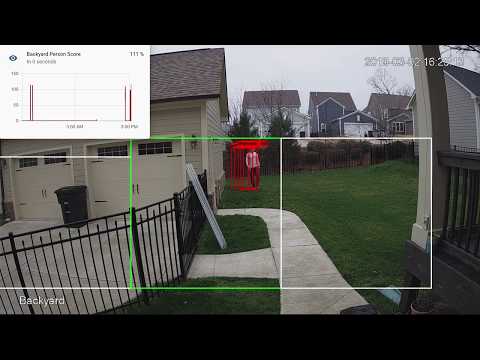](http://www.youtube.com/watch?v=nqHbCtyo4dY "Frigate")
|
||||
|
||||
## Donations
|
||||
## Getting Started
|
||||
Run the container with
|
||||
```bash
|
||||
docker run --rm \
|
||||
--privileged \
|
||||
--shm-size=512m \ # should work for a 2-3 cameras
|
||||
-v /dev/bus/usb:/dev/bus/usb \
|
||||
-v <path_to_config_dir>:/config:ro \
|
||||
-v /etc/localtime:/etc/localtime:ro \
|
||||
-p 5000:5000 \
|
||||
-e FRIGATE_RTSP_PASSWORD='password' \
|
||||
blakeblackshear/frigate:stable
|
||||
```
|
||||
|
||||
If you would like to make a donation to support development, please use [Github Sponsors](https://github.com/sponsors/blakeblackshear).
|
||||
Example docker-compose:
|
||||
```yaml
|
||||
frigate:
|
||||
container_name: frigate
|
||||
restart: unless-stopped
|
||||
privileged: true
|
||||
shm_size: '1g' # should work for 5-7 cameras
|
||||
image: blakeblackshear/frigate:stable
|
||||
volumes:
|
||||
- /dev/bus/usb:/dev/bus/usb
|
||||
- /etc/localtime:/etc/localtime:ro
|
||||
- <path_to_config>:/config
|
||||
ports:
|
||||
- "5000:5000"
|
||||
environment:
|
||||
FRIGATE_RTSP_PASSWORD: "password"
|
||||
```
|
||||
|
||||
## Screenshots
|
||||
A `config.yml` file must exist in the `config` directory. See example [here](config/config.example.yml) and device specific info can be found [here](docs/DEVICES.md).
|
||||
|
||||
Integration into Home Assistant
|
||||
Access the mjpeg stream at `http://localhost:5000/<camera_name>` and the best snapshot for any object type with at `http://localhost:5000/<camera_name>/<object_name>/best.jpg`
|
||||
|
||||
<div>
|
||||
<a href="docs/static/img/media_browser.png"><img src="docs/static/img/media_browser.png" height=400></a>
|
||||
<a href="docs/static/img/notification.png"><img src="docs/static/img/notification.png" height=400></a>
|
||||
</div>
|
||||
Debug info is available at `http://localhost:5000/debug/stats`
|
||||
|
||||
Also comes with a builtin UI:
|
||||
## Integration with HomeAssistant
|
||||
```
|
||||
camera:
|
||||
- name: Camera Last Person
|
||||
platform: mqtt
|
||||
topic: frigate/<camera_name>/person/snapshot
|
||||
- name: Camera Last Car
|
||||
platform: mqtt
|
||||
topic: frigate/<camera_name>/car/snapshot
|
||||
|
||||
<div>
|
||||
<a href="docs/static/img/home-ui.png"><img src="docs/static/img/home-ui.png" height=400></a>
|
||||
<a href="docs/static/img/camera-ui.png"><img src="docs/static/img/camera-ui.png" height=400></a>
|
||||
</div>
|
||||
binary_sensor:
|
||||
- name: Camera Person
|
||||
platform: mqtt
|
||||
state_topic: "frigate/<camera_name>/person"
|
||||
device_class: motion
|
||||
availability_topic: "frigate/available"
|
||||
|
||||

|
||||
automation:
|
||||
- alias: Alert me if a person is detected while armed away
|
||||
trigger:
|
||||
platform: state
|
||||
entity_id: binary_sensor.camera_person
|
||||
from: 'off'
|
||||
to: 'on'
|
||||
condition:
|
||||
- condition: state
|
||||
entity_id: alarm_control_panel.home_alarm
|
||||
state: armed_away
|
||||
action:
|
||||
- service: notify.user_telegram
|
||||
data:
|
||||
message: "A person was detected."
|
||||
data:
|
||||
photo:
|
||||
- url: http://<ip>:5000/<camera_name>/person/best.jpg
|
||||
caption: A person was detected.
|
||||
|
||||
sensor:
|
||||
- platform: rest
|
||||
name: Frigate Debug
|
||||
resource: http://localhost:5000/debug/stats
|
||||
scan_interval: 5
|
||||
json_attributes:
|
||||
- back
|
||||
- coral
|
||||
value_template: 'OK'
|
||||
- platform: template
|
||||
sensors:
|
||||
back_fps:
|
||||
value_template: '{{ states.sensor.frigate_debug.attributes["back"]["fps"] }}'
|
||||
unit_of_measurement: 'FPS'
|
||||
back_skipped_fps:
|
||||
value_template: '{{ states.sensor.frigate_debug.attributes["back"]["skipped_fps"] }}'
|
||||
unit_of_measurement: 'FPS'
|
||||
back_detection_fps:
|
||||
value_template: '{{ states.sensor.frigate_debug.attributes["back"]["detection_fps"] }}'
|
||||
unit_of_measurement: 'FPS'
|
||||
frigate_coral_fps:
|
||||
value_template: '{{ states.sensor.frigate_debug.attributes["coral"]["fps"] }}'
|
||||
unit_of_measurement: 'FPS'
|
||||
frigate_coral_inference:
|
||||
value_template: '{{ states.sensor.frigate_debug.attributes["coral"]["inference_speed"] }}'
|
||||
unit_of_measurement: 'ms'
|
||||
```
|
||||
## Using a custom model
|
||||
Models for both CPU and EdgeTPU (Coral) are bundled in the image. You can use your own models with volume mounts:
|
||||
- CPU Model: `/cpu_model.tflite`
|
||||
- EdgeTPU Model: `/edgetpu_model.tflite`
|
||||
- Labels: `/labelmap.txt`
|
||||
|
||||
## Tips
|
||||
- Lower the framerate of the video feed on the camera to reduce the CPU usage for capturing the feed
|
||||
|
||||
85
benchmark.py
@@ -3,21 +3,15 @@ from statistics import mean
|
||||
import multiprocessing as mp
|
||||
import numpy as np
|
||||
import datetime
|
||||
from frigate.config import DetectorTypeEnum
|
||||
from frigate.object_detection import (
|
||||
LocalObjectDetector,
|
||||
ObjectDetectProcess,
|
||||
RemoteObjectDetector,
|
||||
load_labels,
|
||||
)
|
||||
from frigate.edgetpu import ObjectDetector, EdgeTPUProcess, RemoteObjectDetector, load_labels
|
||||
|
||||
my_frame = np.expand_dims(np.full((300, 300, 3), 1, np.uint8), axis=0)
|
||||
labels = load_labels("/labelmap.txt")
|
||||
my_frame = np.expand_dims(np.full((300,300,3), 1, np.uint8), axis=0)
|
||||
labels = load_labels('/labelmap.txt')
|
||||
|
||||
######
|
||||
# Minimal same process runner
|
||||
######
|
||||
# object_detector = LocalObjectDetector()
|
||||
# object_detector = ObjectDetector()
|
||||
# tensor_input = np.expand_dims(np.full((300,300,3), 0, np.uint8), axis=0)
|
||||
|
||||
# start = datetime.datetime.now().timestamp()
|
||||
@@ -43,66 +37,43 @@ labels = load_labels("/labelmap.txt")
|
||||
# print(f"Processed for {duration:.2f} seconds.")
|
||||
# print(f"Average frame processing time: {mean(frame_times)*1000:.2f}ms")
|
||||
|
||||
|
||||
def start(id, num_detections, detection_queue, event):
|
||||
object_detector = RemoteObjectDetector(
|
||||
str(id), "/labelmap.txt", detection_queue, event
|
||||
)
|
||||
start = datetime.datetime.now().timestamp()
|
||||
|
||||
frame_times = []
|
||||
for x in range(0, num_detections):
|
||||
start_frame = datetime.datetime.now().timestamp()
|
||||
detections = object_detector.detect(my_frame)
|
||||
frame_times.append(datetime.datetime.now().timestamp() - start_frame)
|
||||
|
||||
duration = datetime.datetime.now().timestamp() - start
|
||||
object_detector.cleanup()
|
||||
print(f"{id} - Processed for {duration:.2f} seconds.")
|
||||
print(f"{id} - FPS: {object_detector.fps.eps():.2f}")
|
||||
print(f"{id} - Average frame processing time: {mean(frame_times)*1000:.2f}ms")
|
||||
|
||||
|
||||
######
|
||||
# Separate process runner
|
||||
######
|
||||
# event = mp.Event()
|
||||
# detection_queue = mp.Queue()
|
||||
# edgetpu_process = EdgeTPUProcess(detection_queue, {'1': event}, 'usb:0')
|
||||
def start(id, num_detections, detection_queue):
|
||||
object_detector = RemoteObjectDetector(str(id), '/labelmap.txt', detection_queue)
|
||||
start = datetime.datetime.now().timestamp()
|
||||
|
||||
# start(1, 1000, edgetpu_process.detection_queue, event)
|
||||
# print(f"Average raw inference speed: {edgetpu_process.avg_inference_speed.value*1000:.2f}ms")
|
||||
frame_times = []
|
||||
for x in range(0, num_detections):
|
||||
start_frame = datetime.datetime.now().timestamp()
|
||||
detections = object_detector.detect(my_frame)
|
||||
frame_times.append(datetime.datetime.now().timestamp()-start_frame)
|
||||
|
||||
duration = datetime.datetime.now().timestamp()-start
|
||||
print(f"{id} - Processed for {duration:.2f} seconds.")
|
||||
print(f"{id} - Average frame processing time: {mean(frame_times)*1000:.2f}ms")
|
||||
|
||||
edgetpu_process = EdgeTPUProcess()
|
||||
|
||||
# start(1, 1000, edgetpu_process.detect_lock, edgetpu_process.detect_ready, edgetpu_process.frame_ready)
|
||||
|
||||
####
|
||||
# Multiple camera processes
|
||||
####
|
||||
camera_processes = []
|
||||
|
||||
events = {}
|
||||
for x in range(0, 10):
|
||||
events[str(x)] = mp.Event()
|
||||
detection_queue = mp.Queue()
|
||||
edgetpu_process_1 = ObjectDetectProcess(
|
||||
detection_queue, events, DetectorTypeEnum.edgetpu, "usb:0"
|
||||
)
|
||||
edgetpu_process_2 = ObjectDetectProcess(
|
||||
detection_queue, events, DetectorTypeEnum.edgetpu, "usb:1"
|
||||
)
|
||||
camera_process = mp.Process(target=start, args=(x, 100, edgetpu_process.detection_queue))
|
||||
camera_process.daemon = True
|
||||
camera_processes.append(camera_process)
|
||||
|
||||
for x in range(0, 10):
|
||||
camera_process = mp.Process(
|
||||
target=start, args=(x, 300, detection_queue, events[str(x)])
|
||||
)
|
||||
camera_process.daemon = True
|
||||
camera_processes.append(camera_process)
|
||||
|
||||
start_time = datetime.datetime.now().timestamp()
|
||||
start = datetime.datetime.now().timestamp()
|
||||
|
||||
for p in camera_processes:
|
||||
p.start()
|
||||
p.start()
|
||||
|
||||
for p in camera_processes:
|
||||
p.join()
|
||||
p.join()
|
||||
|
||||
duration = datetime.datetime.now().timestamp() - start_time
|
||||
print(f"Total - Processed for {duration:.2f} seconds.")
|
||||
duration = datetime.datetime.now().timestamp()-start
|
||||
print(f"Total - Processed for {duration:.2f} seconds.")
|
||||
BIN
config/back-mask.bmp
Normal file

|
After Width: | Height: | Size: 1.8 MiB |
136
config/config.example.yml
Normal file
@@ -0,0 +1,136 @@
|
||||
web_port: 5000
|
||||
|
||||
mqtt:
|
||||
host: mqtt.server.com
|
||||
topic_prefix: frigate
|
||||
# client_id: frigate # Optional -- set to override default client id of 'frigate' if running multiple instances
|
||||
# user: username # Optional
|
||||
#################
|
||||
## Environment variables that begin with 'FRIGATE_' may be referenced in {}.
|
||||
## password: '{FRIGATE_MQTT_PASSWORD}'
|
||||
#################
|
||||
# password: password # Optional
|
||||
|
||||
#################
|
||||
# Default ffmpeg args. Optional and can be overwritten per camera.
|
||||
# Should work with most RTSP cameras that send h264 video
|
||||
# Built from the properties below with:
|
||||
# "ffmpeg" + global_args + input_args + "-i" + input + output_args
|
||||
#################
|
||||
# ffmpeg:
|
||||
# global_args:
|
||||
# - -hide_banner
|
||||
# - -loglevel
|
||||
# - panic
|
||||
# hwaccel_args: []
|
||||
# input_args:
|
||||
# - -avoid_negative_ts
|
||||
# - make_zero
|
||||
# - -fflags
|
||||
# - nobuffer
|
||||
# - -flags
|
||||
# - low_delay
|
||||
# - -strict
|
||||
# - experimental
|
||||
# - -fflags
|
||||
# - +genpts+discardcorrupt
|
||||
# - -vsync
|
||||
# - drop
|
||||
# - -rtsp_transport
|
||||
# - tcp
|
||||
# - -stimeout
|
||||
# - '5000000'
|
||||
# - -use_wallclock_as_timestamps
|
||||
# - '1'
|
||||
# output_args:
|
||||
# - -f
|
||||
# - rawvideo
|
||||
# - -pix_fmt
|
||||
# - rgb24
|
||||
|
||||
####################
|
||||
# Global object configuration. Applies to all cameras
|
||||
# unless overridden at the camera levels.
|
||||
# Keys must be valid labels. By default, the model uses coco (https://dl.google.com/coral/canned_models/coco_labels.txt).
|
||||
# All labels from the model are reported over MQTT. These values are used to filter out false positives.
|
||||
# min_area (optional): minimum width*height of the bounding box for the detected person
|
||||
# max_area (optional): maximum width*height of the bounding box for the detected person
|
||||
# threshold (optional): The minimum decimal percentage (50% hit = 0.5) for the confidence from tensorflow
|
||||
####################
|
||||
objects:
|
||||
track:
|
||||
- person
|
||||
- car
|
||||
- truck
|
||||
filters:
|
||||
person:
|
||||
min_area: 5000
|
||||
max_area: 100000
|
||||
threshold: 0.5
|
||||
|
||||
cameras:
|
||||
back:
|
||||
ffmpeg:
|
||||
################
|
||||
# Source passed to ffmpeg after the -i parameter. Supports anything compatible with OpenCV and FFmpeg.
|
||||
# Environment variables that begin with 'FRIGATE_' may be referenced in {}
|
||||
################
|
||||
input: rtsp://viewer:{FRIGATE_RTSP_PASSWORD}@10.0.10.10:554/cam/realmonitor?channel=1&subtype=2
|
||||
#################
|
||||
# These values will override default values for just this camera
|
||||
#################
|
||||
# global_args: []
|
||||
# hwaccel_args: []
|
||||
# input_args: []
|
||||
# output_args: []
|
||||
|
||||
################
|
||||
## Optionally specify the resolution of the video feed. Frigate will try to auto detect if not specified
|
||||
################
|
||||
# height: 1280
|
||||
# width: 720
|
||||
|
||||
################
|
||||
## Optional mask. Must be the same aspect ratio as your video feed.
|
||||
##
|
||||
## The mask works by looking at the bottom center of the bounding box for the detected
|
||||
## person in the image. If that pixel in the mask is a black pixel, it ignores it as a
|
||||
## false positive. In my mask, the grass and driveway visible from my backdoor camera
|
||||
## are white. The garage doors, sky, and trees (anywhere it would be impossible for a
|
||||
## person to stand) are black.
|
||||
##
|
||||
## Masked areas are also ignored for motion detection.
|
||||
################
|
||||
# mask: back-mask.bmp
|
||||
|
||||
################
|
||||
# Allows you to limit the framerate within frigate for cameras that do not support
|
||||
# custom framerates. A value of 1 tells frigate to look at every frame, 2 every 2nd frame,
|
||||
# 3 every 3rd frame, etc.
|
||||
################
|
||||
take_frame: 1
|
||||
|
||||
################
|
||||
# The expected framerate for the camera. Frigate will try and ensure it maintains this framerate
|
||||
# by dropping frames as necessary. Setting this lower than the actual framerate will allow frigate
|
||||
# to process every frame at the expense of realtime processing.
|
||||
################
|
||||
fps: 5
|
||||
|
||||
################
|
||||
# Configuration for the snapshots in the debug view and mqtt
|
||||
################
|
||||
snapshots:
|
||||
show_timestamp: True
|
||||
|
||||
################
|
||||
# Camera level object config. This config is merged with the global config above.
|
||||
################
|
||||
objects:
|
||||
track:
|
||||
- person
|
||||
filters:
|
||||
person:
|
||||
min_area: 5000
|
||||
max_area: 100000
|
||||
threshold: 0.5
|
||||
@@ -1,16 +0,0 @@
|
||||
mqtt:
|
||||
host: mqtt
|
||||
|
||||
cameras:
|
||||
test:
|
||||
ffmpeg:
|
||||
inputs:
|
||||
- path: /media/frigate/car-stopping.mp4
|
||||
input_args: -re -stream_loop -1 -fflags +genpts
|
||||
roles:
|
||||
- detect
|
||||
- rtmp
|
||||
detect:
|
||||
height: 1080
|
||||
width: 1920
|
||||
fps: 5
|
||||
337
detect_objects.py
Normal file
@@ -0,0 +1,337 @@
|
||||
import os
|
||||
import sys
|
||||
import traceback
|
||||
import signal
|
||||
import cv2
|
||||
import time
|
||||
import datetime
|
||||
import queue
|
||||
import yaml
|
||||
import threading
|
||||
import multiprocessing as mp
|
||||
import subprocess as sp
|
||||
import numpy as np
|
||||
import logging
|
||||
from flask import Flask, Response, make_response, jsonify, request
|
||||
import paho.mqtt.client as mqtt
|
||||
|
||||
from frigate.video import track_camera, get_ffmpeg_input, get_frame_shape, CameraCapture, start_or_restart_ffmpeg
|
||||
from frigate.object_processing import TrackedObjectProcessor
|
||||
from frigate.util import EventsPerSecond
|
||||
from frigate.edgetpu import EdgeTPUProcess
|
||||
|
||||
FRIGATE_VARS = {k: v for k, v in os.environ.items() if k.startswith('FRIGATE_')}
|
||||
|
||||
with open('/config/config.yml') as f:
|
||||
CONFIG = yaml.safe_load(f)
|
||||
|
||||
MQTT_HOST = CONFIG['mqtt']['host']
|
||||
MQTT_PORT = CONFIG.get('mqtt', {}).get('port', 1883)
|
||||
MQTT_TOPIC_PREFIX = CONFIG.get('mqtt', {}).get('topic_prefix', 'frigate')
|
||||
MQTT_USER = CONFIG.get('mqtt', {}).get('user')
|
||||
MQTT_PASS = CONFIG.get('mqtt', {}).get('password')
|
||||
if not MQTT_PASS is None:
|
||||
MQTT_PASS = MQTT_PASS.format(**FRIGATE_VARS)
|
||||
MQTT_CLIENT_ID = CONFIG.get('mqtt', {}).get('client_id', 'frigate')
|
||||
|
||||
# Set the default FFmpeg config
|
||||
FFMPEG_CONFIG = CONFIG.get('ffmpeg', {})
|
||||
FFMPEG_DEFAULT_CONFIG = {
|
||||
'global_args': FFMPEG_CONFIG.get('global_args',
|
||||
['-hide_banner','-loglevel','panic']),
|
||||
'hwaccel_args': FFMPEG_CONFIG.get('hwaccel_args',
|
||||
[]),
|
||||
'input_args': FFMPEG_CONFIG.get('input_args',
|
||||
['-avoid_negative_ts', 'make_zero',
|
||||
'-fflags', 'nobuffer',
|
||||
'-flags', 'low_delay',
|
||||
'-strict', 'experimental',
|
||||
'-fflags', '+genpts+discardcorrupt',
|
||||
'-vsync', 'drop',
|
||||
'-rtsp_transport', 'tcp',
|
||||
'-stimeout', '5000000',
|
||||
'-use_wallclock_as_timestamps', '1']),
|
||||
'output_args': FFMPEG_CONFIG.get('output_args',
|
||||
['-f', 'rawvideo',
|
||||
'-pix_fmt', 'rgb24'])
|
||||
}
|
||||
|
||||
GLOBAL_OBJECT_CONFIG = CONFIG.get('objects', {})
|
||||
|
||||
WEB_PORT = CONFIG.get('web_port', 5000)
|
||||
DEBUG = (CONFIG.get('debug', '0') == '1')
|
||||
|
||||
def start_plasma_store():
|
||||
plasma_cmd = ['plasma_store', '-m', '400000000', '-s', '/tmp/plasma']
|
||||
plasma_process = sp.Popen(plasma_cmd, stdout=sp.DEVNULL)
|
||||
time.sleep(1)
|
||||
rc = plasma_process.poll()
|
||||
if rc is not None:
|
||||
return None
|
||||
return plasma_process
|
||||
|
||||
class CameraWatchdog(threading.Thread):
|
||||
def __init__(self, camera_processes, config, tflite_process, tracked_objects_queue, plasma_process):
|
||||
threading.Thread.__init__(self)
|
||||
self.camera_processes = camera_processes
|
||||
self.config = config
|
||||
self.tflite_process = tflite_process
|
||||
self.tracked_objects_queue = tracked_objects_queue
|
||||
self.plasma_process = plasma_process
|
||||
|
||||
def run(self):
|
||||
time.sleep(10)
|
||||
while True:
|
||||
# wait a bit before checking
|
||||
time.sleep(10)
|
||||
|
||||
# check the plasma process
|
||||
rc = self.plasma_process.poll()
|
||||
if rc != None:
|
||||
print(f"plasma_process exited unexpectedly with {rc}")
|
||||
self.plasma_process = start_plasma_store()
|
||||
|
||||
# check the detection process
|
||||
if (self.tflite_process.detection_start.value > 0.0 and
|
||||
datetime.datetime.now().timestamp() - self.tflite_process.detection_start.value > 10):
|
||||
print("Detection appears to be stuck. Restarting detection process")
|
||||
self.tflite_process.start_or_restart()
|
||||
elif not self.tflite_process.detect_process.is_alive():
|
||||
print("Detection appears to have stopped. Restarting detection process")
|
||||
self.tflite_process.start_or_restart()
|
||||
|
||||
# check the camera processes
|
||||
for name, camera_process in self.camera_processes.items():
|
||||
process = camera_process['process']
|
||||
if not process.is_alive():
|
||||
print(f"Track process for {name} is not alive. Starting again...")
|
||||
camera_process['fps'].value = float(self.config[name]['fps'])
|
||||
camera_process['skipped_fps'].value = 0.0
|
||||
camera_process['detection_fps'].value = 0.0
|
||||
camera_process['read_start'].value = 0.0
|
||||
process = mp.Process(target=track_camera, args=(name, self.config[name], GLOBAL_OBJECT_CONFIG, camera_process['frame_queue'],
|
||||
camera_process['frame_shape'], self.tflite_process.detection_queue, self.tracked_objects_queue,
|
||||
camera_process['fps'], camera_process['skipped_fps'], camera_process['detection_fps'],
|
||||
camera_process['read_start']))
|
||||
process.daemon = True
|
||||
camera_process['process'] = process
|
||||
process.start()
|
||||
print(f"Track process started for {name}: {process.pid}")
|
||||
|
||||
if not camera_process['capture_thread'].is_alive():
|
||||
frame_shape = camera_process['frame_shape']
|
||||
frame_size = frame_shape[0] * frame_shape[1] * frame_shape[2]
|
||||
ffmpeg_process = start_or_restart_ffmpeg(camera_process['ffmpeg_cmd'], frame_size)
|
||||
camera_capture = CameraCapture(name, ffmpeg_process, frame_shape, camera_process['frame_queue'],
|
||||
camera_process['take_frame'], camera_process['camera_fps'])
|
||||
camera_capture.start()
|
||||
camera_process['ffmpeg_process'] = ffmpeg_process
|
||||
camera_process['capture_thread'] = camera_capture
|
||||
|
||||
def main():
|
||||
# connect to mqtt and setup last will
|
||||
def on_connect(client, userdata, flags, rc):
|
||||
print("On connect called")
|
||||
if rc != 0:
|
||||
if rc == 3:
|
||||
print ("MQTT Server unavailable")
|
||||
elif rc == 4:
|
||||
print ("MQTT Bad username or password")
|
||||
elif rc == 5:
|
||||
print ("MQTT Not authorized")
|
||||
else:
|
||||
print ("Unable to connect to MQTT: Connection refused. Error code: " + str(rc))
|
||||
# publish a message to signal that the service is running
|
||||
client.publish(MQTT_TOPIC_PREFIX+'/available', 'online', retain=True)
|
||||
client = mqtt.Client(client_id=MQTT_CLIENT_ID)
|
||||
client.on_connect = on_connect
|
||||
client.will_set(MQTT_TOPIC_PREFIX+'/available', payload='offline', qos=1, retain=True)
|
||||
if not MQTT_USER is None:
|
||||
client.username_pw_set(MQTT_USER, password=MQTT_PASS)
|
||||
client.connect(MQTT_HOST, MQTT_PORT, 60)
|
||||
client.loop_start()
|
||||
|
||||
plasma_process = start_plasma_store()
|
||||
|
||||
##
|
||||
# Setup config defaults for cameras
|
||||
##
|
||||
for name, config in CONFIG['cameras'].items():
|
||||
config['snapshots'] = {
|
||||
'show_timestamp': config.get('snapshots', {}).get('show_timestamp', True)
|
||||
}
|
||||
|
||||
# Queue for cameras to push tracked objects to
|
||||
tracked_objects_queue = mp.SimpleQueue()
|
||||
|
||||
# Start the shared tflite process
|
||||
tflite_process = EdgeTPUProcess()
|
||||
|
||||
# start the camera processes
|
||||
camera_processes = {}
|
||||
for name, config in CONFIG['cameras'].items():
|
||||
# Merge the ffmpeg config with the global config
|
||||
ffmpeg = config.get('ffmpeg', {})
|
||||
ffmpeg_input = get_ffmpeg_input(ffmpeg['input'])
|
||||
ffmpeg_global_args = ffmpeg.get('global_args', FFMPEG_DEFAULT_CONFIG['global_args'])
|
||||
ffmpeg_hwaccel_args = ffmpeg.get('hwaccel_args', FFMPEG_DEFAULT_CONFIG['hwaccel_args'])
|
||||
ffmpeg_input_args = ffmpeg.get('input_args', FFMPEG_DEFAULT_CONFIG['input_args'])
|
||||
ffmpeg_output_args = ffmpeg.get('output_args', FFMPEG_DEFAULT_CONFIG['output_args'])
|
||||
ffmpeg_cmd = (['ffmpeg'] +
|
||||
ffmpeg_global_args +
|
||||
ffmpeg_hwaccel_args +
|
||||
ffmpeg_input_args +
|
||||
['-i', ffmpeg_input] +
|
||||
ffmpeg_output_args +
|
||||
['pipe:'])
|
||||
|
||||
if 'width' in config and 'height' in config:
|
||||
frame_shape = (config['height'], config['width'], 3)
|
||||
else:
|
||||
frame_shape = get_frame_shape(ffmpeg_input)
|
||||
|
||||
frame_size = frame_shape[0] * frame_shape[1] * frame_shape[2]
|
||||
take_frame = config.get('take_frame', 1)
|
||||
|
||||
ffmpeg_process = start_or_restart_ffmpeg(ffmpeg_cmd, frame_size)
|
||||
frame_queue = mp.SimpleQueue()
|
||||
camera_fps = EventsPerSecond()
|
||||
camera_fps.start()
|
||||
camera_capture = CameraCapture(name, ffmpeg_process, frame_shape, frame_queue, take_frame, camera_fps)
|
||||
camera_capture.start()
|
||||
|
||||
camera_processes[name] = {
|
||||
'camera_fps': camera_fps,
|
||||
'take_frame': take_frame,
|
||||
'fps': mp.Value('d', float(config['fps'])),
|
||||
'skipped_fps': mp.Value('d', 0.0),
|
||||
'detection_fps': mp.Value('d', 0.0),
|
||||
'read_start': mp.Value('d', 0.0),
|
||||
'ffmpeg_process': ffmpeg_process,
|
||||
'ffmpeg_cmd': ffmpeg_cmd,
|
||||
'frame_queue': frame_queue,
|
||||
'frame_shape': frame_shape,
|
||||
'capture_thread': camera_capture
|
||||
}
|
||||
|
||||
camera_process = mp.Process(target=track_camera, args=(name, config, GLOBAL_OBJECT_CONFIG, frame_queue, frame_shape,
|
||||
tflite_process.detection_queue, tracked_objects_queue, camera_processes[name]['fps'],
|
||||
camera_processes[name]['skipped_fps'], camera_processes[name]['detection_fps'],
|
||||
camera_processes[name]['read_start']))
|
||||
camera_process.daemon = True
|
||||
camera_processes[name]['process'] = camera_process
|
||||
|
||||
for name, camera_process in camera_processes.items():
|
||||
camera_process['process'].start()
|
||||
print(f"Camera_process started for {name}: {camera_process['process'].pid}")
|
||||
|
||||
object_processor = TrackedObjectProcessor(CONFIG['cameras'], client, MQTT_TOPIC_PREFIX, tracked_objects_queue)
|
||||
object_processor.start()
|
||||
|
||||
camera_watchdog = CameraWatchdog(camera_processes, CONFIG['cameras'], tflite_process, tracked_objects_queue, plasma_process)
|
||||
camera_watchdog.start()
|
||||
|
||||
# create a flask app that encodes frames a mjpeg on demand
|
||||
app = Flask(__name__)
|
||||
log = logging.getLogger('werkzeug')
|
||||
log.setLevel(logging.ERROR)
|
||||
|
||||
@app.route('/')
|
||||
def ishealthy():
|
||||
# return a healh
|
||||
return "Frigate is running. Alive and healthy!"
|
||||
|
||||
@app.route('/debug/stack')
|
||||
def processor_stack():
|
||||
frame = sys._current_frames().get(object_processor.ident, None)
|
||||
if frame:
|
||||
return "<br>".join(traceback.format_stack(frame)), 200
|
||||
else:
|
||||
return "no frame found", 200
|
||||
|
||||
@app.route('/debug/print_stack')
|
||||
def print_stack():
|
||||
pid = int(request.args.get('pid', 0))
|
||||
if pid == 0:
|
||||
return "missing pid", 200
|
||||
else:
|
||||
os.kill(pid, signal.SIGUSR1)
|
||||
return "check logs", 200
|
||||
|
||||
@app.route('/debug/stats')
|
||||
def stats():
|
||||
stats = {}
|
||||
|
||||
total_detection_fps = 0
|
||||
|
||||
for name, camera_stats in camera_processes.items():
|
||||
total_detection_fps += camera_stats['detection_fps'].value
|
||||
stats[name] = {
|
||||
'fps': round(camera_stats['fps'].value, 2),
|
||||
'skipped_fps': round(camera_stats['skipped_fps'].value, 2),
|
||||
'detection_fps': round(camera_stats['detection_fps'].value, 2),
|
||||
'read_start': camera_stats['read_start'].value,
|
||||
'pid': camera_stats['process'].pid,
|
||||
'ffmpeg_pid': camera_stats['ffmpeg_process'].pid
|
||||
}
|
||||
|
||||
stats['coral'] = {
|
||||
'fps': round(total_detection_fps, 2),
|
||||
'inference_speed': round(tflite_process.avg_inference_speed.value*1000, 2),
|
||||
'detection_start': tflite_process.detection_start.value,
|
||||
'pid': tflite_process.detect_process.pid
|
||||
}
|
||||
|
||||
rc = camera_watchdog.plasma_process.poll()
|
||||
stats['plasma_store_rc'] = rc
|
||||
|
||||
return jsonify(stats)
|
||||
|
||||
@app.route('/<camera_name>/<label>/best.jpg')
|
||||
def best(camera_name, label):
|
||||
if camera_name in CONFIG['cameras']:
|
||||
best_frame = object_processor.get_best(camera_name, label)
|
||||
if best_frame is None:
|
||||
best_frame = np.zeros((720,1280,3), np.uint8)
|
||||
best_frame = cv2.cvtColor(best_frame, cv2.COLOR_RGB2BGR)
|
||||
ret, jpg = cv2.imencode('.jpg', best_frame)
|
||||
response = make_response(jpg.tobytes())
|
||||
response.headers['Content-Type'] = 'image/jpg'
|
||||
return response
|
||||
else:
|
||||
return "Camera named {} not found".format(camera_name), 404
|
||||
|
||||
@app.route('/<camera_name>')
|
||||
def mjpeg_feed(camera_name):
|
||||
fps = int(request.args.get('fps', '3'))
|
||||
height = int(request.args.get('h', '360'))
|
||||
if camera_name in CONFIG['cameras']:
|
||||
# return a multipart response
|
||||
return Response(imagestream(camera_name, fps, height),
|
||||
mimetype='multipart/x-mixed-replace; boundary=frame')
|
||||
else:
|
||||
return "Camera named {} not found".format(camera_name), 404
|
||||
|
||||
def imagestream(camera_name, fps, height):
|
||||
while True:
|
||||
# max out at specified FPS
|
||||
time.sleep(1/fps)
|
||||
frame = object_processor.get_current_frame(camera_name)
|
||||
if frame is None:
|
||||
frame = np.zeros((height,int(height*16/9),3), np.uint8)
|
||||
|
||||
frame = cv2.resize(frame, dsize=(int(height*16/9), height), interpolation=cv2.INTER_LINEAR)
|
||||
frame = cv2.cvtColor(frame, cv2.COLOR_RGB2BGR)
|
||||
|
||||
ret, jpg = cv2.imencode('.jpg', frame)
|
||||
yield (b'--frame\r\n'
|
||||
b'Content-Type: image/jpeg\r\n\r\n' + jpg.tobytes() + b'\r\n\r\n')
|
||||
|
||||
app.run(host='0.0.0.0', port=WEB_PORT, debug=False)
|
||||
|
||||
object_processor.join()
|
||||
|
||||
plasma_process.terminate()
|
||||
|
||||
if __name__ == '__main__':
|
||||
main()
|
||||

|
Before Width: | Height: | Size: 132 KiB After Width: | Height: | Size: 132 KiB |
@@ -1,39 +0,0 @@
|
||||
version: "3"
|
||||
services:
|
||||
devcontainer:
|
||||
container_name: frigate-devcontainer
|
||||
# add groups from host for render, plugdev, video
|
||||
group_add:
|
||||
- "109" # render
|
||||
- "110" # render
|
||||
- "44" # video
|
||||
- "46" # plugdev
|
||||
shm_size: "256mb"
|
||||
build:
|
||||
context: .
|
||||
# Use target devcontainer-trt for TensorRT dev
|
||||
target: devcontainer
|
||||
deploy:
|
||||
resources:
|
||||
reservations:
|
||||
devices:
|
||||
- driver: nvidia
|
||||
count: 1
|
||||
capabilities: [gpu]
|
||||
devices:
|
||||
- /dev/bus/usb:/dev/bus/usb
|
||||
# - /dev/dri:/dev/dri # for intel hwaccel, needs to be updated for your hardware
|
||||
volumes:
|
||||
- .:/workspace/frigate:cached
|
||||
- ./web/dist:/opt/frigate/web:cached
|
||||
- /etc/localtime:/etc/localtime:ro
|
||||
- ./config/config.yml:/config/config.yml:ro
|
||||
- ./debug:/media/frigate
|
||||
# Create the trt-models folder using the documented method of generating TRT models
|
||||
# - ./debug/trt-models:/trt-models
|
||||
- /dev/bus/usb:/dev/bus/usb
|
||||
mqtt:
|
||||
container_name: mqtt
|
||||
image: eclipse-mosquitto:1.6
|
||||
ports:
|
||||
- "1883:1883"
|
||||
@@ -1,66 +0,0 @@
|
||||
#!/bin/bash
|
||||
|
||||
set -euxo pipefail
|
||||
|
||||
NGINX_VERSION="1.22.1"
|
||||
VOD_MODULE_VERSION="1.30"
|
||||
SECURE_TOKEN_MODULE_VERSION="1.4"
|
||||
RTMP_MODULE_VERSION="1.2.1"
|
||||
|
||||
cp /etc/apt/sources.list /etc/apt/sources.list.d/sources-src.list
|
||||
sed -i 's|deb http|deb-src http|g' /etc/apt/sources.list.d/sources-src.list
|
||||
apt-get update
|
||||
|
||||
apt-get -yqq build-dep nginx
|
||||
|
||||
apt-get -yqq install --no-install-recommends ca-certificates wget
|
||||
update-ca-certificates -f
|
||||
mkdir /tmp/nginx
|
||||
wget -nv https://nginx.org/download/nginx-${NGINX_VERSION}.tar.gz
|
||||
tar -zxf nginx-${NGINX_VERSION}.tar.gz -C /tmp/nginx --strip-components=1
|
||||
rm nginx-${NGINX_VERSION}.tar.gz
|
||||
mkdir /tmp/nginx-vod-module
|
||||
wget -nv https://github.com/kaltura/nginx-vod-module/archive/refs/tags/${VOD_MODULE_VERSION}.tar.gz
|
||||
tar -zxf ${VOD_MODULE_VERSION}.tar.gz -C /tmp/nginx-vod-module --strip-components=1
|
||||
rm ${VOD_MODULE_VERSION}.tar.gz
|
||||
# Patch MAX_CLIPS to allow more clips to be added than the default 128
|
||||
sed -i 's/MAX_CLIPS (128)/MAX_CLIPS (1080)/g' /tmp/nginx-vod-module/vod/media_set.h
|
||||
patch -d /tmp/nginx-vod-module/ -p1 << 'EOF'
|
||||
--- a/vod/avc_hevc_parser.c 2022-06-27 11:38:10.000000000 +0000
|
||||
+++ b/vod/avc_hevc_parser.c 2023-01-16 11:25:10.900521298 +0000
|
||||
@@ -3,6 +3,9 @@
|
||||
bool_t
|
||||
avc_hevc_parser_rbsp_trailing_bits(bit_reader_state_t* reader)
|
||||
{
|
||||
+ // https://github.com/blakeblackshear/frigate/issues/4572
|
||||
+ return TRUE;
|
||||
+
|
||||
uint32_t one_bit;
|
||||
|
||||
if (reader->stream.eof_reached)
|
||||
EOF
|
||||
|
||||
|
||||
mkdir /tmp/nginx-secure-token-module
|
||||
wget https://github.com/kaltura/nginx-secure-token-module/archive/refs/tags/${SECURE_TOKEN_MODULE_VERSION}.tar.gz
|
||||
tar -zxf ${SECURE_TOKEN_MODULE_VERSION}.tar.gz -C /tmp/nginx-secure-token-module --strip-components=1
|
||||
rm ${SECURE_TOKEN_MODULE_VERSION}.tar.gz
|
||||
mkdir /tmp/nginx-rtmp-module
|
||||
wget -nv https://github.com/arut/nginx-rtmp-module/archive/refs/tags/v${RTMP_MODULE_VERSION}.tar.gz
|
||||
tar -zxf v${RTMP_MODULE_VERSION}.tar.gz -C /tmp/nginx-rtmp-module --strip-components=1
|
||||
rm v${RTMP_MODULE_VERSION}.tar.gz
|
||||
|
||||
cd /tmp/nginx
|
||||
|
||||
./configure --prefix=/usr/local/nginx \
|
||||
--with-file-aio \
|
||||
--with-http_sub_module \
|
||||
--with-http_ssl_module \
|
||||
--with-threads \
|
||||
--add-module=../nginx-vod-module \
|
||||
--add-module=../nginx-secure-token-module \
|
||||
--add-module=../nginx-rtmp-module \
|
||||
--with-cc-opt="-O3 -Wno-error=implicit-fallthrough"
|
||||
|
||||
make -j$(nproc) && make install
|
||||
rm -rf /usr/local/nginx/html /usr/local/nginx/conf/*.default
|
||||
@@ -1,8 +0,0 @@
|
||||
#!/command/with-contenv bash
|
||||
# shellcheck shell=bash
|
||||
# Start the fake Frigate service
|
||||
|
||||
while true; do
|
||||
echo "The fake Frigate service is running..."
|
||||
sleep 5s
|
||||
done
|
||||
@@ -1,86 +0,0 @@
|
||||
#!/bin/bash
|
||||
|
||||
set -euxo pipefail
|
||||
|
||||
apt-get -qq update
|
||||
|
||||
apt-get -qq install --no-install-recommends -y \
|
||||
apt-transport-https \
|
||||
gnupg \
|
||||
wget \
|
||||
procps vainfo \
|
||||
unzip locales tzdata libxml2 xz-utils \
|
||||
python3-pip
|
||||
|
||||
mkdir -p -m 600 /root/.gnupg
|
||||
|
||||
# add coral repo
|
||||
wget --quiet -O /usr/share/keyrings/google-edgetpu.gpg https://packages.cloud.google.com/apt/doc/apt-key.gpg
|
||||
echo "deb [signed-by=/usr/share/keyrings/google-edgetpu.gpg] https://packages.cloud.google.com/apt coral-edgetpu-stable main" | tee /etc/apt/sources.list.d/coral-edgetpu.list
|
||||
echo "libedgetpu1-max libedgetpu/accepted-eula select true" | debconf-set-selections
|
||||
|
||||
# enable non-free repo
|
||||
sed -i -e's/ main/ main contrib non-free/g' /etc/apt/sources.list
|
||||
|
||||
# coral drivers
|
||||
apt-get -qq update
|
||||
apt-get -qq install --no-install-recommends --no-install-suggests -y \
|
||||
libedgetpu1-max python3-tflite-runtime python3-pycoral
|
||||
|
||||
# btbn-ffmpeg -> amd64
|
||||
if [[ "${TARGETARCH}" == "amd64" ]]; then
|
||||
mkdir -p /usr/lib/btbn-ffmpeg
|
||||
wget -qO btbn-ffmpeg.tar.xz "https://github.com/BtbN/FFmpeg-Builds/releases/download/autobuild-2022-07-31-12-37/ffmpeg-n5.1-2-g915ef932a3-linux64-gpl-5.1.tar.xz"
|
||||
tar -xf btbn-ffmpeg.tar.xz -C /usr/lib/btbn-ffmpeg --strip-components 1
|
||||
rm -rf btbn-ffmpeg.tar.xz /usr/lib/btbn-ffmpeg/doc /usr/lib/btbn-ffmpeg/bin/ffplay
|
||||
fi
|
||||
|
||||
# ffmpeg -> arm32
|
||||
if [[ "${TARGETARCH}" == "arm" ]]; then
|
||||
# add raspberry pi repo
|
||||
gpg --no-default-keyring --keyring /usr/share/keyrings/raspbian.gpg --keyserver keyserver.ubuntu.com --recv-keys 9165938D90FDDD2E
|
||||
echo "deb [signed-by=/usr/share/keyrings/raspbian.gpg] http://raspbian.raspberrypi.org/raspbian/ bullseye main contrib non-free rpi" | tee /etc/apt/sources.list.d/raspi.list
|
||||
apt-get -qq update
|
||||
apt-get -qq install --no-install-recommends --no-install-suggests -y ffmpeg
|
||||
fi
|
||||
|
||||
# ffmpeg -> arm64
|
||||
if [[ "${TARGETARCH}" == "arm64" ]]; then
|
||||
# add raspberry pi repo
|
||||
gpg --no-default-keyring --keyring /usr/share/keyrings/raspbian.gpg --keyserver keyserver.ubuntu.com --recv-keys 82B129927FA3303E
|
||||
echo "deb [signed-by=/usr/share/keyrings/raspbian.gpg] https://archive.raspberrypi.org/debian/ bullseye main" | tee /etc/apt/sources.list.d/raspi.list
|
||||
apt-get -qq update
|
||||
apt-get -qq install --no-install-recommends --no-install-suggests -y ffmpeg
|
||||
fi
|
||||
|
||||
# arch specific packages
|
||||
if [[ "${TARGETARCH}" == "amd64" ]]; then
|
||||
# Use debian testing repo only for hwaccel packages
|
||||
echo 'deb http://deb.debian.org/debian testing main non-free' >/etc/apt/sources.list.d/debian-testing.list
|
||||
apt-get -qq update
|
||||
# intel-opencl-icd specifically for GPU support in OpenVino
|
||||
apt-get -qq install --no-install-recommends --no-install-suggests -y \
|
||||
intel-opencl-icd \
|
||||
mesa-va-drivers libva-drm2 intel-media-va-driver-non-free i965-va-driver libmfx1 radeontop intel-gpu-tools
|
||||
rm -f /etc/apt/sources.list.d/debian-testing.list
|
||||
fi
|
||||
|
||||
if [[ "${TARGETARCH}" == "arm64" ]]; then
|
||||
apt-get -qq install --no-install-recommends --no-install-suggests -y \
|
||||
libva-drm2 mesa-va-drivers
|
||||
fi
|
||||
|
||||
# not sure why 32bit arm requires all these
|
||||
if [[ "${TARGETARCH}" == "arm" ]]; then
|
||||
apt-get -qq install --no-install-recommends --no-install-suggests -y \
|
||||
libgtk-3-dev \
|
||||
libavcodec-dev libavformat-dev libswscale-dev libv4l-dev \
|
||||
libxvidcore-dev libx264-dev libjpeg-dev libpng-dev libtiff-dev \
|
||||
gfortran openexr libatlas-base-dev libtbb-dev libdc1394-22-dev libopenexr-dev \
|
||||
libgstreamer-plugins-base1.0-dev libgstreamer1.0-dev
|
||||
fi
|
||||
|
||||
apt-get purge gnupg apt-transport-https wget xz-utils -y
|
||||
apt-get clean autoclean -y
|
||||
apt-get autoremove --purge -y
|
||||
rm -rf /var/lib/apt/lists/*
|
||||
@@ -1,21 +0,0 @@
|
||||
#!/bin/bash
|
||||
|
||||
set -euxo pipefail
|
||||
|
||||
s6_version="3.1.2.1"
|
||||
|
||||
if [[ "${TARGETARCH}" == "amd64" ]]; then
|
||||
s6_arch="x86_64"
|
||||
elif [[ "${TARGETARCH}" == "arm" ]]; then
|
||||
s6_arch="armhf"
|
||||
elif [[ "${TARGETARCH}" == "arm64" ]]; then
|
||||
s6_arch="aarch64"
|
||||
fi
|
||||
|
||||
mkdir -p /rootfs/
|
||||
|
||||
wget -qO- "https://github.com/just-containers/s6-overlay/releases/download/v${s6_version}/s6-overlay-noarch.tar.xz" |
|
||||
tar -C /rootfs/ -Jxpf -
|
||||
|
||||
wget -qO- "https://github.com/just-containers/s6-overlay/releases/download/v${s6_version}/s6-overlay-${s6_arch}.tar.xz" |
|
||||
tar -C /rootfs/ -Jxpf -
|
||||
@@ -1,11 +0,0 @@
|
||||
#!/command/with-contenv bash
|
||||
# shellcheck shell=bash
|
||||
# Prepare the logs folder for s6-log
|
||||
|
||||
set -o errexit -o nounset -o pipefail
|
||||
|
||||
dirs=(/dev/shm/logs/frigate /dev/shm/logs/go2rtc /dev/shm/logs/nginx)
|
||||
|
||||
mkdir -p "${dirs[@]}"
|
||||
chown nobody:nogroup "${dirs[@]}"
|
||||
chmod 02755 "${dirs[@]}"
|
||||
@@ -1,5 +0,0 @@
|
||||
/usr/local/lib/python3.9/dist-packages/nvidia/cudnn/lib
|
||||
/usr/local/lib/python3.9/dist-packages/nvidia/cuda_runtime/lib
|
||||
/usr/local/lib/python3.9/dist-packages/nvidia/cublas/lib
|
||||
/usr/local/lib/python3.9/dist-packages/nvidia/cuda_nvrtc/lib
|
||||
/usr/local/lib/python3.9/dist-packages/tensorrt
|
||||
@@ -1,16 +0,0 @@
|
||||
#!/command/with-contenv bash
|
||||
# shellcheck shell=bash
|
||||
# Take down the S6 supervision tree when the service exits
|
||||
|
||||
set -o errexit -o nounset -o pipefail
|
||||
|
||||
# Prepare exit code
|
||||
if [[ "${1}" -eq 256 ]]; then
|
||||
exit_code="$((128 + ${2}))"
|
||||
else
|
||||
exit_code="${1}"
|
||||
fi
|
||||
|
||||
# Make the container exit with the same exit code as the service
|
||||
echo "${exit_code}" > /run/s6-linux-init-container-results/exitcode
|
||||
exec /run/s6/basedir/bin/halt
|
||||
@@ -1,4 +0,0 @@
|
||||
#!/command/with-contenv bash
|
||||
# shellcheck shell=bash
|
||||
|
||||
exec logutil-service /dev/shm/logs/frigate
|
||||
@@ -1,11 +0,0 @@
|
||||
#!/command/with-contenv bash
|
||||
# shellcheck shell=bash
|
||||
# Start the Frigate service
|
||||
|
||||
set -o errexit -o nounset -o pipefail
|
||||
|
||||
cd /opt/frigate
|
||||
|
||||
# Replace the bash process with the Frigate process, redirecting stderr to stdout
|
||||
exec 2>&1
|
||||
exec python3 -u -m frigate
|
||||
@@ -1,8 +0,0 @@
|
||||
#!/command/with-contenv bash
|
||||
# shellcheck shell=bash
|
||||
# Take down the S6 supervision tree when the service fails, or restart it
|
||||
# otherwise
|
||||
|
||||
if [[ "${1}" -ne 0 && "${1}" -ne 256 ]]; then
|
||||
exec /run/s6/basedir/bin/halt
|
||||
fi
|
||||
@@ -1,4 +0,0 @@
|
||||
#!/command/with-contenv bash
|
||||
# shellcheck shell=bash
|
||||
|
||||
exec logutil-service /dev/shm/logs/go2rtc
|
||||
@@ -1,11 +0,0 @@
|
||||
#!/command/with-contenv bash
|
||||
# shellcheck shell=bash
|
||||
# Start the go2rtc service
|
||||
|
||||
set -o errexit -o nounset -o pipefail
|
||||
|
||||
raw_config=$(python3 /usr/local/go2rtc/create_config.py)
|
||||
|
||||
# Replace the bash process with the go2rtc process, redirecting stderr to stdout
|
||||
exec 2>&1
|
||||
exec go2rtc -config="${raw_config}"
|
||||
@@ -1,8 +0,0 @@
|
||||
#!/command/with-contenv bash
|
||||
# shellcheck shell=bash
|
||||
# Take down the S6 supervision tree when the service fails, or restart it
|
||||
# otherwise
|
||||
|
||||
if [[ "${1}" -ne 0 && "${1}" -ne 256 ]]; then
|
||||
exec /run/s6/basedir/bin/halt
|
||||
fi
|
||||
@@ -1,4 +0,0 @@
|
||||
#!/command/with-contenv bash
|
||||
# shellcheck shell=bash
|
||||
|
||||
exec logutil-service /dev/shm/logs/nginx
|
||||
@@ -1,7 +0,0 @@
|
||||
#!/command/with-contenv bash
|
||||
# shellcheck shell=bash
|
||||
# Start the NGINX service
|
||||
|
||||
# Replace the bash process with the NGINX process, redirecting stderr to stdout
|
||||
exec 2>&1
|
||||
exec nginx
|
||||
@@ -1,5 +0,0 @@
|
||||
#!/command/with-contenv bash
|
||||
# shellcheck shell=bash
|
||||
|
||||
exec 2>&1
|
||||
exec python3 -u -m frigate "${@}"
|
||||
@@ -1,31 +0,0 @@
|
||||
"""Creates a go2rtc config file."""
|
||||
|
||||
import json
|
||||
import os
|
||||
import yaml
|
||||
|
||||
|
||||
config_file = os.environ.get("CONFIG_FILE", "/config/config.yml")
|
||||
|
||||
# Check if we can use .yaml instead of .yml
|
||||
config_file_yaml = config_file.replace(".yml", ".yaml")
|
||||
if os.path.isfile(config_file_yaml):
|
||||
config_file = config_file_yaml
|
||||
|
||||
with open(config_file) as f:
|
||||
raw_config = f.read()
|
||||
|
||||
if config_file.endswith((".yaml", ".yml")):
|
||||
config = yaml.safe_load(raw_config)
|
||||
elif config_file.endswith(".json"):
|
||||
config = json.loads(raw_config)
|
||||
|
||||
go2rtc_config: dict[str, any] = config["go2rtc"]
|
||||
|
||||
if not go2rtc_config.get("log", {}).get("format"):
|
||||
go2rtc_config["log"] = {"format": "text"}
|
||||
|
||||
if not go2rtc_config.get("webrtc", {}).get("candidates", []):
|
||||
go2rtc_config["webrtc"] = {"candidates": ["stun:8555"]}
|
||||
|
||||
print(json.dumps(go2rtc_config))
|
||||
@@ -1,271 +0,0 @@
|
||||
daemon off;
|
||||
user root;
|
||||
worker_processes auto;
|
||||
|
||||
error_log /dev/stdout warn;
|
||||
pid /var/run/nginx.pid;
|
||||
|
||||
events {
|
||||
worker_connections 1024;
|
||||
}
|
||||
|
||||
http {
|
||||
include mime.types;
|
||||
default_type application/octet-stream;
|
||||
|
||||
log_format main '$remote_addr - $remote_user [$time_local] "$request" '
|
||||
'$status $body_bytes_sent "$http_referer" '
|
||||
'"$http_user_agent" "$http_x_forwarded_for"';
|
||||
|
||||
access_log /dev/stdout main;
|
||||
|
||||
# send headers in one piece, it is better than sending them one by one
|
||||
tcp_nopush on;
|
||||
|
||||
sendfile on;
|
||||
|
||||
keepalive_timeout 65;
|
||||
|
||||
gzip on;
|
||||
gzip_comp_level 6;
|
||||
gzip_types text/plain text/css application/json application/x-javascript application/javascript text/javascript image/svg+xml image/x-icon image/bmp image/png image/gif image/jpeg image/jpg;
|
||||
gzip_proxied no-cache no-store private expired auth;
|
||||
gzip_vary on;
|
||||
|
||||
upstream frigate_api {
|
||||
server 127.0.0.1:5001;
|
||||
keepalive 1024;
|
||||
}
|
||||
|
||||
upstream mqtt_ws {
|
||||
server 127.0.0.1:5002;
|
||||
keepalive 1024;
|
||||
}
|
||||
|
||||
upstream jsmpeg {
|
||||
server 127.0.0.1:8082;
|
||||
keepalive 1024;
|
||||
}
|
||||
|
||||
upstream go2rtc {
|
||||
server 127.0.0.1:1984;
|
||||
keepalive 1024;
|
||||
}
|
||||
|
||||
server {
|
||||
listen 5000;
|
||||
|
||||
# vod settings
|
||||
vod_base_url '';
|
||||
vod_segments_base_url '';
|
||||
vod_mode mapped;
|
||||
vod_max_mapping_response_size 1m;
|
||||
vod_upstream_location /api;
|
||||
vod_align_segments_to_key_frames on;
|
||||
vod_manifest_segment_durations_mode accurate;
|
||||
vod_ignore_edit_list on;
|
||||
vod_segment_duration 10000;
|
||||
vod_hls_mpegts_align_frames off;
|
||||
vod_hls_mpegts_interleave_frames on;
|
||||
|
||||
# file handle caching / aio
|
||||
open_file_cache max=1000 inactive=5m;
|
||||
open_file_cache_valid 2m;
|
||||
open_file_cache_min_uses 1;
|
||||
open_file_cache_errors on;
|
||||
aio on;
|
||||
|
||||
# https://github.com/kaltura/nginx-vod-module#vod_open_file_thread_pool
|
||||
vod_open_file_thread_pool default;
|
||||
|
||||
# vod caches
|
||||
vod_metadata_cache metadata_cache 512m;
|
||||
vod_mapping_cache mapping_cache 5m 10m;
|
||||
|
||||
# gzip manifests
|
||||
gzip on;
|
||||
gzip_types application/vnd.apple.mpegurl;
|
||||
|
||||
location /vod/ {
|
||||
aio threads;
|
||||
vod hls;
|
||||
|
||||
secure_token $args;
|
||||
secure_token_types application/vnd.apple.mpegurl;
|
||||
|
||||
add_header Access-Control-Allow-Headers '*';
|
||||
add_header Access-Control-Expose-Headers 'Server,range,Content-Length,Content-Range';
|
||||
add_header Access-Control-Allow-Methods 'GET, HEAD, OPTIONS';
|
||||
add_header Access-Control-Allow-Origin '*';
|
||||
add_header Cache-Control "no-store";
|
||||
expires off;
|
||||
}
|
||||
|
||||
location /stream/ {
|
||||
add_header Cache-Control "no-store";
|
||||
expires off;
|
||||
add_header 'Access-Control-Allow-Origin' "$http_origin" always;
|
||||
add_header 'Access-Control-Allow-Credentials' 'true';
|
||||
add_header 'Access-Control-Expose-Headers' 'Content-Length';
|
||||
if ($request_method = 'OPTIONS') {
|
||||
add_header 'Access-Control-Allow-Origin' "$http_origin";
|
||||
add_header 'Access-Control-Max-Age' 1728000;
|
||||
add_header 'Content-Type' 'text/plain charset=UTF-8';
|
||||
add_header 'Content-Length' 0;
|
||||
return 204;
|
||||
}
|
||||
|
||||
types {
|
||||
application/dash+xml mpd;
|
||||
application/vnd.apple.mpegurl m3u8;
|
||||
video/mp2t ts;
|
||||
image/jpeg jpg;
|
||||
}
|
||||
|
||||
root /tmp;
|
||||
}
|
||||
|
||||
location /clips/ {
|
||||
add_header 'Access-Control-Allow-Origin' "$http_origin" always;
|
||||
add_header 'Access-Control-Allow-Credentials' 'true';
|
||||
add_header 'Access-Control-Expose-Headers' 'Content-Length';
|
||||
if ($request_method = 'OPTIONS') {
|
||||
add_header 'Access-Control-Allow-Origin' "$http_origin";
|
||||
add_header 'Access-Control-Max-Age' 1728000;
|
||||
add_header 'Content-Type' 'text/plain charset=UTF-8';
|
||||
add_header 'Content-Length' 0;
|
||||
return 204;
|
||||
}
|
||||
|
||||
types {
|
||||
video/mp4 mp4;
|
||||
image/jpeg jpg;
|
||||
}
|
||||
|
||||
autoindex on;
|
||||
root /media/frigate;
|
||||
}
|
||||
|
||||
location /cache/ {
|
||||
internal; # This tells nginx it's not accessible from the outside
|
||||
alias /tmp/cache/;
|
||||
}
|
||||
|
||||
location /recordings/ {
|
||||
add_header 'Access-Control-Allow-Origin' "$http_origin" always;
|
||||
add_header 'Access-Control-Allow-Credentials' 'true';
|
||||
add_header 'Access-Control-Expose-Headers' 'Content-Length';
|
||||
if ($request_method = 'OPTIONS') {
|
||||
add_header 'Access-Control-Allow-Origin' "$http_origin";
|
||||
add_header 'Access-Control-Max-Age' 1728000;
|
||||
add_header 'Content-Type' 'text/plain charset=UTF-8';
|
||||
add_header 'Content-Length' 0;
|
||||
return 204;
|
||||
}
|
||||
|
||||
types {
|
||||
video/mp4 mp4;
|
||||
}
|
||||
|
||||
autoindex on;
|
||||
autoindex_format json;
|
||||
root /media/frigate;
|
||||
}
|
||||
|
||||
location /ws {
|
||||
proxy_pass http://mqtt_ws/;
|
||||
proxy_http_version 1.1;
|
||||
proxy_set_header Upgrade $http_upgrade;
|
||||
proxy_set_header Connection "Upgrade";
|
||||
proxy_set_header Host $host;
|
||||
}
|
||||
|
||||
location /live/jsmpeg/ {
|
||||
proxy_pass http://jsmpeg/;
|
||||
proxy_http_version 1.1;
|
||||
proxy_set_header Upgrade $http_upgrade;
|
||||
proxy_set_header Connection "Upgrade";
|
||||
proxy_set_header Host $host;
|
||||
}
|
||||
|
||||
location /live/mse/ {
|
||||
proxy_pass http://go2rtc/;
|
||||
proxy_http_version 1.1;
|
||||
proxy_set_header Upgrade $http_upgrade;
|
||||
proxy_set_header Connection "Upgrade";
|
||||
proxy_set_header Host $host;
|
||||
}
|
||||
|
||||
location /live/webrtc/ {
|
||||
proxy_pass http://go2rtc/;
|
||||
proxy_http_version 1.1;
|
||||
proxy_set_header Upgrade $http_upgrade;
|
||||
proxy_set_header Connection "Upgrade";
|
||||
proxy_set_header Host $host;
|
||||
}
|
||||
|
||||
location ~* /api/.*\.(jpg|jpeg|png)$ {
|
||||
add_header 'Access-Control-Allow-Origin' '*';
|
||||
add_header 'Access-Control-Allow-Methods' 'GET, POST, PUT, DELETE, OPTIONS';
|
||||
rewrite ^/api/(.*)$ $1 break;
|
||||
proxy_pass http://frigate_api;
|
||||
proxy_pass_request_headers on;
|
||||
proxy_set_header Host $host;
|
||||
proxy_set_header X-Forwarded-For $proxy_add_x_forwarded_for;
|
||||
proxy_set_header X-Forwarded-Proto $scheme;
|
||||
}
|
||||
|
||||
location /api/ {
|
||||
add_header Cache-Control "no-store";
|
||||
expires off;
|
||||
|
||||
add_header 'Access-Control-Allow-Origin' '*';
|
||||
add_header 'Access-Control-Allow-Methods' 'GET, POST, PUT, DELETE, OPTIONS';
|
||||
proxy_pass http://frigate_api/;
|
||||
proxy_pass_request_headers on;
|
||||
proxy_set_header Host $host;
|
||||
proxy_set_header X-Forwarded-For $proxy_add_x_forwarded_for;
|
||||
proxy_set_header X-Forwarded-Proto $scheme;
|
||||
}
|
||||
|
||||
location / {
|
||||
add_header Cache-Control "no-store";
|
||||
expires off;
|
||||
|
||||
location /assets/ {
|
||||
access_log off;
|
||||
expires 1y;
|
||||
add_header Cache-Control "public";
|
||||
}
|
||||
|
||||
sub_filter 'href="/BASE_PATH/' 'href="$http_x_ingress_path/';
|
||||
sub_filter 'url(/BASE_PATH/' 'url($http_x_ingress_path/';
|
||||
sub_filter '"/BASE_PATH/dist/' '"$http_x_ingress_path/dist/';
|
||||
sub_filter '"/BASE_PATH/js/' '"$http_x_ingress_path/js/';
|
||||
sub_filter '"/BASE_PATH/assets/' '"$http_x_ingress_path/assets/';
|
||||
sub_filter '"/BASE_PATH/monacoeditorwork/' '"$http_x_ingress_path/assets/';
|
||||
sub_filter 'return"/BASE_PATH/"' 'return window.baseUrl';
|
||||
sub_filter '<body>' '<body><script>window.baseUrl="$http_x_ingress_path/";</script>';
|
||||
sub_filter_types text/css application/javascript;
|
||||
sub_filter_once off;
|
||||
|
||||
root /opt/frigate/web;
|
||||
try_files $uri $uri/ /index.html;
|
||||
}
|
||||
}
|
||||
}
|
||||
|
||||
rtmp {
|
||||
server {
|
||||
listen 1935;
|
||||
chunk_size 4096;
|
||||
allow publish 127.0.0.1;
|
||||
deny publish all;
|
||||
allow play all;
|
||||
application live {
|
||||
live on;
|
||||
record off;
|
||||
meta copy;
|
||||
}
|
||||
}
|
||||
}
|
||||
@@ -1,34 +0,0 @@
|
||||
#!/bin/bash
|
||||
|
||||
set -euxo pipefail
|
||||
|
||||
CUDA_HOME=/usr/local/cuda
|
||||
LD_LIBRARY_PATH=${LD_LIBRARY_PATH}:/usr/local/cuda/lib64:/usr/local/cuda/extras/CUPTI/lib64
|
||||
OUTPUT_FOLDER=/tensorrt_models
|
||||
echo "Generating the following TRT Models: ${YOLO_MODELS:="yolov4-tiny-288,yolov4-tiny-416,yolov7-tiny-416"}"
|
||||
|
||||
# Create output folder
|
||||
mkdir -p ${OUTPUT_FOLDER}
|
||||
|
||||
# Install packages
|
||||
pip install --upgrade pip && pip install onnx==1.9.0 protobuf==3.20.3
|
||||
|
||||
# Clone tensorrt_demos repo
|
||||
git clone --depth 1 https://github.com/yeahme49/tensorrt_demos.git /tensorrt_demos
|
||||
|
||||
# Build libyolo
|
||||
cd /tensorrt_demos/plugins && make all
|
||||
cp libyolo_layer.so ${OUTPUT_FOLDER}/libyolo_layer.so
|
||||
|
||||
# Download yolo weights
|
||||
cd /tensorrt_demos/yolo && ./download_yolo.sh
|
||||
|
||||
# Build trt engine
|
||||
cd /tensorrt_demos/yolo
|
||||
|
||||
for model in ${YOLO_MODELS//,/ }
|
||||
do
|
||||
python3 yolo_to_onnx.py -m ${model}
|
||||
python3 onnx_to_tensorrt.py -m ${model}
|
||||
cp /tensorrt_demos/yolo/${model}.trt ${OUTPUT_FOLDER}/${model}.trt;
|
||||
done
|
||||
20
docs/.gitignore
vendored
@@ -1,20 +0,0 @@
|
||||
# Dependencies
|
||||
/node_modules
|
||||
|
||||
# Production
|
||||
/build
|
||||
|
||||
# Generated files
|
||||
.docusaurus
|
||||
.cache-loader
|
||||
|
||||
# Misc
|
||||
.DS_Store
|
||||
.env.local
|
||||
.env.development.local
|
||||
.env.test.local
|
||||
.env.production.local
|
||||
|
||||
npm-debug.log*
|
||||
yarn-debug.log*
|
||||
yarn-error.log*
|
||||
74
docs/DEVICES.md
Normal file
@@ -0,0 +1,74 @@
|
||||
# Configuration Examples
|
||||
|
||||
### Default (most RTSP cameras)
|
||||
This is the default ffmpeg command and should work with most RTSP cameras that send h264 video
|
||||
```yaml
|
||||
ffmpeg:
|
||||
global_args:
|
||||
- -hide_banner
|
||||
- -loglevel
|
||||
- panic
|
||||
hwaccel_args: []
|
||||
input_args:
|
||||
- -avoid_negative_ts
|
||||
- make_zero
|
||||
- -fflags
|
||||
- nobuffer
|
||||
- -flags
|
||||
- low_delay
|
||||
- -strict
|
||||
- experimental
|
||||
- -fflags
|
||||
- +genpts+discardcorrupt
|
||||
- -vsync
|
||||
- drop
|
||||
- -rtsp_transport
|
||||
- tcp
|
||||
- -stimeout
|
||||
- '5000000'
|
||||
- -use_wallclock_as_timestamps
|
||||
- '1'
|
||||
output_args:
|
||||
- -vf
|
||||
- mpdecimate
|
||||
- -f
|
||||
- rawvideo
|
||||
- -pix_fmt
|
||||
- rgb24
|
||||
```
|
||||
|
||||
### RTMP Cameras
|
||||
The input parameters need to be adjusted for RTMP cameras
|
||||
```yaml
|
||||
ffmpeg:
|
||||
input_args:
|
||||
- -avoid_negative_ts
|
||||
- make_zero
|
||||
- -fflags
|
||||
- nobuffer
|
||||
- -flags
|
||||
- low_delay
|
||||
- -strict
|
||||
- experimental
|
||||
- -fflags
|
||||
- +genpts+discardcorrupt
|
||||
- -vsync
|
||||
- drop
|
||||
- -use_wallclock_as_timestamps
|
||||
- '1'
|
||||
```
|
||||
|
||||
|
||||
### Hardware Acceleration
|
||||
|
||||
Intel Quicksync
|
||||
```yaml
|
||||
ffmpeg:
|
||||
hwaccel_args:
|
||||
- -hwaccel
|
||||
- vaapi
|
||||
- -hwaccel_device
|
||||
- /dev/dri/renderD128
|
||||
- -hwaccel_output_format
|
||||
- yuv420p
|
||||
```
|
||||
@@ -1,5 +0,0 @@
|
||||
# Website
|
||||
|
||||
This website is built using [Docusaurus 2](https://v2.docusaurus.io/), a modern static website generator.
|
||||
|
||||
For installation and contributing instructions, please follow the [Contributing Docs](https://blakeblackshear.github.io/frigate/contributing).
|
||||
@@ -1,3 +0,0 @@
|
||||
module.exports = {
|
||||
presets: [require.resolve('@docusaurus/core/lib/babel/preset')],
|
||||
};
|
||||
@@ -1,110 +0,0 @@
|
||||
---
|
||||
id: advanced
|
||||
title: Advanced Options
|
||||
sidebar_label: Advanced Options
|
||||
---
|
||||
|
||||
### `logger`
|
||||
|
||||
Change the default log level for troubleshooting purposes.
|
||||
|
||||
```yaml
|
||||
logger:
|
||||
# Optional: default log level (default: shown below)
|
||||
default: info
|
||||
# Optional: module by module log level configuration
|
||||
logs:
|
||||
frigate.mqtt: error
|
||||
```
|
||||
|
||||
Available log levels are: `debug`, `info`, `warning`, `error`, `critical`
|
||||
|
||||
Examples of available modules are:
|
||||
|
||||
- `frigate.app`
|
||||
- `frigate.mqtt`
|
||||
- `frigate.object_detection`
|
||||
- `frigate.zeroconf`
|
||||
- `detector.<detector_name>`
|
||||
- `watchdog.<camera_name>`
|
||||
- `ffmpeg.<camera_name>.<sorted_roles>` NOTE: All FFmpeg logs are sent as `error` level.
|
||||
|
||||
### `environment_vars`
|
||||
|
||||
This section can be used to set environment variables for those unable to modify the environment of the container (ie. within HassOS)
|
||||
|
||||
Example:
|
||||
|
||||
```yaml
|
||||
environment_vars:
|
||||
VARIABLE_NAME: variable_value
|
||||
```
|
||||
|
||||
### `database`
|
||||
|
||||
Event and recording information is managed in a sqlite database at `/media/frigate/frigate.db`. If that database is deleted, recordings will be orphaned and will need to be cleaned up manually. They also won't show up in the Media Browser within Home Assistant.
|
||||
|
||||
If you are storing your database on a network share (SMB, NFS, etc), you may get a `database is locked` error message on startup. You can customize the location of the database in the config if necessary.
|
||||
|
||||
This may need to be in a custom location if network storage is used for the media folder.
|
||||
|
||||
```yaml
|
||||
database:
|
||||
path: /path/to/frigate.db
|
||||
```
|
||||
|
||||
### `model`
|
||||
|
||||
If using a custom model, the width and height will need to be specified.
|
||||
|
||||
Custom models may also require different input tensor formats. The colorspace conversion supports RGB, BGR, or YUV frames to be sent to the object detector. The input tensor shape parameter is an enumeration to match what specified by the model.
|
||||
|
||||
| Tensor Dimension | Description |
|
||||
| :--------------: | -------------- |
|
||||
| N | Batch Size |
|
||||
| H | Model Height |
|
||||
| W | Model Width |
|
||||
| C | Color Channels |
|
||||
|
||||
| Available Input Tensor Shapes |
|
||||
| :---------------------------: |
|
||||
| "nhwc" |
|
||||
| "nchw" |
|
||||
|
||||
```yaml
|
||||
# Optional: model config
|
||||
model:
|
||||
path: /path/to/model
|
||||
width: 320
|
||||
height: 320
|
||||
input_tensor: "nhwc"
|
||||
input_pixel_format: "bgr"
|
||||
```
|
||||
|
||||
The labelmap can be customized to your needs. A common reason to do this is to combine multiple object types that are easily confused when you don't need to be as granular such as car/truck. By default, truck is renamed to car because they are often confused. You cannot add new object types, but you can change the names of existing objects in the model.
|
||||
|
||||
```yaml
|
||||
model:
|
||||
labelmap:
|
||||
2: vehicle
|
||||
3: vehicle
|
||||
5: vehicle
|
||||
7: vehicle
|
||||
15: animal
|
||||
16: animal
|
||||
17: animal
|
||||
```
|
||||
|
||||
Note that if you rename objects in the labelmap, you will also need to update your `objects -> track` list as well.
|
||||
|
||||
## Custom ffmpeg build
|
||||
|
||||
Included with Frigate is a build of ffmpeg that works for the vast majority of users. However, there exists some hardware setups which have incompatibilities with the included build. In this case, a docker volume mapping can be used to overwrite the included ffmpeg build with an ffmpeg build that works for your specific hardware setup.
|
||||
|
||||
To do this:
|
||||
|
||||
1. Download your ffmpeg build and uncompress to a folder on the host (let's use `/home/appdata/frigate/custom-ffmpeg` for this example).
|
||||
2. Update your docker-compose or docker CLI to include `'/home/appdata/frigate/custom-ffmpeg':'/usr/lib/btbn-ffmpeg':'ro'` in the volume mappings.
|
||||
3. Restart Frigate and the custom version will be used if the mapping was done correctly.
|
||||
|
||||
NOTE: The folder that is mapped from the host needs to be the folder that contains `/bin`. So if the full structure is `/home/appdata/frigate/custom-ffmpeg/bin/ffmpeg` then `/home/appdata/frigate/custom-ffmpeg` needs to be mapped to `/usr/lib/btbn-ffmpeg`.
|
||||
@@ -1,35 +0,0 @@
|
||||
# Birdseye
|
||||
|
||||
Birdseye allows a heads-up view of your cameras to see what is going on around your property / space without having to watch all cameras that may have nothing happening. Birdseye allows specific modes that intelligently show and disappear based on what you care about.
|
||||
|
||||
### Birdseye Modes
|
||||
|
||||
Birdseye offers different modes to customize which cameras show under which circumstances.
|
||||
- **continuous:** All cameras are always included
|
||||
- **motion:** Cameras that have detected motion within the last 30 seconds are included
|
||||
- **objects:** Cameras that have tracked an active object within the last 30 seconds are included
|
||||
|
||||
### Custom Birdseye Icon
|
||||
|
||||
A custom icon can be added to the birdseye background by providing a 180x180 image named `custom.png` inside of the Frigate `media` folder. The file must be a png with the icon as transparent, any non-transparent pixels will be white when displayed in the birdseye view.
|
||||
|
||||
### Birdseye view override at camera level
|
||||
|
||||
If you want to include a camera in Birdseye view only for specific circumstances, or just don't include it at all, the Birdseye setting can be set at the camera level.
|
||||
|
||||
```yaml
|
||||
# Include all cameras by default in Birdseye view
|
||||
birdseye:
|
||||
enabled: True
|
||||
mode: continuous
|
||||
|
||||
cameras:
|
||||
front:
|
||||
# Only include the "front" camera in Birdseye view when objects are detected
|
||||
birdseye:
|
||||
mode: objects
|
||||
back:
|
||||
# Exclude the "back" camera from Birdseye view
|
||||
birdseye:
|
||||
enabled: False
|
||||
```
|
||||
@@ -1,136 +0,0 @@
|
||||
---
|
||||
id: camera_specific
|
||||
title: Camera Specific Configurations
|
||||
---
|
||||
|
||||
:::note
|
||||
|
||||
This page makes use of presets of FFmpeg args. For more information on presets, see the [FFmpeg Presets](/configuration/ffmpeg_presets) page.
|
||||
|
||||
:::
|
||||
|
||||
## MJPEG Cameras
|
||||
|
||||
Note that mjpeg cameras require encoding the video into h264 for recording, and restream roles. This will use significantly more CPU than if the cameras supported h264 feeds directly. It is recommended to use the restream role to create an h264 restream and then use that as the source for ffmpeg.
|
||||
|
||||
```yaml
|
||||
go2rtc:
|
||||
streams:
|
||||
mjpeg_cam: ffmpeg:{your_mjpeg_stream_url}#video=h264#hardware # <- use hardware acceleration to create an h264 stream usable for other components.
|
||||
|
||||
cameras:
|
||||
...
|
||||
mjpeg_cam:
|
||||
ffmpeg:
|
||||
inputs:
|
||||
- path: rtsp://127.0.0.1:8554/mjpeg_cam
|
||||
roles:
|
||||
- detect
|
||||
- record
|
||||
```
|
||||
|
||||
## JPEG Stream Cameras
|
||||
|
||||
Cameras using a live changing jpeg image will need input parameters as below
|
||||
|
||||
```yaml
|
||||
input_args: preset-http-jpeg-generic
|
||||
```
|
||||
|
||||
Outputting the stream will have the same args and caveats as per [MJPEG Cameras](#mjpeg-cameras)
|
||||
|
||||
## RTMP Cameras
|
||||
|
||||
The input parameters need to be adjusted for RTMP cameras
|
||||
|
||||
```yaml
|
||||
ffmpeg:
|
||||
input_args: preset-rtmp-generic
|
||||
```
|
||||
|
||||
## UDP Only Cameras
|
||||
|
||||
If your cameras do not support TCP connections for RTSP, you can use UDP.
|
||||
|
||||
```yaml
|
||||
ffmpeg:
|
||||
input_args: preset-rtsp-udp
|
||||
```
|
||||
|
||||
## Model/vendor specific setup
|
||||
|
||||
### Annke C800
|
||||
|
||||
This camera is H.265 only. To be able to play clips on some devices (like MacOs or iPhone) the H.265 stream has to be repackaged and the audio stream has to be converted to aac. Unfortunately direct playback of in the browser is not working (yet), but the downloaded clip can be played locally.
|
||||
|
||||
```yaml
|
||||
cameras:
|
||||
annkec800: # <------ Name the camera
|
||||
ffmpeg:
|
||||
output_args:
|
||||
record: -f segment -segment_time 10 -segment_format mp4 -reset_timestamps 1 -strftime 1 -c:v copy -tag:v hvc1 -bsf:v hevc_mp4toannexb -c:a aac
|
||||
rtmp: -c:v copy -c:a aac -f flv
|
||||
|
||||
inputs:
|
||||
- path: rtsp://user:password@camera-ip:554/H264/ch1/main/av_stream # <----- Update for your camera
|
||||
roles:
|
||||
- detect
|
||||
- record
|
||||
- rtmp
|
||||
rtmp:
|
||||
enabled: False # <-- RTMP should be disabled if your stream is not H264
|
||||
detect:
|
||||
width: # <---- update for your camera's resolution
|
||||
height: # <---- update for your camera's resolution
|
||||
```
|
||||
|
||||
### Blue Iris RTSP Cameras
|
||||
|
||||
You will need to remove `nobuffer` flag for Blue Iris RTSP cameras
|
||||
|
||||
```yaml
|
||||
ffmpeg:
|
||||
input_args: preset-rtsp-blue-iris
|
||||
```
|
||||
|
||||
### Reolink Cameras
|
||||
|
||||
Reolink has older cameras (ex: 410 & 520) as well as newer camera (ex: 520a & 511wa) which support different subsets of options. In both cases using the http stream is recommended.
|
||||
Frigate works much better with newer reolink cameras that are setup with the below options:
|
||||
|
||||
If available, recommended settings are:
|
||||
|
||||
- `On, fluency first` this sets the camera to CBR (constant bit rate)
|
||||
- `Interframe Space 1x` this sets the iframe interval to the same as the frame rate
|
||||
|
||||
According to [this discussion](https://github.com/blakeblackshear/frigate/issues/3235#issuecomment-1135876973), the http video streams seem to be the most reliable for Reolink.
|
||||
|
||||
```yaml
|
||||
cameras:
|
||||
reolink:
|
||||
ffmpeg:
|
||||
input_args: preset-http-reolink
|
||||
inputs:
|
||||
- path: http://reolink_ip/flv?port=1935&app=bcs&stream=channel0_main.bcs&user=username&password=password
|
||||
roles:
|
||||
- record
|
||||
- rtmp
|
||||
- path: http://reolink_ip/flv?port=1935&app=bcs&stream=channel0_ext.bcs&user=username&password=password
|
||||
roles:
|
||||
- detect
|
||||
detect:
|
||||
width: 896
|
||||
height: 672
|
||||
fps: 7
|
||||
```
|
||||
|
||||
### Unifi Protect Cameras
|
||||
|
||||
In the Unifi 2.0 update Unifi Protect Cameras had a change in audio sample rate which causes issues for ffmpeg. The input rate needs to be set for record and rtmp.
|
||||
|
||||
```yaml
|
||||
ffmpeg:
|
||||
output_args:
|
||||
record: preset-record-ubiquiti
|
||||
rtmp: preset-rtmp-ubiquiti
|
||||
```
|
||||
@@ -1,50 +0,0 @@
|
||||
---
|
||||
id: cameras
|
||||
title: Cameras
|
||||
---
|
||||
|
||||
## Setting Up Camera Inputs
|
||||
|
||||
Several inputs can be configured for each camera and the role of each input can be mixed and matched based on your needs. This allows you to use a lower resolution stream for object detection, but create recordings from a higher resolution stream, or vice versa.
|
||||
|
||||
A camera is enabled by default but can be temporarily disabled by using `enabled: False`. Existing events and recordings can still be accessed. Live streams, recording and detecting are not working. Camera specific configurations will be used.
|
||||
|
||||
Each role can only be assigned to one input per camera. The options for roles are as follows:
|
||||
|
||||
| Role | Description |
|
||||
| ---------- | ---------------------------------------------------------------------------------------- |
|
||||
| `detect` | Main feed for object detection |
|
||||
| `record` | Saves segments of the video feed based on configuration settings. [docs](record.md) |
|
||||
| `rtmp` | Deprecated: Broadcast as an RTMP feed for other services to consume. [docs](restream.md) |
|
||||
|
||||
```yaml
|
||||
mqtt:
|
||||
host: mqtt.server.com
|
||||
cameras:
|
||||
back:
|
||||
enabled: True
|
||||
ffmpeg:
|
||||
inputs:
|
||||
- path: rtsp://viewer:{FRIGATE_RTSP_PASSWORD}@10.0.10.10:554/cam/realmonitor?channel=1&subtype=2
|
||||
roles:
|
||||
- detect
|
||||
- rtmp # <- deprecated, recommend using restream instead
|
||||
- path: rtsp://viewer:{FRIGATE_RTSP_PASSWORD}@10.0.10.10:554/live
|
||||
roles:
|
||||
- record
|
||||
detect:
|
||||
width: 1280
|
||||
height: 720
|
||||
```
|
||||
|
||||
Additional cameras are simply added to the config under the `cameras` entry.
|
||||
|
||||
```yaml
|
||||
mqtt: ...
|
||||
cameras:
|
||||
back: ...
|
||||
front: ...
|
||||
side: ...
|
||||
```
|
||||
|
||||
For camera model specific settings check the [camera specific](camera_specific.md) infos.
|
||||
@@ -1,235 +0,0 @@
|
||||
---
|
||||
id: detectors
|
||||
title: Detectors
|
||||
---
|
||||
|
||||
Frigate provides the following builtin detector types: `cpu`, `edgetpu`, `openvino`, and `tensorrt`. By default, Frigate will use a single CPU detector. Other detectors may require additional configuration as described below. When using multiple detectors they will run in dedicated processes, but pull from a common queue of detection requests from across all cameras.
|
||||
|
||||
## CPU Detector (not recommended)
|
||||
|
||||
The CPU detector type runs a TensorFlow Lite model utilizing the CPU without hardware acceleration. It is recommended to use a hardware accelerated detector type instead for better performance. To configure a CPU based detector, set the `"type"` attribute to `"cpu"`.
|
||||
|
||||
The number of threads used by the interpreter can be specified using the `"num_threads"` attribute, and defaults to `3.`
|
||||
|
||||
A TensorFlow Lite model is provided in the container at `/cpu_model.tflite` and is used by this detector type by default. To provide your own model, bind mount the file into the container and provide the path with `model.path`.
|
||||
|
||||
```yaml
|
||||
detectors:
|
||||
cpu1:
|
||||
type: cpu
|
||||
num_threads: 3
|
||||
model:
|
||||
path: "/custom_model.tflite"
|
||||
cpu2:
|
||||
type: cpu
|
||||
num_threads: 3
|
||||
```
|
||||
|
||||
When using CPU detectors, you can add one CPU detector per camera. Adding more detectors than the number of cameras should not improve performance.
|
||||
|
||||
## Edge-TPU Detector
|
||||
|
||||
The EdgeTPU detector type runs a TensorFlow Lite model utilizing the Google Coral delegate for hardware acceleration. To configure an EdgeTPU detector, set the `"type"` attribute to `"edgetpu"`.
|
||||
|
||||
The EdgeTPU device can be specified using the `"device"` attribute according to the [Documentation for the TensorFlow Lite Python API](https://coral.ai/docs/edgetpu/multiple-edgetpu/#using-the-tensorflow-lite-python-api). If not set, the delegate will use the first device it finds.
|
||||
|
||||
A TensorFlow Lite model is provided in the container at `/edgetpu_model.tflite` and is used by this detector type by default. To provide your own model, bind mount the file into the container and provide the path with `model.path`.
|
||||
|
||||
### Single USB Coral
|
||||
|
||||
```yaml
|
||||
detectors:
|
||||
coral:
|
||||
type: edgetpu
|
||||
device: usb
|
||||
model:
|
||||
path: "/custom_model.tflite"
|
||||
```
|
||||
|
||||
### Multiple USB Corals
|
||||
|
||||
```yaml
|
||||
detectors:
|
||||
coral1:
|
||||
type: edgetpu
|
||||
device: usb:0
|
||||
coral2:
|
||||
type: edgetpu
|
||||
device: usb:1
|
||||
```
|
||||
|
||||
### Native Coral (Dev Board)
|
||||
|
||||
_warning: may have [compatibility issues](https://github.com/blakeblackshear/frigate/issues/1706) after `v0.9.x`_
|
||||
|
||||
```yaml
|
||||
detectors:
|
||||
coral:
|
||||
type: edgetpu
|
||||
device: ""
|
||||
```
|
||||
|
||||
### Multiple PCIE/M.2 Corals
|
||||
|
||||
```yaml
|
||||
detectors:
|
||||
coral1:
|
||||
type: edgetpu
|
||||
device: pci:0
|
||||
coral2:
|
||||
type: edgetpu
|
||||
device: pci:1
|
||||
```
|
||||
|
||||
### Mixing Corals
|
||||
|
||||
```yaml
|
||||
detectors:
|
||||
coral_usb:
|
||||
type: edgetpu
|
||||
device: usb
|
||||
coral_pci:
|
||||
type: edgetpu
|
||||
device: pci
|
||||
```
|
||||
|
||||
## OpenVINO Detector
|
||||
|
||||
The OpenVINO detector type runs an OpenVINO IR model on Intel CPU, GPU and VPU hardware. To configure an OpenVINO detector, set the `"type"` attribute to `"openvino"`.
|
||||
|
||||
The OpenVINO device to be used is specified using the `"device"` attribute according to the naming conventions in the [Device Documentation](https://docs.openvino.ai/latest/openvino_docs_OV_UG_Working_with_devices.html). Other supported devices could be `AUTO`, `CPU`, `GPU`, `MYRIAD`, etc. If not specified, the default OpenVINO device will be selected by the `AUTO` plugin.
|
||||
|
||||
OpenVINO is supported on 6th Gen Intel platforms (Skylake) and newer. A supported Intel platform is required to use the `GPU` device with OpenVINO. The `MYRIAD` device may be run on any platform, including Arm devices. For detailed system requirements, see [OpenVINO System Requirements](https://www.intel.com/content/www/us/en/developer/tools/openvino-toolkit/system-requirements.html)
|
||||
|
||||
An OpenVINO model is provided in the container at `/openvino-model/ssdlite_mobilenet_v2.xml` and is used by this detector type by default. The model comes from Intel's Open Model Zoo [SSDLite MobileNet V2](https://github.com/openvinotoolkit/open_model_zoo/tree/master/models/public/ssdlite_mobilenet_v2) and is converted to an FP16 precision IR model. Use the model configuration shown below when using the OpenVINO detector.
|
||||
|
||||
```yaml
|
||||
detectors:
|
||||
ov:
|
||||
type: openvino
|
||||
device: AUTO
|
||||
model:
|
||||
path: /openvino-model/ssdlite_mobilenet_v2.xml
|
||||
|
||||
model:
|
||||
width: 300
|
||||
height: 300
|
||||
input_tensor: nhwc
|
||||
input_pixel_format: bgr
|
||||
labelmap_path: /openvino-model/coco_91cl_bkgr.txt
|
||||
```
|
||||
|
||||
### Intel NCS2 VPU and Myriad X Setup
|
||||
|
||||
Intel produces a neural net inference accelleration chip called Myriad X. This chip was sold in their Neural Compute Stick 2 (NCS2) which has been discontinued. If intending to use the MYRIAD device for accelleration, additional setup is required to pass through the USB device. The host needs a udev rule installed to handle the NCS2 device.
|
||||
|
||||
```bash
|
||||
sudo usermod -a -G users "$(whoami)"
|
||||
cat <<EOF > 97-myriad-usbboot.rules
|
||||
SUBSYSTEM=="usb", ATTRS{idProduct}=="2485", ATTRS{idVendor}=="03e7", GROUP="users", MODE="0666", ENV{ID_MM_DEVICE_IGNORE}="1"
|
||||
SUBSYSTEM=="usb", ATTRS{idProduct}=="f63b", ATTRS{idVendor}=="03e7", GROUP="users", MODE="0666", ENV{ID_MM_DEVICE_IGNORE}="1"
|
||||
EOF
|
||||
sudo cp 97-myriad-usbboot.rules /etc/udev/rules.d/
|
||||
sudo udevadm control --reload-rules
|
||||
sudo udevadm trigger
|
||||
```
|
||||
|
||||
Additionally, the Frigate docker container needs to run with the following configuration:
|
||||
|
||||
```bash
|
||||
--device-cgroup-rule='c 189:\* rmw' -v /dev/bus/usb:/dev/bus/usb
|
||||
```
|
||||
|
||||
or in your compose file:
|
||||
|
||||
```yml
|
||||
device_cgroup_rules:
|
||||
- "c 189:* rmw"
|
||||
volumes:
|
||||
- /dev/bus/usb:/dev/bus/usb
|
||||
```
|
||||
|
||||
## NVidia TensorRT Detector
|
||||
|
||||
NVidia GPUs may be used for object detection using the TensorRT libraries. Due to the size of the additional libraries, this detector is only provided in images with the `-tensorrt` tag suffix. This detector is designed to work with Yolo models for object detection.
|
||||
|
||||
### Minimum Hardware Support
|
||||
|
||||
The TensorRT detector uses the 11.x series of CUDA libraries which have minor version compatibility. The minimum driver version on the host system must be `>=450.80.02`. Also the GPU must support a Compute Capability of `5.0` or greater. This generally correlates to a Maxwell-era GPU or newer, check the NVIDIA GPU Compute Capability table linked below.
|
||||
|
||||
> **TODO:** NVidia claims support on compute 3.5 and 3.7, but marks it as deprecated. This would have some, but not all, Kepler GPUs as possibly working. This needs testing before making any claims of support.
|
||||
|
||||
To use the TensorRT detector, make sure your host system has the [nvidia-container-runtime](https://docs.docker.com/config/containers/resource_constraints/#access-an-nvidia-gpu) installed to pass through the GPU to the container and the host system has a compatible driver installed for your GPU.
|
||||
|
||||
There are improved capabilities in newer GPU architectures that TensorRT can benefit from, such as INT8 operations and Tensor cores. The features compatible with your hardware will be optimized when the model is converted to a trt file. Currently the script provided for generating the model provides a switch to enable/disable FP16 operations. If you wish to use newer features such as INT8 optimization, more work is required.
|
||||
|
||||
#### Compatibility References:
|
||||
|
||||
[NVIDIA TensorRT Support Matrix](https://docs.nvidia.com/deeplearning/tensorrt/archives/tensorrt-841/support-matrix/index.html)
|
||||
|
||||
[NVIDIA CUDA Compatibility](https://docs.nvidia.com/deploy/cuda-compatibility/index.html)
|
||||
|
||||
[NVIDIA GPU Compute Capability](https://developer.nvidia.com/cuda-gpus)
|
||||
|
||||
### Generate Models
|
||||
|
||||
The model used for TensorRT must be preprocessed on the same hardware platform that they will run on. This means that each user must run additional setup to generate a model file for the TensorRT library. A script is provided that will build several common models.
|
||||
|
||||
To generate model files, create a new folder to save the models, download the script, and launch a docker container that will run the script.
|
||||
|
||||
```bash
|
||||
mkdir trt-models
|
||||
wget https://raw.githubusercontent.com/blakeblackshear/frigate/docker/tensorrt_models.sh
|
||||
chmod +x tensorrt_models.sh
|
||||
docker run --gpus=all --rm -it -v `pwd`/trt-models:/tensorrt_models -v `pwd`/tensorrt_models.sh:/tensorrt_models.sh nvcr.io/nvidia/tensorrt:22.07-py3 /tensorrt_models.sh
|
||||
```
|
||||
|
||||
The `trt-models` folder can then be mapped into your Frigate container as `trt-models` and the models referenced from the config.
|
||||
|
||||
If your GPU does not support FP16 operations, you can pass the environment variable `-e USE_FP16=False` to the `docker run` command to disable it.
|
||||
|
||||
Specific models can be selected by passing an environment variable to the `docker run` command. Use the form `-e YOLO_MODELS=yolov4-416,yolov4-tiny-416` to select one or more model names. The models available are shown below.
|
||||
|
||||
```
|
||||
yolov3-288
|
||||
yolov3-416
|
||||
yolov3-608
|
||||
yolov3-spp-288
|
||||
yolov3-spp-416
|
||||
yolov3-spp-608
|
||||
yolov3-tiny-288
|
||||
yolov3-tiny-416
|
||||
yolov4-288
|
||||
yolov4-416
|
||||
yolov4-608
|
||||
yolov4-csp-256
|
||||
yolov4-csp-512
|
||||
yolov4-p5-448
|
||||
yolov4-p5-896
|
||||
yolov4-tiny-288
|
||||
yolov4-tiny-416
|
||||
yolov4x-mish-320
|
||||
yolov4x-mish-640
|
||||
yolov7-tiny-288
|
||||
yolov7-tiny-416
|
||||
```
|
||||
|
||||
### Configuration Parameters
|
||||
|
||||
The TensorRT detector can be selected by specifying `tensorrt` as the model type. The GPU will need to be passed through to the docker container using the same methods described in the [Hardware Acceleration](hardware_acceleration.md#nvidia-gpu) section. If you pass through multiple GPUs, you can select which GPU is used for a detector with the `device` configuration parameter. The `device` parameter is an integer value of the GPU index, as shown by `nvidia-smi` within the container.
|
||||
|
||||
The TensorRT detector uses `.trt` model files that are located in `/trt-models/` by default. These model file path and dimensions used will depend on which model you have generated.
|
||||
|
||||
```yaml
|
||||
detectors:
|
||||
tensorrt:
|
||||
type: tensorrt
|
||||
device: 0 #This is the default, select the first GPU
|
||||
|
||||
model:
|
||||
path: /trt-models/yolov7-tiny-416.trt
|
||||
input_tensor: nchw
|
||||
input_pixel_format: rgb
|
||||
width: 416
|
||||
height: 416
|
||||
```
|
||||
@@ -1,77 +0,0 @@
|
||||
---
|
||||
id: ffmpeg_presets
|
||||
title: FFmpeg presets
|
||||
---
|
||||
|
||||
Some presets of FFmpeg args are provided by default to make the configuration easier. All presets can be seen in [this file](https://github.com/blakeblackshear/frigate/blob/master/frigate/ffmpeg_presets.py).
|
||||
|
||||
### Hwaccel Presets
|
||||
|
||||
It is highly recommended to use hwaccel presets in the config. These presets not only replace the longer args, but they also give Frigate hints of what hardware is available and allows Frigate to make other optimizations using the GPU such as when encoding the birdseye restream or when scaling a stream that has a size different than the native stream size.
|
||||
|
||||
See [the hwaccel docs](/configuration/hardware_acceleration.md) for more info on how to setup hwaccel for your GPU / iGPU.
|
||||
|
||||
| Preset | Usage | Other Notes |
|
||||
| --------------------- | ---------------------------- | ----------------------------------------------------- |
|
||||
| preset-rpi-32-h264 | 32 bit Rpi with h264 stream | |
|
||||
| preset-rpi-64-h264 | 64 bit Rpi with h264 stream | |
|
||||
| preset-vaapi | Intel & AMD VAAPI | Check hwaccel docs to ensure correct driver is chosen |
|
||||
| preset-intel-qsv-h264 | Intel QSV with h264 stream | If issues occur recommend using vaapi preset instead |
|
||||
| preset-intel-qsv-h265 | Intel QSV with h265 stream | If issues occur recommend using vaapi preset instead |
|
||||
| preset-nvidia-h264 | Nvidia GPU with h264 stream | |
|
||||
| preset-nvidia-h265 | Nvidia GPU with h265 stream | |
|
||||
| preset-nvidia-mjpeg | Nvidia GPU with mjpeg stream | Recommend restreaming mjpeg and using nvidia-h264 |
|
||||
|
||||
### Input Args Presets
|
||||
|
||||
Input args presets help make the config more readable and handle use cases for different types of streams to ensure maximum compatibility.
|
||||
|
||||
See [the camera specific docs](/configuration/camera_specific.md) for more info on non-standard cameras and recommendations for using them in Frigate.
|
||||
|
||||
| Preset | Usage | Other Notes |
|
||||
| ------------------------- | ------------------------- | --------------------------------------------------- |
|
||||
| preset-http-jpeg-generic | HTTP Live Jpeg | Recommend restreaming live jpeg instead |
|
||||
| preset-http-mjpeg-generic | HTTP Mjpeg Stream | Recommend restreaming mjpeg stream instead |
|
||||
| preset-http-reolink | Reolink HTTP-FLV Stream | Only for reolink http, not when restreaming as rtsp |
|
||||
| preset-rtmp-generic | RTMP Stream | |
|
||||
| preset-rtsp-generic | RTSP Stream | This is the default when nothing is specified |
|
||||
| preset-rtsp-restream | RTSP Stream from restream | Use when using rtsp restream as source |
|
||||
| preset-rtsp-udp | RTSP Stream via UDP | Use when camera is UDP only |
|
||||
| preset-rtsp-blue-iris | Blue Iris RTSP Stream | Use when consuming a stream from Blue Iris |
|
||||
|
||||
:::caution
|
||||
|
||||
It is important to be mindful of input args when using restream because you can have a mix of protocols. `http` and `rtmp` presets cannot be used with `rtsp` streams. For example, when using a reolink cam with the rtsp restream as a source for record the preset-http-reolink will cause a crash. In this case presets will need to be set at the stream level. See the example below.
|
||||
|
||||
:::
|
||||
|
||||
```yaml
|
||||
cameras:
|
||||
reolink_cam:
|
||||
ffmpeg:
|
||||
inputs:
|
||||
- path: http://192.168.0.139/flv?port=1935&app=bcs&stream=channel0_ext.bcs&user=admin&password={FRIGATE_CAM_PASSWORD}
|
||||
input_args: preset-http-reolink
|
||||
roles:
|
||||
- detect
|
||||
- path: rtsp://192.168.0.10:8554/garage
|
||||
input_args: preset-rtsp-generic
|
||||
roles:
|
||||
- record
|
||||
- path: http://192.168.0.139/flv?port=1935&app=bcs&stream=channel0_main.bcs&user=admin&password={FRIGATE_CAM_PASSWORD}
|
||||
roles:
|
||||
- restream
|
||||
```
|
||||
|
||||
### Output Args Presets
|
||||
|
||||
Output args presets help make the config more readable and handle use cases for different types of streams to ensure consistent recordings.
|
||||
|
||||
| Preset | Usage | Other Notes |
|
||||
| -------------------------------- | --------------------------------- | --------------------------------------------- |
|
||||
| preset-record-generic | Record WITHOUT audio | This is the default when nothing is specified |
|
||||
| preset-record-generic-audio-aac | Record WITH aac audio | Use this to enable audio in recordings |
|
||||
| preset-record-generic-audio-copy | Record WITH original audio | Use this to enable audio in recordings |
|
||||
| preset-record-mjpeg | Record an mjpeg stream | Recommend restreaming mjpeg stream instead |
|
||||
| preset-record-jpeg | Record live jpeg | Recommend restreaming live jpeg instead |
|
||||
| preset-record-ubiquiti | Record ubiquiti stream with audio | Recordings with ubiquiti non-standard audio |
|
||||
@@ -1,131 +0,0 @@
|
||||
---
|
||||
id: hardware_acceleration
|
||||
title: Hardware Acceleration
|
||||
---
|
||||
|
||||
It is recommended to update your configuration to enable hardware accelerated decoding in ffmpeg. Depending on your system, these parameters may not be compatible. More information on hardware accelerated decoding for ffmpeg can be found here: https://trac.ffmpeg.org/wiki/HWAccelIntro
|
||||
|
||||
### Raspberry Pi 3/4
|
||||
|
||||
:::caution
|
||||
|
||||
There is currently a bug in ffmpeg that causes hwaccel to not work for the RPi kernel 5.15.61 and above. For more information see https://github.com/blakeblackshear/frigate/issues/3780
|
||||
|
||||
:::
|
||||
|
||||
Ensure you increase the allocated RAM for your GPU to at least 128 (raspi-config > Performance Options > GPU Memory).
|
||||
**NOTICE**: If you are using the addon, you may need to turn off `Protection mode` for hardware acceleration.
|
||||
|
||||
```yaml
|
||||
ffmpeg:
|
||||
hwaccel_args: preset-rpi-64-h264
|
||||
```
|
||||
|
||||
### Intel-based CPUs (<10th Generation) via Quicksync
|
||||
|
||||
```yaml
|
||||
ffmpeg:
|
||||
hwaccel_args: preset-vaapi
|
||||
```
|
||||
**NOTICE**: With some of the processors, like the J4125, the default driver `iHD` doesn't seem to work correctly for hardware acceleration. You may need to change the driver to `i965` by adding the following environment variable `LIBVA_DRIVER_NAME=i965` to your docker-compose file or [in the frigate.yml for HA OS users](advanced.md#environment_vars).
|
||||
|
||||
### Intel-based CPUs (>=10th Generation) via Quicksync
|
||||
|
||||
```yaml
|
||||
ffmpeg:
|
||||
hwaccel_args: preset-intel-qsv-h264
|
||||
```
|
||||
|
||||
### AMD/ATI GPUs (Radeon HD 2000 and newer GPUs) via libva-mesa-driver
|
||||
|
||||
**Note:** You also need to set `LIBVA_DRIVER_NAME=radeonsi` as an environment variable on the container.
|
||||
|
||||
```yaml
|
||||
ffmpeg:
|
||||
hwaccel_args: preset-vaapi
|
||||
```
|
||||
|
||||
### NVIDIA GPU
|
||||
|
||||
[Supported Nvidia GPUs for Decoding](https://developer.nvidia.com/video-encode-and-decode-gpu-support-matrix-new)
|
||||
|
||||
These instructions are based on the [jellyfin documentation](https://jellyfin.org/docs/general/administration/hardware-acceleration.html#nvidia-hardware-acceleration-on-docker-linux)
|
||||
|
||||
Add `--gpus all` to your docker run command or update your compose file.
|
||||
If you have multiple Nvidia graphic card, you can add them with their ids obtained via `nvidia-smi` command
|
||||
```yaml
|
||||
services:
|
||||
frigate:
|
||||
...
|
||||
image: ghcr.io/blakeblackshear/frigate:stable
|
||||
deploy: # <------------- Add this section
|
||||
resources:
|
||||
reservations:
|
||||
devices:
|
||||
- driver: nvidia
|
||||
device_ids: ['0'] # this is only needed when using multiple GPUs
|
||||
count: 1 # number of GPUs
|
||||
capabilities: [gpu]
|
||||
```
|
||||
|
||||
The decoder you need to pass in the `hwaccel_args` will depend on the input video.
|
||||
|
||||
A list of supported codecs (you can use `ffmpeg -decoders | grep cuvid` in the container to get a list)
|
||||
|
||||
```shell
|
||||
V..... h263_cuvid Nvidia CUVID H263 decoder (codec h263)
|
||||
V..... h264_cuvid Nvidia CUVID H264 decoder (codec h264)
|
||||
V..... hevc_cuvid Nvidia CUVID HEVC decoder (codec hevc)
|
||||
V..... mjpeg_cuvid Nvidia CUVID MJPEG decoder (codec mjpeg)
|
||||
V..... mpeg1_cuvid Nvidia CUVID MPEG1VIDEO decoder (codec mpeg1video)
|
||||
V..... mpeg2_cuvid Nvidia CUVID MPEG2VIDEO decoder (codec mpeg2video)
|
||||
V..... mpeg4_cuvid Nvidia CUVID MPEG4 decoder (codec mpeg4)
|
||||
V..... vc1_cuvid Nvidia CUVID VC1 decoder (codec vc1)
|
||||
V..... vp8_cuvid Nvidia CUVID VP8 decoder (codec vp8)
|
||||
V..... vp9_cuvid Nvidia CUVID VP9 decoder (codec vp9)
|
||||
```
|
||||
|
||||
For example, for H264 video, you'll select `preset-nvidia-h264`.
|
||||
|
||||
```yaml
|
||||
ffmpeg:
|
||||
hwaccel_args: preset-nvidia-h264
|
||||
```
|
||||
|
||||
If everything is working correctly, you should see a significant improvement in performance.
|
||||
Verify that hardware decoding is working by running `nvidia-smi`, which should show the ffmpeg
|
||||
processes:
|
||||
|
||||
:::note
|
||||
|
||||
nvidia-smi may not show ffmpeg processes when run inside the container [due to docker limitations](https://github.com/NVIDIA/nvidia-docker/issues/179#issuecomment-645579458)
|
||||
|
||||
:::
|
||||
|
||||
```
|
||||
+-----------------------------------------------------------------------------+
|
||||
| NVIDIA-SMI 455.38 Driver Version: 455.38 CUDA Version: 11.1 |
|
||||
|-------------------------------+----------------------+----------------------+
|
||||
| GPU Name Persistence-M| Bus-Id Disp.A | Volatile Uncorr. ECC |
|
||||
| Fan Temp Perf Pwr:Usage/Cap| Memory-Usage | GPU-Util Compute M. |
|
||||
| | | MIG M. |
|
||||
|===============================+======================+======================|
|
||||
| 0 GeForce GTX 166... Off | 00000000:03:00.0 Off | N/A |
|
||||
| 38% 41C P2 36W / 125W | 2082MiB / 5942MiB | 5% Default |
|
||||
| | | N/A |
|
||||
+-------------------------------+----------------------+----------------------+
|
||||
|
||||
+-----------------------------------------------------------------------------+
|
||||
| Processes: |
|
||||
| GPU GI CI PID Type Process name GPU Memory |
|
||||
| ID ID Usage |
|
||||
|=============================================================================|
|
||||
| 0 N/A N/A 12737 C ffmpeg 249MiB |
|
||||
| 0 N/A N/A 12751 C ffmpeg 249MiB |
|
||||
| 0 N/A N/A 12772 C ffmpeg 249MiB |
|
||||
| 0 N/A N/A 12775 C ffmpeg 249MiB |
|
||||
| 0 N/A N/A 12800 C ffmpeg 249MiB |
|
||||
| 0 N/A N/A 12811 C ffmpeg 417MiB |
|
||||
| 0 N/A N/A 12827 C ffmpeg 417MiB |
|
||||
+-----------------------------------------------------------------------------+
|
||||
```
|
||||
@@ -1,494 +0,0 @@
|
||||
---
|
||||
id: index
|
||||
title: Configuration File
|
||||
---
|
||||
|
||||
For Home Assistant Addon installations, the config file needs to be in the root of your Home Assistant config directory (same location as `configuration.yaml`) and named `frigate.yml`.
|
||||
|
||||
For all other installation types, the config file should be mapped to `/config/config.yml` inside the container.
|
||||
|
||||
It is recommended to start with a minimal configuration and add to it as described in [this guide](../guides/getting_started.md):
|
||||
|
||||
```yaml
|
||||
mqtt:
|
||||
host: mqtt.server.com
|
||||
cameras:
|
||||
back:
|
||||
ffmpeg:
|
||||
inputs:
|
||||
- path: rtsp://viewer:{FRIGATE_RTSP_PASSWORD}@10.0.10.10:554/cam/realmonitor?channel=1&subtype=2
|
||||
roles:
|
||||
- detect
|
||||
- restream
|
||||
detect:
|
||||
width: 1280
|
||||
height: 720
|
||||
```
|
||||
|
||||
### VSCode Configuration Schema
|
||||
|
||||
VSCode (and VSCode addon) supports the JSON schemas which will automatically validate the config. This can be added by adding `# yaml-language-server: $schema=http://frigate_host:5000/api/config/schema.json` to the top of the config file. `frigate_host` being the IP address of Frigate or `ccab4aaf-frigate` if running in the addon.
|
||||
|
||||
### Full configuration reference:
|
||||
|
||||
:::caution
|
||||
|
||||
It is not recommended to copy this full configuration file. Only specify values that are different from the defaults. Configuration options and default values may change in future versions.
|
||||
|
||||
:::
|
||||
|
||||
```yaml
|
||||
mqtt:
|
||||
# Optional: Enable mqtt server (default: shown below)
|
||||
enabled: True
|
||||
# Required: host name
|
||||
host: mqtt.server.com
|
||||
# Optional: port (default: shown below)
|
||||
port: 1883
|
||||
# Optional: topic prefix (default: shown below)
|
||||
# NOTE: must be unique if you are running multiple instances
|
||||
topic_prefix: frigate
|
||||
# Optional: client id (default: shown below)
|
||||
# NOTE: must be unique if you are running multiple instances
|
||||
client_id: frigate
|
||||
# Optional: user
|
||||
# NOTE: MQTT user can be specified with an environment variables that must begin with 'FRIGATE_'.
|
||||
# e.g. user: '{FRIGATE_MQTT_USER}'
|
||||
user: mqtt_user
|
||||
# Optional: password
|
||||
# NOTE: MQTT password can be specified with an environment variables that must begin with 'FRIGATE_'.
|
||||
# e.g. password: '{FRIGATE_MQTT_PASSWORD}'
|
||||
password: password
|
||||
# Optional: tls_ca_certs for enabling TLS using self-signed certs (default: None)
|
||||
tls_ca_certs: /path/to/ca.crt
|
||||
# Optional: tls_client_cert and tls_client key in order to use self-signed client
|
||||
# certificates (default: None)
|
||||
# NOTE: certificate must not be password-protected
|
||||
# do not set user and password when using a client certificate
|
||||
tls_client_cert: /path/to/client.crt
|
||||
tls_client_key: /path/to/client.key
|
||||
# Optional: tls_insecure (true/false) for enabling TLS verification of
|
||||
# the server hostname in the server certificate (default: None)
|
||||
tls_insecure: false
|
||||
# Optional: interval in seconds for publishing stats (default: shown below)
|
||||
stats_interval: 60
|
||||
|
||||
# Optional: Detectors configuration. Defaults to a single CPU detector
|
||||
detectors:
|
||||
# Required: name of the detector
|
||||
detector_name:
|
||||
# Required: type of the detector
|
||||
# Frigate provided types include 'cpu', 'edgetpu', and 'openvino' (default: shown below)
|
||||
# Additional detector types can also be plugged in.
|
||||
# Detectors may require additional configuration.
|
||||
# Refer to the Detectors configuration page for more information.
|
||||
type: cpu
|
||||
|
||||
# Optional: Database configuration
|
||||
database:
|
||||
# The path to store the SQLite DB (default: shown below)
|
||||
path: /media/frigate/frigate.db
|
||||
|
||||
# Optional: model modifications
|
||||
model:
|
||||
# Optional: path to the model (default: automatic based on detector)
|
||||
path: /edgetpu_model.tflite
|
||||
# Optional: path to the labelmap (default: shown below)
|
||||
labelmap_path: /labelmap.txt
|
||||
# Required: Object detection model input width (default: shown below)
|
||||
width: 320
|
||||
# Required: Object detection model input height (default: shown below)
|
||||
height: 320
|
||||
# Optional: Object detection model input colorspace
|
||||
# Valid values are rgb, bgr, or yuv. (default: shown below)
|
||||
input_pixel_format: rgb
|
||||
# Optional: Object detection model input tensor format
|
||||
# Valid values are nhwc or nchw (default: shown below)
|
||||
input_tensor: nhwc
|
||||
# Optional: Label name modifications. These are merged into the standard labelmap.
|
||||
labelmap:
|
||||
2: vehicle
|
||||
|
||||
# Optional: logger verbosity settings
|
||||
logger:
|
||||
# Optional: Default log verbosity (default: shown below)
|
||||
default: info
|
||||
# Optional: Component specific logger overrides
|
||||
logs:
|
||||
frigate.event: debug
|
||||
|
||||
# Optional: set environment variables
|
||||
environment_vars:
|
||||
EXAMPLE_VAR: value
|
||||
|
||||
# Optional: birdseye configuration
|
||||
# NOTE: Can (enabled, mode) be overridden at the camera level
|
||||
birdseye:
|
||||
# Optional: Enable birdseye view (default: shown below)
|
||||
enabled: True
|
||||
# Optional: Restream birdseye via RTSP (default: shown below)
|
||||
# NOTE: Enabling this will set birdseye to run 24/7 which may increase CPU usage somewhat.
|
||||
restream: False
|
||||
# Optional: Width of the output resolution (default: shown below)
|
||||
width: 1280
|
||||
# Optional: Height of the output resolution (default: shown below)
|
||||
height: 720
|
||||
# Optional: Encoding quality of the mpeg1 feed (default: shown below)
|
||||
# 1 is the highest quality, and 31 is the lowest. Lower quality feeds utilize less CPU resources.
|
||||
quality: 8
|
||||
# Optional: Mode of the view. Available options are: objects, motion, and continuous
|
||||
# objects - cameras are included if they have had a tracked object within the last 30 seconds
|
||||
# motion - cameras are included if motion was detected in the last 30 seconds
|
||||
# continuous - all cameras are included always
|
||||
mode: objects
|
||||
|
||||
# Optional: ffmpeg configuration
|
||||
# More information about presets at https://docs.frigate.video/configuration/ffmpeg_presets
|
||||
ffmpeg:
|
||||
# Optional: global ffmpeg args (default: shown below)
|
||||
global_args: -hide_banner -loglevel warning
|
||||
# Optional: global hwaccel args (default: shown below)
|
||||
# NOTE: See hardware acceleration docs for your specific device
|
||||
hwaccel_args: []
|
||||
# Optional: global input args (default: shown below)
|
||||
input_args: preset-rtsp-generic
|
||||
# Optional: global output args
|
||||
output_args:
|
||||
# Optional: output args for detect streams (default: shown below)
|
||||
detect: -f rawvideo -pix_fmt yuv420p
|
||||
# Optional: output args for record streams (default: shown below)
|
||||
record: preset-record-generic
|
||||
# Optional: output args for rtmp streams (default: shown below)
|
||||
rtmp: preset-rtmp-generic
|
||||
|
||||
# Optional: Detect configuration
|
||||
# NOTE: Can be overridden at the camera level
|
||||
detect:
|
||||
# Optional: width of the frame for the input with the detect role (default: shown below)
|
||||
width: 1280
|
||||
# Optional: height of the frame for the input with the detect role (default: shown below)
|
||||
height: 720
|
||||
# Optional: desired fps for your camera for the input with the detect role (default: shown below)
|
||||
# NOTE: Recommended value of 5. Ideally, try and reduce your FPS on the camera.
|
||||
fps: 5
|
||||
# Optional: enables detection for the camera (default: True)
|
||||
# This value can be set via MQTT and will be updated in startup based on retained value
|
||||
enabled: True
|
||||
# Optional: Number of frames without a detection before Frigate considers an object to be gone. (default: 5x the frame rate)
|
||||
max_disappeared: 25
|
||||
# Optional: Configuration for stationary object tracking
|
||||
stationary:
|
||||
# Optional: Frequency for confirming stationary objects (default: shown below)
|
||||
# When set to 0, object detection will not confirm stationary objects until movement is detected.
|
||||
# If set to 10, object detection will run to confirm the object still exists on every 10th frame.
|
||||
interval: 0
|
||||
# Optional: Number of frames without a position change for an object to be considered stationary (default: 10x the frame rate or 10s)
|
||||
threshold: 50
|
||||
# Optional: Define a maximum number of frames for tracking a stationary object (default: not set, track forever)
|
||||
# This can help with false positives for objects that should only be stationary for a limited amount of time.
|
||||
# It can also be used to disable stationary object tracking. For example, you may want to set a value for person, but leave
|
||||
# car at the default.
|
||||
# WARNING: Setting these values overrides default behavior and disables stationary object tracking.
|
||||
# There are very few situations where you would want it disabled. It is NOT recommended to
|
||||
# copy these values from the example config into your config unless you know they are needed.
|
||||
max_frames:
|
||||
# Optional: Default for all object types (default: not set, track forever)
|
||||
default: 3000
|
||||
# Optional: Object specific values
|
||||
objects:
|
||||
person: 1000
|
||||
|
||||
# Optional: Object configuration
|
||||
# NOTE: Can be overridden at the camera level
|
||||
objects:
|
||||
# Optional: list of objects to track from labelmap.txt (default: shown below)
|
||||
track:
|
||||
- person
|
||||
# Optional: mask to prevent all object types from being detected in certain areas (default: no mask)
|
||||
# Checks based on the bottom center of the bounding box of the object.
|
||||
# NOTE: This mask is COMBINED with the object type specific mask below
|
||||
mask: 0,0,1000,0,1000,200,0,200
|
||||
# Optional: filters to reduce false positives for specific object types
|
||||
filters:
|
||||
person:
|
||||
# Optional: minimum width*height of the bounding box for the detected object (default: 0)
|
||||
min_area: 5000
|
||||
# Optional: maximum width*height of the bounding box for the detected object (default: 24000000)
|
||||
max_area: 100000
|
||||
# Optional: minimum width/height of the bounding box for the detected object (default: 0)
|
||||
min_ratio: 0.5
|
||||
# Optional: maximum width/height of the bounding box for the detected object (default: 24000000)
|
||||
max_ratio: 2.0
|
||||
# Optional: minimum score for the object to initiate tracking (default: shown below)
|
||||
min_score: 0.5
|
||||
# Optional: minimum decimal percentage for tracked object's computed score to be considered a true positive (default: shown below)
|
||||
threshold: 0.7
|
||||
# Optional: mask to prevent this object type from being detected in certain areas (default: no mask)
|
||||
# Checks based on the bottom center of the bounding box of the object
|
||||
mask: 0,0,1000,0,1000,200,0,200
|
||||
|
||||
# Optional: Motion configuration
|
||||
# NOTE: Can be overridden at the camera level
|
||||
motion:
|
||||
# Optional: The threshold passed to cv2.threshold to determine if a pixel is different enough to be counted as motion. (default: shown below)
|
||||
# Increasing this value will make motion detection less sensitive and decreasing it will make motion detection more sensitive.
|
||||
# The value should be between 1 and 255.
|
||||
threshold: 25
|
||||
# Optional: Minimum size in pixels in the resized motion image that counts as motion (default: 30)
|
||||
# Increasing this value will prevent smaller areas of motion from being detected. Decreasing will
|
||||
# make motion detection more sensitive to smaller moving objects.
|
||||
# As a rule of thumb:
|
||||
# - 15 - high sensitivity
|
||||
# - 30 - medium sensitivity
|
||||
# - 50 - low sensitivity
|
||||
contour_area: 30
|
||||
# Optional: Alpha value passed to cv2.accumulateWeighted when averaging the motion delta across multiple frames (default: shown below)
|
||||
# Higher values mean the current frame impacts the delta a lot, and a single raindrop may register as motion.
|
||||
# Too low and a fast moving person wont be detected as motion.
|
||||
delta_alpha: 0.2
|
||||
# Optional: Alpha value passed to cv2.accumulateWeighted when averaging frames to determine the background (default: shown below)
|
||||
# Higher values mean the current frame impacts the average a lot, and a new object will be averaged into the background faster.
|
||||
# Low values will cause things like moving shadows to be detected as motion for longer.
|
||||
# https://www.geeksforgeeks.org/background-subtraction-in-an-image-using-concept-of-running-average/
|
||||
frame_alpha: 0.2
|
||||
# Optional: Height of the resized motion frame (default: 50)
|
||||
# This operates as an efficient blur alternative. Higher values will result in more granular motion detection at the expense
|
||||
# of higher CPU usage. Lower values result in less CPU, but small changes may not register as motion.
|
||||
frame_height: 50
|
||||
# Optional: motion mask
|
||||
# NOTE: see docs for more detailed info on creating masks
|
||||
mask: 0,900,1080,900,1080,1920,0,1920
|
||||
# Optional: improve contrast (default: shown below)
|
||||
# Enables dynamic contrast improvement. This should help improve night detections at the cost of making motion detection more sensitive
|
||||
# for daytime.
|
||||
improve_contrast: False
|
||||
# Optional: Delay when updating camera motion through MQTT from ON -> OFF (default: shown below).
|
||||
mqtt_off_delay: 30
|
||||
|
||||
# Optional: Record configuration
|
||||
# NOTE: Can be overridden at the camera level
|
||||
record:
|
||||
# Optional: Enable recording (default: shown below)
|
||||
# WARNING: If recording is disabled in the config, turning it on via
|
||||
# the UI or MQTT later will have no effect.
|
||||
# WARNING: Frigate does not currently support limiting recordings based
|
||||
# on available disk space automatically. If using recordings,
|
||||
# you must specify retention settings for a number of days that
|
||||
# will fit within the available disk space of your drive or Frigate
|
||||
# will crash.
|
||||
enabled: False
|
||||
# Optional: Number of minutes to wait between cleanup runs (default: shown below)
|
||||
# This can be used to reduce the frequency of deleting recording segments from disk if you want to minimize i/o
|
||||
expire_interval: 60
|
||||
# Optional: Retention settings for recording
|
||||
retain:
|
||||
# Optional: Number of days to retain recordings regardless of events (default: shown below)
|
||||
# NOTE: This should be set to 0 and retention should be defined in events section below
|
||||
# if you only want to retain recordings of events.
|
||||
days: 0
|
||||
# Optional: Mode for retention. Available options are: all, motion, and active_objects
|
||||
# all - save all recording segments regardless of activity
|
||||
# motion - save all recordings segments with any detected motion
|
||||
# active_objects - save all recording segments with active/moving objects
|
||||
# NOTE: this mode only applies when the days setting above is greater than 0
|
||||
mode: all
|
||||
# Optional: Event recording settings
|
||||
events:
|
||||
# Optional: Number of seconds before the event to include (default: shown below)
|
||||
pre_capture: 5
|
||||
# Optional: Number of seconds after the event to include (default: shown below)
|
||||
post_capture: 5
|
||||
# Optional: Objects to save recordings for. (default: all tracked objects)
|
||||
objects:
|
||||
- person
|
||||
# Optional: Restrict recordings to objects that entered any of the listed zones (default: no required zones)
|
||||
required_zones: []
|
||||
# Optional: Retention settings for recordings of events
|
||||
retain:
|
||||
# Required: Default retention days (default: shown below)
|
||||
default: 10
|
||||
# Optional: Mode for retention. (default: shown below)
|
||||
# all - save all recording segments for events regardless of activity
|
||||
# motion - save all recordings segments for events with any detected motion
|
||||
# active_objects - save all recording segments for event with active/moving objects
|
||||
#
|
||||
# NOTE: If the retain mode for the camera is more restrictive than the mode configured
|
||||
# here, the segments will already be gone by the time this mode is applied.
|
||||
# For example, if the camera retain mode is "motion", the segments without motion are
|
||||
# never stored, so setting the mode to "all" here won't bring them back.
|
||||
mode: motion
|
||||
# Optional: Per object retention days
|
||||
objects:
|
||||
person: 15
|
||||
|
||||
# Optional: Configuration for the jpg snapshots written to the clips directory for each event
|
||||
# NOTE: Can be overridden at the camera level
|
||||
snapshots:
|
||||
# Optional: Enable writing jpg snapshot to /media/frigate/clips (default: shown below)
|
||||
# This value can be set via MQTT and will be updated in startup based on retained value
|
||||
enabled: False
|
||||
# Optional: save a clean PNG copy of the snapshot image (default: shown below)
|
||||
clean_copy: True
|
||||
# Optional: print a timestamp on the snapshots (default: shown below)
|
||||
timestamp: False
|
||||
# Optional: draw bounding box on the snapshots (default: shown below)
|
||||
bounding_box: False
|
||||
# Optional: crop the snapshot (default: shown below)
|
||||
crop: False
|
||||
# Optional: height to resize the snapshot to (default: original size)
|
||||
height: 175
|
||||
# Optional: Restrict snapshots to objects that entered any of the listed zones (default: no required zones)
|
||||
required_zones: []
|
||||
# Optional: Camera override for retention settings (default: global values)
|
||||
retain:
|
||||
# Required: Default retention days (default: shown below)
|
||||
default: 10
|
||||
# Optional: Per object retention days
|
||||
objects:
|
||||
person: 15
|
||||
|
||||
# Optional: RTMP configuration
|
||||
# NOTE: RTMP is deprecated in favor of restream
|
||||
# NOTE: Can be overridden at the camera level
|
||||
rtmp:
|
||||
# Optional: Enable the RTMP stream (default: False)
|
||||
enabled: False
|
||||
|
||||
# Optional: Restream configuration
|
||||
# Uses https://github.com/AlexxIT/go2rtc (v0.1-rc9)
|
||||
go2rtc:
|
||||
|
||||
# Optional: jsmpeg stream configuration for WebUI
|
||||
live:
|
||||
# Optional: Set the name of the stream that should be used for live view
|
||||
# in frigate WebUI. (default: name of camera)
|
||||
stream_name: camera_name
|
||||
# Optional: Set the height of the jsmpeg stream. (default: 720)
|
||||
# This must be less than or equal to the height of the detect stream. Lower resolutions
|
||||
# reduce bandwidth required for viewing the jsmpeg stream. Width is computed to match known aspect ratio.
|
||||
height: 720
|
||||
# Optional: Set the encode quality of the jsmpeg stream (default: shown below)
|
||||
# 1 is the highest quality, and 31 is the lowest. Lower quality feeds utilize less CPU resources.
|
||||
quality: 8
|
||||
|
||||
# Optional: in-feed timestamp style configuration
|
||||
# NOTE: Can be overridden at the camera level
|
||||
timestamp_style:
|
||||
# Optional: Position of the timestamp (default: shown below)
|
||||
# "tl" (top left), "tr" (top right), "bl" (bottom left), "br" (bottom right)
|
||||
position: "tl"
|
||||
# Optional: Format specifier conform to the Python package "datetime" (default: shown below)
|
||||
# Additional Examples:
|
||||
# german: "%d.%m.%Y %H:%M:%S"
|
||||
format: "%m/%d/%Y %H:%M:%S"
|
||||
# Optional: Color of font
|
||||
color:
|
||||
# All Required when color is specified (default: shown below)
|
||||
red: 255
|
||||
green: 255
|
||||
blue: 255
|
||||
# Optional: Line thickness of font (default: shown below)
|
||||
thickness: 2
|
||||
# Optional: Effect of lettering (default: shown below)
|
||||
# None (No effect),
|
||||
# "solid" (solid background in inverse color of font)
|
||||
# "shadow" (shadow for font)
|
||||
effect: None
|
||||
|
||||
# Required
|
||||
cameras:
|
||||
# Required: name of the camera
|
||||
back:
|
||||
# Optional: Enable/Disable the camera (default: shown below).
|
||||
# If disabled: config is used but no live stream and no capture etc.
|
||||
# Events/Recordings are still viewable.
|
||||
enabled: True
|
||||
# Required: ffmpeg settings for the camera
|
||||
ffmpeg:
|
||||
# Required: A list of input streams for the camera. See documentation for more information.
|
||||
inputs:
|
||||
# Required: the path to the stream
|
||||
# NOTE: path may include environment variables, which must begin with 'FRIGATE_' and be referenced in {}
|
||||
- path: rtsp://viewer:{FRIGATE_RTSP_PASSWORD}@10.0.10.10:554/cam/realmonitor?channel=1&subtype=2
|
||||
# Required: list of roles for this stream. valid values are: detect,record,restream,rtmp
|
||||
# NOTICE: In addition to assigning the record, restream, and rtmp roles,
|
||||
# they must also be enabled in the camera config.
|
||||
roles:
|
||||
- detect
|
||||
- restream
|
||||
- rtmp
|
||||
# Optional: stream specific global args (default: inherit)
|
||||
# global_args:
|
||||
# Optional: stream specific hwaccel args (default: inherit)
|
||||
# hwaccel_args:
|
||||
# Optional: stream specific input args (default: inherit)
|
||||
# input_args:
|
||||
# Optional: camera specific global args (default: inherit)
|
||||
# global_args:
|
||||
# Optional: camera specific hwaccel args (default: inherit)
|
||||
# hwaccel_args:
|
||||
# Optional: camera specific input args (default: inherit)
|
||||
# input_args:
|
||||
# Optional: camera specific output args (default: inherit)
|
||||
# output_args:
|
||||
|
||||
# Optional: timeout for highest scoring image before allowing it
|
||||
# to be replaced by a newer image. (default: shown below)
|
||||
best_image_timeout: 60
|
||||
|
||||
# Optional: zones for this camera
|
||||
zones:
|
||||
# Required: name of the zone
|
||||
# NOTE: This must be different than any camera names, but can match with another zone on another
|
||||
# camera.
|
||||
front_steps:
|
||||
# Required: List of x,y coordinates to define the polygon of the zone.
|
||||
# NOTE: Presence in a zone is evaluated only based on the bottom center of the objects bounding box.
|
||||
coordinates: 545,1077,747,939,788,805
|
||||
# Optional: List of objects that can trigger this zone (default: all tracked objects)
|
||||
objects:
|
||||
- person
|
||||
# Optional: Zone level object filters.
|
||||
# NOTE: The global and camera filters are applied upstream.
|
||||
filters:
|
||||
person:
|
||||
min_area: 5000
|
||||
max_area: 100000
|
||||
threshold: 0.7
|
||||
|
||||
# Optional: Configuration for the jpg snapshots published via MQTT
|
||||
mqtt:
|
||||
# Optional: Enable publishing snapshot via mqtt for camera (default: shown below)
|
||||
# NOTE: Only applies to publishing image data to MQTT via 'frigate/<camera_name>/<object_name>/snapshot'.
|
||||
# All other messages will still be published.
|
||||
enabled: True
|
||||
# Optional: print a timestamp on the snapshots (default: shown below)
|
||||
timestamp: True
|
||||
# Optional: draw bounding box on the snapshots (default: shown below)
|
||||
bounding_box: True
|
||||
# Optional: crop the snapshot (default: shown below)
|
||||
crop: True
|
||||
# Optional: height to resize the snapshot to (default: shown below)
|
||||
height: 270
|
||||
# Optional: jpeg encode quality (default: shown below)
|
||||
quality: 70
|
||||
# Optional: Restrict mqtt messages to objects that entered any of the listed zones (default: no required zones)
|
||||
required_zones: []
|
||||
|
||||
# Optional: Configuration for how camera is handled in the GUI.
|
||||
ui:
|
||||
# Optional: Adjust sort order of cameras in the UI. Larger numbers come later (default: shown below)
|
||||
# By default the cameras are sorted alphabetically.
|
||||
order: 0
|
||||
# Optional: Whether or not to show the camera in the Frigate UI (default: shown below)
|
||||
dashboard: True
|
||||
|
||||
# Optional
|
||||
ui:
|
||||
# Optional: Set the default live mode for cameras in the UI (default: shown below)
|
||||
live_mode: mse
|
||||
# Optional: Set a timezone to use in the UI (default: use browser local time)
|
||||
timezone: None
|
||||
# Optional: Use an experimental recordings / camera view UI (default: shown below)
|
||||
experimental_ui: False
|
||||
```
|
||||
@@ -1,102 +0,0 @@
|
||||
---
|
||||
id: live
|
||||
title: Live View
|
||||
---
|
||||
|
||||
Frigate has different live view options, some of which require [restream](restream.md) to be enabled.
|
||||
|
||||
## Live View Options
|
||||
|
||||
Live view options can be selected while viewing the live stream. The options are:
|
||||
|
||||
| Source | Latency | Frame Rate | Resolution | Audio | Requires Restream | Other Limitations |
|
||||
| ------ | ------- | ------------------------------------- | -------------- | ---------------------------- | ----------------- | -------------------------------------------- |
|
||||
| jsmpeg | low | same as `detect -> fps`, capped at 10 | same as detect | no | no | none |
|
||||
| mse | low | native | native | yes (depends on audio codec) | yes | not supported on iOS, Firefox is h.264 only |
|
||||
| webrtc | lowest | native | native | yes (depends on audio codec) | yes | requires extra config, doesn't support h.265 |
|
||||
|
||||
### Audio Support
|
||||
|
||||
MSE Requires AAC audio, WebRTC requires PCMU/PCMA, or opus audio. If you want to support both MSE and WebRTC then your restream config needs to use ffmpeg to set both.
|
||||
|
||||
```yaml
|
||||
go2rtc:
|
||||
streams:
|
||||
test_cam: ffmpeg:rtsp://192.168.1.5:554/live0#video=copy#audio=aac#audio=opus
|
||||
```
|
||||
|
||||
However, chances are that your camera already provides at least one usable audio type, so you just need restream to add the missing one. For example, if your camera outputs audio in AAC format:
|
||||
|
||||
```yaml
|
||||
go2rtc:
|
||||
streams:
|
||||
test_cam: ffmpeg:rtsp://192.168.1.5:554/live0#video=copy#audio=copy#audio=opus
|
||||
```
|
||||
|
||||
Which will reuse your camera AAC audio, while also adding one track in OPUS format.
|
||||
|
||||
If your camera uses RTSP and supports the audio type for the live view you want to use, then you can pass the camera stream to go2rtc without ffmpeg.
|
||||
|
||||
```yaml
|
||||
go2rtc:
|
||||
streams:
|
||||
test_cam: rtsp://192.168.1.5:554/live0
|
||||
```
|
||||
|
||||
### Setting Stream For Live UI
|
||||
|
||||
There may be some cameras that you would prefer to use the sub stream for live view, but the main stream for recording. This can be done via `live -> stream_name`.
|
||||
|
||||
```yaml
|
||||
go2rtc:
|
||||
streams:
|
||||
test_cam: ffmpeg:rtsp://192.168.1.5:554/live0#video=copy#audio=aac#audio=opus
|
||||
test_cam_sub: ffmpeg:rtsp://192.168.1.5:554/substream#video=copy#audio=aac#audio=opus
|
||||
|
||||
cameras:
|
||||
test_cam:
|
||||
ffmpeg:
|
||||
output_args:
|
||||
record: preset-record-generic-audio-copy
|
||||
inputs:
|
||||
- path: rtsp://127.0.0.1:8554/test_cam?video=copy&audio=aac # <--- the name here must match the name of the camera in restream
|
||||
input_args: preset-rtsp-restream
|
||||
roles:
|
||||
- record
|
||||
- path: rtsp://127.0.0.1:8554/test_cam_sub?video=copy # <--- the name here must match the name of the camera_sub in restream
|
||||
input_args: preset-rtsp-restream
|
||||
roles:
|
||||
- detect
|
||||
live:
|
||||
stream_name: test_cam_sub
|
||||
```
|
||||
|
||||
### WebRTC extra configuration:
|
||||
|
||||
WebRTC works by creating a TCP or UDP connection on port `8555`. However, it requires additional configuration:
|
||||
|
||||
- For external access, over the internet, setup your router to forward port `8555` to port `8555` on the Frigate device, for both TCP and UDP.
|
||||
- For internal/local access, you will need to use a custom go2rtc config:
|
||||
|
||||
1. Add your internal IP to the list of `candidates`. Here is an example, assuming that `192.168.1.10` is the local IP of the device running Frigate:
|
||||
|
||||
```yaml
|
||||
go2rtc:
|
||||
streams:
|
||||
test_cam: ...
|
||||
webrtc:
|
||||
candidates:
|
||||
- 192.168.1.10:8555
|
||||
- stun:8555
|
||||
```
|
||||
|
||||
:::note
|
||||
|
||||
If you are having difficulties getting WebRTC to work and you are running Frigate with docker, you may want to try changing the container network mode:
|
||||
|
||||
- `network: host`, in this mode you don't need to forward any ports. The services inside of the Frigate container will have full access to the network interfaces of your host machine as if they were running natively and not in a container. Any port conflicts will need to be resolved. This network mode is recommended by go2rtc, but we recommend you only use it if necessary.
|
||||
- `network: bridge` creates a virtual network interface for the container, and the container will have full access to it. You also don't need to forward any ports, however, the IP for accessing Frigate locally will differ from the IP of the host machine. Your router will see Frigate as if it was a new device connected in the network.
|
||||
|
||||
:::
|
||||
|
||||
See https://github.com/AlexxIT/go2rtc#module-webrtc for more information about this.
|
||||
@@ -1,77 +0,0 @@
|
||||
---
|
||||
id: masks
|
||||
title: Masks
|
||||
---
|
||||
|
||||
There are two types of masks available:
|
||||
|
||||
**Motion masks**: Motion masks are used to prevent unwanted types of motion from triggering detection. Try watching the debug feed with `Motion Boxes` enabled to see what may be regularly detected as motion. For example, you want to mask out your timestamp, the sky, rooftops, etc. Keep in mind that this mask only prevents motion from being detected and does not prevent objects from being detected if object detection was started due to motion in unmasked areas. Motion is also used during object tracking to refine the object detection area in the next frame. Over masking will make it more difficult for objects to be tracked. To see this effect, create a mask, and then watch the video feed with `Motion Boxes` enabled again.
|
||||
|
||||
**Object filter masks**: Object filter masks are used to filter out false positives for a given object type based on location. These should be used to filter any areas where it is not possible for an object of that type to be. The bottom center of the detected object's bounding box is evaluated against the mask. If it is in a masked area, it is assumed to be a false positive. For example, you may want to mask out rooftops, walls, the sky, treetops for people. For cars, masking locations other than the street or your driveway will tell Frigate that anything in your yard is a false positive.
|
||||
|
||||
To create a poly mask:
|
||||
|
||||
1. Visit the Web UI
|
||||
1. Click the camera you wish to create a mask for
|
||||
1. Select "Debug" at the top
|
||||
1. Expand the "Options" below the video feed
|
||||
1. Click "Mask & Zone creator"
|
||||
1. Click "Add" on the type of mask or zone you would like to create
|
||||
1. Click on the camera's latest image to create a masked area. The yaml representation will be updated in real-time
|
||||
1. When you've finished creating your mask, click "Copy" and paste the contents into your config file and restart Frigate
|
||||
|
||||
Example of a finished row corresponding to the below example image:
|
||||
|
||||
```yaml
|
||||
motion:
|
||||
mask: "0,461,3,0,1919,0,1919,843,1699,492,1344,458,1346,336,973,317,869,375,866,432"
|
||||
```
|
||||
|
||||
Multiple masks can be listed.
|
||||
|
||||
```yaml
|
||||
motion:
|
||||
mask:
|
||||
- 458,1346,336,973,317,869,375,866,432
|
||||
- 0,461,3,0,1919,0,1919,843,1699,492,1344
|
||||
```
|
||||
|
||||

|
||||
|
||||
### Further Clarification
|
||||
|
||||
This is a response to a [question posed on reddit](https://www.reddit.com/r/homeautomation/comments/ppxdve/replacing_my_doorbell_with_a_security_camera_a_6/hd876w4?utm_source=share&utm_medium=web2x&context=3):
|
||||
|
||||
It is helpful to understand a bit about how Frigate uses motion detection and object detection together.
|
||||
|
||||
First, Frigate uses motion detection as a first line check to see if there is anything happening in the frame worth checking with object detection.
|
||||
|
||||
Once motion is detected, it tries to group up nearby areas of motion together in hopes of identifying a rectangle in the image that will capture the area worth inspecting. These are the red "motion boxes" you see in the debug viewer.
|
||||
|
||||
After the area with motion is identified, Frigate creates a "region" (the green boxes in the debug viewer) to run object detection on. The models are trained on square images, so these regions are always squares. It adds a margin around the motion area in hopes of capturing a cropped view of the object moving that fills most of the image passed to object detection, but doesn't cut anything off. It also takes into consideration the location of the bounding box from the previous frame if it is tracking an object.
|
||||
|
||||
After object detection runs, if there are detected objects that seem to be cut off, Frigate reframes the region and runs object detection again on the same frame to get a better look.
|
||||
|
||||
All of this happens for each area of motion and tracked object.
|
||||
|
||||
> Are you simply saying that INITIAL triggering of any kind of detection will only happen in un-masked areas, but that once this triggering happens, the masks become irrelevant and object detection takes precedence?
|
||||
|
||||
Essentially, yes. I wouldn't describe it as object detection taking precedence though. The motion masks just prevent those areas from being counted as motion. Those masks do not modify the regions passed to object detection in any way, so you can absolutely detect objects in areas masked for motion.
|
||||
|
||||
> If so, this is completely expected and intuitive behavior for me. Because obviously if a "foot" starts motion detection the camera should be able to check if it's an entire person before it fully crosses into the zone. The docs imply this is the behavior, so I also don't understand why this would be detrimental to object detection on the whole.
|
||||
|
||||
When just a foot is triggering motion, Frigate will zoom in and look only at the foot. If that even qualifies as a person, it will determine the object is being cut off and look again and again until it zooms back out enough to find the whole person.
|
||||
|
||||
It is also detrimental to how Frigate tracks a moving object. Motion nearby the bounding box from the previous frame is used to intelligently determine where the region should be in the next frame. With too much masking, tracking is hampered and if an object walks from an unmasked area into a fully masked area, they essentially disappear and will be picked up as a "new" object if they leave the masked area. This is important because Frigate uses the history of scores while tracking an object to determine if it is a false positive or not. It takes a minimum of 3 frames for Frigate to determine is the object type it thinks it is, and the median score must be greater than the threshold. If a person meets this threshold while on the sidewalk before they walk into your stoop, you will get an alert the instant they step a single foot into a zone.
|
||||
|
||||
> I thought the main point of this feature was to cut down on CPU use when motion is happening in unnecessary areas.
|
||||
|
||||
It is, but the definition of "unnecessary" varies. I want to ignore areas of motion that I know are definitely not being triggered by objects of interest. Timestamps, trees, sky, rooftops. I don't want to ignore motion from objects that I want to track and know where they go.
|
||||
|
||||
> For me, giving my masks ANY padding results in a lot of people detection I'm not interested in. I live in the city and catch a lot of the sidewalk on my camera. People walk by my front door all the time and the margin between the sidewalk and actually walking onto my stoop is very thin, so I basically have everything but the exact contours of my stoop masked out. This results in very tidy detections but this info keeps throwing me off. Am I just overthinking it?
|
||||
|
||||
This is what `required_zones` are for. You should define a zone (remember this is evaluated based on the bottom center of the bounding box) and make it required to save snapshots and clips (now events in 0.9.0). You can also use this in your conditions for a notification.
|
||||
|
||||
> Maybe my specific situation just warrants this. I've just been having a hard time understanding the relevance of this information - it seems to be that it's exactly what would be expected when "masking out" an area of ANY image.
|
||||
|
||||
That may be the case for you. Frigate will definitely work harder tracking people on the sidewalk to make sure it doesn't miss anyone who steps foot on your stoop. The trade off with the way you have it now is slower recognition of objects and potential misses. That may be acceptable based on your needs. Also, if your resolution is low enough on the detect stream, your regions may already be so big that they grab the entire object anyway.
|
||||
@@ -1,28 +0,0 @@
|
||||
---
|
||||
id: objects
|
||||
title: Objects
|
||||
---
|
||||
|
||||
import labels from "../../../labelmap.txt";
|
||||
|
||||
Frigate includes the object models listed below from the Google Coral test data.
|
||||
|
||||
Please note:
|
||||
- `car` is listed twice because `truck` has been renamed to `car` by default. These object types are frequently confused.
|
||||
- `person` is the only tracked object by default. See the [full configuration reference](index.md#full-configuration-reference) for an example of expanding the list of tracked objects.
|
||||
|
||||
<ul>
|
||||
{labels.split("\n").map((label) => (
|
||||
<li>{label.replace(/^\d+\s+/, "")}</li>
|
||||
))}
|
||||
</ul>
|
||||
|
||||
## Custom Models
|
||||
|
||||
Models for both CPU and EdgeTPU (Coral) are bundled in the image. You can use your own models with volume mounts:
|
||||
|
||||
- CPU Model: `/cpu_model.tflite`
|
||||
- EdgeTPU Model: `/edgetpu_model.tflite`
|
||||
- Labels: `/labelmap.txt`
|
||||
|
||||
You also need to update the [model config](advanced.md#model) if they differ from the defaults.
|
||||
@@ -1,82 +0,0 @@
|
||||
---
|
||||
id: record
|
||||
title: Recording
|
||||
---
|
||||
|
||||
Recordings can be enabled and are stored at `/media/frigate/recordings`. The folder structure for the recordings is `YYYY-MM-DD/HH/<camera_name>/MM.SS.mp4`. These recordings are written directly from your camera stream without re-encoding. Each camera supports a configurable retention policy in the config. Frigate chooses the largest matching retention value between the recording retention and the event retention when determining if a recording should be removed.
|
||||
|
||||
New recording segments are written from the camera stream to cache, they are only moved to disk if they match the setup recording retention policy.
|
||||
|
||||
H265 recordings can be viewed in Chrome 108+, Edge and Safari only. All other browsers require recordings to be encoded with H264.
|
||||
|
||||
## Will Frigate delete old recordings if my storage runs out?
|
||||
|
||||
As of Frigate 0.12 if there is less than an hour left of storage, the oldest 2 hours of recordings will be deleted.
|
||||
|
||||
## What if I don't want 24/7 recordings?
|
||||
|
||||
If you only used clips in previous versions with recordings disabled, you can use the following config to get the same behavior. This is also the default behavior when recordings are enabled.
|
||||
|
||||
```yaml
|
||||
record:
|
||||
enabled: True
|
||||
events:
|
||||
retain:
|
||||
default: 10
|
||||
```
|
||||
|
||||
This configuration will retain recording segments that overlap with events and have active tracked objects for 10 days. Because multiple events can reference the same recording segments, this avoids storing duplicate footage for overlapping events and reduces overall storage needs.
|
||||
|
||||
When `retain -> days` is set to `0`, segments will be deleted from the cache if no events are in progress.
|
||||
|
||||
## Can I have "24/7" recordings, but only at certain times?
|
||||
|
||||
Using Frigate UI, HomeAssistant, or MQTT, cameras can be automated to only record in certain situations or at certain times.
|
||||
|
||||
**WARNING**: Recordings still must be enabled in the config. If a camera has recordings disabled in the config, enabling via the methods listed above will have no effect.
|
||||
|
||||
## What do the different retain modes mean?
|
||||
|
||||
Frigate saves from the stream with the `record` role in 10 second segments. These options determine which recording segments are kept for 24/7 recording (but can also affect events).
|
||||
|
||||
Let's say you have Frigate configured so that your doorbell camera would retain the last **2** days of 24/7 recording.
|
||||
- With the `all` option all 48 hours of those two days would be kept and viewable.
|
||||
- With the `motion` option the only parts of those 48 hours would be segments that Frigate detected motion. This is the middle ground option that won't keep all 48 hours, but will likely keep all segments of interest along with the potential for some extra segments.
|
||||
- With the `active_objects` option the only segments that would be kept are those where there was a true positive object that was not considered stationary.
|
||||
|
||||
The same options are available with events. Let's consider a scenario where you drive up and park in your driveway, go inside, then come back out 4 hours later.
|
||||
- With the `all` option all segments for the duration of the event would be saved for the event. This event would have 4 hours of footage.
|
||||
- With the `motion` option all segments for the duration of the event with motion would be saved. This means any segment where a car drove by in the street, person walked by, lighting changed, etc. would be saved.
|
||||
- With the `active_objects` it would only keep segments where the object was active. In this case the only segments that would be saved would be the ones where the car was driving up, you going inside, you coming outside, and the car driving away. Essentially reducing the 4 hours to a minute or two of event footage.
|
||||
|
||||
A configuration example of the above retain modes where all `motion` segments are stored for 7 days and `active objects` are stored for 14 days would be as follows:
|
||||
```yaml
|
||||
record:
|
||||
enabled: True
|
||||
retain:
|
||||
days: 7
|
||||
mode: motion
|
||||
events:
|
||||
retain:
|
||||
default: 14
|
||||
mode: active_objects
|
||||
```
|
||||
The above configuration example can be added globally or on a per camera basis.
|
||||
|
||||
### Object Specific Retention
|
||||
|
||||
You can also set specific retention length for an object type. The below configuration example builds on from above but also specifies that recordings of dogs only need to be kept for 2 days and recordings of cars should be kept for 7 days.
|
||||
```yaml
|
||||
record:
|
||||
enabled: True
|
||||
retain:
|
||||
days: 7
|
||||
mode: motion
|
||||
events:
|
||||
retain:
|
||||
default: 14
|
||||
mode: active_objects
|
||||
objects:
|
||||
dog: 2
|
||||
car: 7
|
||||
```
|
||||
@@ -1,70 +0,0 @@
|
||||
---
|
||||
id: restream
|
||||
title: Restream
|
||||
---
|
||||
|
||||
### RTSP
|
||||
|
||||
Frigate can restream your video feed as an RTSP feed for other applications such as Home Assistant to utilize it at `rtsp://<frigate_host>:8554/<camera_name>`. Port 8554 must be open. [This allows you to use a video feed for detection in Frigate and Home Assistant live view at the same time without having to make two separate connections to the camera](#reduce-connections-to-camera). The video feed is copied from the original video feed directly to avoid re-encoding. This feed does not include any annotation by Frigate.
|
||||
|
||||
Frigate uses [go2rtc](https://github.com/AlexxIT/go2rtc) to provide its restream and MSE/WebRTC capabilities. The go2rtc config is hosted at the `go2rtc` in the config, see [go2rtc docs](https://github.com/AlexxIT/go2rtc#configuration) for more advanced configurations and features.
|
||||
|
||||
#### Birdseye Restream
|
||||
|
||||
Birdseye RTSP restream can be enabled at `birdseye -> restream` and accessed at `rtsp://<frigate_host>:8554/birdseye`. Enabling the restream will cause birdseye to run 24/7 which may increase CPU usage somewhat.
|
||||
|
||||
### RTMP (Deprecated)
|
||||
|
||||
In previous Frigate versions RTMP was used for re-streaming. RTMP has disadvantages however including being incompatible with H.265, high bitrates, and certain audio codecs. RTMP is deprecated and it is recommended to move to the new restream role.
|
||||
|
||||
## Reduce Connections To Camera
|
||||
|
||||
Some cameras only support one active connection or you may just want to have a single connection open to the camera. The RTSP restream allows this to be possible.
|
||||
|
||||
### With Single Stream
|
||||
|
||||
One connection is made to the camera. One for the restream, `detect` and `record` connect to the restream.
|
||||
|
||||
```yaml
|
||||
go2rtc:
|
||||
streams:
|
||||
test_cam: ffmpeg:rtsp://192.168.1.5:554/live0#video=copy#audio=aac#audio=opus
|
||||
|
||||
cameras:
|
||||
test_cam:
|
||||
ffmpeg:
|
||||
output_args:
|
||||
record: preset-record-generic-audio-copy
|
||||
inputs:
|
||||
- path: rtsp://127.0.0.1:8554/test_cam?video=copy&audio=aac # <--- the name here must match the name of the camera in restream
|
||||
input_args: preset-rtsp-restream
|
||||
roles:
|
||||
- record
|
||||
- detect
|
||||
```
|
||||
|
||||
### With Sub Stream
|
||||
|
||||
Two connections are made to the camera. One for the sub stream, one for the restream, `record` connects to the restream.
|
||||
|
||||
```yaml
|
||||
go2rtc:
|
||||
streams:
|
||||
test_cam: ffmpeg:rtsp://192.168.1.5:554/live0#video=copy#audio=aac#audio=opus
|
||||
test_cam_sub: ffmpeg:rtsp://192.168.1.5:554/substream#video=copy#audio=aac#audio=opus
|
||||
|
||||
cameras:
|
||||
test_cam:
|
||||
ffmpeg:
|
||||
output_args:
|
||||
record: preset-record-generic-audio-copy
|
||||
inputs:
|
||||
- path: rtsp://127.0.0.1:8554/test_cam?video=copy&audio=aac # <--- the name here must match the name of the camera in restream
|
||||
input_args: preset-rtsp-restream
|
||||
roles:
|
||||
- record
|
||||
- path: rtsp://127.0.0.1:8554/test_cam_sub?video=copy&audio=aac # <--- the name here must match the name of the camera_sub in restream
|
||||
input_args: preset-rtsp-restream
|
||||
roles:
|
||||
- detect
|
||||
```
|
||||
@@ -1,6 +0,0 @@
|
||||
---
|
||||
id: snapshots
|
||||
title: Snapshots
|
||||
---
|
||||
|
||||
Frigate can save a snapshot image to `/media/frigate/clips` for each event named as `<camera>-<id>.jpg`.
|
||||
@@ -1,28 +0,0 @@
|
||||
# Stationary Objects
|
||||
|
||||
An object is considered stationary when it is being tracked and has been in a very similar position for a certain number of frames. This number is defined in the configuration under `detect -> stationary -> threshold`, and is 10x the frame rate (or 10 seconds) by default. Once an object is considered stationary, it will remain stationary until motion occurs near the object at which point object detection will start running again. If the object changes location, it will be considered active.
|
||||
|
||||
## Why does it matter if an object is stationary?
|
||||
|
||||
Once an object becomes stationary, object detection will not be continually run on that object. This serves to reduce resource usage and redundant detections when there has been no motion near the tracked object. This also means that Frigate is contextually aware, and can for example [filter out recording segments](record.md#what-do-the-different-retain-modes-mean) to only when the object is considered active. Motion alone does not determine if an object is "active" for active_objects segment retention. Lighting changes for a parked car won't make an object active.
|
||||
|
||||
## Tuning stationary behavior
|
||||
|
||||
The default config is:
|
||||
|
||||
```yaml
|
||||
detect:
|
||||
stationary:
|
||||
interval: 0
|
||||
threshold: 50
|
||||
```
|
||||
|
||||
`interval` is defined as the frequency for running detection on stationary objects. This means that by default once an object is considered stationary, detection will not be run on it until motion is detected. With `interval > 0`, every nth frames detection will be run to make sure the object is still there.
|
||||
|
||||
NOTE: There is no way to disable stationary object tracking with this value.
|
||||
|
||||
`threshold` is the number of frames an object needs to remain relatively still before it is considered stationary.
|
||||
|
||||
## Avoiding stationary objects
|
||||
|
||||
In some cases, like a driveway, you may prefer to only have an event when a car is coming & going vs a constant event of it stationary in the driveway. [This docs sections](../guides/stationary_objects.md) explains how to approach that scenario.
|
||||
@@ -1,15 +0,0 @@
|
||||
---
|
||||
id: user_interface
|
||||
title: User Interface Configurations
|
||||
---
|
||||
|
||||
### Experimental UI
|
||||
|
||||
While developing and testing new components, users may decide to opt-in to test potential new features on the front-end.
|
||||
|
||||
```yaml
|
||||
ui:
|
||||
use_experimental: true
|
||||
```
|
||||
|
||||
Note that experimental changes may contain bugs or may be removed at any time in future releases of the software. Use of these features are presented as-is and with no functional guarantee.
|
||||
@@ -1,40 +0,0 @@
|
||||
---
|
||||
id: zones
|
||||
title: Zones
|
||||
---
|
||||
|
||||
Zones allow you to define a specific area of the frame and apply additional filters for object types so you can determine whether or not an object is within a particular area. Presence in a zone is evaluated based on the bottom center of the bounding box for the object. It does not matter how much of the bounding box overlaps with the zone.
|
||||
|
||||
Zones cannot have the same name as a camera. If desired, a single zone can include multiple cameras if you have multiple cameras covering the same area by configuring zones with the same name for each camera.
|
||||
|
||||
During testing, enable the Zones option for the debug feed so you can adjust as needed. The zone line will increase in thickness when any object enters the zone.
|
||||
|
||||
To create a zone, follow [the steps for a "Motion mask"](masks.md), but use the section of the web UI for creating a zone instead.
|
||||
|
||||
### Restricting zones to specific objects
|
||||
|
||||
Sometimes you want to limit a zone to specific object types to have more granular control of when events/snapshots are saved. The following example will limit one zone to person objects and the other to cars.
|
||||
|
||||
```yaml
|
||||
camera:
|
||||
record:
|
||||
events:
|
||||
required_zones:
|
||||
- entire_yard
|
||||
- front_yard_street
|
||||
snapshots:
|
||||
required_zones:
|
||||
- entire_yard
|
||||
- front_yard_street
|
||||
zones:
|
||||
entire_yard:
|
||||
coordinates: ... (everywhere you want a person)
|
||||
objects:
|
||||
- person
|
||||
front_yard_street:
|
||||
coordinates: ... (just the street)
|
||||
objects:
|
||||
- car
|
||||
```
|
||||
|
||||
Only car objects can trigger the `front_yard_street` zone and only person can trigger the `entire_yard`. You will get events for person objects that enter anywhere in the yard, and events for cars only if they enter the street.
|
||||
@@ -1,220 +0,0 @@
|
||||
---
|
||||
id: contributing
|
||||
title: Contributing
|
||||
---
|
||||
|
||||
## Getting the source
|
||||
|
||||
### Core, Web, Docker, and Documentation
|
||||
|
||||
This repository holds the main Frigate application and all of its dependencies.
|
||||
|
||||
Fork [blakeblackshear/frigate](https://github.com/blakeblackshear/frigate.git) to your own GitHub profile, then clone the forked repo to your local machine.
|
||||
|
||||
From here, follow the guides for:
|
||||
|
||||
- [Core](#core)
|
||||
- [Web Interface](#web-interface)
|
||||
- [Documentation](#documentation)
|
||||
|
||||
### Frigate Home Assistant Addon
|
||||
|
||||
This repository holds the Home Assistant Addon, for use with Home Assistant OS and compatible installations. It is the piece that allows you to run Frigate from your Home Assistant Supervisor tab.
|
||||
|
||||
Fork [blakeblackshear/frigate-hass-addons](https://github.com/blakeblackshear/frigate-hass-addons) to your own Github profile, then clone the forked repo to your local machine.
|
||||
|
||||
### Frigate Home Assistant Integration
|
||||
|
||||
This repository holds the custom integration that allows your Home Assistant installation to automatically create entities for your Frigate instance, whether you run that with the [addon](#frigate-home-assistant-addon) or in a separate Docker instance.
|
||||
|
||||
Fork [blakeblackshear/frigate-hass-integration](https://github.com/blakeblackshear/frigate-hass-integration) to your own GitHub profile, then clone the forked repo to your local machine.
|
||||
|
||||
## Core
|
||||
|
||||
### Prerequisites
|
||||
|
||||
- [Frigate source code](#frigate-core-web-and-docs)
|
||||
- GNU make
|
||||
- Docker
|
||||
- Extra Coral device (optional, but very helpful to simulate real world performance)
|
||||
|
||||
### Setup
|
||||
|
||||
#### 1. Open the repo with Visual Studio Code
|
||||
|
||||
Upon opening, you should be prompted to open the project in a remote container. This will build a container on top of the base Frigate container with all the development dependencies installed. This ensures everyone uses a consistent development environment without the need to install any dependencies on your host machine.
|
||||
|
||||
#### 2. Modify your local config file for testing
|
||||
|
||||
Place the file at `config/config.yml` in the root of the repo.
|
||||
|
||||
Here is an example, but modify for your needs:
|
||||
|
||||
```yaml
|
||||
mqtt:
|
||||
host: mqtt
|
||||
|
||||
cameras:
|
||||
test:
|
||||
ffmpeg:
|
||||
inputs:
|
||||
- path: /media/frigate/car-stopping.mp4
|
||||
input_args: -re -stream_loop -1 -fflags +genpts
|
||||
roles:
|
||||
- detect
|
||||
detect:
|
||||
height: 1080
|
||||
width: 1920
|
||||
fps: 5
|
||||
```
|
||||
|
||||
These input args tell ffmpeg to read the mp4 file in an infinite loop. You can use any valid ffmpeg input here.
|
||||
|
||||
#### 3. Gather some mp4 files for testing
|
||||
|
||||
Create and place these files in a `debug` folder in the root of the repo. This is also where recordings will be created if you enable them in your test config. Update your config from step 2 above to point at the right file. You can check the `docker-compose.yml` file in the repo to see how the volumes are mapped.
|
||||
|
||||
#### 4. Run Frigate from the command line
|
||||
|
||||
VSCode will start the docker compose file for you and open a terminal window connected to `frigate-dev`.
|
||||
|
||||
- Run `python3 -m frigate` to start the backend.
|
||||
- In a separate terminal window inside VS Code, change into the `web` directory and run `npm install && npm start` to start the frontend.
|
||||
|
||||
#### 5. Teardown
|
||||
|
||||
After closing VSCode, you may still have containers running. To close everything down, just run `docker-compose down -v` to cleanup all containers.
|
||||
|
||||
### Testing
|
||||
|
||||
#### FFMPEG Hardware Acceleration
|
||||
|
||||
The following commands are used inside the container to ensure hardware acceleration is working properly.
|
||||
|
||||
**Raspberry Pi (64bit)**
|
||||
|
||||
This should show <50% CPU in top, and ~80% CPU without `-c:v h264_v4l2m2m`.
|
||||
|
||||
```shell
|
||||
ffmpeg -c:v h264_v4l2m2m -re -stream_loop -1 -i https://streams.videolan.org/ffmpeg/incoming/720p60.mp4 -f rawvideo -pix_fmt yuv420p pipe: > /dev/null
|
||||
```
|
||||
|
||||
**NVIDIA**
|
||||
|
||||
```shell
|
||||
ffmpeg -c:v h264_cuvid -re -stream_loop -1 -i https://streams.videolan.org/ffmpeg/incoming/720p60.mp4 -f rawvideo -pix_fmt yuv420p pipe: > /dev/null
|
||||
```
|
||||
|
||||
**VAAPI**
|
||||
|
||||
```shell
|
||||
ffmpeg -hwaccel vaapi -hwaccel_device /dev/dri/renderD128 -hwaccel_output_format yuv420p -re -stream_loop -1 -i https://streams.videolan.org/ffmpeg/incoming/720p60.mp4 -f rawvideo -pix_fmt yuv420p pipe: > /dev/null
|
||||
```
|
||||
|
||||
**QSV**
|
||||
|
||||
```shell
|
||||
ffmpeg -c:v h264_qsv -re -stream_loop -1 -i https://streams.videolan.org/ffmpeg/incoming/720p60.mp4 -f rawvideo -pix_fmt yuv420p pipe: > /dev/null
|
||||
```
|
||||
|
||||
## Web Interface
|
||||
|
||||
### Prerequisites
|
||||
|
||||
- [Frigate source code](#frigate-core-web-and-docs)
|
||||
- All [core](#core) prerequisites _or_ another running Frigate instance locally available
|
||||
- Node.js 16
|
||||
|
||||
### Making changes
|
||||
|
||||
#### 1. Set up a Frigate instance
|
||||
|
||||
The Web UI requires an instance of Frigate to interact with for all of its data. You can either run an instance locally (recommended) or attach to a separate instance accessible on your network.
|
||||
|
||||
To run the local instance, follow the [core](#core) development instructions.
|
||||
|
||||
If you won't be making any changes to the Frigate HTTP API, you can attach the web development server to any Frigate instance on your network. Skip this step and go to [3a](#3a-run-the-development-server-against-a-non-local-instance).
|
||||
|
||||
#### 2. Install dependencies
|
||||
|
||||
```console
|
||||
cd web && npm install
|
||||
```
|
||||
|
||||
#### 3. Run the development server
|
||||
|
||||
```console
|
||||
cd web && npm run dev
|
||||
```
|
||||
|
||||
#### 3a. Run the development server against a non-local instance
|
||||
|
||||
To run the development server against a non-local instance, you will need to modify the API_HOST default return in `web/src/env.js`.
|
||||
|
||||
#### 4. Making changes
|
||||
|
||||
The Web UI is built using [Vite](https://vitejs.dev/), [Preact](https://preactjs.com), and [Tailwind CSS](https://tailwindcss.com).
|
||||
|
||||
Light guidelines and advice:
|
||||
|
||||
- Avoid adding more dependencies. The web UI intends to be lightweight and fast to load.
|
||||
- Do not make large sweeping changes. [Open a discussion on GitHub](https://github.com/blakeblackshear/frigate/discussions/new) for any large or architectural ideas.
|
||||
- Ensure `lint` passes. This command will ensure basic conformance to styles, applying as many automatic fixes as possible, including Prettier formatting.
|
||||
|
||||
```console
|
||||
npm run lint
|
||||
```
|
||||
|
||||
- Add to unit tests and ensure they pass. As much as possible, you should strive to _increase_ test coverage whenever making changes. This will help ensure features do not accidentally become broken in the future.
|
||||
- If you run into error messages like "TypeError: Cannot read properties of undefined (reading 'context')" when running tests, this may be due to these issues (https://github.com/vitest-dev/vitest/issues/1910, https://github.com/vitest-dev/vitest/issues/1652) in vitest, but I haven't been able to resolve them.
|
||||
|
||||
```console
|
||||
npm run test
|
||||
```
|
||||
|
||||
- Test in different browsers. Firefox, Chrome, and Safari all have different quirks that make them unique targets to interact with.
|
||||
|
||||
## Documentation
|
||||
|
||||
### Prerequisites
|
||||
|
||||
- [Frigate source code](#frigate-core-web-and-docs)
|
||||
- Node.js 16
|
||||
|
||||
### Making changes
|
||||
|
||||
#### 1. Installation
|
||||
|
||||
```console
|
||||
npm install
|
||||
```
|
||||
|
||||
#### 2. Local Development
|
||||
|
||||
```console
|
||||
npm run start
|
||||
```
|
||||
|
||||
This command starts a local development server and open up a browser window. Most changes are reflected live without having to restart the server.
|
||||
|
||||
The docs are built using [Docusaurus v2](https://v2.docusaurus.io). Please refer to the Docusaurus docs for more information on how to modify Frigate's documentation.
|
||||
|
||||
#### 3. Build (optional)
|
||||
|
||||
```console
|
||||
npm run build
|
||||
```
|
||||
|
||||
This command generates static content into the `build` directory and can be served using any static contents hosting service.
|
||||
|
||||
## Official builds
|
||||
|
||||
Setup buildx for multiarch
|
||||
|
||||
```
|
||||
docker buildx stop builder && docker buildx rm builder # <---- if existing
|
||||
docker run --privileged --rm tonistiigi/binfmt --install all
|
||||
docker buildx create --name builder --driver docker-container --driver-opt network=host --use
|
||||
docker buildx inspect builder --bootstrap
|
||||
make push
|
||||
```
|
||||
@@ -1,99 +0,0 @@
|
||||
---
|
||||
id: hardware
|
||||
title: Recommended hardware
|
||||
---
|
||||
|
||||
## Cameras
|
||||
|
||||
Cameras that output H.264 video and AAC audio will offer the most compatibility with all features of Frigate and Home Assistant. It is also helpful if your camera supports multiple substreams to allow different resolutions to be used for detection, streaming, and recordings without re-encoding.
|
||||
|
||||
I recommend Dahua, Hikvision, and Amcrest in that order. Dahua edges out Hikvision because they are easier to find and order, not because they are better cameras. I personally use Dahua cameras because they are easier to purchase directly. In my experience Dahua and Hikvision both have multiple streams with configurable resolutions and frame rates and rock solid streams. They also both have models with large sensors well known for excellent image quality at night. Not all the models are equal. Larger sensors are better than higher resolutions; especially at night. Amcrest is the fallback recommendation because they are rebranded Dahuas. They are rebranding the lower end models with smaller sensors or less configuration options.
|
||||
|
||||
Many users have reported various issues with Reolink cameras, so I do not recommend them. If you are using Reolink, I suggest the [Reolink specific configuration](../configuration/camera_specific.md#reolink-410520-possibly-others). Wifi cameras are also not recommended. Their streams are less reliable and cause connection loss and/or lost video data.
|
||||
|
||||
Here are some of the camera's I recommend:
|
||||
|
||||
- <a href="https://amzn.to/3uFLtxB" target="_blank" rel="nofollow noopener sponsored">Loryta(Dahua) T5442TM-AS-LED</a> (affiliate link)
|
||||
- <a href="https://amzn.to/3isJ3gU" target="_blank" rel="nofollow noopener sponsored">Loryta(Dahua) IPC-T5442TM-AS</a> (affiliate link)
|
||||
- <a href="https://amzn.to/2ZWNWIA" target="_blank" rel="nofollow noopener sponsored">Amcrest IP5M-T1179EW-28MM</a> (affiliate link)
|
||||
|
||||
I may earn a small commission for my endorsement, recommendation, testimonial, or link to any products or services from this website.
|
||||
|
||||
## Server
|
||||
|
||||
My current favorite is the Minisforum GK41 because of the dual NICs that allow you to setup a dedicated private network for your cameras where they can be blocked from accessing the internet. There are many used workstation options on eBay that work very well. Anything with an Intel CPU and capable of running Debian should work fine. As a bonus, you may want to look for devices with a M.2 or PCIe express slot that is compatible with the Google Coral. I may earn a small commission for my endorsement, recommendation, testimonial, or link to any products or services from this website.
|
||||
|
||||
| Name | Coral Inference Speed | Coral Compatibility | Notes |
|
||||
| ----------------------------------------------------------------------------------------------------------------------------------------------------------------------------------------------------------------------------------------------------------------------------------------------------------------- | --------------- | ------------------- | --------------------------------------------------------------------------------------------------------------------------------------- |
|
||||
| Odyssey X86 Blue J4125 (<a href="https://amzn.to/3oH4BKi" target="_blank" rel="nofollow noopener sponsored">Amazon</a>) (<a href="https://www.seeedstudio.com/Frigate-NVR-with-Odyssey-Blue-and-Coral-USB-Accelerator.html?utm_source=Frigate" target="_blank" rel="nofollow noopener sponsored">SeeedStudio</a>) | 9-10ms | M.2 B+M, USB | Dual gigabit NICs for easy isolated camera network. Easily handles several 1080p cameras. |
|
||||
| Minisforum GK41 (<a href="https://amzn.to/3ptnb8D" target="_blank" rel="nofollow noopener sponsored">Amazon</a>) | 9-10ms | USB | Dual gigabit NICs for easy isolated camera network. Easily handles several 1080p cameras. |
|
||||
| Beelink GK55 (<a href="https://amzn.to/35E79BC" target="_blank" rel="nofollow noopener sponsored">Amazon</a>) | 9-10ms | USB | Dual gigabit NICs for easy isolated camera network. Easily handles several 1080p cameras. |
|
||||
| Intel NUC (<a href="https://amzn.to/3psFlHi" target="_blank" rel="nofollow noopener sponsored">Amazon</a>) | 8-10ms | USB | Overkill for most, but great performance. Can handle many cameras at 5fps depending on typical amounts of motion. Requires extra parts. |
|
||||
| BMAX B2 Plus (<a href="https://amzn.to/3a6TBh8" target="_blank" rel="nofollow noopener sponsored">Amazon</a>) | 10-12ms | USB | Good balance of performance and cost. Also capable of running many other services at the same time as Frigate. |
|
||||
| Atomic Pi (<a href="https://amzn.to/2YjpY9m" target="_blank" rel="nofollow noopener sponsored">Amazon</a>) | 16ms | USB | Good option for a dedicated low power board with a small number of cameras. Can leverage Intel QuickSync for stream decoding. |
|
||||
| Raspberry Pi 4 (64bit) (<a href="https://amzn.to/2YhSGHH" target="_blank" rel="nofollow noopener sponsored">Amazon</a>) | 10-15ms | USB | Can handle a small number of cameras. |
|
||||
|
||||
## Detectors
|
||||
|
||||
A detector is a device which is optimized for running inferences efficiently to detect objects. Using a recommended detector means there will be less latency between detections and more detections can be run per second. Frigate is designed around the epectation that a detector is used to achieve very low inference speeds. Offloading TensorFlow to a detector is an order of magnitude faster and will reduce your CPU load dramatically. As of 0.12, Frigate supports a handful of different detector types with varying inference speeds and performance.
|
||||
|
||||
### Google Coral TPU
|
||||
|
||||
It is strongly recommended to use a Google Coral. A $60 device will outperform $2000 CPU. Frigate should work with any supported Coral device from https://coral.ai
|
||||
|
||||
The USB version is compatible with the widest variety of hardware and does not require a driver on the host machine. However, it does lack the automatic throttling features of the other versions.
|
||||
|
||||
The PCIe and M.2 versions require installation of a driver on the host. Follow the instructions for your version from https://coral.ai
|
||||
|
||||
A single Coral can handle many cameras and will be sufficient for the majority of users. You can calculate the maximum performance of your Coral based on the inference speed reported by Frigate. With an inference speed of 10, your Coral will top out at `1000/10=100`, or 100 frames per second. If your detection fps is regularly getting close to that, you should first consider tuning motion masks. If those are already properly configured, a second Coral may be needed.
|
||||
|
||||
### OpenVino
|
||||
|
||||
The OpenVINO detector type is able to run on:
|
||||
- 6th Gen Intel Platforms and newer that have an iGPU
|
||||
- x86 & Arm32/64 hosts with VPU Hardware (ex: Intel NCS2)
|
||||
|
||||
More information is available [in the detector docs](/configuration/detectors#openvino-detector)
|
||||
|
||||
Inference speeds vary greatly depending on the CPU, GPU, or VPU used, some known examples are below:
|
||||
|
||||
| Name | Inference Speed | Notes |
|
||||
| ------------------- | --------------- | --------------------------------------------------------------------- |
|
||||
| Intel Celeron J4105 | ~ 25 ms | Inference speeds on CPU were ~ 150 ms |
|
||||
| Intel Celeron N4020 | 50 - 200 ms | Inference speeds on CPU were ~ 800 ms, greatly depends on other loads |
|
||||
| Intel NCS2 VPU | 60 - 65 ms | May vary based on host device |
|
||||
| Intel i5 1135G7 | 10 - 15 ms | |
|
||||
|
||||
### TensorRT
|
||||
|
||||
The TensortRT detector is able to run on x86 hosts that have an Nvidia GPU which supports the 11.x series of CUDA libraries. The minimum driver version on the host system must be `>=450.80.02`. Also the GPU must support a Compute Capability of `5.0` or greater. This generally correlates to a Maxwell-era GPU or newer, check the [TensorRT docs for more info](/configuration/detectors#nvidia-tensorrt-detector).
|
||||
|
||||
Inference speeds will vary greatly depending on the GPU and the model used.
|
||||
`tiny` variants are faster than the equivalent non-tiny model, some known examples are below:
|
||||
|
||||
| Name | Model | Inference Speed |
|
||||
| -------- | --------------- | --------------- |
|
||||
| RTX 3050 | yolov4-tiny-416 | ~ 5 ms |
|
||||
| RTX 3050 | yolov7-tiny-416 | ~ 6 ms |
|
||||
|
||||
## What does Frigate use the CPU for and what does it use a detector for? (ELI5 Version)
|
||||
|
||||
This is taken from a [user question on reddit](https://www.reddit.com/r/homeassistant/comments/q8mgau/comment/hgqbxh5/?utm_source=share&utm_medium=web2x&context=3). Modified slightly for clarity.
|
||||
|
||||
CPU Usage: I am a CPU, Mendel is a Google Coral
|
||||
|
||||
My buddy Mendel and I have been tasked with keeping the neighbor's red footed booby off my parent's yard. Now I'm really bad at identifying birds. It takes me forever, but my buddy Mendel is incredible at it.
|
||||
|
||||
Mendel however, struggles at pretty much anything else. So we make an agreement. I wait till I see something that moves, and snap a picture of it for Mendel. I then show him the picture and he tells me what it is. Most of the time it isn't anything. But eventually I see some movement and Mendel tells me it is the Booby. Score!
|
||||
|
||||
_What happens when I increase the resolution of my camera?_
|
||||
|
||||
However we realize that there is a problem. There is still booby poop all over the yard. How could we miss that! I've been watching all day! My parents check the window and realize its dirty and a bit small to see the entire yard so they clean it and put a bigger one in there. Now there is so much more to see! However I now have a much bigger area to scan for movement and have to work a lot harder! Even my buddy Mendel has to work harder, as now the pictures have a lot more detail in them that he has to look at to see if it is our sneaky booby.
|
||||
|
||||
Basically - When you increase the resolution and/or the frame rate of the stream there is now significantly more data for the CPU to parse. That takes additional computing power. The Google Coral is really good at doing object detection, but it doesn't have time to look everywhere all the time (especially when there are many windows to check). To balance it, Frigate uses the CPU to look for movement, then sends those frames to the Coral to do object detection. This allows the Coral to be available to a large number of cameras and not overload it.
|
||||
|
||||
## Do hwaccel args help if I am using a Coral?
|
||||
|
||||
YES! The Coral does not help with decoding video streams.
|
||||
|
||||
Decompressing video streams takes a significant amount of CPU power. Video compression uses key frames (also known as I-frames) to send a full frame in the video stream. The following frames only include the difference from the key frame, and the CPU has to compile each frame by merging the differences with the key frame. [More detailed explanation](https://blog.video.ibm.com/streaming-video-tips/keyframes-interframe-video-compression/). Higher resolutions and frame rates mean more processing power is needed to decode the video stream, so try and set them on the camera to avoid unnecessary decoding work.
|
||||
@@ -1,25 +0,0 @@
|
||||
---
|
||||
id: index
|
||||
title: Introduction
|
||||
slug: /
|
||||
---
|
||||
|
||||
A complete and local NVR designed for Home Assistant with AI object detection. Uses OpenCV and Tensorflow to perform realtime object detection locally for IP cameras.
|
||||
|
||||
Use of a [Google Coral Accelerator](https://coral.ai/products/) is optional, but strongly recommended. CPU detection should only be used for testing purposes. The Coral will outperform even the best CPUs and can process 100+ FPS with very little overhead.
|
||||
|
||||
- Tight integration with Home Assistant via a [custom component](https://github.com/blakeblackshear/frigate-hass-integration)
|
||||
- Designed to minimize resource use and maximize performance by only looking for objects when and where it is necessary
|
||||
- Leverages multiprocessing heavily with an emphasis on realtime over processing every frame
|
||||
- Uses a very low overhead motion detection to determine where to run object detection
|
||||
- Object detection with TensorFlow runs in separate processes for maximum FPS
|
||||
- Communicates over MQTT for easy integration into other systems
|
||||
- Recording with retention based on detected objects
|
||||
- Re-streaming via RTSP to reduce the number of connections to your camera
|
||||
- A dynamic combined camera view of all tracked cameras.
|
||||
|
||||
## Screenshots
|
||||
|
||||

|
||||
|
||||

|
||||
@@ -1,217 +0,0 @@
|
||||
---
|
||||
id: installation
|
||||
title: Installation
|
||||
---
|
||||
|
||||
Frigate is a Docker container that can be run on any Docker host including as a [HassOS Addon](https://www.home-assistant.io/addons/). Note that a Home Assistant Addon is **not** the same thing as the integration. The [integration](/integrations/home-assistant) is required to integrate Frigate into Home Assistant.
|
||||
|
||||
## Dependencies
|
||||
|
||||
**MQTT broker (optional)** - An MQTT broker is optional with Frigate, but is required for the Home Assistant integration. If using Home Assistant, Frigate and Home Assistant must be connected to the same MQTT broker.
|
||||
|
||||
## Preparing your hardware
|
||||
|
||||
### Operating System
|
||||
|
||||
Frigate runs best with docker installed on bare metal debian-based distributions. For ideal performance, Frigate needs access to underlying hardware for the Coral and GPU devices. Running Frigate in a VM on top of Proxmox, ESXi, Virtualbox, etc. is not recommended. The virtualization layer often introduces a sizable amount of overhead for communication with Coral devices, but [not in all circumstances](https://github.com/blakeblackshear/frigate/discussions/1837).
|
||||
|
||||
Windows is not officially supported, but some users have had success getting it to run under WSL or Virtualbox. Getting the GPU and/or Coral devices properly passed to Frigate may be difficult or impossible. Search previous discussions or issues for help.
|
||||
|
||||
### Storage
|
||||
|
||||
Frigate uses the following locations for read/write operations in the container. Docker volume mappings can be used to map these to any location on your host machine.
|
||||
|
||||
- `/media/frigate/clips`: Used for snapshot storage. In the future, it will likely be renamed from `clips` to `snapshots`. The file structure here cannot be modified and isn't intended to be browsed or managed manually.
|
||||
- `/media/frigate/recordings`: Internal system storage for recording segments. The file structure here cannot be modified and isn't intended to be browsed or managed manually.
|
||||
- `/media/frigate/frigate.db`: Default location for the sqlite database. You will also see several files alongside this file while Frigate is running. If moving the database location (often needed when using a network drive at `/media/frigate`), it is recommended to mount a volume with docker at `/db` and change the storage location of the database to `/db/frigate.db` in the config file.
|
||||
- `/tmp/cache`: Cache location for recording segments. Initial recordings are written here before being checked and converted to mp4 and moved to the recordings folder.
|
||||
- `/dev/shm`: It is not recommended to modify this directory or map it with docker. This is the location for raw decoded frames in shared memory and it's size is impacted by the `shm-size` calculations below.
|
||||
- `/config/config.yml`: Default location of the config file.
|
||||
|
||||
#### Common docker compose storage configurations
|
||||
|
||||
Writing to a local disk or external USB drive:
|
||||
|
||||
```yaml
|
||||
version: "3.9"
|
||||
services:
|
||||
frigate:
|
||||
...
|
||||
volumes:
|
||||
- /path/to/your/config.yml:/config/config.yml
|
||||
- /path/to/your/storage:/media/frigate
|
||||
- type: tmpfs # Optional: 1GB of memory, reduces SSD/SD Card wear
|
||||
target: /tmp/cache
|
||||
tmpfs:
|
||||
size: 1000000000
|
||||
...
|
||||
```
|
||||
|
||||
Writing to a network drive with database on a local drive:
|
||||
|
||||
```yaml
|
||||
version: "3.9"
|
||||
services:
|
||||
frigate:
|
||||
...
|
||||
volumes:
|
||||
- /path/to/your/config.yml:/config/config.yml
|
||||
- /path/to/network/storage:/media/frigate
|
||||
- /path/to/local/disk:/db
|
||||
- type: tmpfs # Optional: 1GB of memory, reduces SSD/SD Card wear
|
||||
target: /tmp/cache
|
||||
tmpfs:
|
||||
size: 1000000000
|
||||
...
|
||||
```
|
||||
|
||||
frigate.yml
|
||||
|
||||
```yaml
|
||||
database:
|
||||
path: /db/frigate.db
|
||||
```
|
||||
|
||||
### Calculating required shm-size
|
||||
|
||||
Frigate utilizes shared memory to store frames during processing. The default `shm-size` provided by Docker is 64m.
|
||||
|
||||
The default shm-size of 64m is fine for setups with 2 or less 1080p cameras. If Frigate is exiting with "Bus error" messages, it is likely because you have too many high resolution cameras and you need to specify a higher shm size.
|
||||
|
||||
You can calculate the necessary shm-size for each camera with the following formula using the resolution specified for detect:
|
||||
|
||||
```
|
||||
(width * height * 1.5 * 9 + 270480)/1048576 = <shm size in mb>
|
||||
```
|
||||
|
||||
The shm size cannot be set per container for Home Assistant Addons. You must set `default-shm-size` in `/etc/docker/daemon.json` to increase the default shm size. This will increase the shm size for all of your docker containers. This may or may not cause issues with your setup. https://docs.docker.com/engine/reference/commandline/dockerd/#daemon-configuration-file
|
||||
|
||||
### Raspberry Pi 3/4
|
||||
|
||||
By default, the Raspberry Pi limits the amount of memory available to the GPU. In order to use ffmpeg hardware acceleration, you must increase the available memory by setting `gpu_mem` to the maximum recommended value in `config.txt` as described in the [official docs](https://www.raspberrypi.org/documentation/computers/config_txt.html#memory-options).
|
||||
|
||||
Additionally, the USB Coral draws a considerable amount of power. If using any other USB devices such as an SSD, you will experience instability due to the Pi not providing enough power to USB devices. You will need to purchase an external USB hub with it's own power supply. Some have reported success with <a href="https://amzn.to/3a2mH0P" target="_blank" rel="nofollow noopener sponsored">this</a> (affiliate link).
|
||||
|
||||
## Docker
|
||||
|
||||
Running in Docker with compose is the recommended install method:
|
||||
|
||||
```yaml
|
||||
version: "3.9"
|
||||
services:
|
||||
frigate:
|
||||
container_name: frigate
|
||||
privileged: true # this may not be necessary for all setups
|
||||
restart: unless-stopped
|
||||
image: ghcr.io/blakeblackshear/frigate:stable
|
||||
shm_size: "64mb" # update for your cameras based on calculation above
|
||||
devices:
|
||||
- /dev/bus/usb:/dev/bus/usb # passes the USB Coral, needs to be modified for other versions
|
||||
- /dev/apex_0:/dev/apex_0 # passes a PCIe Coral, follow driver instructions here https://coral.ai/docs/m2/get-started/#2a-on-linux
|
||||
- /dev/dri/renderD128 # for intel hwaccel, needs to be updated for your hardware
|
||||
volumes:
|
||||
- /etc/localtime:/etc/localtime:ro
|
||||
- /path/to/your/config.yml:/config/config.yml
|
||||
- /path/to/your/storage:/media/frigate
|
||||
- type: tmpfs # Optional: 1GB of memory, reduces SSD/SD Card wear
|
||||
target: /tmp/cache
|
||||
tmpfs:
|
||||
size: 1000000000
|
||||
ports:
|
||||
- "5000:5000"
|
||||
- "8554:8554" # RTSP feeds
|
||||
- "8555:8555/tcp" # WebRTC over tcp
|
||||
- "8555:8555/udp" # WebRTC over udp
|
||||
environment:
|
||||
FRIGATE_RTSP_PASSWORD: "password"
|
||||
```
|
||||
|
||||
If you can't use docker compose, you can run the container with something similar to this:
|
||||
|
||||
```bash
|
||||
docker run -d \
|
||||
--name frigate \
|
||||
--restart=unless-stopped \
|
||||
--mount type=tmpfs,target=/tmp/cache,tmpfs-size=1000000000 \
|
||||
--device /dev/bus/usb:/dev/bus/usb \
|
||||
--device /dev/dri/renderD128 \
|
||||
--shm-size=64m \
|
||||
-v /path/to/your/storage:/media/frigate \
|
||||
-v /path/to/your/config.yml:/config/config.yml \
|
||||
-v /etc/localtime:/etc/localtime:ro \
|
||||
-e FRIGATE_RTSP_PASSWORD='password' \
|
||||
-p 5000:5000 \
|
||||
-p 8554:8554 \
|
||||
-p 8555:8555/tcp \
|
||||
-p 8555:8555/udp \
|
||||
ghcr.io/blakeblackshear/frigate:stable
|
||||
```
|
||||
|
||||
## Home Assistant Operating System (HassOS)
|
||||
|
||||
:::caution
|
||||
|
||||
Due to limitations in Home Assistant Operating System, utilizing external storage for recordings or snapshots requires [modifying udev rules manually](https://community.home-assistant.io/t/solved-mount-usb-drive-in-hassio-to-be-used-on-the-media-folder-with-udev-customization/258406/46).
|
||||
|
||||
:::
|
||||
|
||||
:::tip
|
||||
|
||||
If possible, it is recommended to run Frigate standalone in Docker and use [Frigate's Proxy Addon](https://github.com/blakeblackshear/frigate-hass-addons/blob/main/frigate_proxy/README.md).
|
||||
|
||||
:::
|
||||
|
||||
HassOS users can install via the addon repository.
|
||||
|
||||
1. Navigate to Supervisor > Add-on Store > Repositories
|
||||
2. Add https://github.com/blakeblackshear/frigate-hass-addons
|
||||
3. Install your desired Frigate NVR Addon and navigate to it's page
|
||||
4. Setup your network configuration in the `Configuration` tab
|
||||
5. (not for proxy addon) Create the file `frigate.yml` in your `config` directory with your detailed Frigate configuration
|
||||
6. Start the addon container
|
||||
7. (not for proxy addon) If you are using hardware acceleration for ffmpeg, you may need to disable "Protection mode"
|
||||
|
||||
There are several versions of the addon available:
|
||||
|
||||
| Addon Version | Description |
|
||||
| ------------------------------ | ---------------------------------------------------------- |
|
||||
| Frigate NVR | Current release with protection mode on |
|
||||
| Frigate NVR (Full Access) | Current release with the option to disable protection mode |
|
||||
| Frigate NVR Beta | Beta release with protection mode on |
|
||||
| Frigate NVR Beta (Full Access) | Beta release with the option to disable protection mode |
|
||||
|
||||
## Home Assistant Supervised
|
||||
|
||||
:::tip
|
||||
|
||||
If possible, it is recommended to run Frigate standalone in Docker and use [Frigate's Proxy Addon](https://github.com/blakeblackshear/frigate-hass-addons/blob/main/frigate_proxy/README.md).
|
||||
|
||||
:::
|
||||
|
||||
When running Home Assistant with the [Supervised install method](https://github.com/home-assistant/supervised-installer), you can get the benefit of running the Addon along with the ability to customize the storage used by Frigate.
|
||||
|
||||
In order to customize the storage location for Frigate, simply use `fstab` to mount the drive you want at `/usr/share/hassio/media`. Here is an example fstab entry:
|
||||
|
||||
```shell
|
||||
UUID=1a65fec6-c25f-404a-b3d2-1f2fcf6095c8 /media/data ext4 defaults 0 0
|
||||
/media/data/homeassistant/media /usr/share/hassio/media none bind 0 0
|
||||
```
|
||||
|
||||
Then follow the instructions listed for [Home Assistant Operating System](#home-assistant-operating-system-hassos).
|
||||
|
||||
## Kubernetes
|
||||
|
||||
Use the [helm chart](https://github.com/blakeblackshear/blakeshome-charts/tree/master/charts/frigate).
|
||||
|
||||
## Unraid
|
||||
|
||||
Many people have powerful enough NAS devices or home servers to also run docker. There is a Unraid Community App.
|
||||
To install make sure you have the [community app plugin here](https://forums.unraid.net/topic/38582-plug-in-community-applications/). Then search for "Frigate" in the apps section within Unraid - you can see the online store [here](https://unraid.net/community/apps?q=frigate#r)
|
||||
|
||||
## Proxmox
|
||||
|
||||
It is recommended to run Frigate in LXC for maximum performance. See [this discussion](https://github.com/blakeblackshear/frigate/discussions/1111) for more information.
|
||||
|
||||
## ESX
|
||||
|
||||
For details on running Frigate under ESX, see details [here](https://github.com/blakeblackshear/frigate/issues/305).
|
||||
@@ -1,39 +0,0 @@
|
||||
---
|
||||
id: camera_setup
|
||||
title: Camera setup
|
||||
---
|
||||
|
||||
Cameras configured to output H.264 video and AAC audio will offer the most compatibility with all features of Frigate and Home Assistant. H.265 has better compression, but far less compatibility. Safari and Edge are the only browsers able to play H.265. Ideally, cameras should be configured directly for the desired resolutions and frame rates you want to use in Frigate. Reducing frame rates within Frigate will waste CPU resources decoding extra frames that are discarded. There are three different goals that you want to tune your stream configurations around.
|
||||
|
||||
- **Detection**: This is the only stream that Frigate will decode for processing. Also, this is the stream where snapshots will be generated from. The resolution for detection should be tuned for the size of the objects you want to detect. See [Choosing a detect resolution](#choosing-a-detect-resolution) for more details. The recommended frame rate is 5fps, but may need to be higher for very fast moving objects. Higher resolutions and frame rates will drive higher CPU usage on your server.
|
||||
|
||||
- **Recording**: This stream should be the resolution you wish to store for reference. Typically, this will be the highest resolution your camera supports. I recommend setting this feed to 15 fps.
|
||||
|
||||
- **Stream Viewing**: This stream will be rebroadcast as is to Home Assistant for viewing with the stream component. Setting this resolution too high will use significant bandwidth when viewing streams in Home Assistant, and they may not load reliably over slower connections.
|
||||
|
||||
### Choosing a detect resolution
|
||||
|
||||
The ideal resolution for detection is one where the objects you want to detect fit inside the dimensions of the model used by Frigate (320x320). Frigate does not pass the entire camera frame to object detection. It will crop an area of motion from the full frame and look in that portion of the frame. If the area being inspected is larger than 320x320, Frigate must resize it before running object detection. Higher resolutions do not improve the detection accuracy because the additional detail is lost in the resize. Below you can see a reference for how large a 320x320 area is against common resolutions.
|
||||
|
||||
Larger resolutions **do** improve performance if the objects are very small in the frame.
|
||||
|
||||

|
||||
|
||||
### Example Camera Configuration
|
||||
|
||||
For the Dahua/Loryta 5442 camera, I use the following settings:
|
||||
|
||||
**Main Stream (Recording & RTSP)**
|
||||
|
||||
- Encode Mode: H.264
|
||||
- Resolution: 2688\*1520
|
||||
- Frame Rate(FPS): 15
|
||||
- I Frame Interval: 30
|
||||
|
||||
**Sub Stream (Detection)**
|
||||
|
||||
- Enable: Sub Stream 2
|
||||
- Encode Mode: H.264
|
||||
- Resolution: 1280\*720
|
||||
- Frame Rate: 5
|
||||
- I Frame Interval: 5
|
||||
@@ -1,10 +0,0 @@
|
||||
---
|
||||
id: events_setup
|
||||
title: Setting Up Events
|
||||
---
|
||||
|
||||
[Snapshots](../configuration/snapshots.md) and/or [Recordings](../configuration/record.md) must be enabled for events to be created for detected objects.
|
||||
|
||||
## Limiting Events to Areas of Interest
|
||||
|
||||
The best way to limit events to areas of interest is to use [zones](../configuration/zones.md) along with `required_zones` for events and snapshots to only have events created in areas of interest.
|
||||
@@ -1,23 +0,0 @@
|
||||
---
|
||||
id: false_positives
|
||||
title: Reducing false positives
|
||||
---
|
||||
|
||||
Tune your object filters to adjust false positives: `min_area`, `max_area`, `min_ratio`, `max_ratio`, `min_score`, `threshold`.
|
||||
|
||||
The `min_area` and `max_area` values are compared against the area (number of pixels) from a given detected object. If the area is outside this range, the object will be ignored as a false positive. This allows objects that must be too small or too large to be ignored.
|
||||
|
||||
Similarly, the `min_ratio` and `max_ratio` values are compared against a given detected object's width/height ratio (in pixels). If the ratio is outside this range, the object will be ignored as a false positive. This allows objects that are proportionally too short-and-wide (higher ratio) or too tall-and-narrow (smaller ratio) to be ignored.
|
||||
|
||||
For object filters in your configuration, any single detection below `min_score` will be ignored as a false positive. `threshold` is based on the median of the history of scores (padded to 3 values) for a tracked object. Consider the following frames when `min_score` is set to 0.6 and threshold is set to 0.85:
|
||||
|
||||
| Frame | Current Score | Score History | Computed Score | Detected Object |
|
||||
| ----- | ------------- | --------------------------------- | -------------- | --------------- |
|
||||
| 1 | 0.7 | 0.0, 0, 0.7 | 0.0 | No |
|
||||
| 2 | 0.55 | 0.0, 0.7, 0.0 | 0.0 | No |
|
||||
| 3 | 0.85 | 0.7, 0.0, 0.85 | 0.7 | No |
|
||||
| 4 | 0.90 | 0.7, 0.85, 0.95, 0.90 | 0.875 | Yes |
|
||||
| 5 | 0.88 | 0.7, 0.85, 0.95, 0.90, 0.88 | 0.88 | Yes |
|
||||
| 6 | 0.95 | 0.7, 0.85, 0.95, 0.90, 0.88, 0.95 | 0.89 | Yes |
|
||||
|
||||
In frame 2, the score is below the `min_score` value, so Frigate ignores it and it becomes a 0.0. The computed score is the median of the score history (padding to at least 3 values), and only when that computed score crosses the `threshold` is the object marked as a true positive. That happens in frame 4 in the example.
|
||||
@@ -1,203 +0,0 @@
|
||||
---
|
||||
id: getting_started
|
||||
title: Creating a config file
|
||||
---
|
||||
|
||||
This guide walks through the steps to build a configuration file for Frigate. It assumes that you already have an environment setup as described in [Installation](../frigate/installation.md). You should also configure your cameras according to the [camera setup guide](/guides/camera_setup)
|
||||
|
||||
### Step 1: Configure the MQTT server (Optional)
|
||||
|
||||
Use of a functioning MQTT server is optional for Frigate, but required for the home assistant integration. Start by adding the mqtt section at the top level in your config:
|
||||
|
||||
If using mqtt:
|
||||
```yaml
|
||||
mqtt:
|
||||
host: <ip of your mqtt server>
|
||||
```
|
||||
|
||||
If not using mqtt:
|
||||
```yaml
|
||||
mqtt:
|
||||
enabled: False
|
||||
```
|
||||
|
||||
If using the Mosquitto Addon in Home Assistant, a username and password is required. For example:
|
||||
|
||||
```yaml
|
||||
mqtt:
|
||||
host: <ip of your mqtt server>
|
||||
user: <username>
|
||||
password: <password>
|
||||
```
|
||||
|
||||
Frigate supports many configuration options for mqtt. See the [configuration reference](../configuration/index.md#full-configuration-reference) for more info.
|
||||
|
||||
### Step 2: Configure detectors
|
||||
|
||||
By default, Frigate will use a single CPU detector. If you have a USB Coral, you will need to add a detectors section to your config.
|
||||
|
||||
```yaml
|
||||
mqtt:
|
||||
host: <ip of your mqtt server>
|
||||
|
||||
detectors:
|
||||
coral:
|
||||
type: edgetpu
|
||||
device: usb
|
||||
```
|
||||
|
||||
More details on available detectors can be found [here](../configuration/detectors.md).
|
||||
|
||||
### Step 3: Add a minimal camera configuration
|
||||
|
||||
Now let's add the first camera:
|
||||
|
||||
```yaml
|
||||
mqtt:
|
||||
host: <ip of your mqtt server>
|
||||
|
||||
detectors:
|
||||
coral:
|
||||
type: edgetpu
|
||||
device: usb
|
||||
|
||||
cameras:
|
||||
camera_1: # <------ Name the camera
|
||||
ffmpeg:
|
||||
inputs:
|
||||
- path: rtsp://10.0.10.10:554/rtsp # <----- Update for your camera
|
||||
roles:
|
||||
- detect
|
||||
detect:
|
||||
width: 1280 # <---- update for your camera's resolution
|
||||
height: 720 # <---- update for your camera's resolution
|
||||
```
|
||||
|
||||
### Step 4: Start Frigate
|
||||
|
||||
At this point you should be able to start Frigate and see the the video feed in the UI.
|
||||
|
||||
If you get an error image from the camera, this means ffmpeg was not able to get the video feed from your camera. Check the logs for error messages from ffmpeg. The default ffmpeg arguments are designed to work with H264 RTSP cameras that support TCP connections.
|
||||
|
||||
FFmpeg arguments for other types of cameras can be found [here](../configuration/camera_specific.md).
|
||||
|
||||
### Step 5: Configure hardware acceleration (optional)
|
||||
|
||||
Now that you have a working camera configuration, you want to setup hardware acceleration to minimize the CPU required to decode your video streams. See the [hardware acceleration](../configuration/hardware_acceleration.md) config reference for examples applicable to your hardware.
|
||||
|
||||
In order to best evaluate the performance impact of hardware acceleration, it is recommended to temporarily disable detection.
|
||||
|
||||
```yaml
|
||||
mqtt: ...
|
||||
|
||||
detectors: ...
|
||||
|
||||
cameras:
|
||||
camera_1:
|
||||
ffmpeg: ...
|
||||
detect:
|
||||
enabled: False
|
||||
...
|
||||
```
|
||||
|
||||
Here is an example configuration with hardware acceleration configured:
|
||||
|
||||
```yaml
|
||||
mqtt: ...
|
||||
|
||||
detectors: ...
|
||||
|
||||
cameras:
|
||||
camera_1:
|
||||
ffmpeg:
|
||||
inputs: ...
|
||||
hwaccel_args: -c:v h264_v4l2m2m
|
||||
detect: ...
|
||||
```
|
||||
|
||||
### Step 6: Setup motion masks
|
||||
|
||||
Now that you have optimized your configuration for decoding the video stream, you will want to check to see where to implement motion masks. To do this, navigate to the camera in the UI, select "Debug" at the top, and enable "Motion boxes" in the options below the video feed. Watch for areas that continuously trigger unwanted motion to be detected. Common areas to mask include camera timestamps and trees that frequently blow in the wind. The goal is to avoid wasting object detection cycles looking at these areas.
|
||||
|
||||
Now that you know where you need to mask, use the "Mask & Zone creator" in the options pane to generate the coordinates needed for your config file. More information about masks can be found [here](../configuration/masks.md).
|
||||
|
||||
:::caution
|
||||
|
||||
Note that motion masks should not be used to mark out areas where you do not want objects to be detected or to reduce false positives. They do not alter the image sent to object detection, so you can still get events and detections in areas with motion masks. These only prevent motion in these areas from initiating object detection.
|
||||
|
||||
:::
|
||||
|
||||
Your configuration should look similar to this now.
|
||||
|
||||
```yaml
|
||||
mqtt:
|
||||
host: mqtt.local
|
||||
|
||||
detectors:
|
||||
coral:
|
||||
type: edgetpu
|
||||
device: usb
|
||||
|
||||
cameras:
|
||||
camera_1:
|
||||
ffmpeg:
|
||||
inputs:
|
||||
- path: rtsp://10.0.10.10:554/rtsp
|
||||
roles:
|
||||
- detect
|
||||
detect:
|
||||
width: 1280
|
||||
height: 720
|
||||
motion:
|
||||
mask:
|
||||
- 0,461,3,0,1919,0,1919,843,1699,492,1344,458,1346,336,973,317,869,375,866,432
|
||||
```
|
||||
|
||||
### Step 7: Enable recording (optional)
|
||||
|
||||
To enable recording video, add the `record` role to a stream and enable it in the config.
|
||||
|
||||
```yaml
|
||||
mqtt: ...
|
||||
|
||||
detectors: ...
|
||||
|
||||
cameras:
|
||||
camera_1:
|
||||
ffmpeg:
|
||||
inputs:
|
||||
- path: rtsp://10.0.10.10:554/rtsp
|
||||
roles:
|
||||
- detect
|
||||
- path: rtsp://10.0.10.10:554/high_res_stream # <----- Add high res stream
|
||||
roles:
|
||||
- record
|
||||
detect: ...
|
||||
record: # <----- Enable recording
|
||||
enabled: True
|
||||
motion: ...
|
||||
```
|
||||
|
||||
If you don't have separate streams for detect and record, you would just add the record role to the list on the first input.
|
||||
|
||||
By default, Frigate will retain video of all events for 10 days. The full set of options for recording can be found [here](../configuration/index.md#full-configuration-reference).
|
||||
|
||||
### Step 8: Enable snapshots (optional)
|
||||
|
||||
To enable snapshots of your events, just enable it in the config.
|
||||
|
||||
```yaml
|
||||
mqtt: ...
|
||||
|
||||
detectors: ...
|
||||
|
||||
cameras:
|
||||
camera_1: ...
|
||||
detect: ...
|
||||
record: ...
|
||||
snapshots: # <----- Enable snapshots
|
||||
enabled: True
|
||||
motion: ...
|
||||
```
|
||||
|
||||
By default, Frigate will retain snapshots of all events for 10 days. The full set of options for snapshots can be found [here](../configuration/index.md#full-configuration-reference).
|
||||
@@ -1,80 +0,0 @@
|
||||
---
|
||||
id: ha_notifications
|
||||
title: Home Assistant notifications
|
||||
---
|
||||
|
||||
The best way to get started with notifications for Frigate is to use the [Blueprint](https://community.home-assistant.io/t/frigate-mobile-app-notifications/311091). You can use the yaml generated from the Blueprint as a starting point and customize from there.
|
||||
|
||||
It is generally recommended to trigger notifications based on the `frigate/events` mqtt topic. This provides the event_id needed to fetch [thumbnails/snapshots/clips](../integrations/home-assistant.md#notification-api) and other useful information to customize when and where you want to receive alerts. The data is published in the form of a change feed, which means you can reference the "previous state" of the object in the `before` section and the "current state" of the object in the `after` section. You can see an example [here](../integrations/mqtt.md#frigateevents).
|
||||
|
||||
Here is a simple example of a notification automation of events which will update the existing notification for each change. This means the image you see in the notification will update as Frigate finds a "better" image.
|
||||
|
||||
```yaml
|
||||
automation:
|
||||
- alias: Notify of events
|
||||
trigger:
|
||||
platform: mqtt
|
||||
topic: frigate/events
|
||||
action:
|
||||
- service: notify.mobile_app_pixel_3
|
||||
data_template:
|
||||
message: 'A {{trigger.payload_json["after"]["label"]}} was detected.'
|
||||
data:
|
||||
image: 'https://your.public.hass.address.com/api/frigate/notifications/{{trigger.payload_json["after"]["id"]}}/thumbnail.jpg?format=android'
|
||||
tag: '{{trigger.payload_json["after"]["id"]}}'
|
||||
when: '{{trigger.payload_json["after"]["start_time"]|int}}'
|
||||
```
|
||||
|
||||
Note that iOS devices support live previews of cameras by adding a camera entity id to the message data.
|
||||
|
||||
```yaml
|
||||
automation:
|
||||
- alias: Security_Frigate_Notifications
|
||||
description: ""
|
||||
trigger:
|
||||
- platform: mqtt
|
||||
topic: frigate/events
|
||||
payload: new
|
||||
value_template: "{{ value_json.type }}"
|
||||
action:
|
||||
- service: notify.mobile_app_iphone
|
||||
data:
|
||||
message: 'A {{trigger.payload_json["after"]["label"]}} was detected.'
|
||||
data:
|
||||
image: >-
|
||||
https://your.public.hass.address.com/api/frigate/notifications/{{trigger.payload_json["after"]["id"]}}/thumbnail.jpg
|
||||
tag: '{{trigger.payload_json["after"]["id"]}}'
|
||||
when: '{{trigger.payload_json["after"]["start_time"]|int}}'
|
||||
entity_id: camera.{{trigger.payload_json["after"]["camera"]}}
|
||||
mode: single
|
||||
```
|
||||
|
||||
## Conditions
|
||||
|
||||
Conditions with the `before` and `after` values allow a high degree of customization for automations.
|
||||
|
||||
When a person enters a zone named yard
|
||||
|
||||
```yaml
|
||||
condition:
|
||||
- "{{ trigger.payload_json['after']['label'] == 'person' }}"
|
||||
- "{{ 'yard' in trigger.payload_json['after']['entered_zones'] }}"
|
||||
```
|
||||
|
||||
When a person leaves a zone named yard
|
||||
|
||||
```yaml
|
||||
condition:
|
||||
- "{{ trigger.payload_json['after']['label'] == 'person' }}"
|
||||
- "{{ 'yard' in trigger.payload_json['before']['current_zones'] }}"
|
||||
- "{{ not 'yard' in trigger.payload_json['after']['current_zones'] }}"
|
||||
```
|
||||
|
||||
Notify for dogs in the front with a high top score
|
||||
|
||||
```yaml
|
||||
condition:
|
||||
- "{{ trigger.payload_json['after']['label'] == 'dog' }}"
|
||||
- "{{ trigger.payload_json['after']['camera'] == 'front' }}"
|
||||
- "{{ trigger.payload_json['after']['top_score'] > 0.98 }}"
|
||||
```
|
||||
@@ -1,84 +0,0 @@
|
||||
---
|
||||
id: reverse_proxy
|
||||
title: Setting up a Reverse Proxy
|
||||
---
|
||||
|
||||
This guide outlines the basic configuration steps needed to expose your Frigate UI to the internet.
|
||||
A common way of accomplishing this is to use a reverse proxy webserver between your router and your Frigate instance.
|
||||
A reverse proxy accepts HTTP requests from the public internet and redirects them transparently to internal webserver(s) on your network.
|
||||
|
||||
The suggested steps are:
|
||||
- **Configure** a 'proxy' HTTP webserver (such as [Apache2](https://httpd.apache.org/docs/current/) or [NPM](https://github.com/NginxProxyManager/nginx-proxy-manager)) and only expose ports 80/443 from this webserver to the internet
|
||||
- **Encrypt** content from the proxy webserver by installing SSL (such as with [Let's Encrypt](https://letsencrypt.org/)). Note that SSL is then not required on your Frigate webserver as the proxy encrypts all requests for you
|
||||
- **Restrict** access to your Frigate instance at the proxy using, for example, password authentication
|
||||
|
||||
:::caution
|
||||
A reverse proxy can be used to secure access to an internal webserver but the user will be entirely reliant
|
||||
on the steps they have taken. You must ensure you are following security best practices.
|
||||
This page does not attempt to outline the specific steps needed to secure your internal website.
|
||||
Please use your own knowledge to assess and vet the reverse proxy software before you install anything on your system.
|
||||
:::
|
||||
|
||||
There are several technologies available to implement reverse proxies. This document currently suggests one, using Apache2,
|
||||
and the community is invited to document others through a contribution to this page.
|
||||
|
||||
## Apache2 Reverse Proxy
|
||||
|
||||
In the configuration examples below, only the directives relevant to the reverse proxy approach above are included.
|
||||
On Debian Apache2 the configuration file will be named along the lines of `/etc/apache2/sites-available/cctv.conf`
|
||||
|
||||
### Step 1: Configure the Apache2 Reverse Proxy
|
||||
|
||||
Make life easier for yourself by presenting your Frigate interface as a DNS sub-domain rather than as a sub-folder of your main domain.
|
||||
Here we access Frigate via https://cctv.mydomain.co.uk
|
||||
```xml
|
||||
<VirtualHost *:443>
|
||||
ServerName cctv.mydomain.co.uk
|
||||
|
||||
ProxyPreserveHost On
|
||||
ProxyPass "/" "http://frigatepi.local:5000/"
|
||||
ProxyPassReverse "/" "http://frigatepi.local:5000/"
|
||||
|
||||
ProxyPass /ws ws://frigatepi.local:5000/ws
|
||||
ProxyPassReverse /ws ws://frigatepi.local:5000/ws
|
||||
|
||||
ProxyPass /live/ ws://frigatepi.local:5000/live/
|
||||
ProxyPassReverse /live/ ws://frigatepi.local:5000/live/
|
||||
|
||||
RewriteEngine on
|
||||
RewriteCond %{HTTP:Upgrade} =websocket [NC]
|
||||
RewriteRule /(.*) ws://frigatepi.local:5000/$1 [P,L]
|
||||
RewriteCond %{HTTP:Upgrade} !=websocket [NC]
|
||||
RewriteRule /(.*) http://frigatepi.local:5000/$1 [P,L]
|
||||
</VirtualHost>
|
||||
```
|
||||
|
||||
### Step 2: Use SSL to encrypt access to your Frigate instance
|
||||
|
||||
Whilst this won't, on its own, prevent access to your Frigate webserver it will encrypt all content (such as login credentials).
|
||||
Installing SSL is beyond the scope of this document but [Let's Encrypt](https://letsencrypt.org/) is a widely used approach.
|
||||
This Apache2 configuration snippet then results in unencrypted requests being redirected to the webserver SSL port
|
||||
|
||||
```xml
|
||||
<VirtualHost *:80>
|
||||
ServerName cctv.mydomain.co.uk
|
||||
RewriteEngine on
|
||||
RewriteCond %{SERVER_NAME} =cctv.mydomain.co.uk
|
||||
RewriteRule ^ https://%{SERVER_NAME}%{REQUEST_URI} [END,NE,R=permanent]
|
||||
</VirtualHost>
|
||||
```
|
||||
|
||||
### Step 3: Authenticate users at the proxy
|
||||
|
||||
There are many ways to authenticate a website but a straightforward approach is to use [Apache2 password files](https://httpd.apache.org/docs/2.4/howto/auth.html).
|
||||
|
||||
```xml
|
||||
<VirtualHost *:443>
|
||||
<Location />
|
||||
AuthType Basic
|
||||
AuthName "Restricted Files"
|
||||
AuthUserFile "/var/www/passwords"
|
||||
Require user paul
|
||||
</Location>
|
||||
</VirtualHost>
|
||||
```
|
||||
@@ -1,37 +0,0 @@
|
||||
---
|
||||
id: stationary_objects
|
||||
title: Avoiding stationary objects
|
||||
---
|
||||
|
||||
Many people use Frigate to detect cars entering their driveway, and they often run into an issue with repeated events of a parked car being repeatedly detected over the course of multiple days (for example if the car is lost at night and detected again the following morning.
|
||||
|
||||
You can use zones to restrict events and notifications to objects that have entered specific areas.
|
||||
|
||||
:::caution
|
||||
|
||||
It is not recommended to use masks to try and eliminate parked cars in your driveway. Masks are designed to prevent motion from triggering object detection and/or to indicate areas that are guaranteed false positives.
|
||||
|
||||
Frigate is designed to track objects as they move and over-masking can prevent it from knowing that an object in the current frame is the same as the previous frame. You want Frigate to detect objects everywhere and configure your events and alerts to be based on the location of the object with zones.
|
||||
|
||||
:::
|
||||
|
||||
To only be notified of cars that enter your driveway from the street, you could create multiple zones that cover your driveway. For cars, you would only notify if `entered_zones` from the events MQTT topic has more than 1 zone.
|
||||
|
||||
See [this example](../configuration/zones.md#restricting-zones-to-specific-objects) from the Zones documentation to see how to restrict zones to certain object types.
|
||||
|
||||

|
||||
|
||||
To limit snapshots and events, you can list the zone for the entrance of your driveway under `required_zones` in your configuration file. Example below.
|
||||
|
||||
```yaml
|
||||
camera:
|
||||
record:
|
||||
events:
|
||||
required_zones:
|
||||
- zone_2
|
||||
zones:
|
||||
zone_1:
|
||||
coordinates: ... (parking area)
|
||||
zone_2:
|
||||
coordinates: ... (entrance to driveway)
|
||||
```
|
||||
@@ -1,271 +0,0 @@
|
||||
---
|
||||
id: api
|
||||
title: HTTP API
|
||||
---
|
||||
|
||||
A web server is available on port 5000 with the following endpoints.
|
||||
|
||||
### `GET /api/<camera_name>`
|
||||
|
||||
An mjpeg stream for debugging. Keep in mind the mjpeg endpoint is for debugging only and will put additional load on the system when in use.
|
||||
|
||||
Accepts the following query string parameters:
|
||||
|
||||
| param | Type | Description |
|
||||
| ----------- | ---- | ------------------------------------------------------------------ |
|
||||
| `fps` | int | Frame rate |
|
||||
| `h` | int | Height in pixels |
|
||||
| `bbox` | int | Show bounding boxes for detected objects (0 or 1) |
|
||||
| `timestamp` | int | Print the timestamp in the upper left (0 or 1) |
|
||||
| `zones` | int | Draw the zones on the image (0 or 1) |
|
||||
| `mask` | int | Overlay the mask on the image (0 or 1) |
|
||||
| `motion` | int | Draw blue boxes for areas with detected motion (0 or 1) |
|
||||
| `regions` | int | Draw green boxes for areas where object detection was run (0 or 1) |
|
||||
|
||||
You can access a higher resolution mjpeg stream by appending `h=height-in-pixels` to the endpoint. For example `http://localhost:5000/api/back?h=1080`. You can also increase the FPS by appending `fps=frame-rate` to the URL such as `http://localhost:5000/api/back?fps=10` or both with `?fps=10&h=1000`.
|
||||
|
||||
### `GET /api/<camera_name>/latest.jpg[?h=300]`
|
||||
|
||||
The most recent frame that Frigate has finished processing. It is a full resolution image by default.
|
||||
|
||||
Accepts the following query string parameters:
|
||||
|
||||
| param | Type | Description |
|
||||
| ----------- | ---- | ------------------------------------------------------------------ |
|
||||
| `h` | int | Height in pixels |
|
||||
| `bbox` | int | Show bounding boxes for detected objects (0 or 1) |
|
||||
| `timestamp` | int | Print the timestamp in the upper left (0 or 1) |
|
||||
| `zones` | int | Draw the zones on the image (0 or 1) |
|
||||
| `mask` | int | Overlay the mask on the image (0 or 1) |
|
||||
| `motion` | int | Draw blue boxes for areas with detected motion (0 or 1) |
|
||||
| `regions` | int | Draw green boxes for areas where object detection was run (0 or 1) |
|
||||
| `quality` | int | Jpeg encoding quality (0-100). Defaults to 70. |
|
||||
|
||||
Example parameters:
|
||||
|
||||
- `h=300`: resizes the image to 300 pixes tall
|
||||
|
||||
### `GET /api/stats`
|
||||
|
||||
Contains some granular debug info that can be used for sensors in Home Assistant.
|
||||
|
||||
Sample response:
|
||||
|
||||
```json
|
||||
{
|
||||
/* Per Camera Stats */
|
||||
"back": {
|
||||
/***************
|
||||
* Frames per second being consumed from your camera. If this is higher
|
||||
* than it is supposed to be, you should set -r FPS in your input_args.
|
||||
* camera_fps = process_fps + skipped_fps
|
||||
***************/
|
||||
"camera_fps": 5.0,
|
||||
/***************
|
||||
* Number of times detection is run per second. This can be higher than
|
||||
* your camera FPS because Frigate often looks at the same frame multiple times
|
||||
* or in multiple locations
|
||||
***************/
|
||||
"detection_fps": 1.5,
|
||||
/***************
|
||||
* PID for the ffmpeg process that consumes this camera
|
||||
***************/
|
||||
"capture_pid": 27,
|
||||
/***************
|
||||
* PID for the process that runs detection for this camera
|
||||
***************/
|
||||
"pid": 34,
|
||||
/***************
|
||||
* Frames per second being processed by Frigate.
|
||||
***************/
|
||||
"process_fps": 5.1,
|
||||
/***************
|
||||
* Frames per second skip for processing by Frigate.
|
||||
***************/
|
||||
"skipped_fps": 0.0
|
||||
},
|
||||
/***************
|
||||
* Sum of detection_fps across all cameras and detectors.
|
||||
* This should be the sum of all detection_fps values from cameras.
|
||||
***************/
|
||||
"detection_fps": 5.0,
|
||||
/* Detectors Stats */
|
||||
"detectors": {
|
||||
"coral": {
|
||||
/***************
|
||||
* Timestamp when object detection started. If this value stays non-zero and constant
|
||||
* for a long time, that means the detection process is stuck.
|
||||
***************/
|
||||
"detection_start": 0.0,
|
||||
/***************
|
||||
* Time spent running object detection in milliseconds.
|
||||
***************/
|
||||
"inference_speed": 10.48,
|
||||
/***************
|
||||
* PID for the shared process that runs object detection on the Coral.
|
||||
***************/
|
||||
"pid": 25321
|
||||
}
|
||||
},
|
||||
"service": {
|
||||
/* Uptime in seconds */
|
||||
"uptime": 10,
|
||||
"version": "0.10.1-8883709",
|
||||
"latest_version": "0.10.1",
|
||||
/* Storage data in MB for important locations */
|
||||
"storage": {
|
||||
"/media/frigate/clips": {
|
||||
"total": 1000,
|
||||
"used": 700,
|
||||
"free": 300,
|
||||
"mnt_type": "ext4"
|
||||
},
|
||||
"/media/frigate/recordings": {
|
||||
"total": 1000,
|
||||
"used": 700,
|
||||
"free": 300,
|
||||
"mnt_type": "ext4"
|
||||
},
|
||||
"/tmp/cache": {
|
||||
"total": 256,
|
||||
"used": 100,
|
||||
"free": 156,
|
||||
"mnt_type": "tmpfs"
|
||||
},
|
||||
"/dev/shm": {
|
||||
"total": 256,
|
||||
"used": 100,
|
||||
"free": 156,
|
||||
"mnt_type": "tmpfs"
|
||||
}
|
||||
}
|
||||
}
|
||||
}
|
||||
```
|
||||
|
||||
### `GET /api/config`
|
||||
|
||||
A json representation of your configuration
|
||||
|
||||
### `GET /api/version`
|
||||
|
||||
Version info
|
||||
|
||||
### `GET /api/events`
|
||||
|
||||
Events from the database. Accepts the following query string parameters:
|
||||
|
||||
| param | Type | Description |
|
||||
| -------------------- | ---- | --------------------------------------------- |
|
||||
| `before` | int | Epoch time |
|
||||
| `after` | int | Epoch time |
|
||||
| `cameras` | str | , separated list of cameras |
|
||||
| `labels` | str | , separated list of labels |
|
||||
| `zones` | str | , separated list of zones |
|
||||
| `limit` | int | Limit the number of events returned |
|
||||
| `has_snapshot` | int | Filter to events that have snapshots (0 or 1) |
|
||||
| `has_clip` | int | Filter to events that have clips (0 or 1) |
|
||||
| `include_thumbnails` | int | Include thumbnails in the response (0 or 1) |
|
||||
| `in_progress` | int | Limit to events in progress (0 or 1) |
|
||||
|
||||
### `GET /api/events/summary`
|
||||
|
||||
Returns summary data for events in the database. Used by the Home Assistant integration.
|
||||
|
||||
### `GET /api/events/<id>`
|
||||
|
||||
Returns data for a single event.
|
||||
|
||||
### `DELETE /api/events/<id>`
|
||||
|
||||
Permanently deletes the event along with any clips/snapshots.
|
||||
|
||||
### `POST /api/events/<id>/retain`
|
||||
|
||||
Sets retain to true for the event id.
|
||||
|
||||
### `POST /api/events/<id>/plus`
|
||||
|
||||
Submits the snapshot of the event to Frigate+ for labeling.
|
||||
|
||||
### `DELETE /api/events/<id>/retain`
|
||||
|
||||
Sets retain to false for the event id (event may be deleted quickly after removing).
|
||||
|
||||
### `POST /api/events/<id>/sub_label`
|
||||
|
||||
Set a sub label for an event. For example to update `person` -> `person's name` if they were recognized with facial recognition.
|
||||
Sub labels must be 20 characters or shorter.
|
||||
|
||||
```json
|
||||
{
|
||||
"subLabel": "some_string"
|
||||
}
|
||||
```
|
||||
|
||||
### `GET /api/events/<id>/thumbnail.jpg`
|
||||
|
||||
Returns a thumbnail for the event id optimized for notifications. Works while the event is in progress and after completion. Passing `?format=android` will convert the thumbnail to 2:1 aspect ratio.
|
||||
|
||||
### `GET /api/<camera_name>/<label>/thumbnail.jpg`
|
||||
|
||||
Returns the thumbnail from the latest event for the given camera and label combo. Using `any` as the label will return the latest thumbnail regardless of type.
|
||||
|
||||
### `GET /api/events/<id>/clip.mp4`
|
||||
|
||||
Returns the clip for the event id. Works after the event has ended.
|
||||
|
||||
### `GET /api/events/<id>/snapshot.jpg`
|
||||
|
||||
Returns the snapshot image for the event id. Works while the event is in progress and after completion.
|
||||
|
||||
Accepts the following query string parameters, but they are only applied when an event is in progress. After the event is completed, the saved snapshot is returned from disk without modification:
|
||||
|
||||
| param | Type | Description |
|
||||
| ----------- | ---- | ------------------------------------------------- |
|
||||
| `h` | int | Height in pixels |
|
||||
| `bbox` | int | Show bounding boxes for detected objects (0 or 1) |
|
||||
| `timestamp` | int | Print the timestamp in the upper left (0 or 1) |
|
||||
| `crop` | int | Crop the snapshot to the (0 or 1) |
|
||||
| `quality` | int | Jpeg encoding quality (0-100). Defaults to 70. |
|
||||
|
||||
### `GET /api/<camera_name>/<label>/snapshot.jpg`
|
||||
|
||||
Returns the snapshot image from the latest event for the given camera and label combo. Using `any` as the label will return the latest thumbnail regardless of type.
|
||||
|
||||
### `GET /clips/<camera>-<id>.jpg`
|
||||
|
||||
JPG snapshot for the given camera and event id.
|
||||
|
||||
### `GET /vod/<year>-<month>/<day>/<hour>/<camera>/master.m3u8`
|
||||
|
||||
HTTP Live Streaming Video on Demand URL for the specified hour and camera. Can be viewed in an application like VLC.
|
||||
|
||||
### `GET /vod/event/<event-id>/index.m3u8`
|
||||
|
||||
HTTP Live Streaming Video on Demand URL for the specified event. Can be viewed in an application like VLC.
|
||||
|
||||
### `GET /vod/<camera>/start/<start-timestamp>/end/<end-timestamp>/index.m3u8`
|
||||
|
||||
HTTP Live Streaming Video on Demand URL for the camera with the specified time range. Can be viewed in an application like VLC.
|
||||
|
||||
### `GET /api/<camera_name>/recordings/summary`
|
||||
|
||||
Hourly summary of recordings data for a camera.
|
||||
|
||||
### `GET /api/<camera_name>/recordings`
|
||||
|
||||
Get recording segment details for the given timestamp range.
|
||||
|
||||
| param | Type | Description |
|
||||
| -------- | ---- | ------------------------------------- |
|
||||
| `after` | int | Unix timestamp for beginning of range |
|
||||
| `before` | int | Unix timestamp for end of range |
|
||||
|
||||
### `GET /api/ffprobe`
|
||||
|
||||
Get ffprobe output for camera feed paths.
|
||||
|
||||
| param | Type | Description |
|
||||
| ------- | ------ | ---------------------------------- |
|
||||
| `paths` | string | `,` separated list of camera paths |
|
||||
@@ -1,207 +0,0 @@
|
||||
---
|
||||
id: home-assistant
|
||||
title: Home Assistant Integration
|
||||
---
|
||||
|
||||
The best way to integrate with Home Assistant is to use the [official integration](https://github.com/blakeblackshear/frigate-hass-integration).
|
||||
|
||||
## Installation
|
||||
|
||||
### Preparation
|
||||
|
||||
The Frigate integration requires the `mqtt` integration to be installed and
|
||||
manually configured first.
|
||||
|
||||
See the [MQTT integration
|
||||
documentation](https://www.home-assistant.io/integrations/mqtt/) for more
|
||||
details.
|
||||
|
||||
### Integration installation
|
||||
|
||||
Available via HACS as a default repository. To install:
|
||||
|
||||
- Use [HACS](https://hacs.xyz/) to install the integration:
|
||||
|
||||
```
|
||||
Home Assistant > HACS > Integrations > "Explore & Add Integrations" > Frigate
|
||||
```
|
||||
|
||||
- Restart Home Assistant.
|
||||
- Then add/configure the integration:
|
||||
|
||||
```
|
||||
Home Assistant > Configuration > Integrations > Add Integration > Frigate
|
||||
```
|
||||
|
||||
Note: You will also need
|
||||
[media_source](https://www.home-assistant.io/integrations/media_source/) enabled
|
||||
in your Home Assistant configuration for the Media Browser to appear.
|
||||
|
||||
### (Optional) Lovelace Card Installation
|
||||
|
||||
To install the optional companion Lovelace card, please see the [separate
|
||||
installation instructions](https://github.com/dermotduffy/frigate-hass-card) for
|
||||
that card.
|
||||
|
||||
## Configuration
|
||||
|
||||
When configuring the integration, you will be asked for the `URL` of your Frigate instance which is the URL you use to access Frigate in the browser. This may look like `http://<host>:5000/`. If you are using HassOS with the addon, the URL should be one of the following depending on which addon version you are using. Note that if you are using the Proxy Addon, you do NOT point the integration at the proxy URL. Just enter the URL used to access Frigate directly from your network.
|
||||
|
||||
| Addon Version | URL |
|
||||
| ------------------------------ | -------------------------------------- |
|
||||
| Frigate NVR | `http://ccab4aaf-frigate:5000` |
|
||||
| Frigate NVR (Full Access) | `http://ccab4aaf-frigate-fa:5000` |
|
||||
| Frigate NVR Beta | `http://ccab4aaf-frigate-beta:5000` |
|
||||
| Frigate NVR Beta (Full Access) | `http://ccab4aaf-frigate-fa-beta:5000` |
|
||||
|
||||
<a name="options"></a>
|
||||
|
||||
## Options
|
||||
|
||||
```
|
||||
Home Assistant > Configuration > Integrations > Frigate > Options
|
||||
```
|
||||
|
||||
| Option | Description |
|
||||
| ----------------- | ------------------------------------------------------------------------------------------------------------------------------------------------------------------------------------------------------------------------------------------------------------------------------------------------------------------------------------ |
|
||||
| RTSP URL Template | A [jinja2](https://jinja.palletsprojects.com/) template that is used to override the standard RTMP stream URL (e.g. for use with reverse proxies). This option is only shown to users who have [advanced mode](https://www.home-assistant.io/blog/2019/07/17/release-96/#advanced-mode) enabled. See [RTSP streams](#streams) below. |
|
||||
|
||||
## Entities Provided
|
||||
|
||||
| Platform | Description |
|
||||
| --------------- | --------------------------------------------------------------------------------- |
|
||||
| `camera` | Live camera stream (requires RTMP), camera for image of the last detected object. |
|
||||
| `sensor` | States to monitor Frigate performance, object counts for all zones and cameras. |
|
||||
| `switch` | Switch entities to toggle detection, recordings and snapshots. |
|
||||
| `binary_sensor` | A "motion" binary sensor entity per camera/zone/object. |
|
||||
|
||||
## Media Browser Support
|
||||
|
||||
The integration provides:
|
||||
|
||||
- Browsing event recordings with thumbnails
|
||||
- Browsing snapshots
|
||||
- Browsing recordings by month, day, camera, time
|
||||
|
||||
This is accessible via "Media Browser" on the left menu panel in Home Assistant.
|
||||
|
||||
## Casting Clips To Media Devices
|
||||
|
||||
The integration supports casting clips and camera streams to supported media devices.
|
||||
|
||||
:::tip
|
||||
For clips to be castable to media devices, audio is required and may need to be [enabled for recordings](../troubleshooting/faqs.md#audio-in-recordings).
|
||||
|
||||
**NOTE: Even if you camera does not support audio, audio will need to be enabled for Casting to be accepted.**
|
||||
|
||||
:::
|
||||
|
||||
<a name="api"></a>
|
||||
|
||||
## Notification API
|
||||
|
||||
Many people do not want to expose Frigate to the web, so the integration creates some public API endpoints that can be used for notifications.
|
||||
|
||||
To load a thumbnail for an event:
|
||||
|
||||
```
|
||||
https://HA_URL/api/frigate/notifications/<event-id>/thumbnail.jpg
|
||||
```
|
||||
|
||||
To load a snapshot for an event:
|
||||
|
||||
```
|
||||
https://HA_URL/api/frigate/notifications/<event-id>/snapshot.jpg
|
||||
```
|
||||
|
||||
To load a video clip of an event:
|
||||
|
||||
```
|
||||
https://HA_URL/api/frigate/notifications/<event-id>/clip.mp4
|
||||
```
|
||||
|
||||
<a name="streams"></a>
|
||||
|
||||
## RTMP stream
|
||||
|
||||
RTMP is deprecated and it is recommended to switch to use RTSP restreams.
|
||||
|
||||
## RTSP stream
|
||||
|
||||
In order for the live streams to function they need to be accessible on the RTSP
|
||||
port (default: `8554`) at `<frigatehost>:8554`. Home Assistant will directly
|
||||
connect to that streaming port when the live camera is viewed.
|
||||
|
||||
#### RTSP URL Template
|
||||
|
||||
For advanced usecases, this behavior can be changed with the [RTSP URL
|
||||
template](#options) option. When set, this string will override the default stream
|
||||
address that is derived from the default behavior described above. This option supports
|
||||
[jinja2 templates](https://jinja.palletsprojects.com/) and has the `camera` dict
|
||||
variables from [Frigate API](api.md)
|
||||
available for the template. Note that no Home Assistant state is available to the
|
||||
template, only the camera dict from Frigate.
|
||||
|
||||
This is potentially useful when Frigate is behind a reverse proxy, and/or when
|
||||
the default stream port is otherwise not accessible to Home Assistant (e.g.
|
||||
firewall rules).
|
||||
|
||||
###### RTSP URL Template Examples
|
||||
|
||||
Use a different port number:
|
||||
|
||||
```
|
||||
rtsp://<frigate_host>:2000/front_door
|
||||
```
|
||||
|
||||
Use the camera name in the stream URL:
|
||||
|
||||
```
|
||||
rtsp://<frigate_host>:2000/{{ name }}
|
||||
```
|
||||
|
||||
Use the camera name in the stream URL, converting it to lowercase first:
|
||||
|
||||
```
|
||||
rtsp://<frigate_host>:2000/{{ name|lower }}
|
||||
```
|
||||
|
||||
## Multiple Instance Support
|
||||
|
||||
The Frigate integration seamlessly supports the use of multiple Frigate servers.
|
||||
|
||||
### Requirements for Multiple Instances
|
||||
|
||||
In order for multiple Frigate instances to function correctly, the
|
||||
`topic_prefix` and `client_id` parameters must be set differently per server.
|
||||
See [MQTT
|
||||
configuration](mqtt.md)
|
||||
for how to set these.
|
||||
|
||||
#### API URLs
|
||||
|
||||
When multiple Frigate instances are configured, [API](#api) URLs should include an
|
||||
identifier to tell Home Assistant which Frigate instance to refer to. The
|
||||
identifier used is the MQTT `client_id` parameter included in the configuration,
|
||||
and is used like so:
|
||||
|
||||
```
|
||||
https://HA_URL/api/frigate/<client-id>/notifications/<event-id>/thumbnail.jpg
|
||||
```
|
||||
|
||||
```
|
||||
https://HA_URL/api/frigate/<client-id>/clips/front_door-1624599978.427826-976jaa.mp4
|
||||
```
|
||||
|
||||
#### Default Treatment
|
||||
|
||||
When a single Frigate instance is configured, the `client-id` parameter need not
|
||||
be specified in URLs/identifiers -- that single instance is assumed. When
|
||||
multiple Frigate instances are configured, the user **must** explicitly specify
|
||||
which server they are referring to.
|
||||
|
||||
## FAQ
|
||||
|
||||
#### If I am detecting multiple objects, how do I assign the correct `binary_sensor` to the camera in HomeKit?
|
||||
|
||||
The [HomeKit integration](https://www.home-assistant.io/integrations/homekit/) randomly links one of the binary sensors (motion sensor entities) grouped with the camera device in Home Assistant. You can specify a `linked_motion_sensor` in the Home Assistant [HomeKit configuration](https://www.home-assistant.io/integrations/homekit/#linked_motion_sensor) for each camera.
|
||||
@@ -1,160 +0,0 @@
|
||||
---
|
||||
id: mqtt
|
||||
title: MQTT
|
||||
---
|
||||
|
||||
These are the MQTT messages generated by Frigate. The default topic_prefix is `frigate`, but can be changed in the config file.
|
||||
|
||||
### `frigate/available`
|
||||
|
||||
Designed to be used as an availability topic with Home Assistant. Possible message are:
|
||||
"online": published when Frigate is running (on startup)
|
||||
"offline": published right before Frigate stops
|
||||
|
||||
### `frigate/restart`
|
||||
|
||||
Causes Frigate to exit. Docker should be configured to automatically restart the container on exit.
|
||||
|
||||
### `frigate/<camera_name>/<object_name>`
|
||||
|
||||
Publishes the count of objects for the camera for use as a sensor in Home Assistant.
|
||||
`all` can be used as the object_name for the count of all objects for the camera.
|
||||
|
||||
### `frigate/<zone_name>/<object_name>`
|
||||
|
||||
Publishes the count of objects for the zone for use as a sensor in Home Assistant.
|
||||
`all` can be used as the object_name for the count of all objects for the zone.
|
||||
|
||||
### `frigate/<camera_name>/<object_name>/snapshot`
|
||||
|
||||
Publishes a jpeg encoded frame of the detected object type. When the object is no longer detected, the highest confidence image is published or the original image
|
||||
is published again.
|
||||
|
||||
The height and crop of snapshots can be configured in the config.
|
||||
|
||||
### `frigate/events`
|
||||
|
||||
Message published for each changed event. The first message is published when the tracked object is no longer marked as a false_positive. When Frigate finds a better snapshot of the tracked object or when a zone change occurs, it will publish a message with the same id. When the event ends, a final message is published with `end_time` set.
|
||||
|
||||
```json
|
||||
{
|
||||
"type": "update", // new, update, end
|
||||
"before": {
|
||||
"id": "1607123955.475377-mxklsc",
|
||||
"camera": "front_door",
|
||||
"frame_time": 1607123961.837752,
|
||||
"snapshot_time": 1607123961.837752,
|
||||
"label": "person",
|
||||
"sub_label": null,
|
||||
"top_score": 0.958984375,
|
||||
"false_positive": false,
|
||||
"start_time": 1607123955.475377,
|
||||
"end_time": null,
|
||||
"score": 0.7890625,
|
||||
"box": [424, 500, 536, 712],
|
||||
"area": 23744,
|
||||
"ratio": 2.113207,
|
||||
"region": [264, 450, 667, 853],
|
||||
"current_zones": ["driveway"],
|
||||
"entered_zones": ["yard", "driveway"],
|
||||
"thumbnail": null,
|
||||
"has_snapshot": false,
|
||||
"has_clip": false,
|
||||
"stationary": false, // whether or not the object is considered stationary
|
||||
"motionless_count": 0, // number of frames the object has been motionless
|
||||
"position_changes": 2 // number of times the object has moved from a stationary position
|
||||
},
|
||||
"after": {
|
||||
"id": "1607123955.475377-mxklsc",
|
||||
"camera": "front_door",
|
||||
"frame_time": 1607123962.082975,
|
||||
"snapshot_time": 1607123961.837752,
|
||||
"label": "person",
|
||||
"sub_label": null,
|
||||
"top_score": 0.958984375,
|
||||
"false_positive": false,
|
||||
"start_time": 1607123955.475377,
|
||||
"end_time": null,
|
||||
"score": 0.87890625,
|
||||
"box": [432, 496, 544, 854],
|
||||
"area": 40096,
|
||||
"ratio": 1.251397,
|
||||
"region": [218, 440, 693, 915],
|
||||
"current_zones": ["yard", "driveway"],
|
||||
"entered_zones": ["yard", "driveway"],
|
||||
"thumbnail": null,
|
||||
"has_snapshot": false,
|
||||
"has_clip": false,
|
||||
"stationary": false, // whether or not the object is considered stationary
|
||||
"motionless_count": 0, // number of frames the object has been motionless
|
||||
"position_changes": 2 // number of times the object has changed position
|
||||
}
|
||||
}
|
||||
```
|
||||
|
||||
### `frigate/stats`
|
||||
|
||||
Same data available at `/api/stats` published at a configurable interval.
|
||||
|
||||
### `frigate/<camera_name>/detect/set`
|
||||
|
||||
Topic to turn detection for a camera on and off. Expected values are `ON` and `OFF`.
|
||||
|
||||
### `frigate/<camera_name>/detect/state`
|
||||
|
||||
Topic with current state of detection for a camera. Published values are `ON` and `OFF`.
|
||||
|
||||
### `frigate/<camera_name>/recordings/set`
|
||||
|
||||
Topic to turn recordings for a camera on and off. Expected values are `ON` and `OFF`.
|
||||
|
||||
### `frigate/<camera_name>/recordings/state`
|
||||
|
||||
Topic with current state of recordings for a camera. Published values are `ON` and `OFF`.
|
||||
|
||||
### `frigate/<camera_name>/snapshots/set`
|
||||
|
||||
Topic to turn snapshots for a camera on and off. Expected values are `ON` and `OFF`.
|
||||
|
||||
### `frigate/<camera_name>/snapshots/state`
|
||||
|
||||
Topic with current state of snapshots for a camera. Published values are `ON` and `OFF`.
|
||||
|
||||
### `frigate/<camera_name>/motion/set`
|
||||
|
||||
Topic to turn motion detection for a camera on and off. Expected values are `ON` and `OFF`.
|
||||
NOTE: Turning off motion detection will fail if detection is not disabled.
|
||||
|
||||
### `frigate/<camera_name>/motion`
|
||||
|
||||
Whether camera_name is currently detecting motion. Expected values are `ON` and `OFF`.
|
||||
NOTE: After motion is initially detected, `ON` will be set until no motion has
|
||||
been detected for `mqtt_off_delay` seconds (30 by default).
|
||||
|
||||
### `frigate/<camera_name>/motion/state`
|
||||
|
||||
Topic with current state of motion detection for a camera. Published values are `ON` and `OFF`.
|
||||
|
||||
### `frigate/<camera_name>/improve_contrast/set`
|
||||
|
||||
Topic to turn improve_contrast for a camera on and off. Expected values are `ON` and `OFF`.
|
||||
|
||||
### `frigate/<camera_name>/improve_contrast/state`
|
||||
|
||||
Topic with current state of improve_contrast for a camera. Published values are `ON` and `OFF`.
|
||||
|
||||
### `frigate/<camera_name>/motion_threshold/set`
|
||||
|
||||
Topic to adjust motion threshold for a camera. Expected value is an integer.
|
||||
|
||||
### `frigate/<camera_name>/motion_threshold/state`
|
||||
|
||||
Topic with current motion threshold for a camera. Published value is an integer.
|
||||
|
||||
### `frigate/<camera_name>/motion_contour_area/set`
|
||||
|
||||
Topic to adjust motion contour area for a camera. Expected value is an integer.
|
||||
|
||||
### `frigate/<camera_name>/motion_contour_area/state`
|
||||
|
||||
Topic with current motion contour area for a camera. Published value is an integer.
|
||||
@@ -1,48 +0,0 @@
|
||||
---
|
||||
id: plus
|
||||
title: Frigate+
|
||||
---
|
||||
|
||||
:::info
|
||||
|
||||
Frigate+ is under active development and currently only offers the ability to submit your examples with annotations. Models will be available after enough examples are submitted to train a robust model. It is free to create an account and upload your examples.
|
||||
|
||||
:::
|
||||
|
||||
Frigate+ offers models trained from scratch and specifically designed for the way Frigate NVR analyzes video footage. They offer higher accuracy with less resources. By uploading your own labeled examples, your model can be uniquely tuned for accuracy in your specific conditions. After tuning, performance is evaluated against a broad dataset and real world examples submitted by other Frigate+ users to prevent overfitting.
|
||||
|
||||
Custom models also include a more relevant set of objects for security cameras such as person, face, car, license plate, delivery truck, package, dog, cat, deer, and more. Interested in detecting an object unique to you? Upload examples to incorporate your own objects without worrying that you are reducing the accuracy of other object types in the model.
|
||||
|
||||
## Setup
|
||||
|
||||
### Create an account
|
||||
|
||||
Free accounts can be created at [https://plus.frigate.video](https://plus.frigate.video).
|
||||
|
||||
### Generate an API key
|
||||
|
||||
Once logged in, you can generate an API key for Frigate in Settings.
|
||||
|
||||

|
||||
|
||||
### Set your API key
|
||||
|
||||
In Frigate, you can set the `PLUS_API_KEY` environment variable to enable the `SEND TO FRIGATE+` buttons on the events page. You can set it in your Docker Compose file or in your Docker run command. Home Assistant Addon users can set it under Settings > Addons > Frigate NVR > Configuration > Options (be sure to toggle the "Show unused optional configuration options" switch).
|
||||
|
||||
:::caution
|
||||
|
||||
You cannot use the `environment_vars` section of your configuration file to set this environment variable.
|
||||
|
||||
:::
|
||||
|
||||
### Submit examples
|
||||
|
||||
Once your API key is configured, you can submit examples directly from the events page in Frigate using the `SEND TO FRIGATE+` button.
|
||||
|
||||

|
||||
|
||||
### Annotate and verify
|
||||
|
||||
You can view all of your submitted images at [https://plus.frigate.video](https://plus.frigate.video). Annotations can be added by clicking an image.
|
||||
|
||||

|
||||
@@ -1,17 +0,0 @@
|
||||
---
|
||||
id: mdx
|
||||
title: Powered by MDX
|
||||
---
|
||||
|
||||
You can write JSX and use React components within your Markdown thanks to [MDX](https://mdxjs.com/).
|
||||
|
||||
export const Highlight = ({children, color}) => ( <span style={{
|
||||
backgroundColor: color,
|
||||
borderRadius: '2px',
|
||||
color: '#fff',
|
||||
padding: '0.2rem',
|
||||
}}>{children}</span> );
|
||||
|
||||
<Highlight color="#25c2a0">Docusaurus green</Highlight> and <Highlight color="#1877F2">Facebook blue</Highlight> are my favorite colors.
|
||||
|
||||
I can write **Markdown** alongside my _JSX_!
|
||||
@@ -1,40 +0,0 @@
|
||||
---
|
||||
id: faqs
|
||||
title: Frequently Asked Questions
|
||||
---
|
||||
|
||||
### Fatal Python error: Bus error
|
||||
|
||||
This error message is due to a shm-size that is too small. Try updating your shm-size according to [this guide](../frigate/installation.md#calculating-required-shm-size).
|
||||
|
||||
### How can I get sound or audio in my recordings? {#audio-in-recordings}
|
||||
|
||||
By default, Frigate removes audio from recordings to reduce the likelihood of failing for invalid data. If you would like to include audio, you need to set a [FFmpeg preset](/configuration/ffmpeg_presets) that supports audio:
|
||||
|
||||
```yaml title="frigate.yml"
|
||||
ffmpeg:
|
||||
output_args:
|
||||
record: preset-record-generic-audio-aac
|
||||
```
|
||||
|
||||
### My mjpeg stream or snapshots look green and crazy
|
||||
|
||||
This almost always means that the width/height defined for your camera are not correct. Double check the resolution with VLC or another player. Also make sure you don't have the width and height values backwards.
|
||||
|
||||

|
||||
|
||||
### I can't view events or recordings in the Web UI.
|
||||
|
||||
Ensure your cameras send h264 encoded video, or [transcode them](/configuration/restream.md).
|
||||
|
||||
### "[mov,mp4,m4a,3gp,3g2,mj2 @ 0x5639eeb6e140] moov atom not found"
|
||||
|
||||
These messages in the logs are expected in certain situations. Frigate checks the integrity of the recordings before storing. Occasionally these cached files will be invalid and cleaned up automatically.
|
||||
|
||||
### "On connect called"
|
||||
|
||||
If you see repeated "On connect called" messages in your logs, check for another instance of Frigate. This happens when multiple Frigate containers are trying to connect to MQTT with the same `client_id`.
|
||||
|
||||
### Error: Database Is Locked
|
||||
|
||||
SQLite does not work well on a network share, if the `/media` folder is mapped to a network share then [this guide](../configuration/advanced.md#database) should be used to move the database to a location on the internal drive.
|
||||
@@ -1,94 +0,0 @@
|
||||
const path = require('path');
|
||||
|
||||
module.exports = {
|
||||
title: 'Frigate',
|
||||
tagline: 'NVR With Realtime Object Detection for IP Cameras',
|
||||
url: 'https://docs.frigate.video',
|
||||
baseUrl: '/',
|
||||
onBrokenLinks: 'throw',
|
||||
onBrokenMarkdownLinks: 'warn',
|
||||
favicon: 'img/favicon.ico',
|
||||
organizationName: 'blakeblackshear',
|
||||
projectName: 'frigate',
|
||||
themeConfig: {
|
||||
algolia: {
|
||||
appId: 'WIURGBNBPY',
|
||||
apiKey: '81ec882db78f7fed05c51daf973f0362',
|
||||
indexName: 'frigate',
|
||||
},
|
||||
docs: {
|
||||
sidebar: {
|
||||
hideable: true,
|
||||
}
|
||||
},
|
||||
navbar: {
|
||||
title: 'Frigate',
|
||||
logo: {
|
||||
alt: 'Frigate',
|
||||
src: 'img/logo.svg',
|
||||
srcDark: 'img/logo-dark.svg',
|
||||
},
|
||||
items: [
|
||||
{
|
||||
to: '/',
|
||||
activeBasePath: 'docs',
|
||||
label: 'Docs',
|
||||
position: 'left',
|
||||
},
|
||||
{
|
||||
href: 'https://frigate.video',
|
||||
label: 'Website',
|
||||
position: 'right',
|
||||
},
|
||||
{
|
||||
href: 'http://demo.frigate.video',
|
||||
label: 'Demo',
|
||||
position: 'right',
|
||||
},
|
||||
{
|
||||
href: 'https://github.com/blakeblackshear/frigate',
|
||||
label: 'GitHub',
|
||||
position: 'right',
|
||||
},
|
||||
],
|
||||
},
|
||||
footer: {
|
||||
style: 'dark',
|
||||
links: [
|
||||
{
|
||||
title: 'Community',
|
||||
items: [
|
||||
{
|
||||
label: 'GitHub',
|
||||
href: 'https://github.com/blakeblackshear/frigate',
|
||||
},
|
||||
{
|
||||
label: 'Discussions',
|
||||
href: 'https://github.com/blakeblackshear/frigate/discussions',
|
||||
},
|
||||
],
|
||||
},
|
||||
],
|
||||
copyright: `Copyright © ${new Date().getFullYear()} Blake Blackshear`,
|
||||
},
|
||||
},
|
||||
plugins: [path.resolve(__dirname, 'plugins', 'raw-loader')],
|
||||
presets: [
|
||||
[
|
||||
'@docusaurus/preset-classic',
|
||||
{
|
||||
docs: {
|
||||
routeBasePath: '/',
|
||||
sidebarPath: require.resolve('./sidebars.js'),
|
||||
// Please change this to your repo.
|
||||
editUrl: 'https://github.com/blakeblackshear/frigate/edit/master/docs/',
|
||||
sidebarCollapsible: false
|
||||
},
|
||||
|
||||
theme: {
|
||||
customCss: require.resolve('./src/css/custom.css'),
|
||||
},
|
||||
},
|
||||
],
|
||||
],
|
||||
};
|
||||
21099
docs/package-lock.json
generated
@@ -1,45 +0,0 @@
|
||||
{
|
||||
"name": "docs",
|
||||
"version": "0.0.0",
|
||||
"private": true,
|
||||
"scripts": {
|
||||
"docusaurus": "docusaurus",
|
||||
"start": "docusaurus start",
|
||||
"build": "docusaurus build",
|
||||
"swizzle": "docusaurus swizzle",
|
||||
"deploy": "docusaurus deploy",
|
||||
"clear": "docusaurus clear",
|
||||
"serve": "docusaurus serve",
|
||||
"write-translations": "docusaurus write-translations",
|
||||
"write-heading-ids": "docusaurus write-heading-ids"
|
||||
},
|
||||
"dependencies": {
|
||||
"@docusaurus/core": "^2.2.0",
|
||||
"@docusaurus/preset-classic": "^2.2.0",
|
||||
"@mdx-js/react": "^1.6.22",
|
||||
"clsx": "^1.2.1",
|
||||
"raw-loader": "^4.0.2",
|
||||
"prism-react-renderer": "^1.3.5",
|
||||
"react": "^17.0.2",
|
||||
"react-dom": "^17.0.2"
|
||||
},
|
||||
"browserslist": {
|
||||
"production": [
|
||||
">0.5%",
|
||||
"not dead",
|
||||
"not op_mini all"
|
||||
],
|
||||
"development": [
|
||||
"last 1 chrome version",
|
||||
"last 1 firefox version",
|
||||
"last 1 safari version"
|
||||
]
|
||||
},
|
||||
"devDependencies": {
|
||||
"@types/react": "^17.0.0",
|
||||
"@docusaurus/module-type-aliases": "2.2.0"
|
||||
},
|
||||
"engines": {
|
||||
"node": ">=16.14"
|
||||
}
|
||||
}
|
||||
@@ -1,12 +0,0 @@
|
||||
module.exports = function (context, options) {
|
||||
return {
|
||||
name: 'labelmap',
|
||||
configureWebpack(config, isServer, utils) {
|
||||
return {
|
||||
module: {
|
||||
rules: [{ test: /\.txt$/, use: 'raw-loader' }],
|
||||
},
|
||||
};
|
||||
},
|
||||
};
|
||||
};
|
||||
@@ -1,48 +0,0 @@
|
||||
module.exports = {
|
||||
docs: {
|
||||
Frigate: [
|
||||
"frigate/index",
|
||||
"frigate/hardware",
|
||||
"frigate/installation",
|
||||
],
|
||||
Guides: [
|
||||
"guides/camera_setup",
|
||||
"guides/getting_started",
|
||||
"guides/events_setup",
|
||||
"guides/false_positives",
|
||||
"guides/ha_notifications",
|
||||
"guides/stationary_objects",
|
||||
"guides/reverse_proxy",
|
||||
],
|
||||
Configuration: [
|
||||
"configuration/index",
|
||||
"configuration/detectors",
|
||||
"configuration/cameras",
|
||||
"configuration/masks",
|
||||
"configuration/record",
|
||||
"configuration/snapshots",
|
||||
"configuration/objects",
|
||||
"configuration/restream",
|
||||
"configuration/live",
|
||||
"configuration/zones",
|
||||
"configuration/birdseye",
|
||||
"configuration/stationary_objects",
|
||||
"configuration/advanced",
|
||||
"configuration/hardware_acceleration",
|
||||
"configuration/camera_specific",
|
||||
"configuration/ffmpeg_presets",
|
||||
],
|
||||
Integrations: [
|
||||
"integrations/plus",
|
||||
"integrations/home-assistant",
|
||||
"integrations/api",
|
||||
"integrations/mqtt",
|
||||
],
|
||||
Troubleshooting: [
|
||||
"troubleshooting/faqs",
|
||||
],
|
||||
Development: [
|
||||
"development/contributing",
|
||||
],
|
||||
},
|
||||
};
|
||||
@@ -1,25 +0,0 @@
|
||||
/* stylelint-disable docusaurus/copyright-header */
|
||||
/**
|
||||
* Any CSS included here will be global. The classic template
|
||||
* bundles Infima by default. Infima is a CSS framework designed to
|
||||
* work well for content-centric websites.
|
||||
*/
|
||||
|
||||
/* You can override the default Infima variables here. */
|
||||
:root {
|
||||
--ifm-color-primary: #3b82f7;
|
||||
--ifm-color-primary-dark: #1d4ed8;
|
||||
--ifm-color-primary-darker: #1e40af;
|
||||
--ifm-color-primary-darkest: #1e3a8a;
|
||||
--ifm-color-primary-light: #60a5fa;
|
||||
--ifm-color-primary-lighter: #93c5fd;
|
||||
--ifm-color-primary-lightest: #dbeafe;
|
||||
--ifm-code-font-size: 95%;
|
||||
}
|
||||
|
||||
.docusaurus-highlight-code-line {
|
||||
background-color: rgb(72, 77, 91);
|
||||
display: block;
|
||||
margin: 0 calc(-1 * var(--ifm-pre-padding));
|
||||
padding: 0 var(--ifm-pre-padding);
|
||||
}
|
||||
0
docs/static/.nojekyll
vendored
BIN
docs/static/img/annotate.png
vendored

|
Before Width: | Height: | Size: 50 KiB |
BIN
docs/static/img/camera-ui.png
vendored

|
Before Width: | Height: | Size: 944 KiB |
BIN
docs/static/img/driveway_zones-min.png
vendored

|
Before Width: | Height: | Size: 195 KiB |
BIN
docs/static/img/driveway_zones.png
vendored

|
Before Width: | Height: | Size: 1.6 MiB |
BIN
docs/static/img/events-ui.png
vendored

|
Before Width: | Height: | Size: 132 KiB |